_FB_2018-Icons-finalized-cleaned-up_new_FB_2018-Icons-finalized-cleaned-up_newGroup 9
Back
Scroll to top

Viewing Archived Checks

Learn how to see checks in your Lockbox archive.

Step 1:
Log in to online banking.

When you enrolled in First Bank digital banking, you created a Login ID and Password. Enter your ID in the corresponding screen and then click the “Log In” button. Enter your password and click “Continue.”
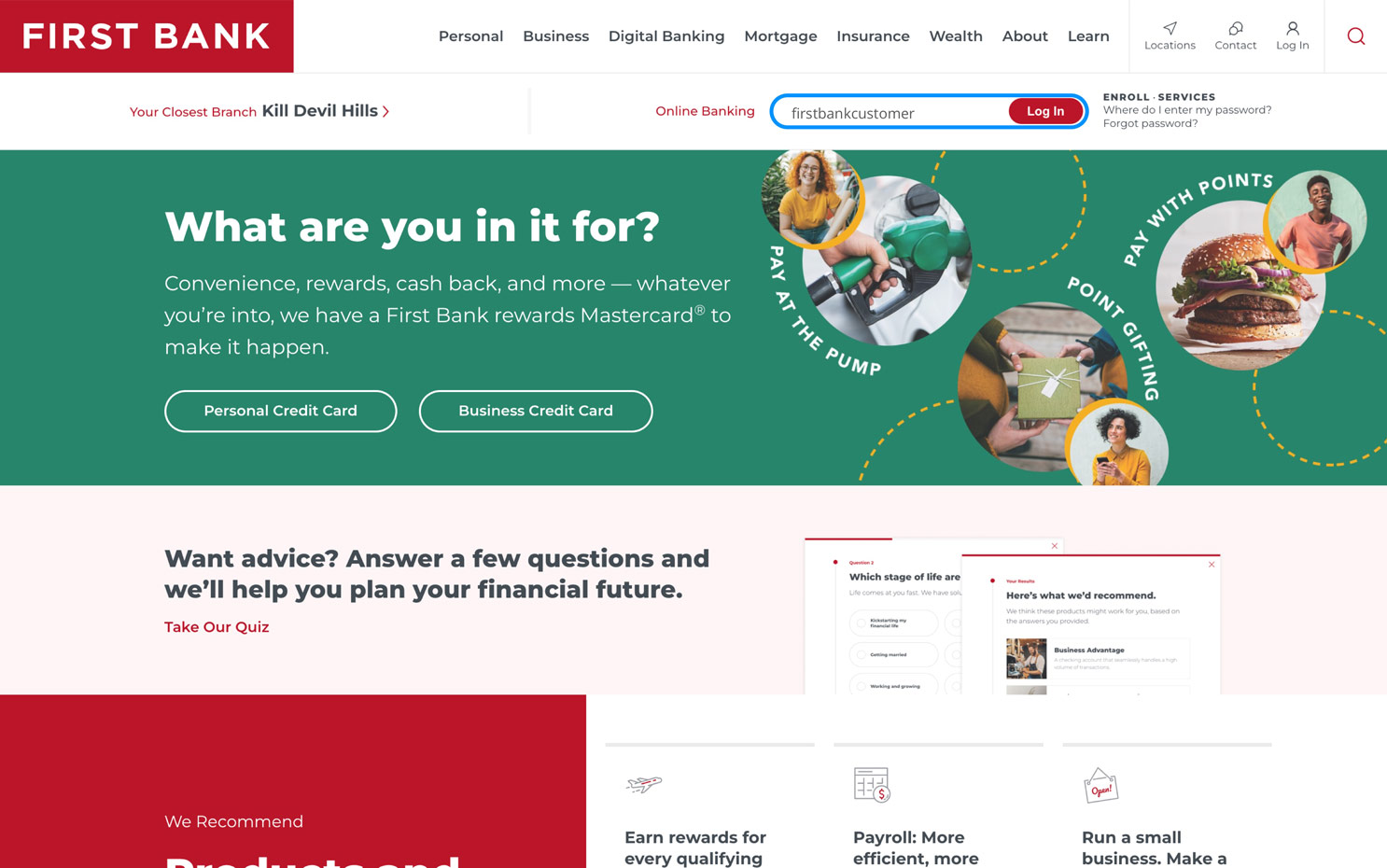
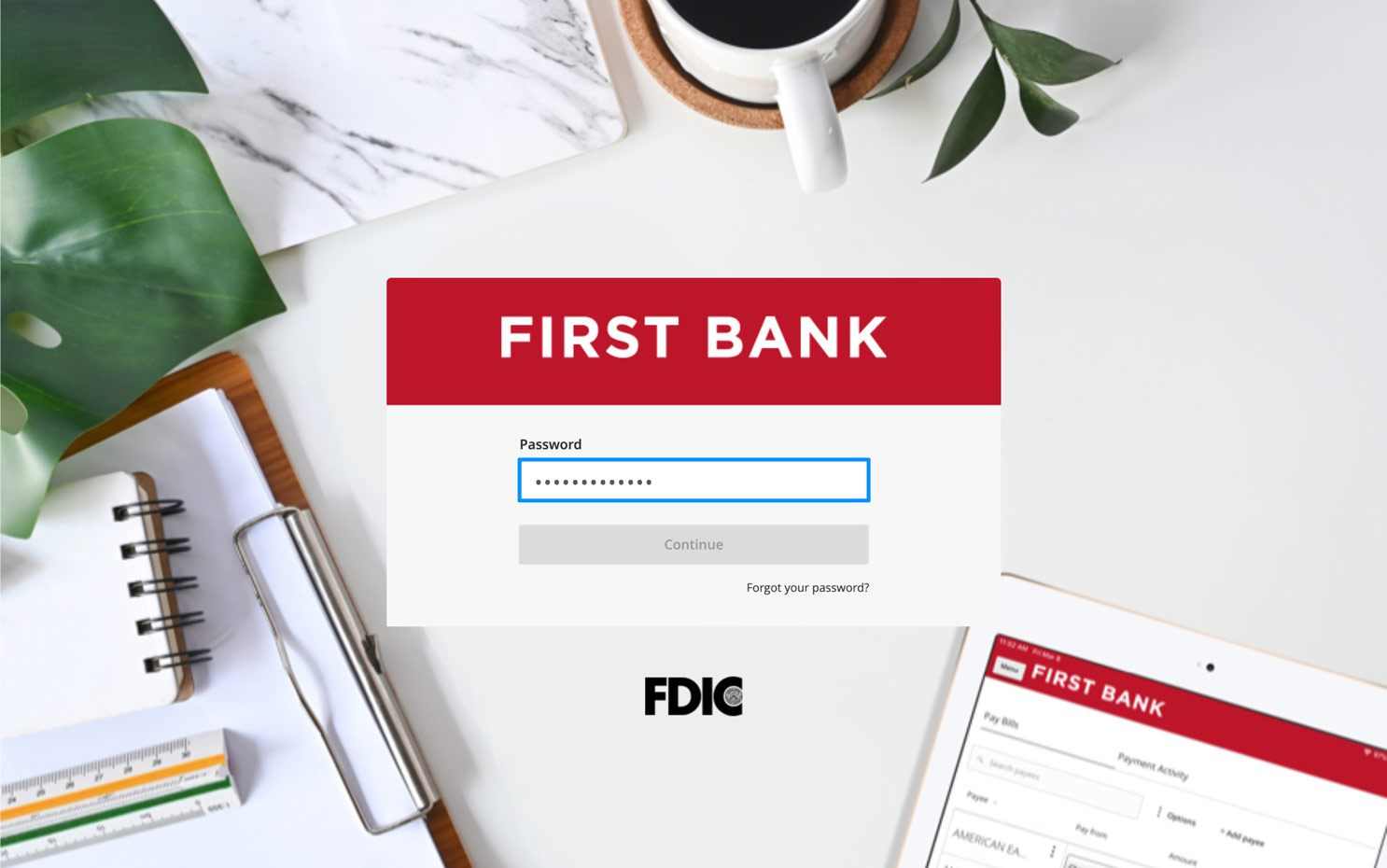
First Bank homepage with login area highlighted. First Bank Online Banking password screen.

Step 2:
Access dashboard.

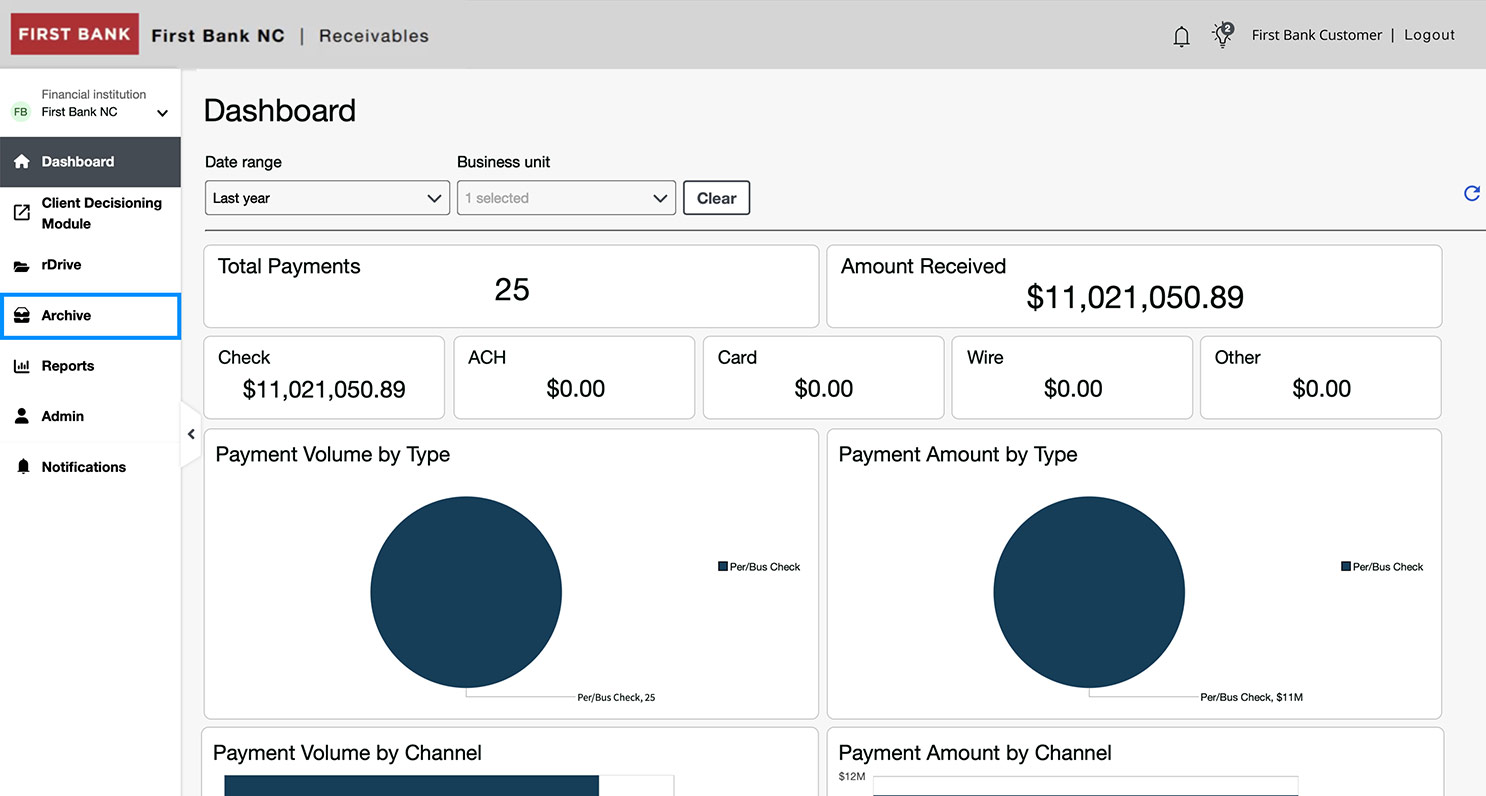
From the menu on the left, click “Commercial” and choose “Lockbox” from the dropdown. Then select “Archive” from the menu on the left.
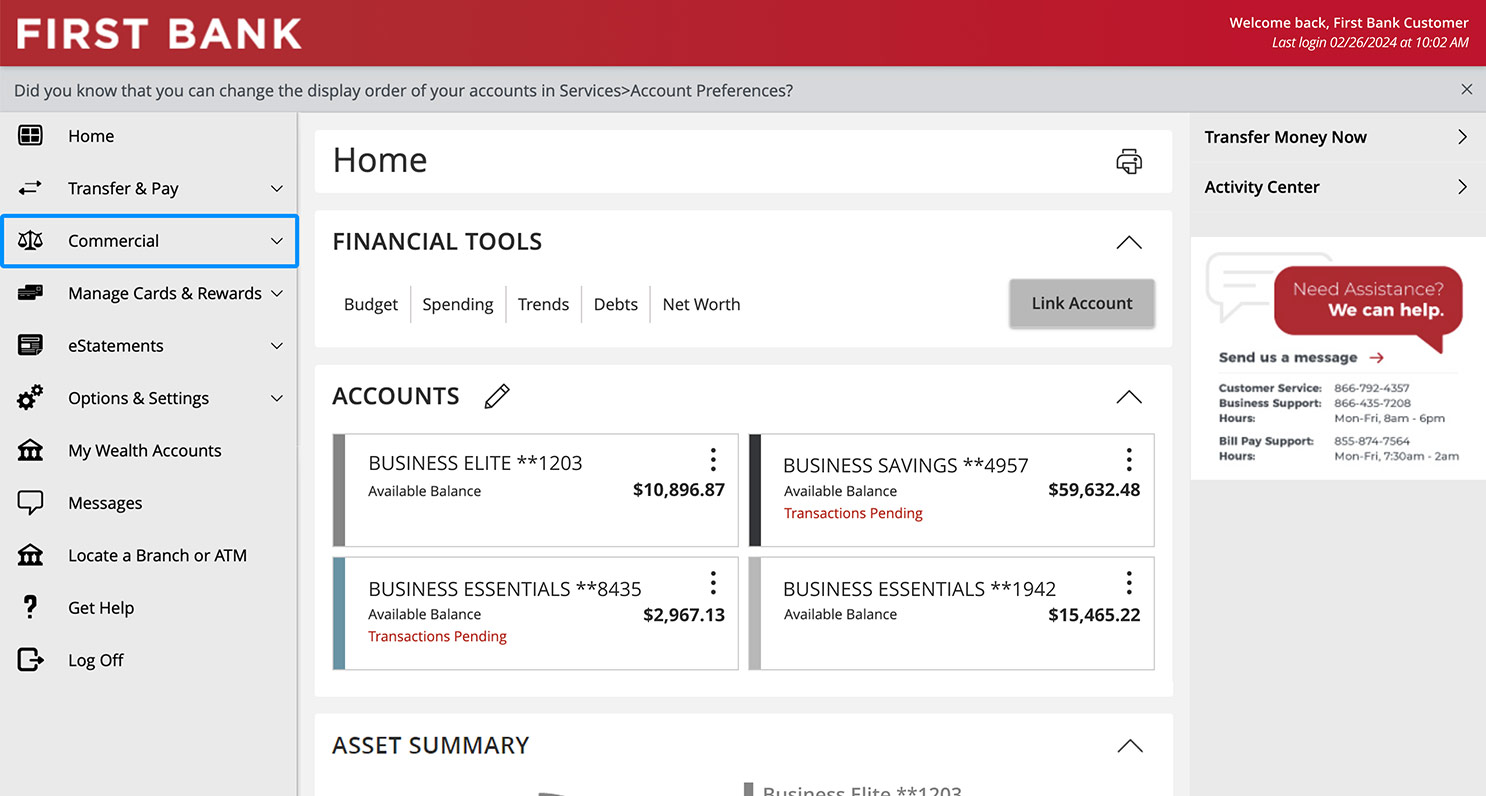
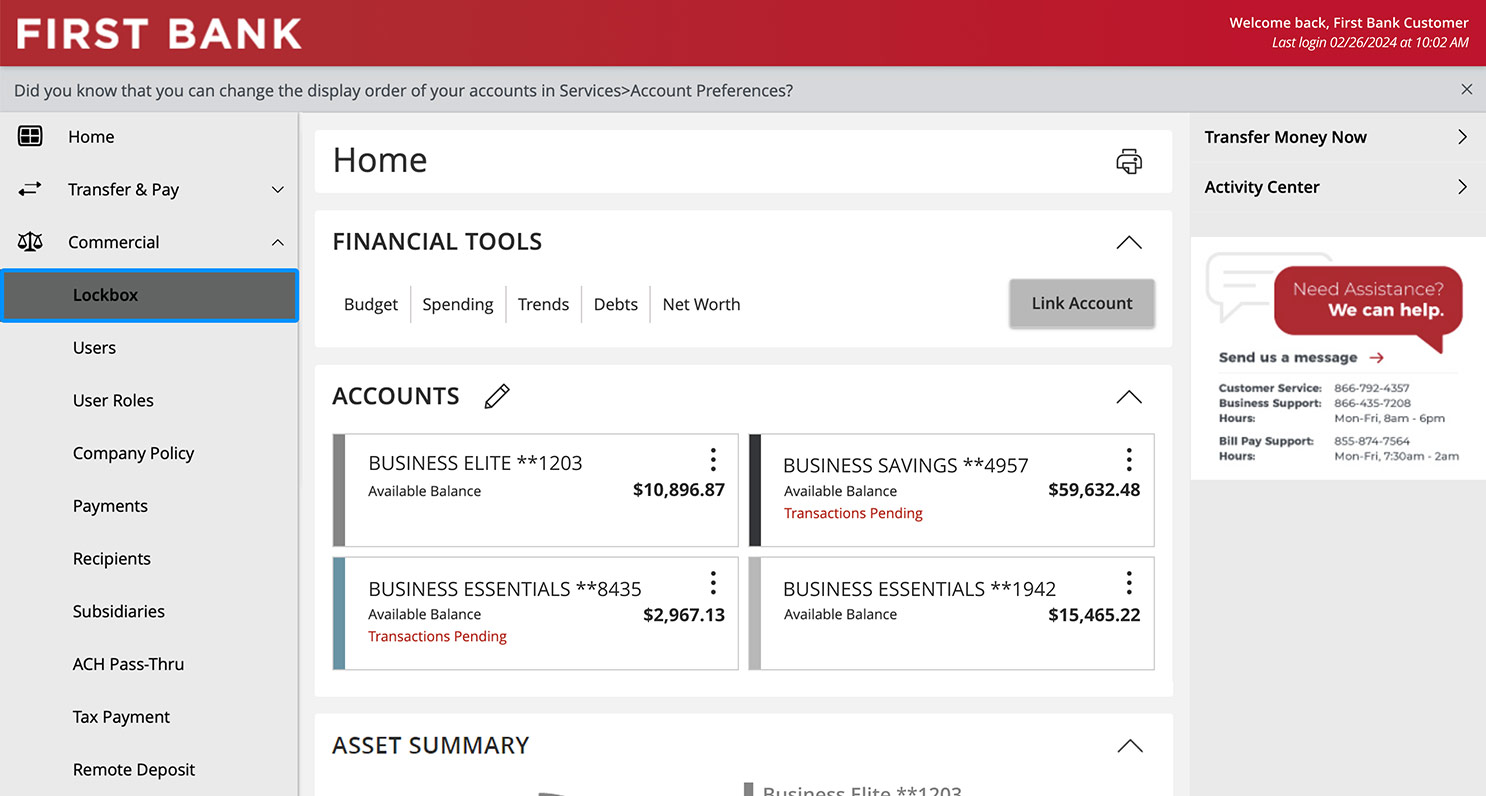
First Bank online banking screen highlighting the First Bank online banking screen highlighting the Lockbox menu item. First Bank online banking screen highlighting the Archive menu item.

Step 3:
Specify search.

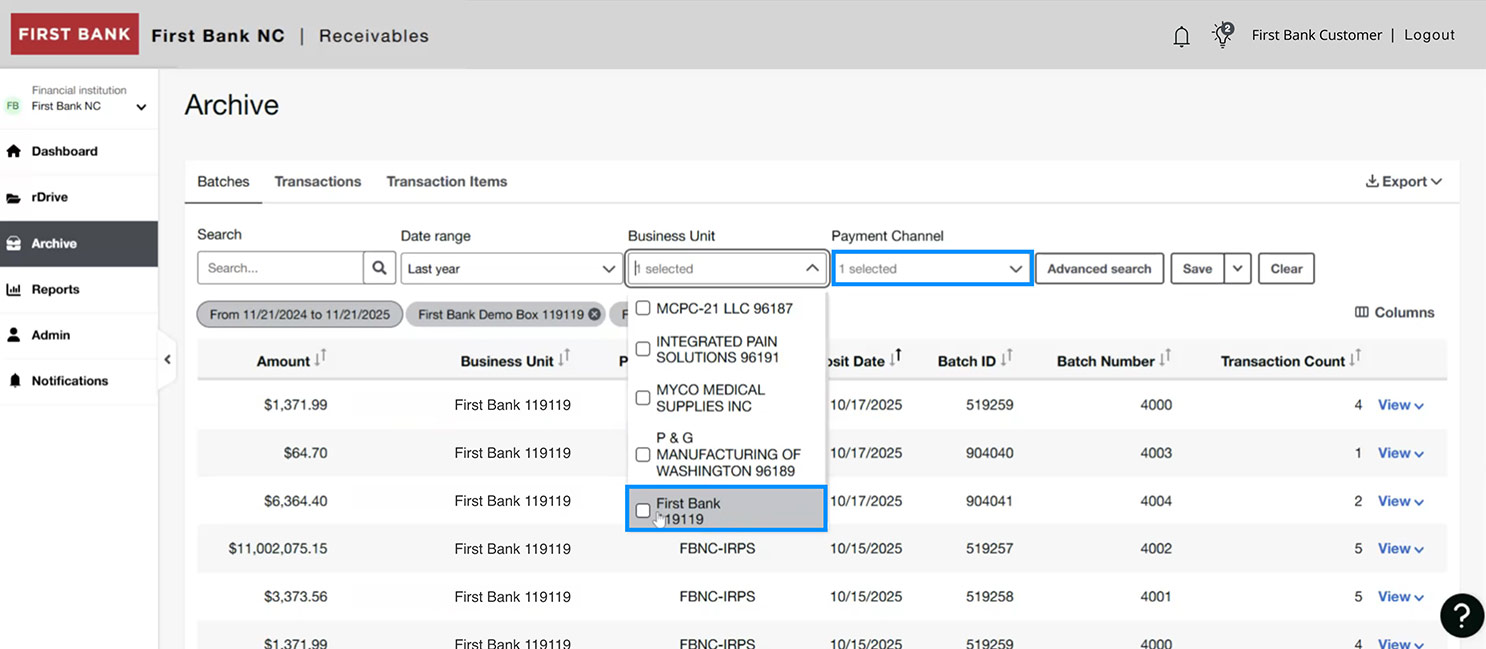
Within the Archive, you can search by Batches, Transactions, or Transaction Items by clicking on their respective tabs.

To change your search parameters, click into the box under Date range and choose from the dropdown menu.

Next, in the dropdown under Business unit, make your selection.

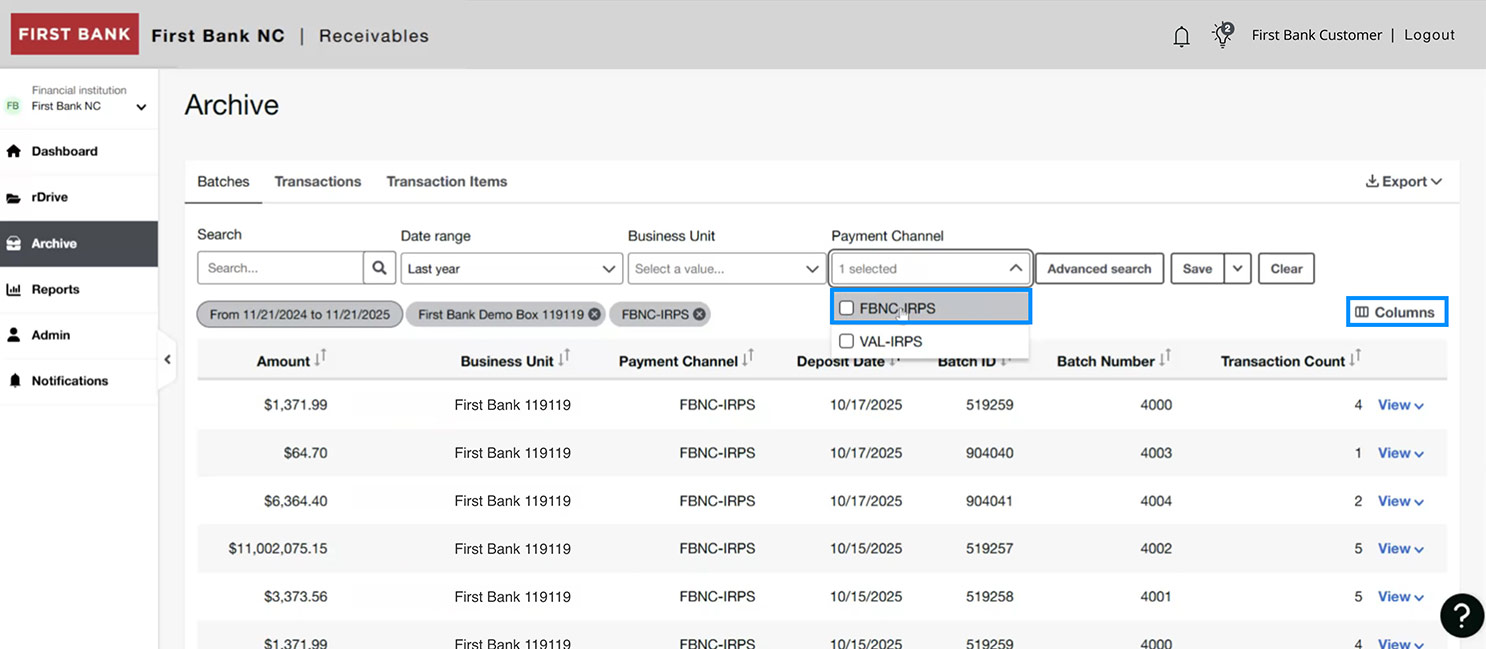
Then, click the box under “Payment Channel” to make your selection.

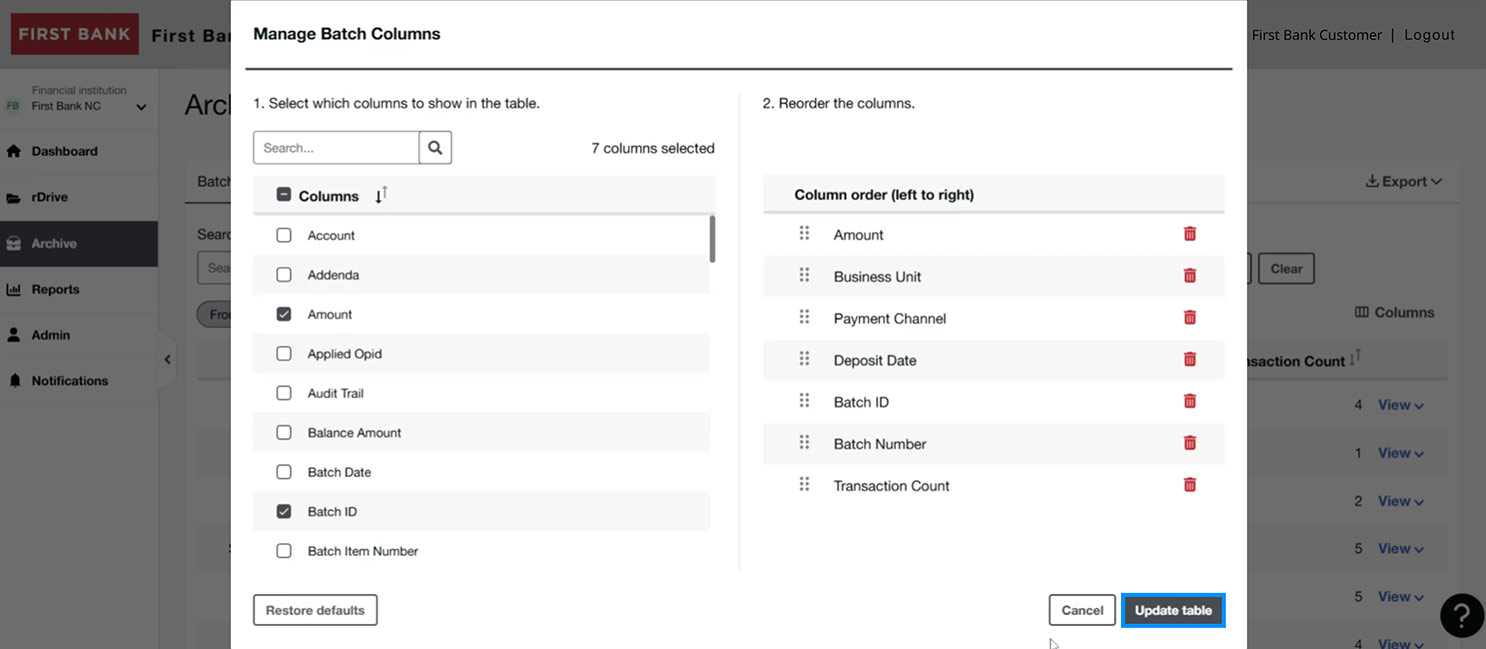
Lastly, click on “Columns” to format your view and select which data to make visible in the archive. Once you’ve made your selections, click “Update table.”
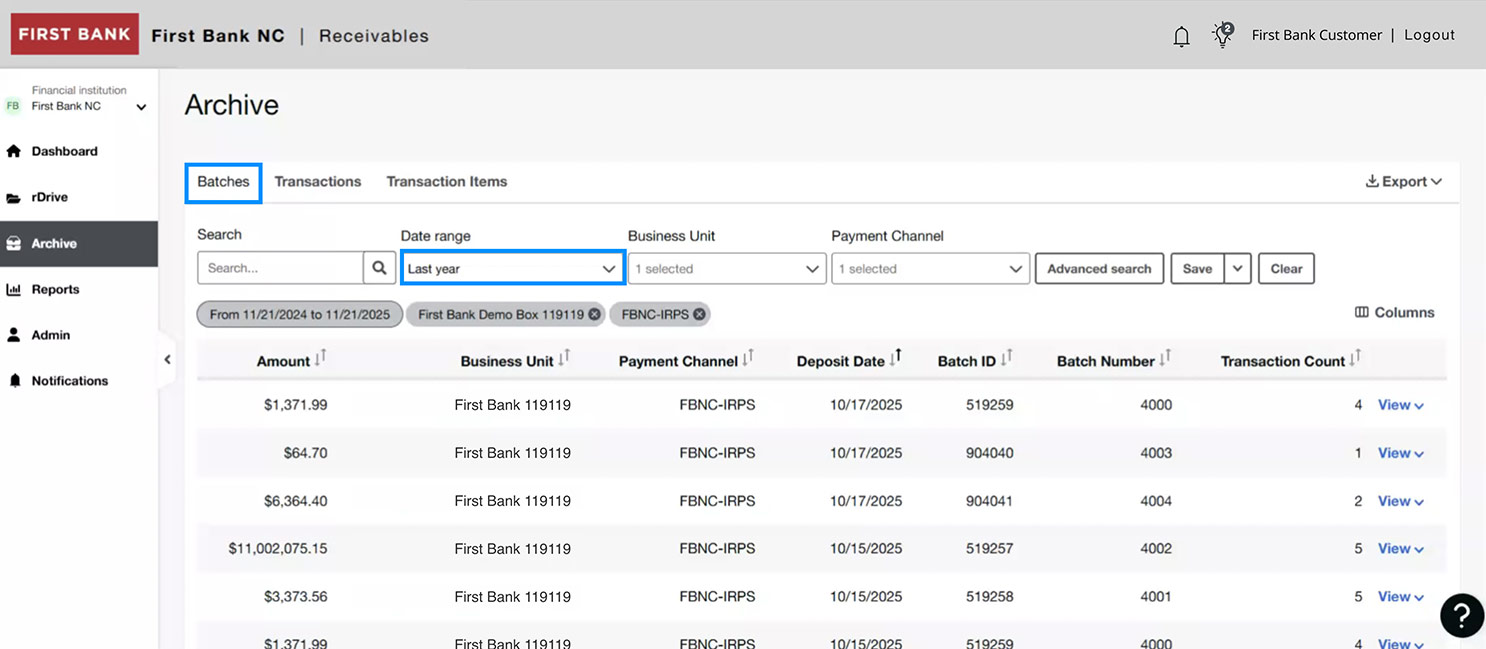
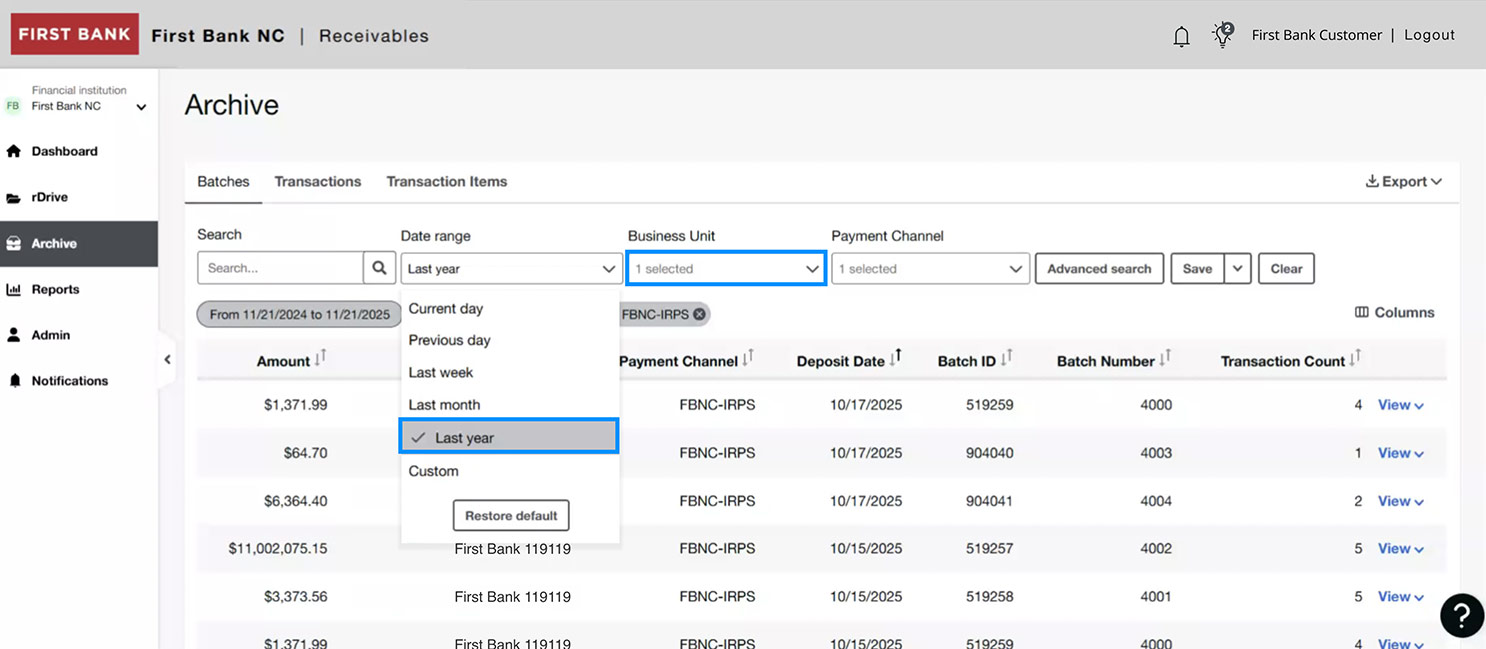
First Bank online banking screen highlighting the Batches tab and the date range selector. First Bank online banking screen highlighting the date range selector and Business Unit dropdown. First Bank online banking screen highlighting the Business Unit dropdown and Payment Channel selector. First Bank online banking screen highlighting the Payment Channel dropdown. First Bank online banking screen showing the interface to manage columns.

Step 4:
View archive images.

On the right, click “View” and choose “All images” from the dropdown.

A notification will pop up letting you know your export is being prepared. Click “Close” to continue.

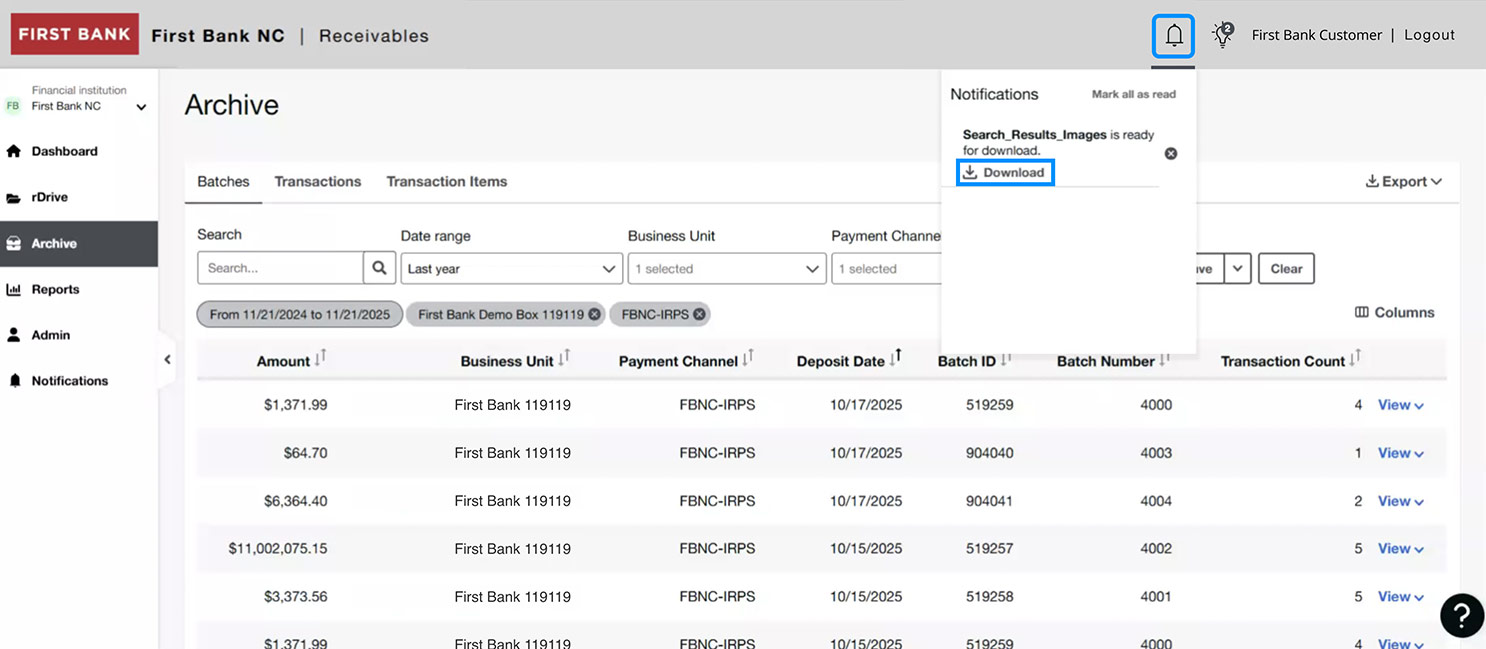
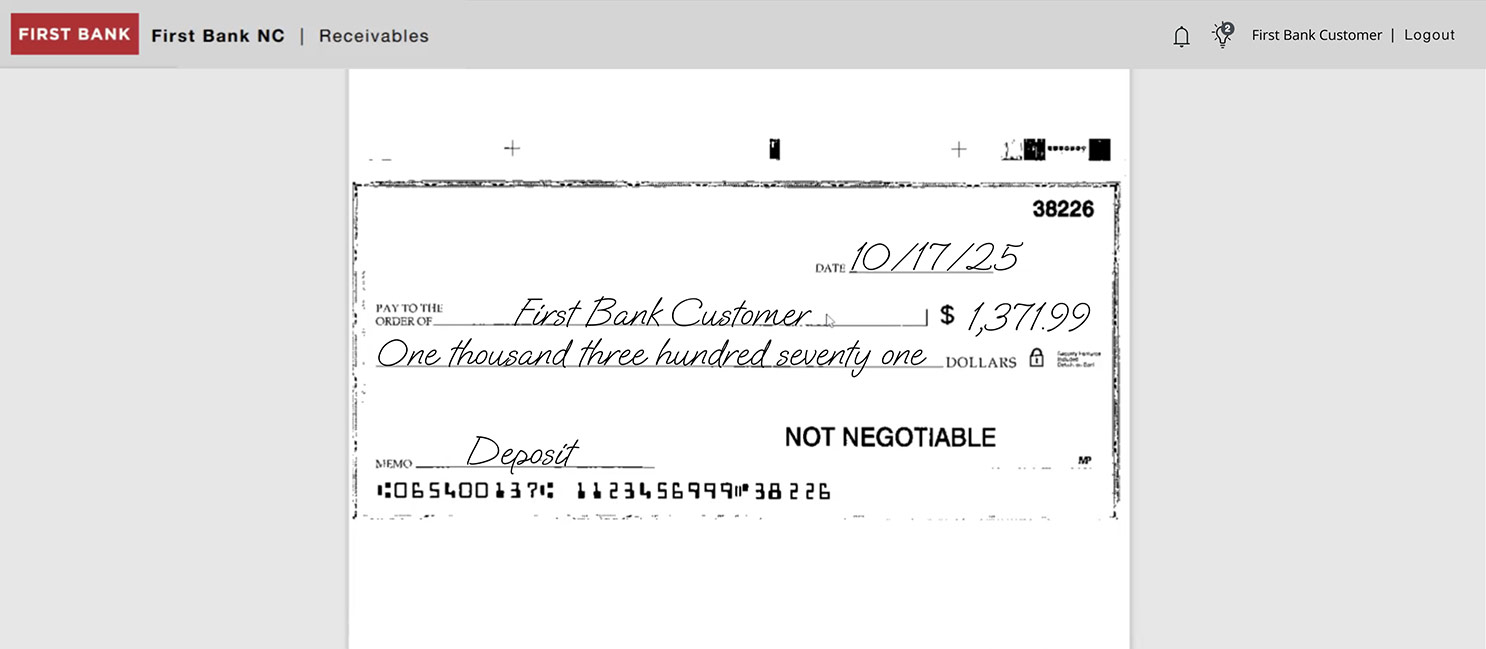
A number will appear over the bell icon in the top bar of your screen. Click on the bell and select “Download.” This will enable you to see the check.
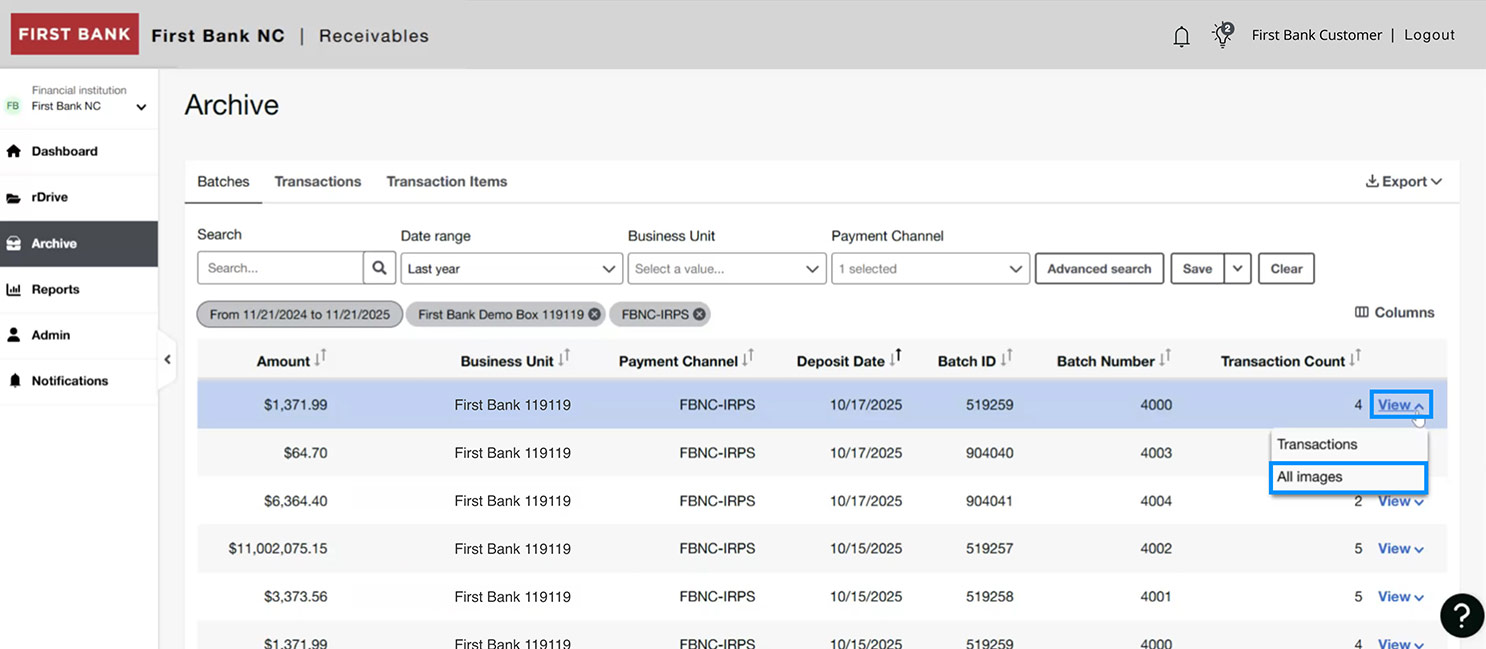
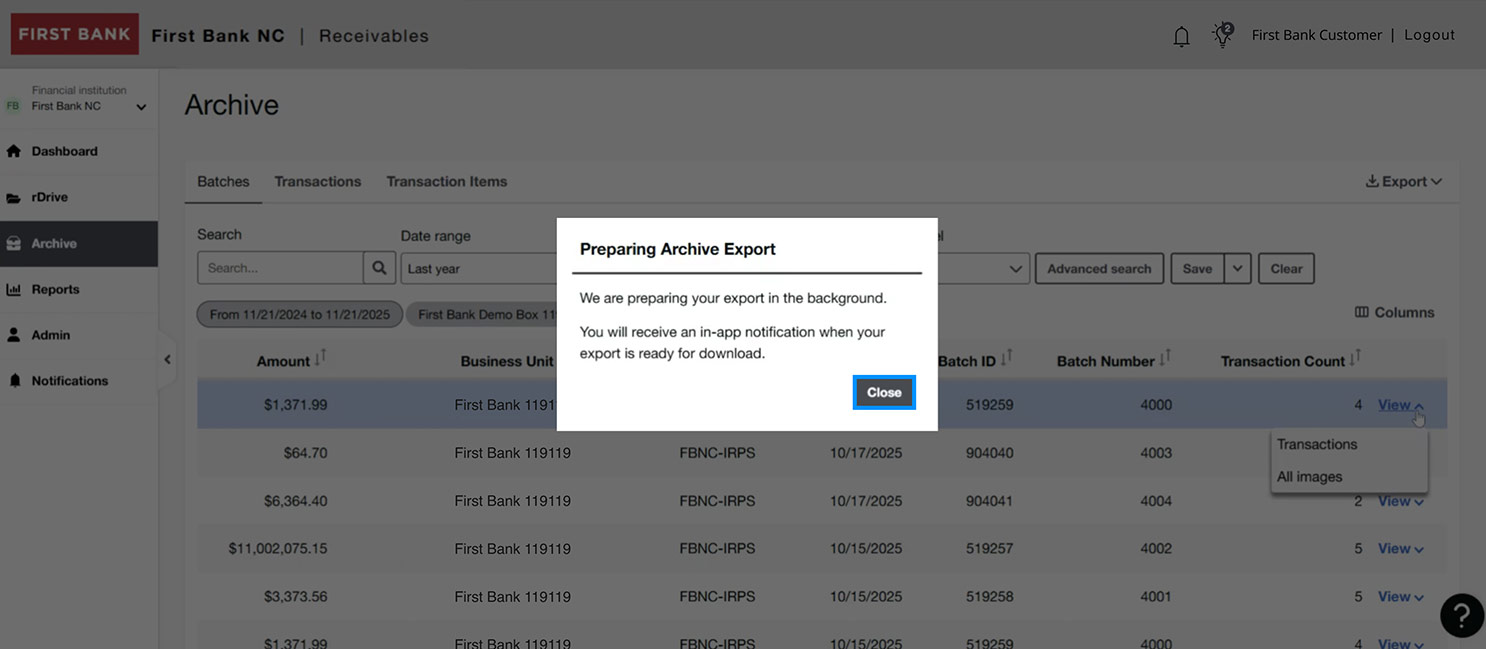
First Bank online banking screen highlighting the view button and All Images option. First Bank online banking screen showing the Archive preparation modal. First Bank online banking screen highlighting the notification bell and download links. First Bank online banking screen showing an example check image.

Step 5:
View archive transactions.

Click the “Transactions” tab at the top of the page. Select an item from the list below to see transaction details.
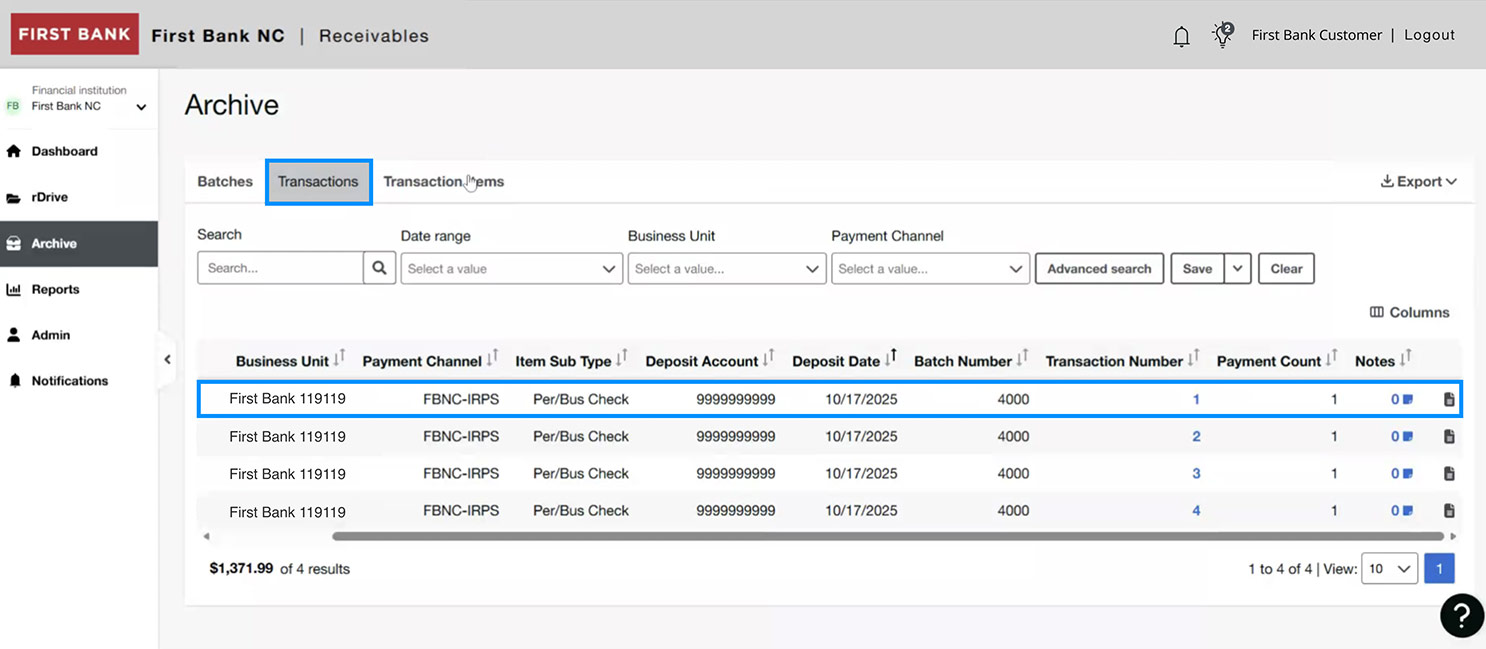
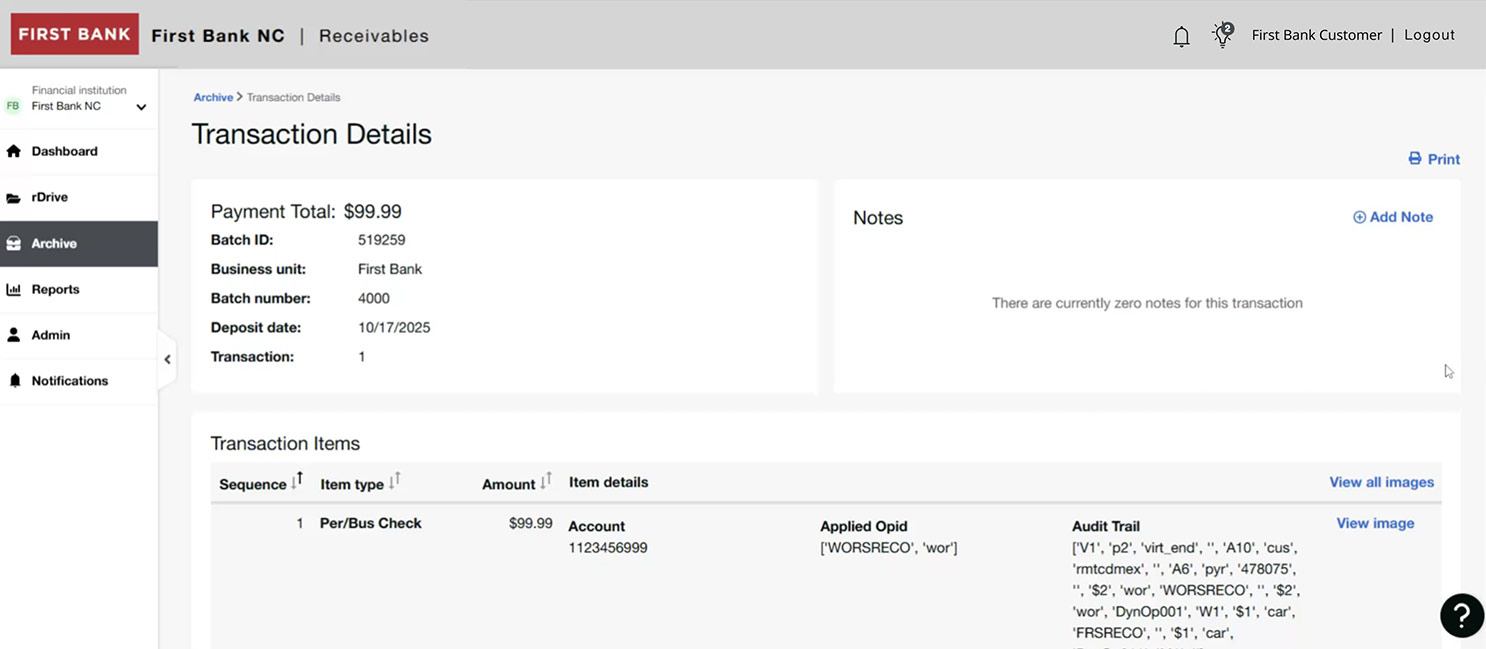
First Bank online banking screen highlighting the Transactions tab and search result rows. First Bank online banking screen showing the transaction details.

Explore our guided tutorials

Adding Wire Template Learn how to create a template to send wires. Domestic Wire Send money domestically from your First Bank account. Assigning User Role Create new user roles and assign them to individuals. Positive Pay Search Check Find checks you've issued to verify their status. Accessing Reports Create, schedule, and view Lockbox reports. Remote Deposit Capture Scanner Get tips for installing or updating your scanner. ACH Payment Learn how to make an ACH Payment from your First Bank account. Anytime Deposit for iOS Users Learn how to make deposits from your Apple device. Reviewing Scheduled Transactions See how to view your scheduled transactions and make changes. Remote Deposit Capture Make fewer trips to the bank to deposit checks. Positive Pay ACH Transaction Search Learn how to look up ACH transactions. Uploading NACHA File Learn how to upload NACHA files to save time. Anytime Deposit for Android Users Learn how to make deposits from your Android device. Using Positive Pay for Checks Protect your account from fraud with Positive Pay. ACH Positive Pay Make a decision on ACH Positive Pay exceptions. Using Lockbox Get quick tips for navigating your Lockbox dashboard. Company Policy Create policies to help manage your First Bank account. ACH Payroll Process payroll from your First Bank account and learn how to add new payees. Activity Center Explore the treasury capabilities within online banking. Anytime Deposit Learn how to make deposits from anywhere. Send International Wires Securely send money overseas. Adding ACH Template Learn how to create a template to send ACH payments. ACH Notices & Returns Learn what to do if your item is returned. New User Add a new user to your First Bank account. ACH Collection Request and collect funds to be transferred to your First Bank account. Positive Pay Void Check Stop a check from being processed. Adding ACH/Wire Recipient Learn how to add recipients to receive wires from your First Bank account. Remote Deposit Capture Make fewer trips to the bank to deposit checks.

Have questions or unsure where to start?

Contact your Treasury Services rep, or one of our support teams below, for help or to schedule personalized demos.

First Bank logo
Privacy Overview

This website uses cookies so that we can provide you with the best user experience possible. Cookie information is stored in your browser and performs functions such as recognizing you when you return to our website and helping our team to understand which sections of the website are the most popular and useful.