Adding ACH Template Demo
ACH is an electronic payment system that is faster and easier to process than traditional checks. Learn how to create a template to send ACH payments to anyone you do business with.
Step 1:
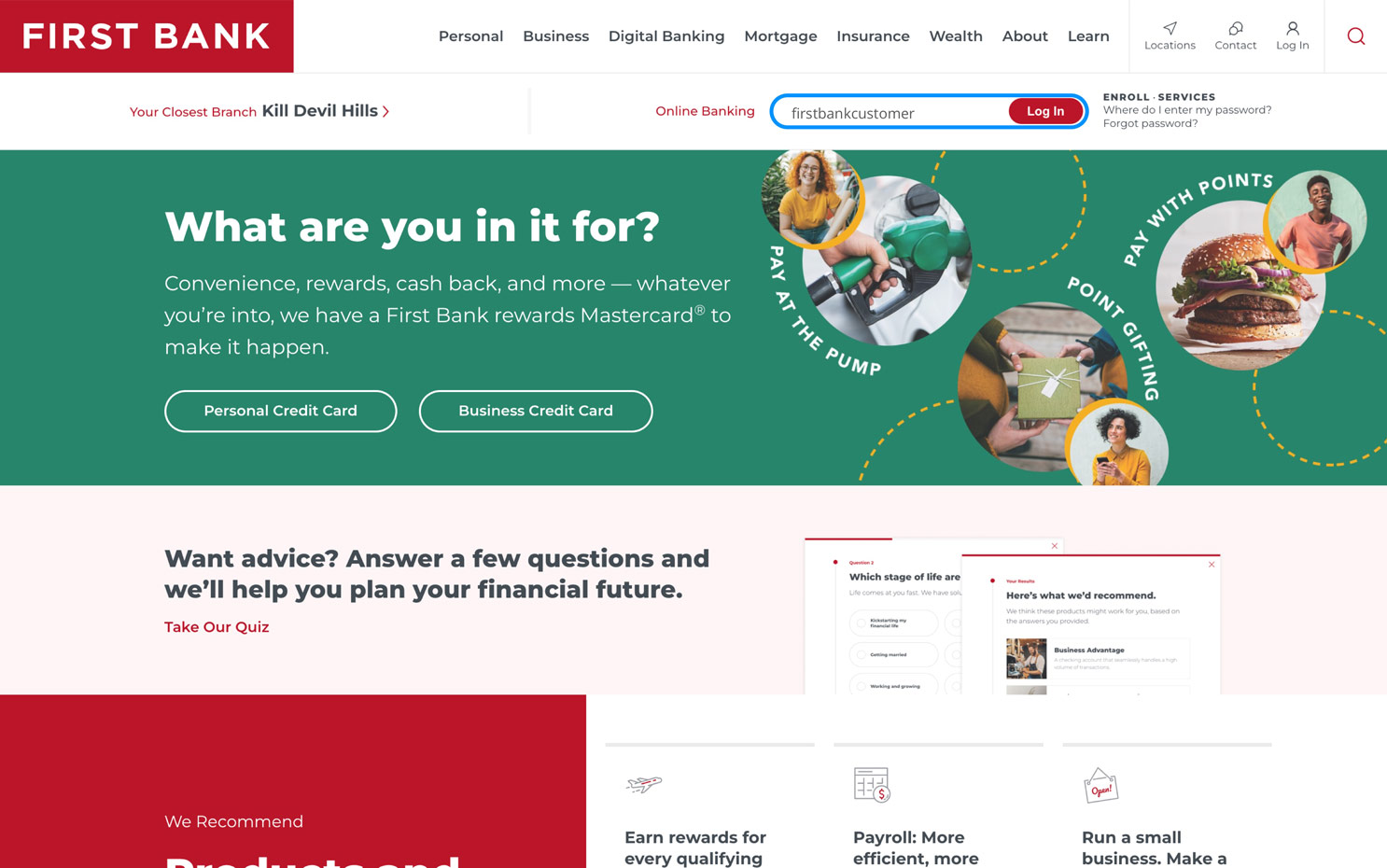
Log in to online banking.
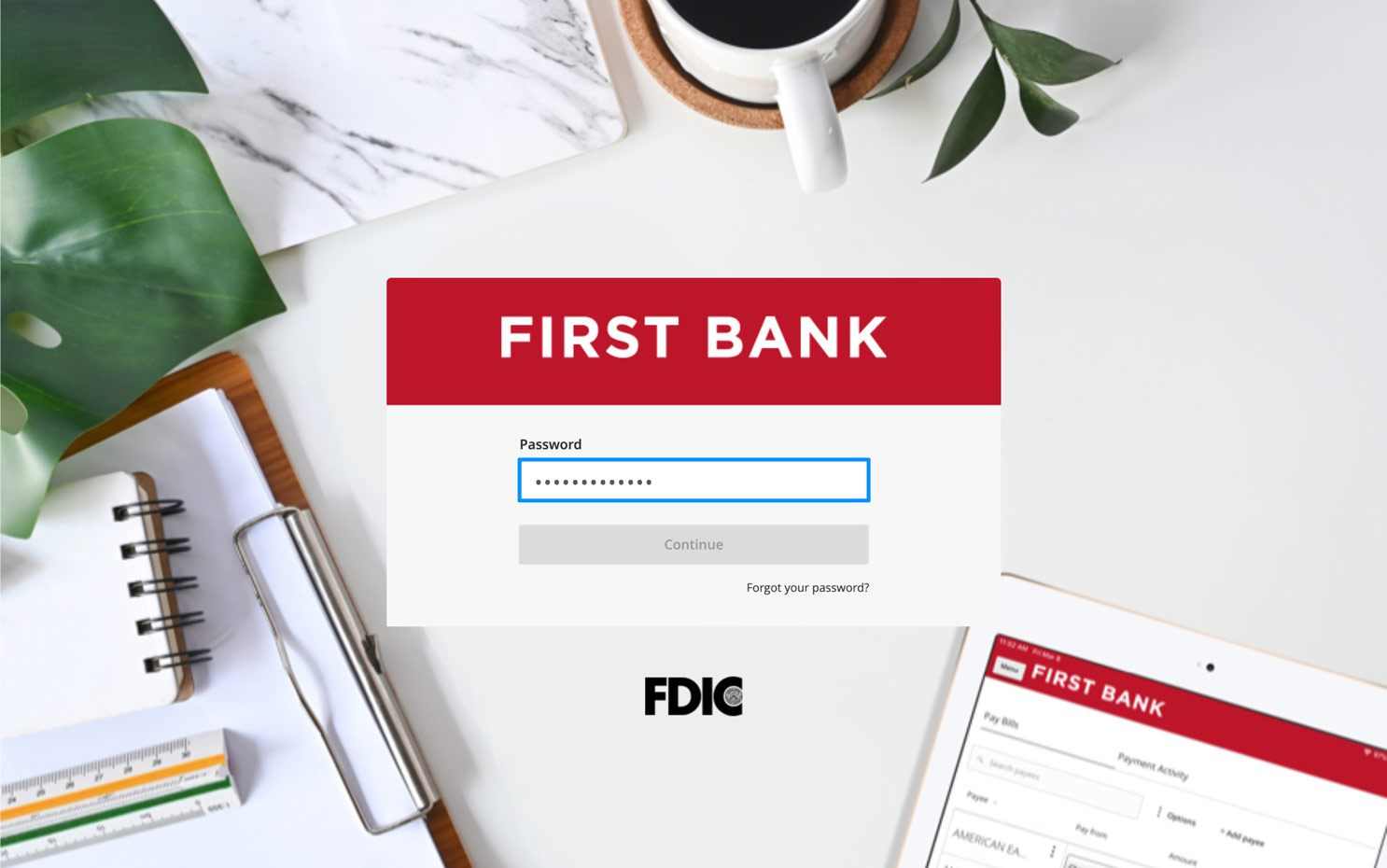
When you enrolled in First Bank digital banking, you created a Login ID and Password. Enter that information in the corresponding screens and then click the “Log In” button. Next, you will be asked to enter your password, then click “Continue.”
Step 2:
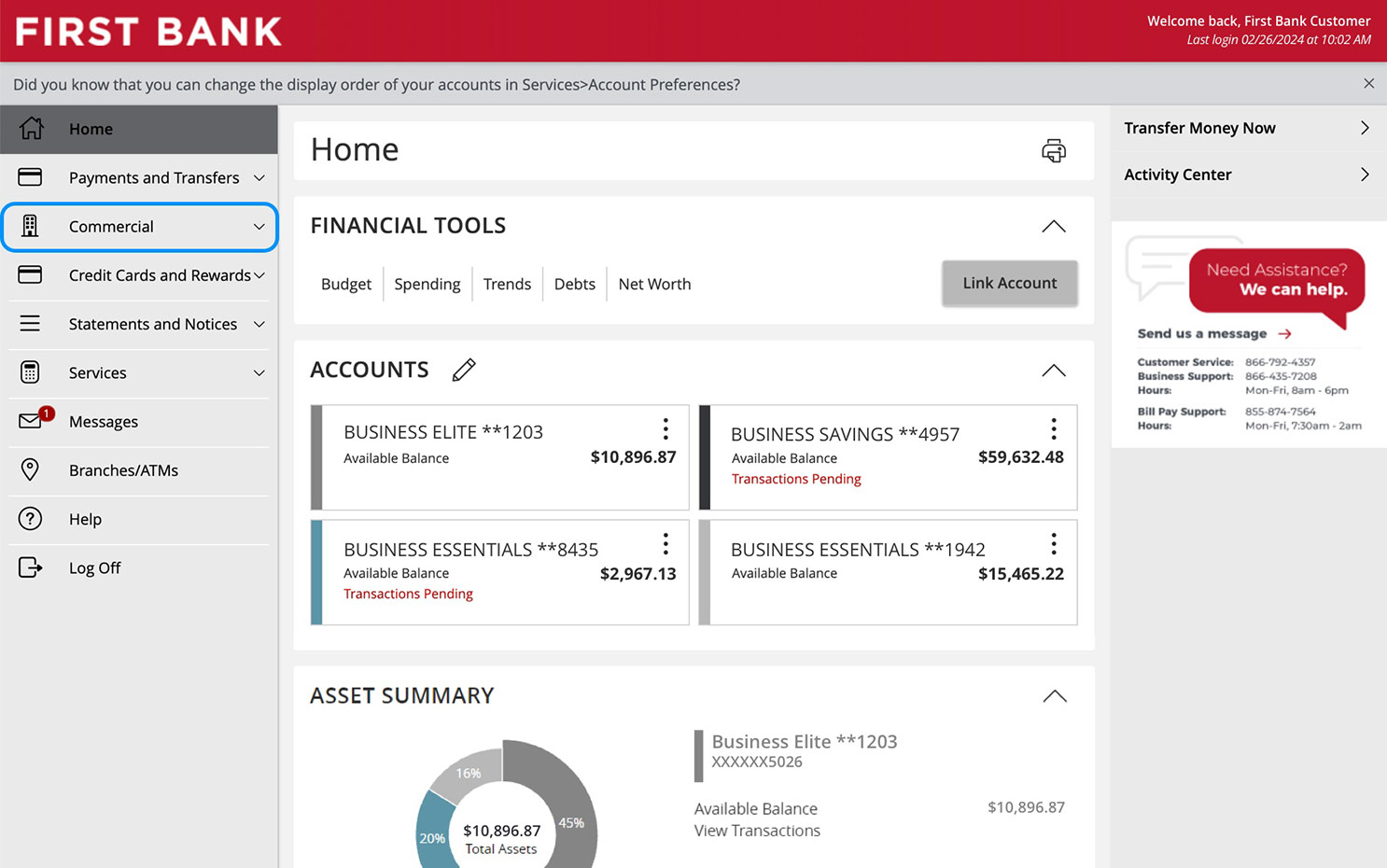
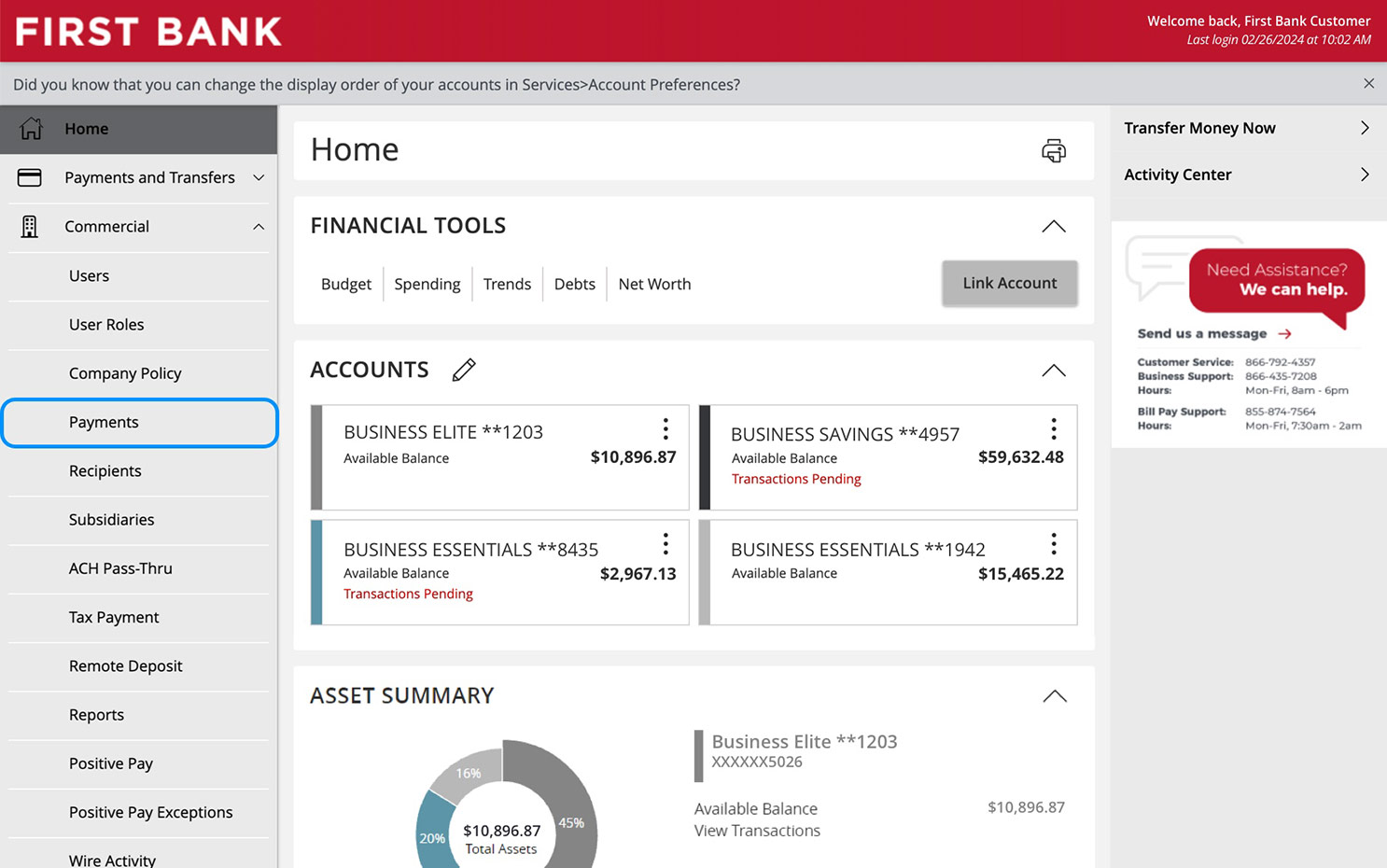
Navigate to Payments.
From the menu on the left, click “Commercial” to see the dropdown and choose “Payments.”
Step 3:
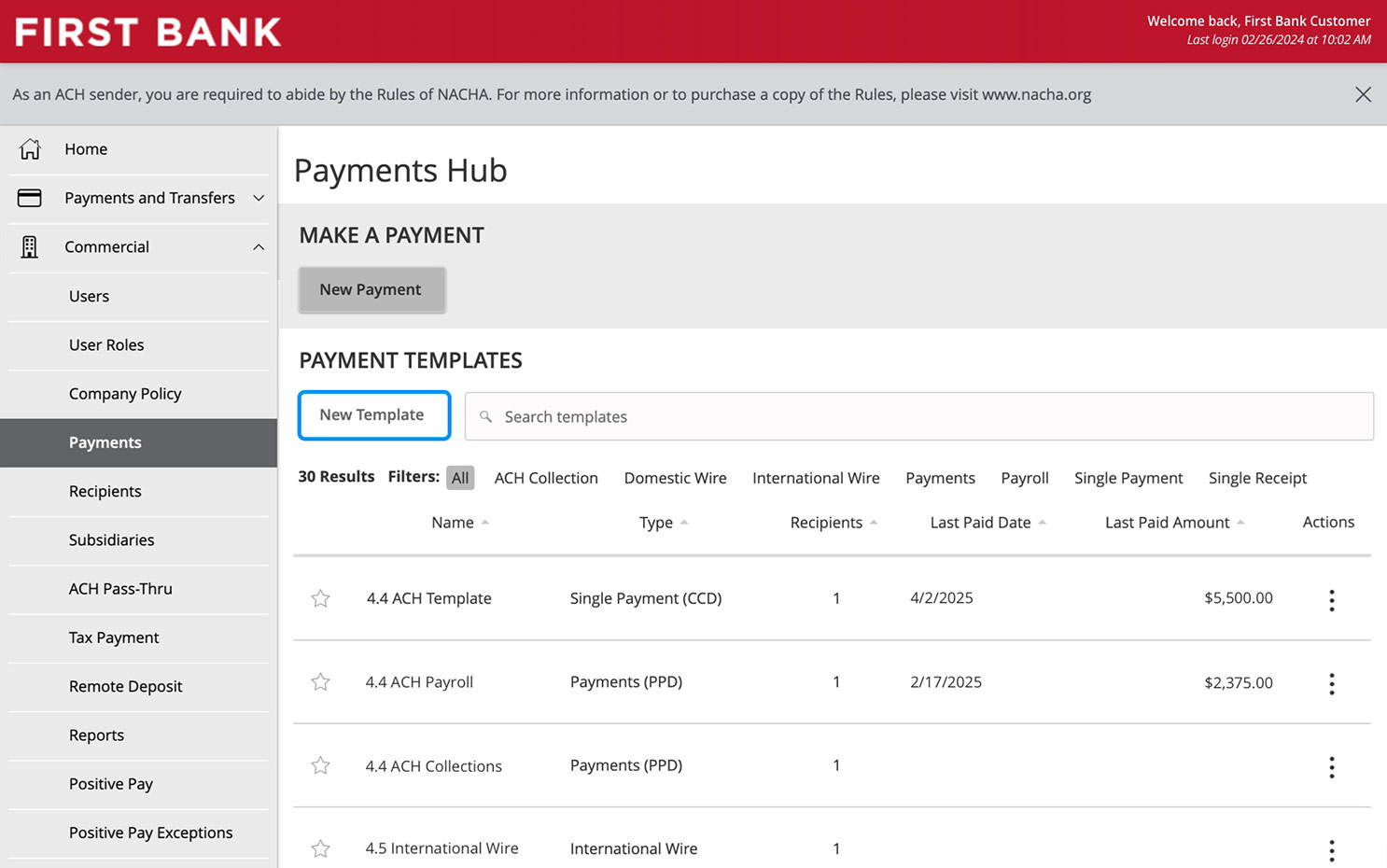
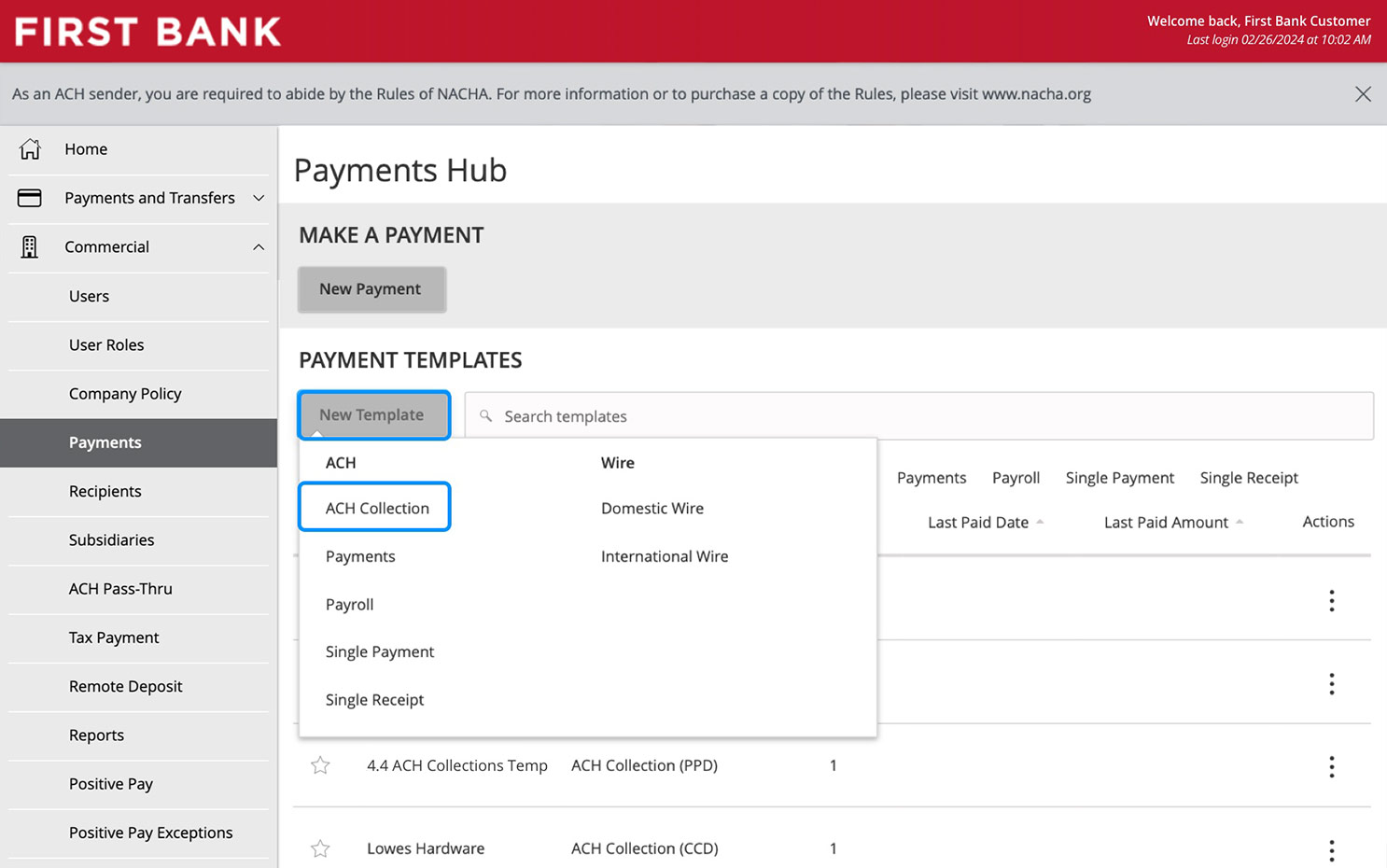
Create a new template.
Click on the “New Template” button and choose the payment type.
Step 4:
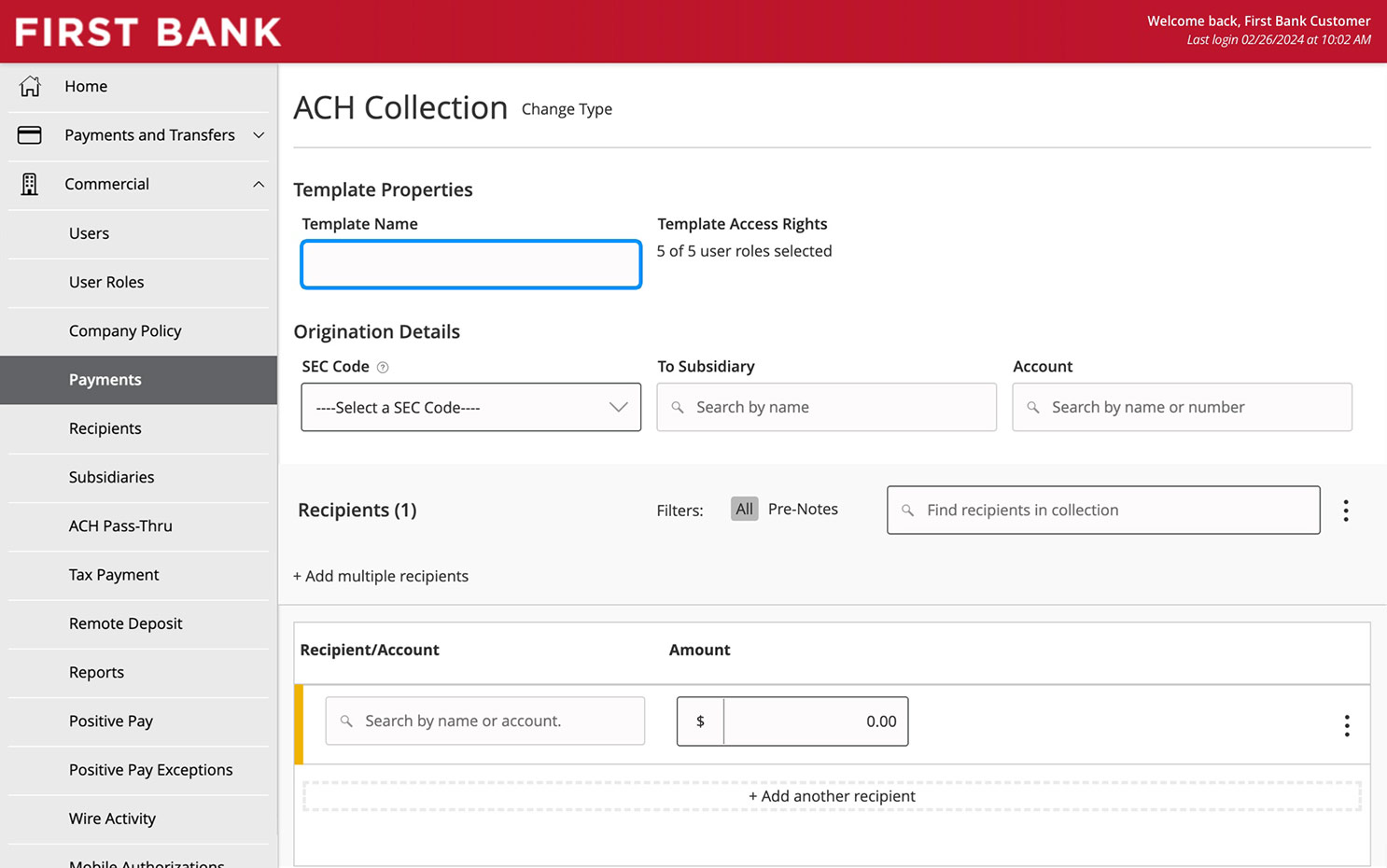
Name your template.
Enter a name for the template.
Step 5:
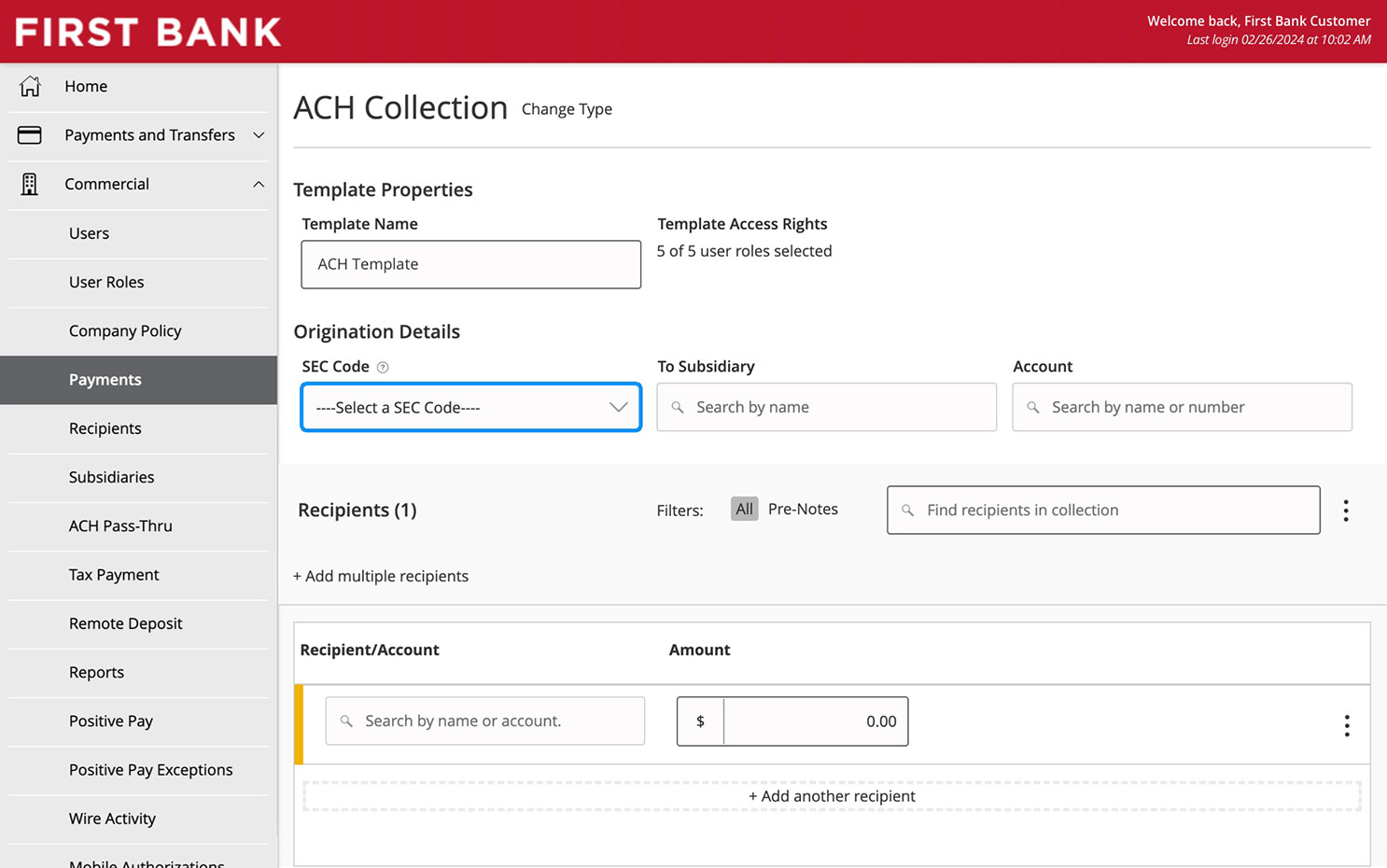
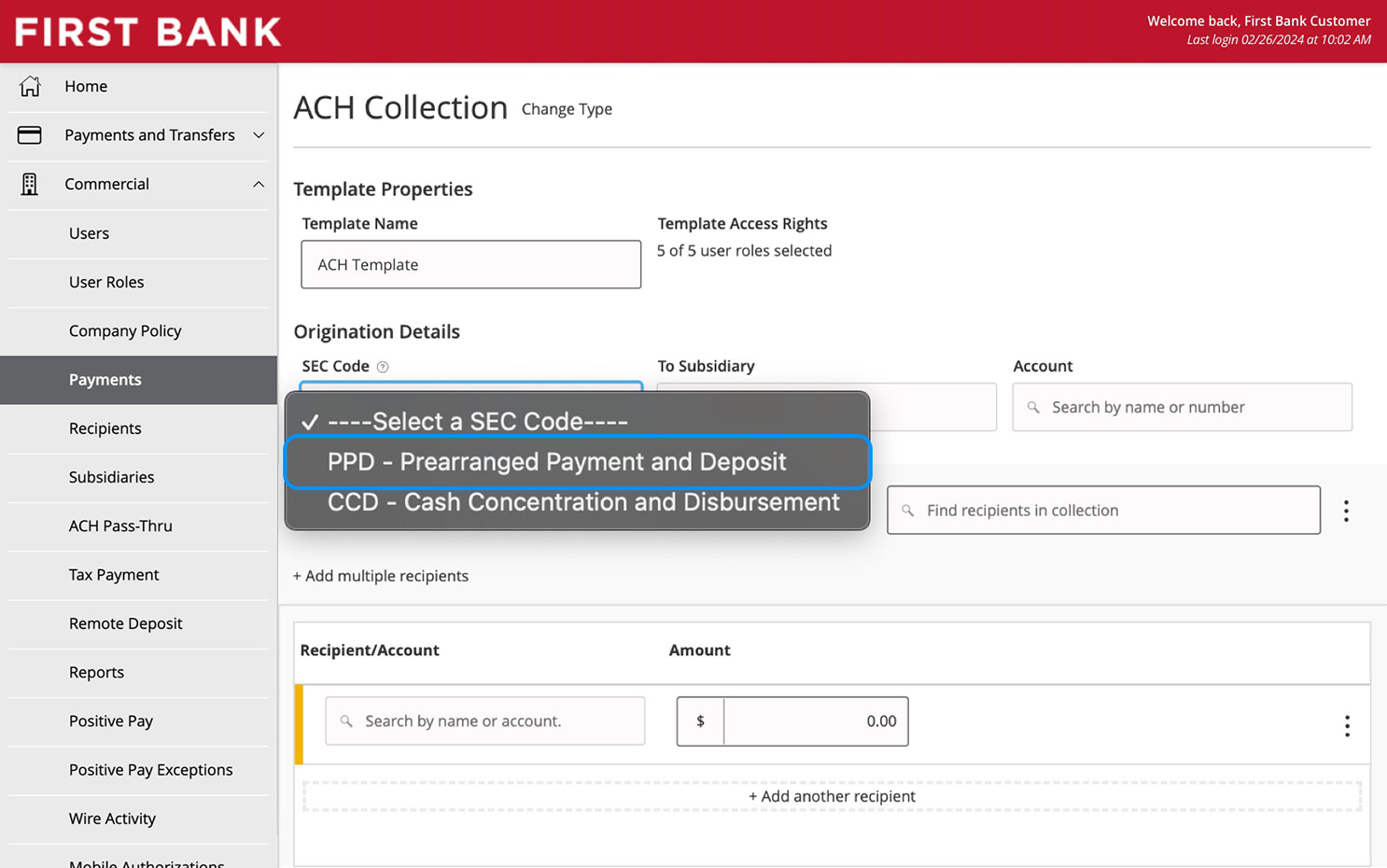
Select SEC Code.
From the dropdown menu, select the SEC Code.
Step 6:
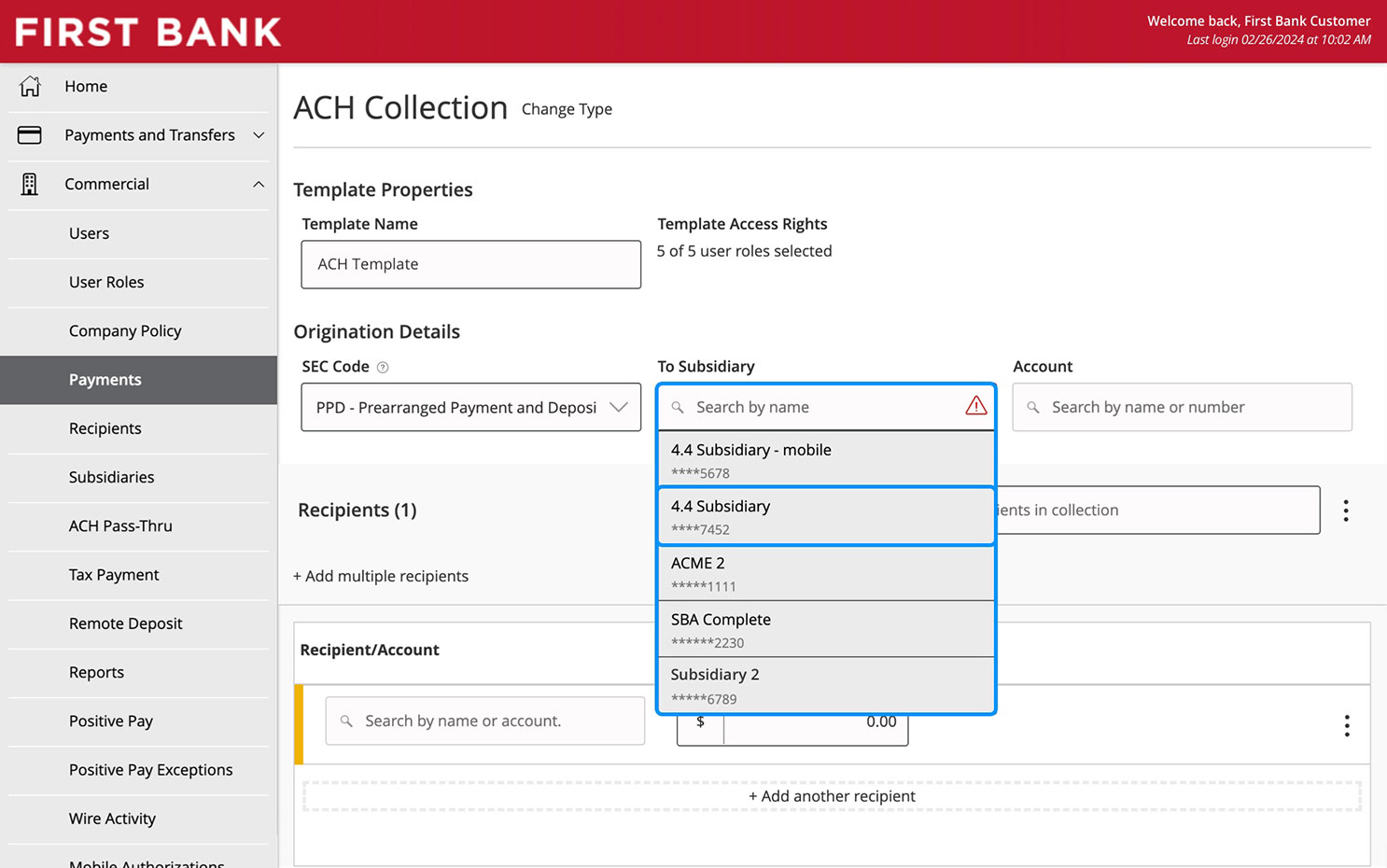
Select a subsidiary.
Search for a subsidiary by name and click one the one you want to use.
Step 7:
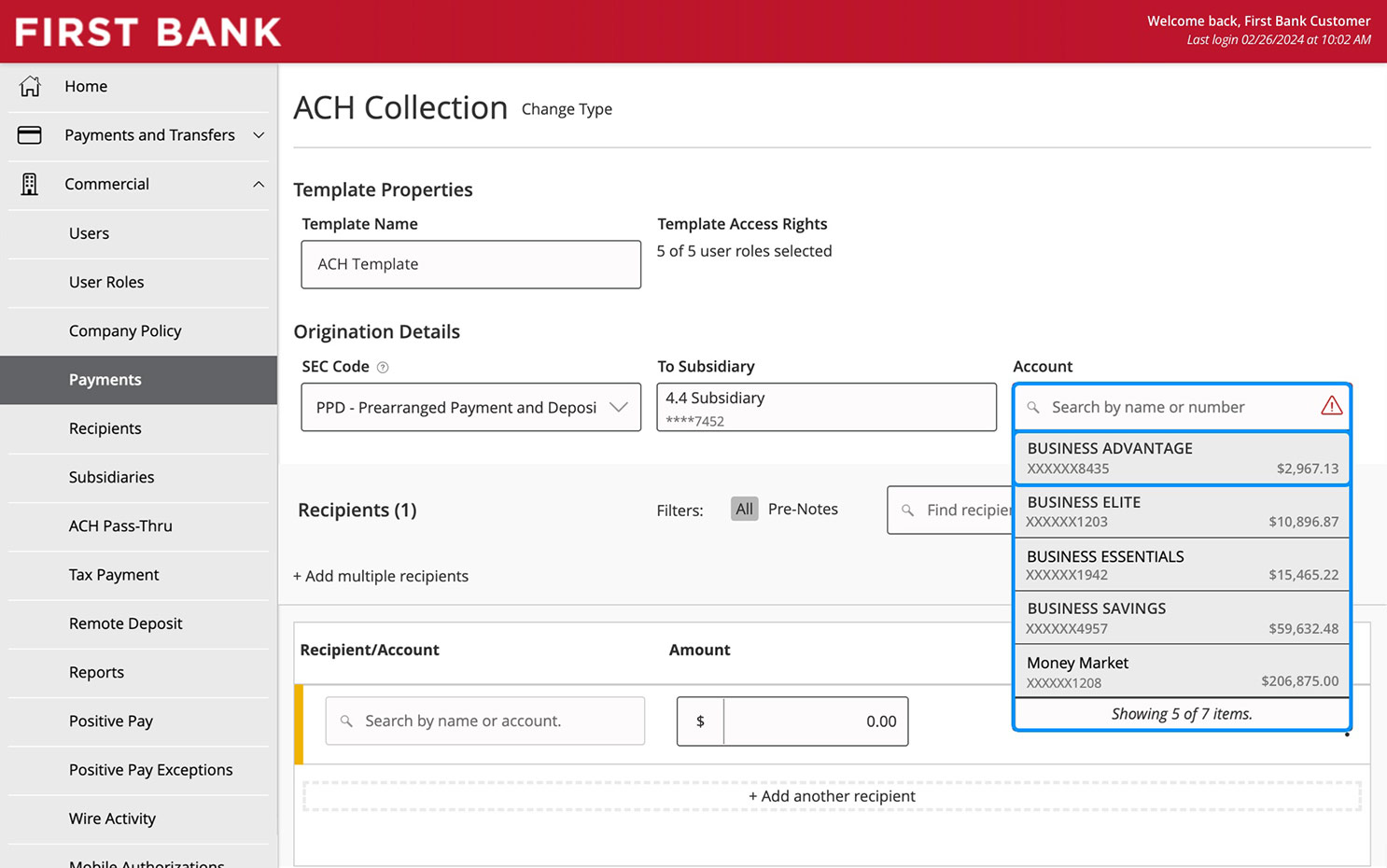
Choose account.
Select the account by searching for either its name or number and click on the one you want to use.
Step 8:
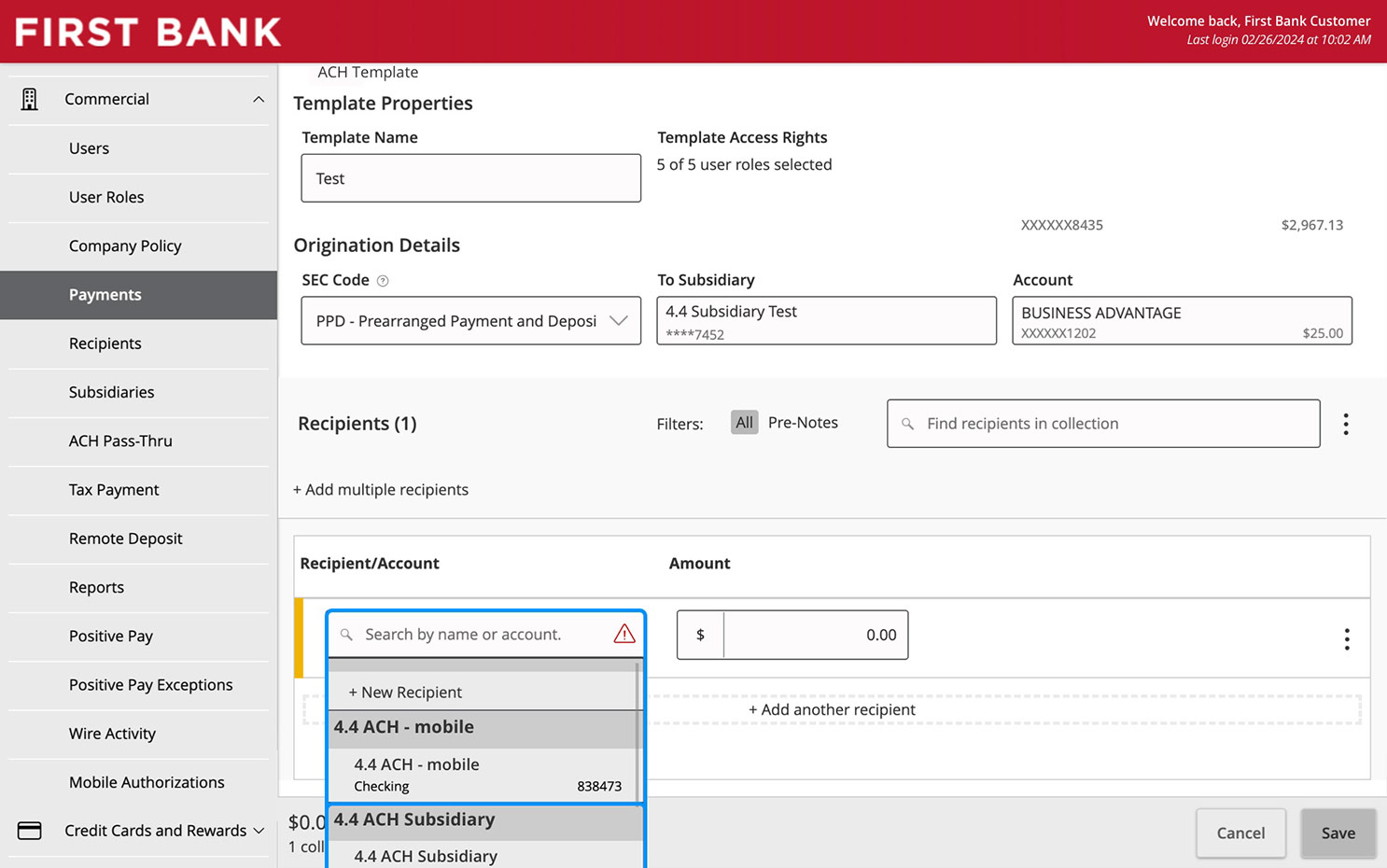
Enter recipient details.
Enter the recipient’s name or account into the search bar and click on the one you want to use.
To add new recipient, click the “+ New Recipient” option.
To add more than one, choose “+ Add another recipient” or “+ Add multiple recipients” accordingly.
Step 9:
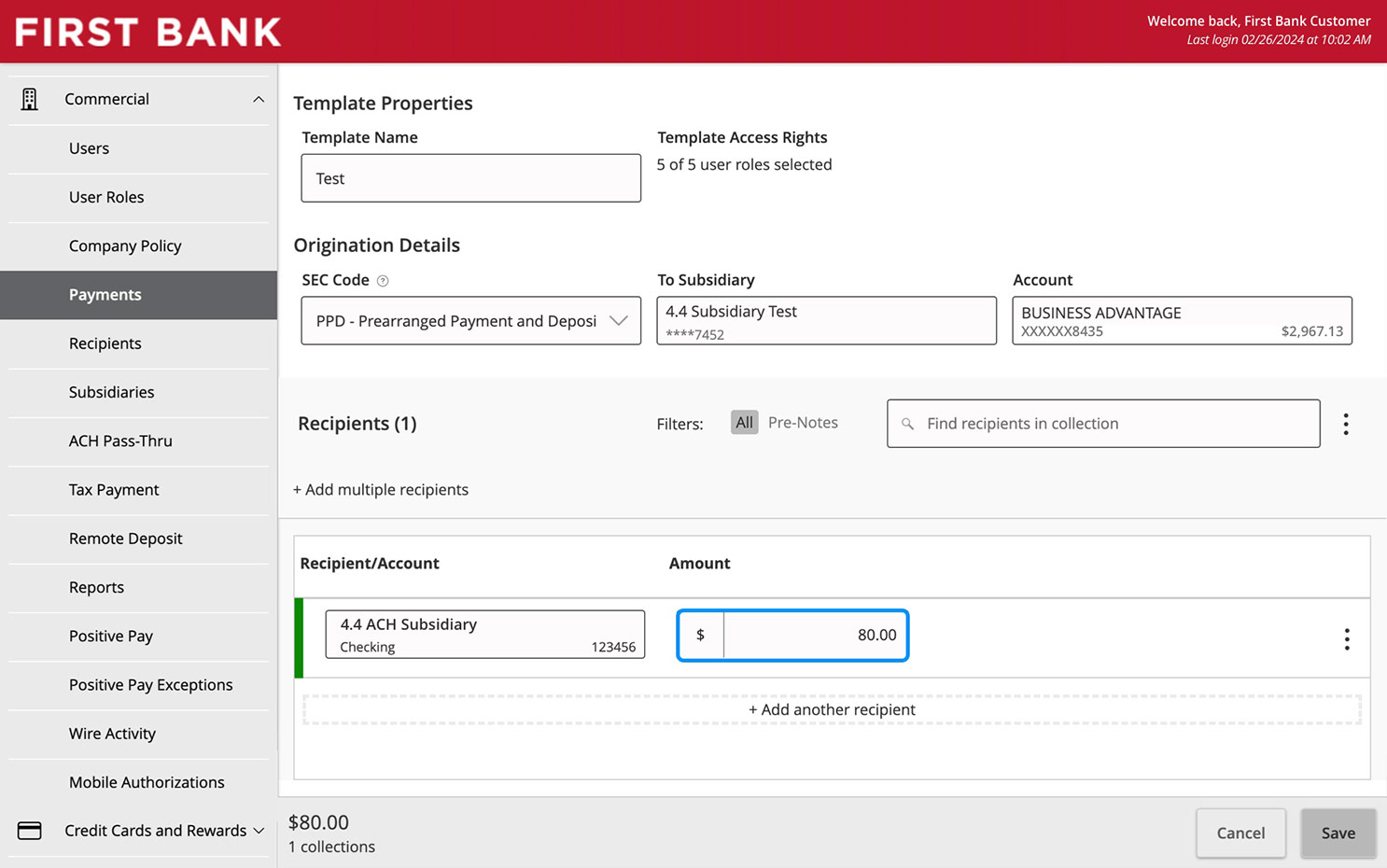
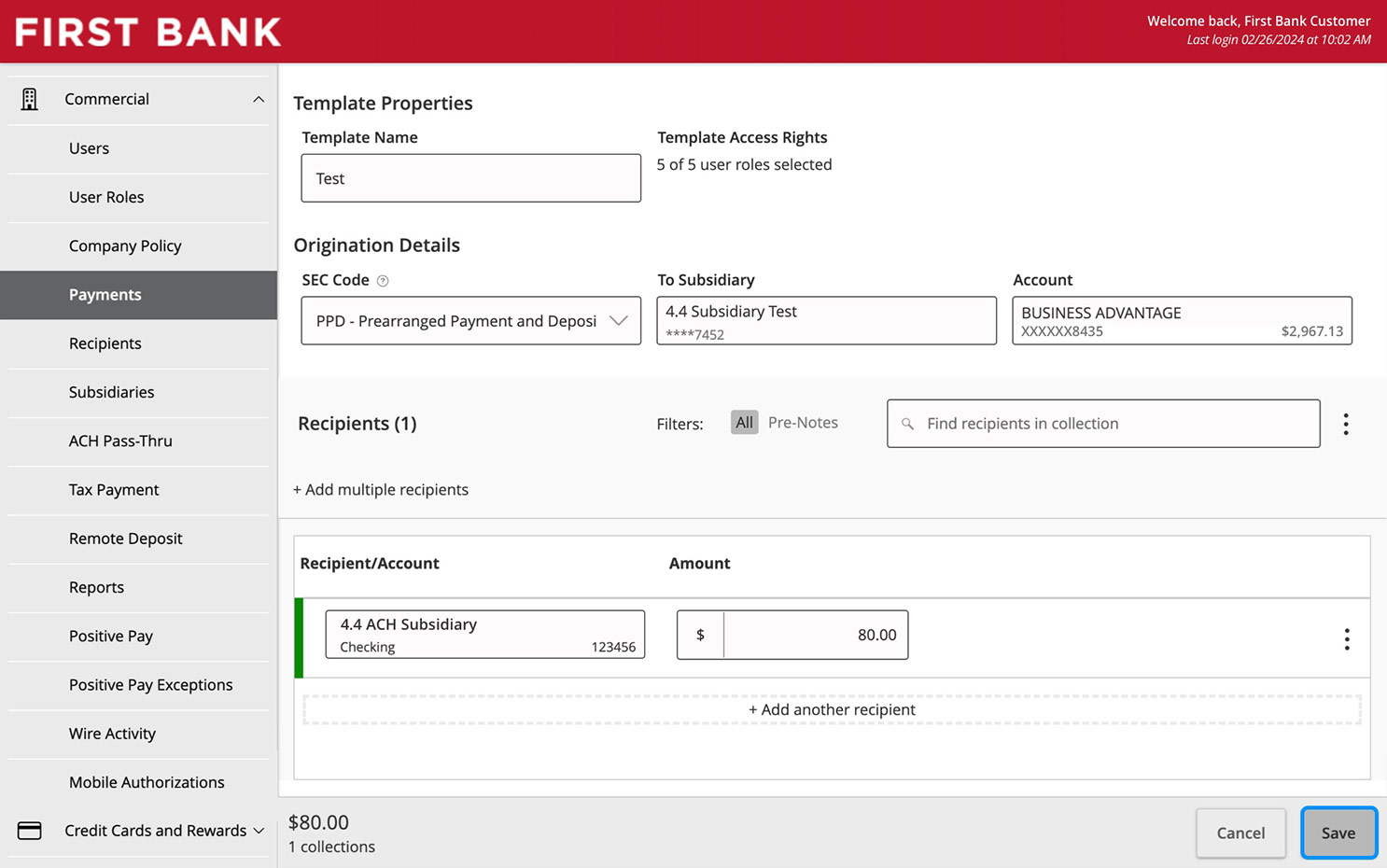
Enter amount and save.
If this amount is the same with each transaction, enter that amount and click “Save.”
If the amount varies with each transfer, leave the amount as 0.00 and click “Save”. When using the saved template to collect or pay, enter the appropriate amount at that time.
Step 10:
Use the ACH template
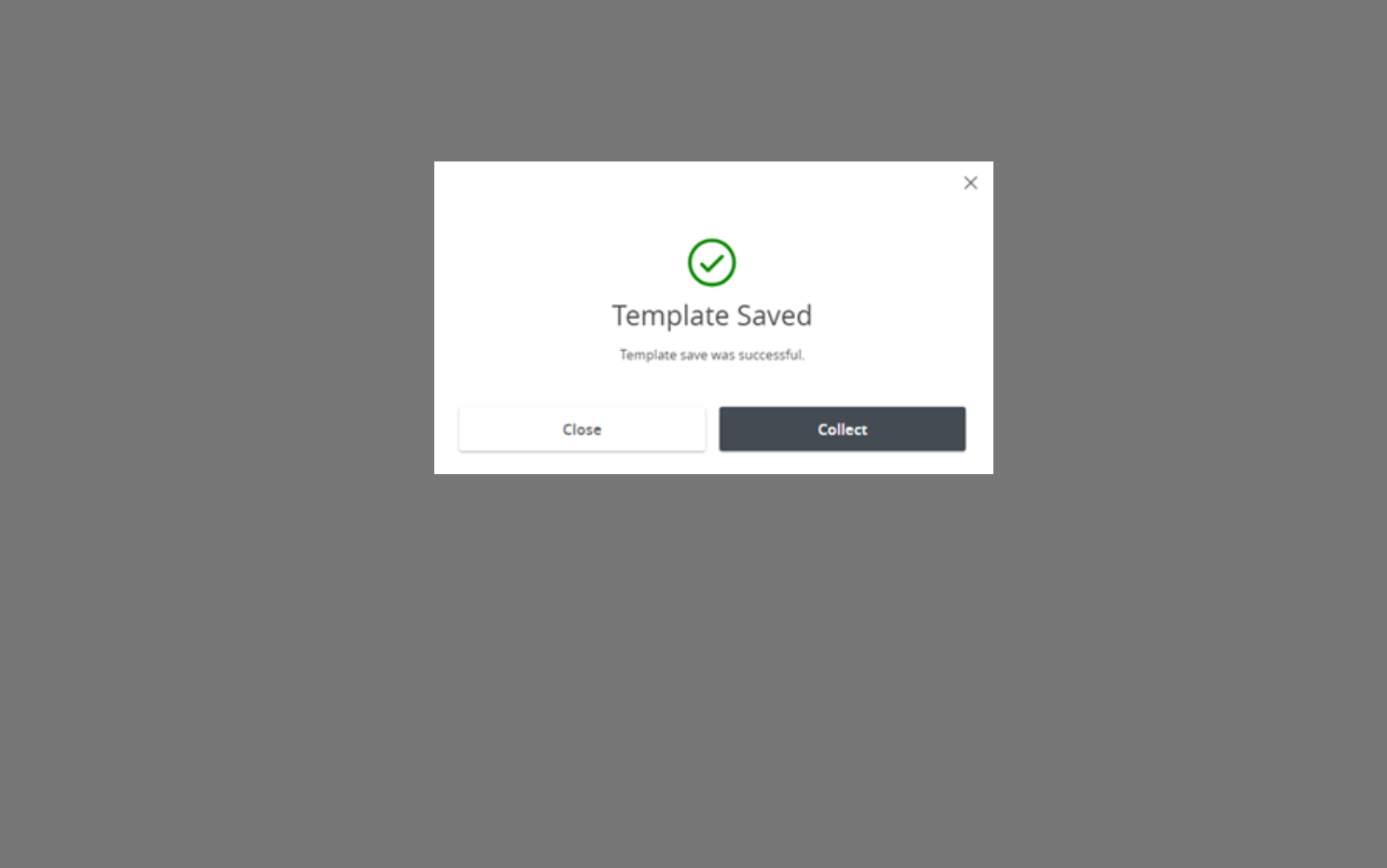
To use the template that was just created, click “Collect” or “Pay” from the “Template Saved” pop-up window.
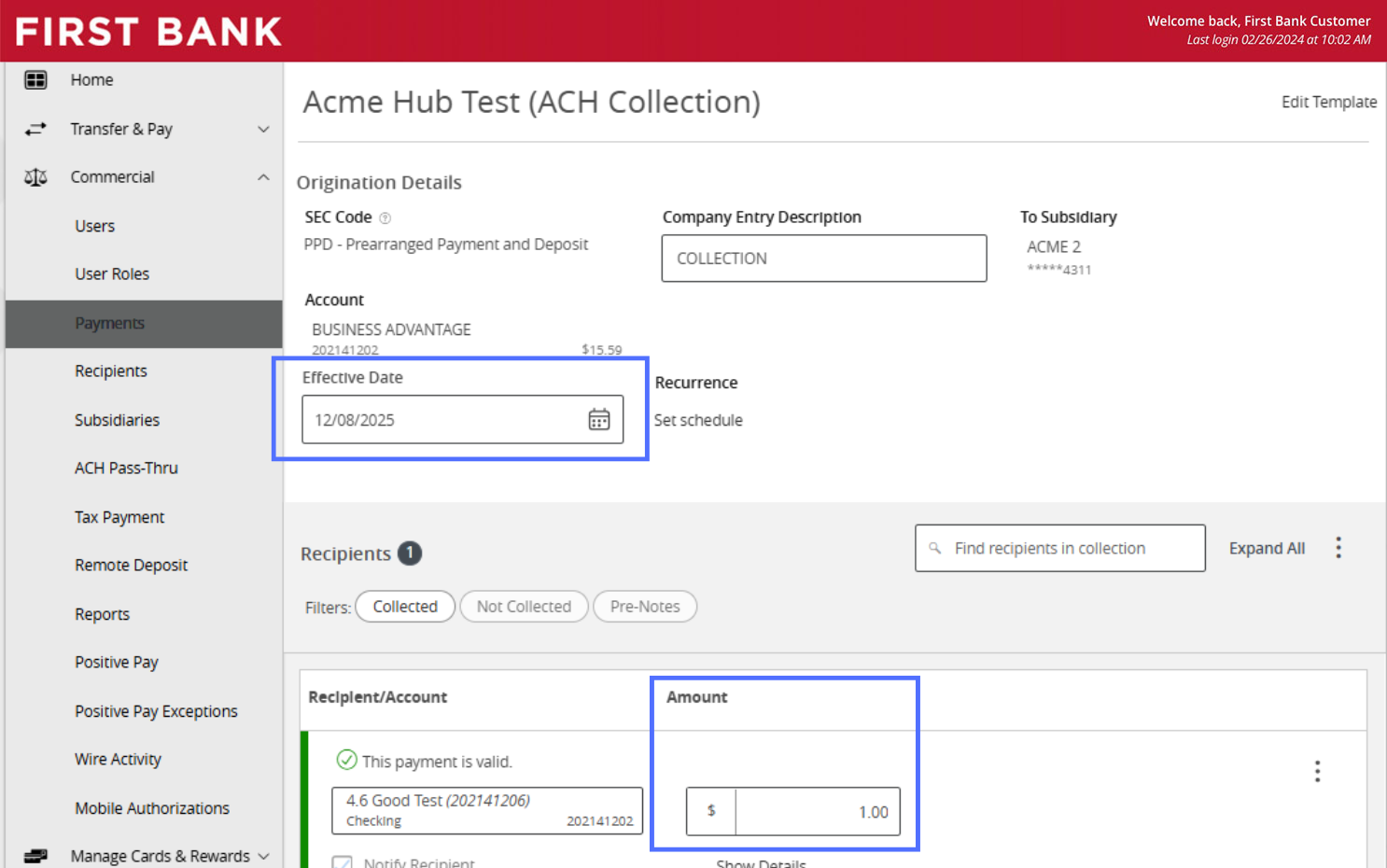
Enter the “Effective Date” and “Amount”
Select “Approve” to complete the ACH, or select “Draft” to save your progress.
Step 11:
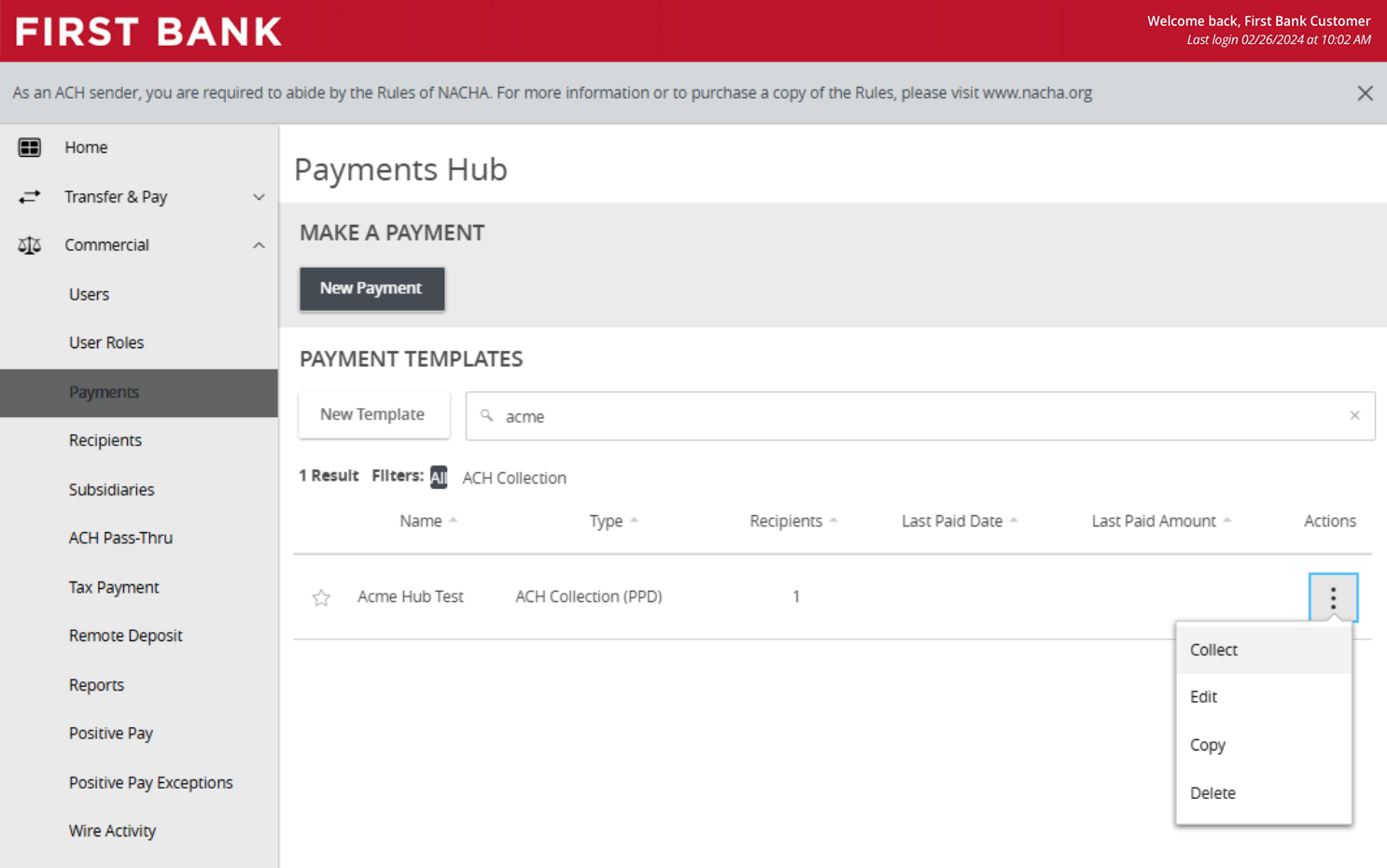
Access your saved templates
Access all of your saved templates from the “Payments” screen.
To use or edit a template, click the three dots to the right of the template name and select the appropriate option from the dropdown menu.
Have questions or unsure where to start?
Contact your Treasury Services rep, or one of our support teams below, for help or to schedule personalized demos.