Sending International Wires
Safely and securely send money overseas with First Bank’s International Wire service.
Step 1:
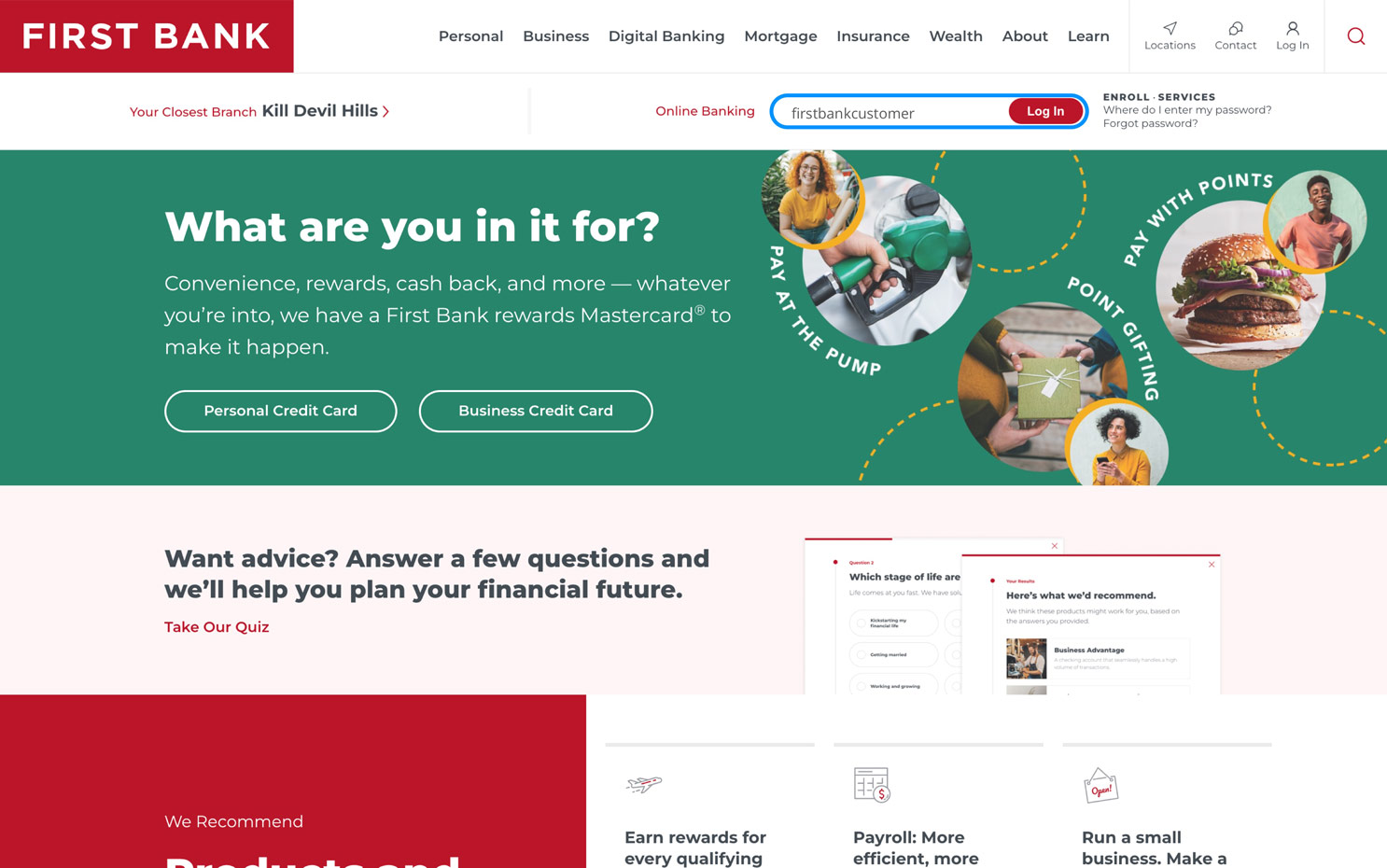
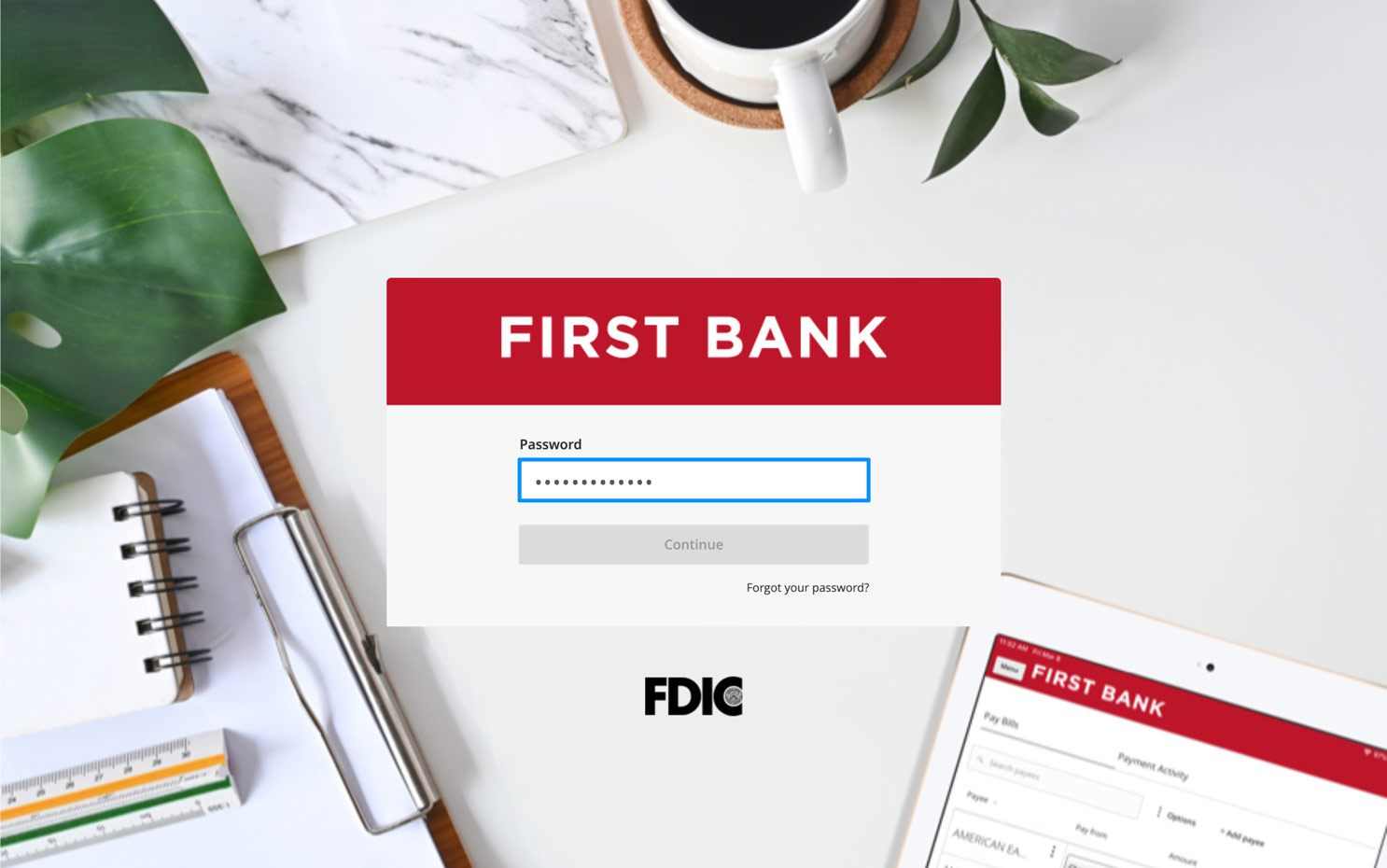
Log in to online banking.
When you enrolled in First Bank digital banking, you created a Login ID and Password. Enter that information in the corresponding screens and then click the “Log In” button. Next, you will be asked to enter your password, then click “Continue.”
Step 2:
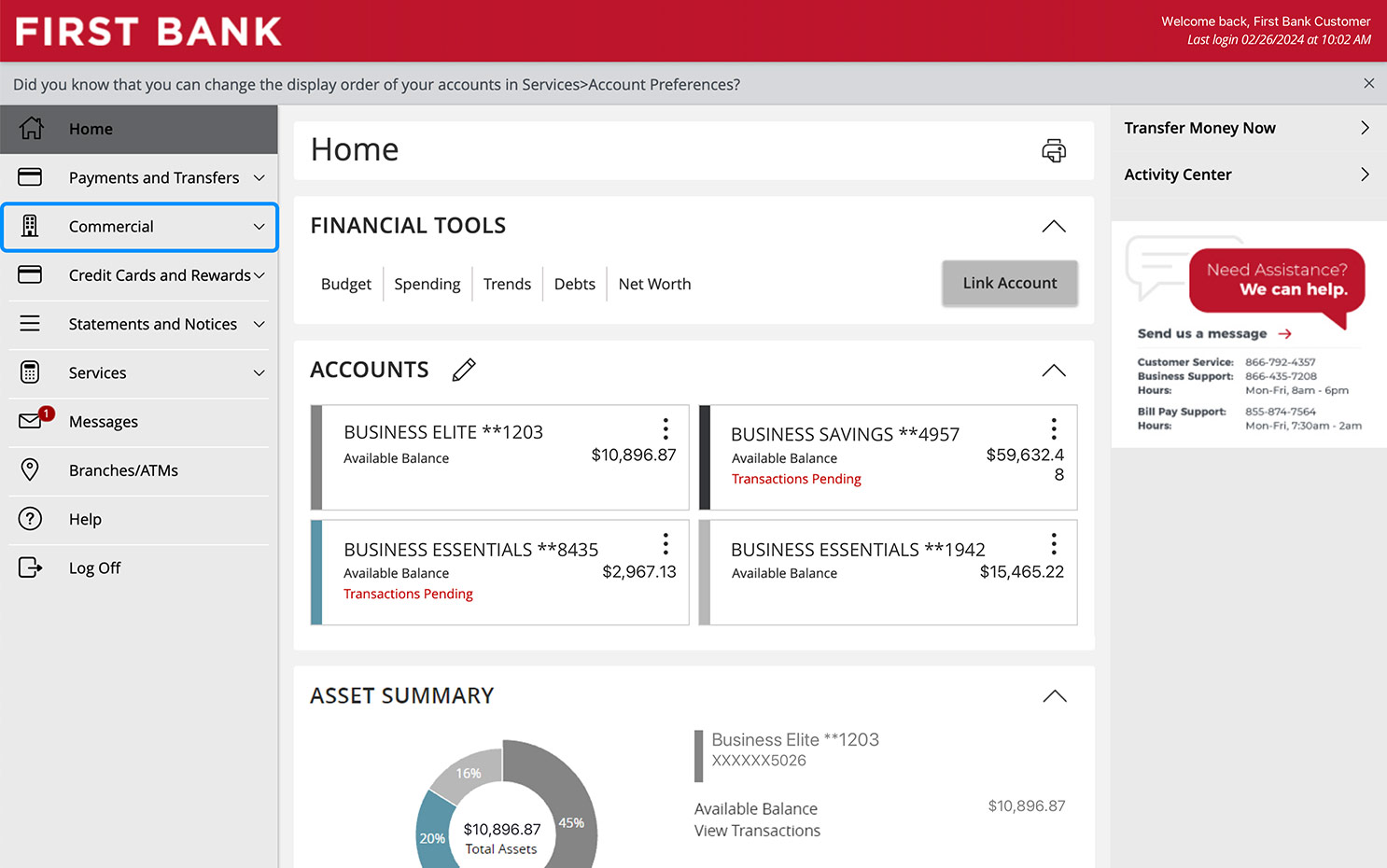
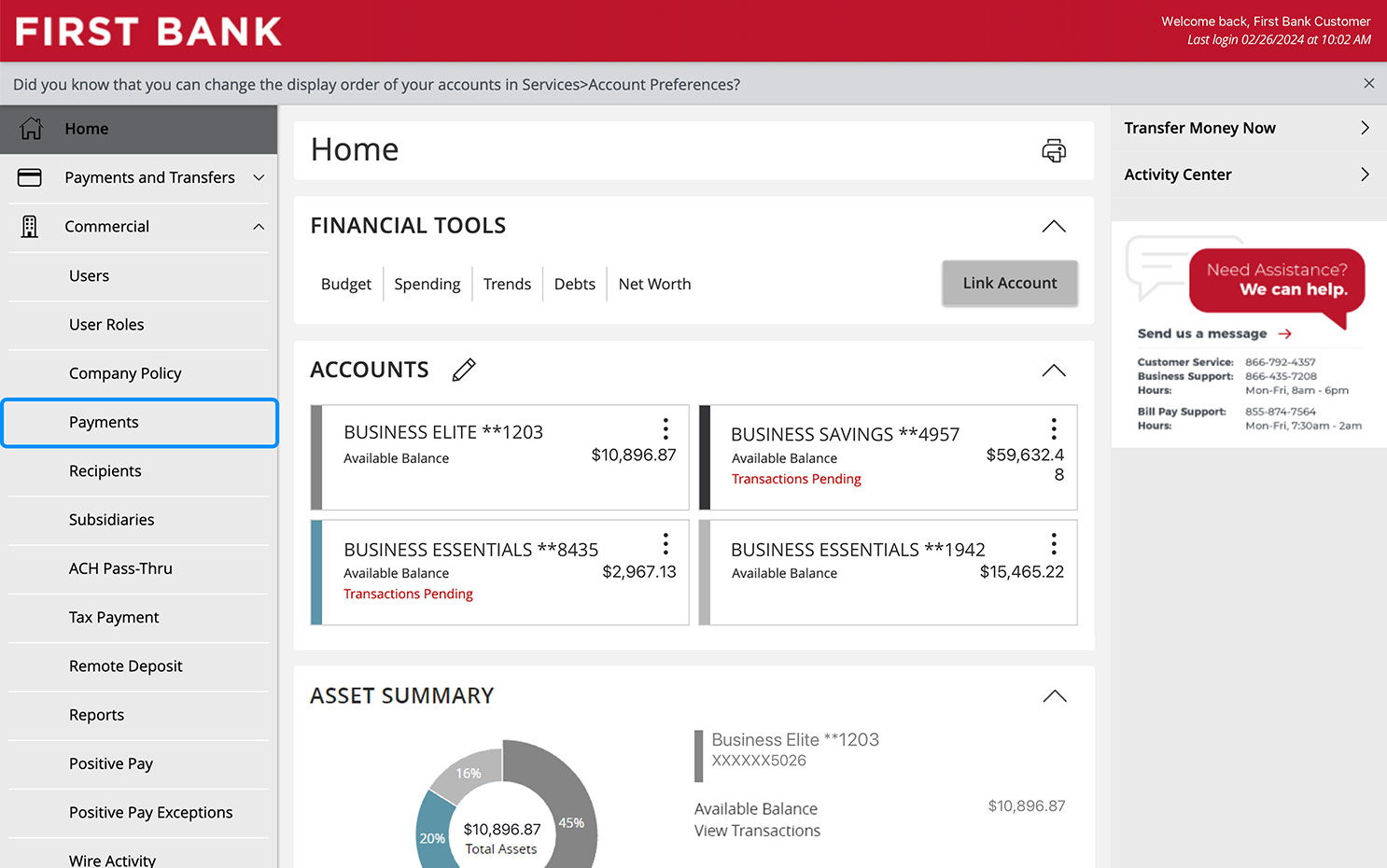
Navigate to Commercial.
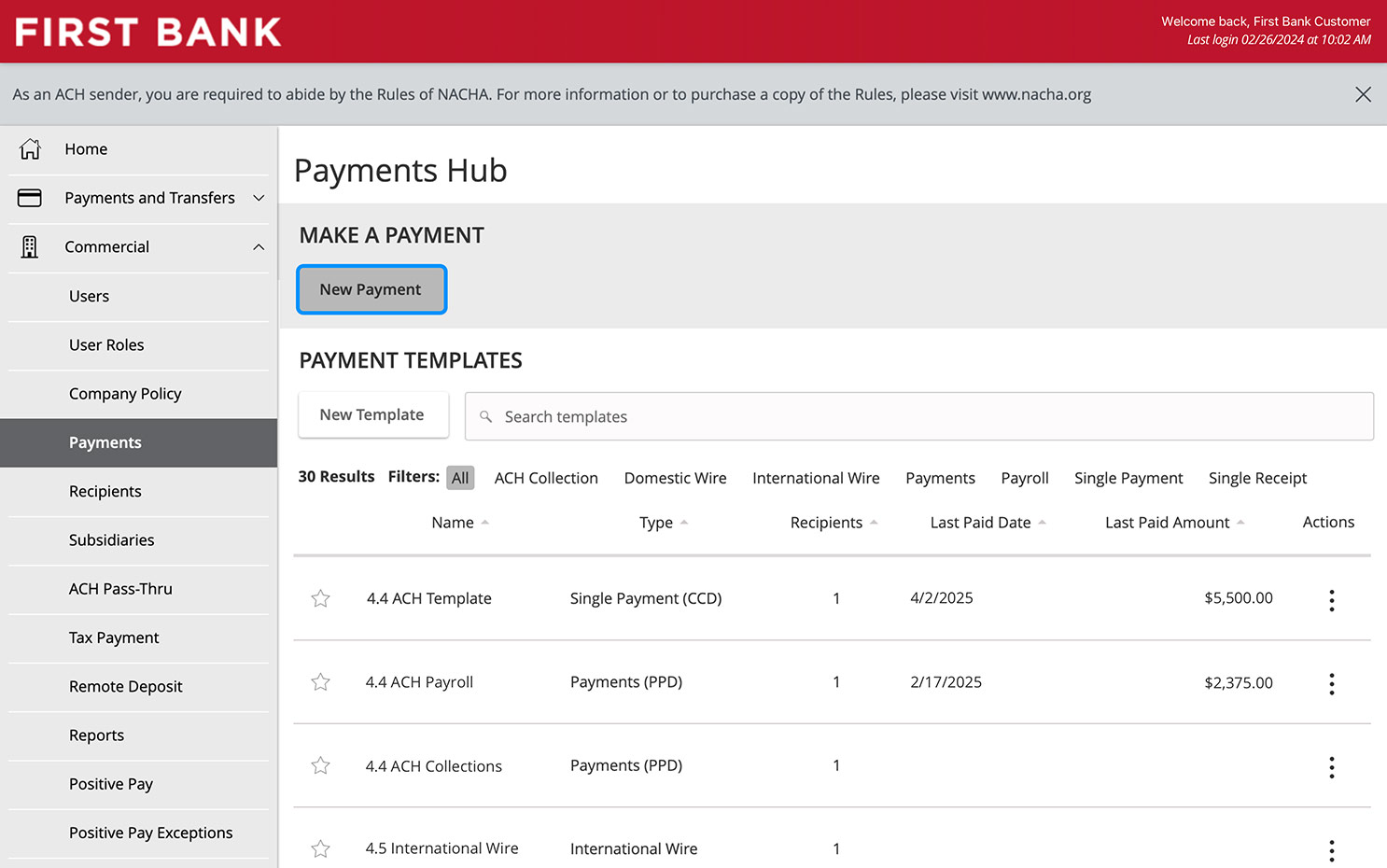
From the menu on the left, select “Commercial” and click on “Payments” from the dropdown.
Step 3:
Make a new payment.
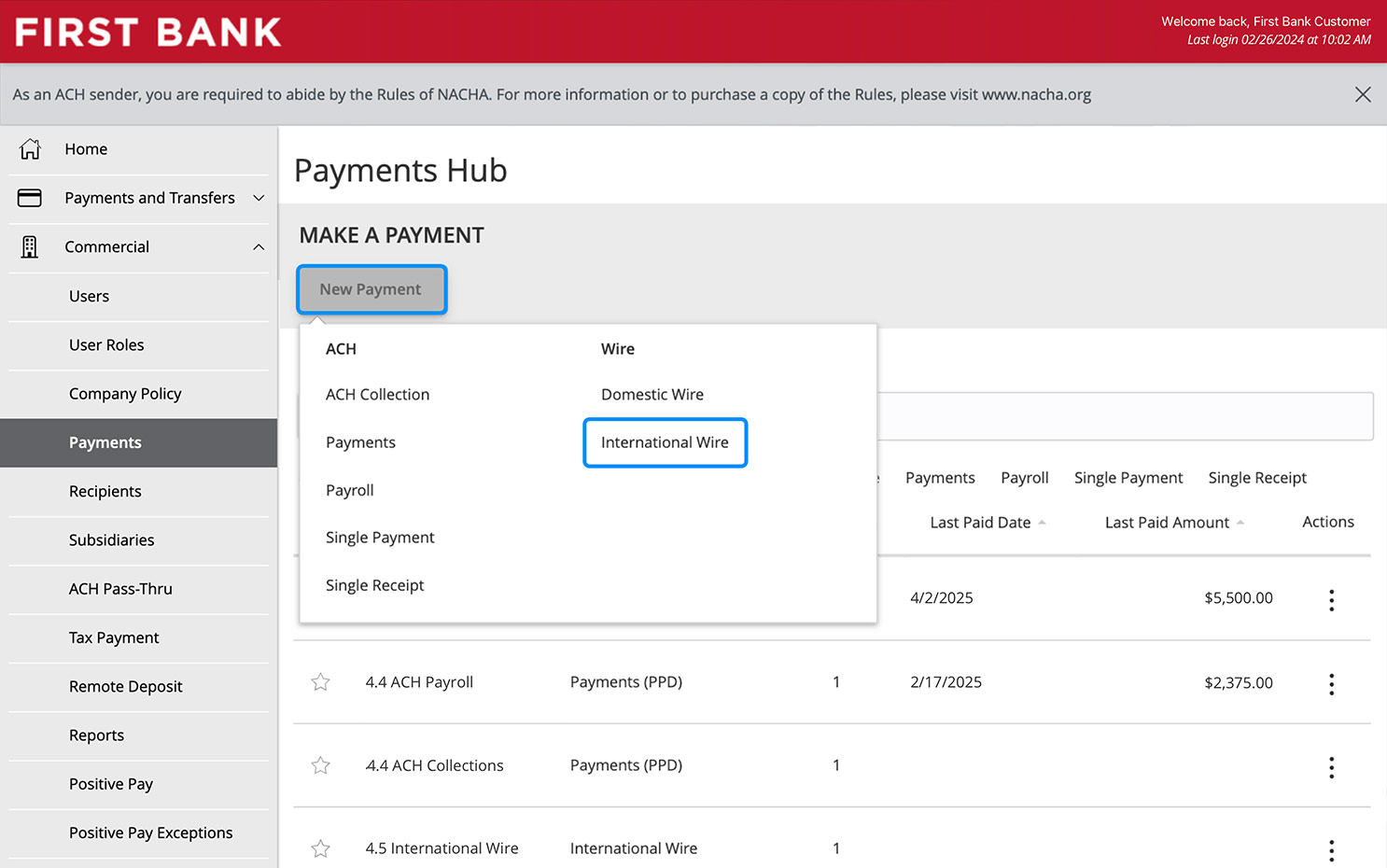
To initiate a new wire payment, click “New Payment” then select “International Wire.”
Step 4:
Choose currency.
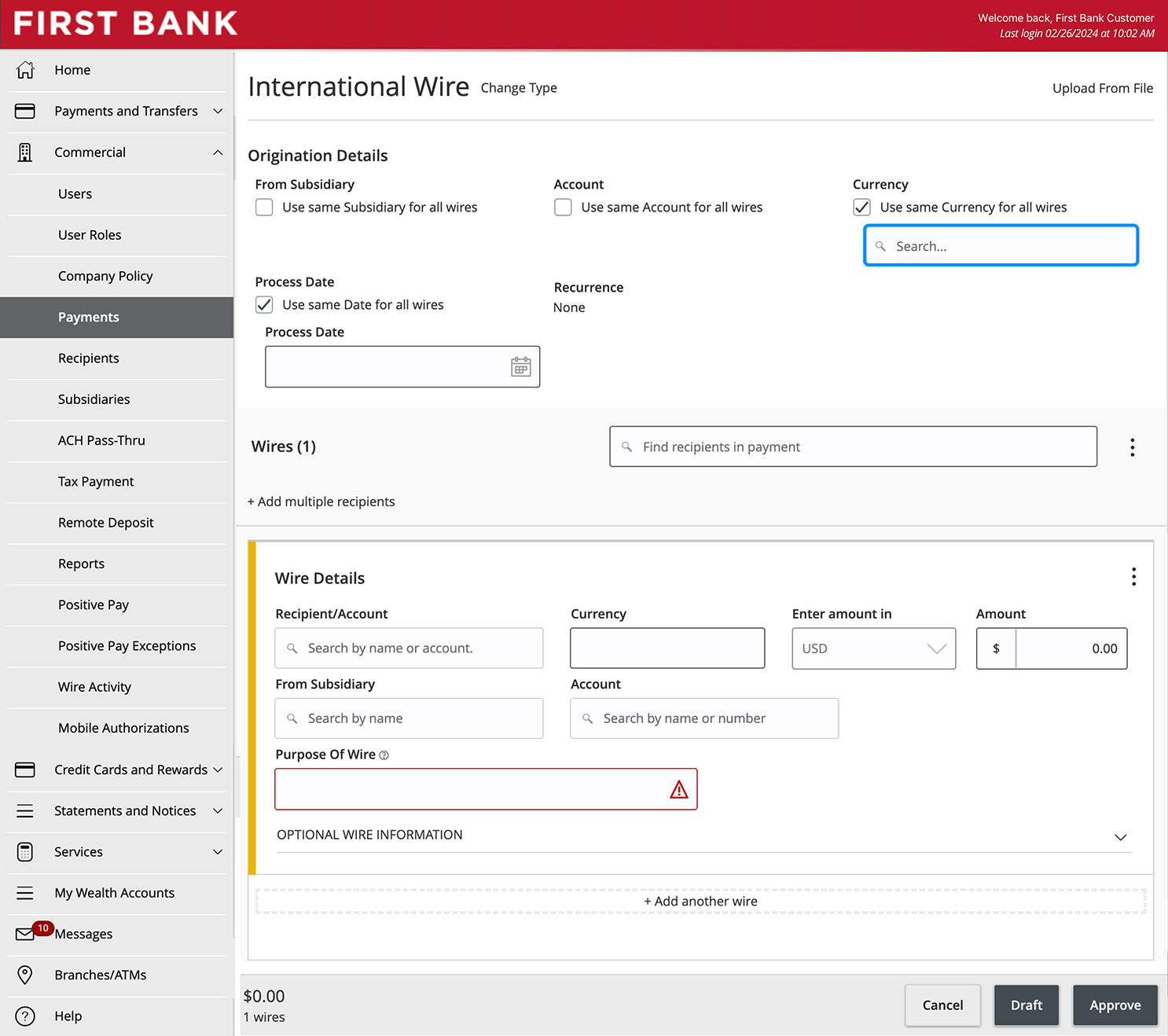
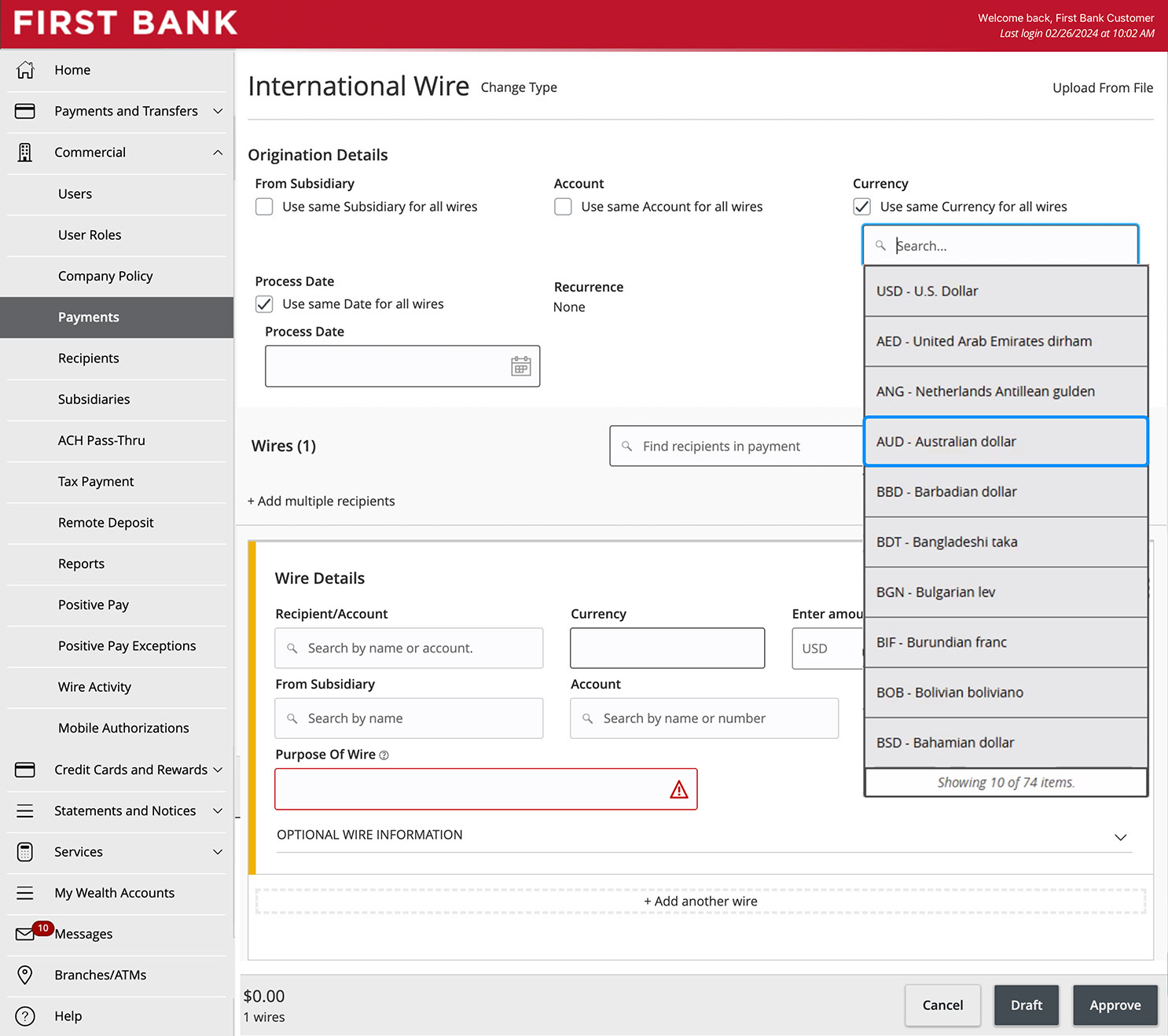
Under Currency, click into the search box and choose the currency for your wire.
Step 5:
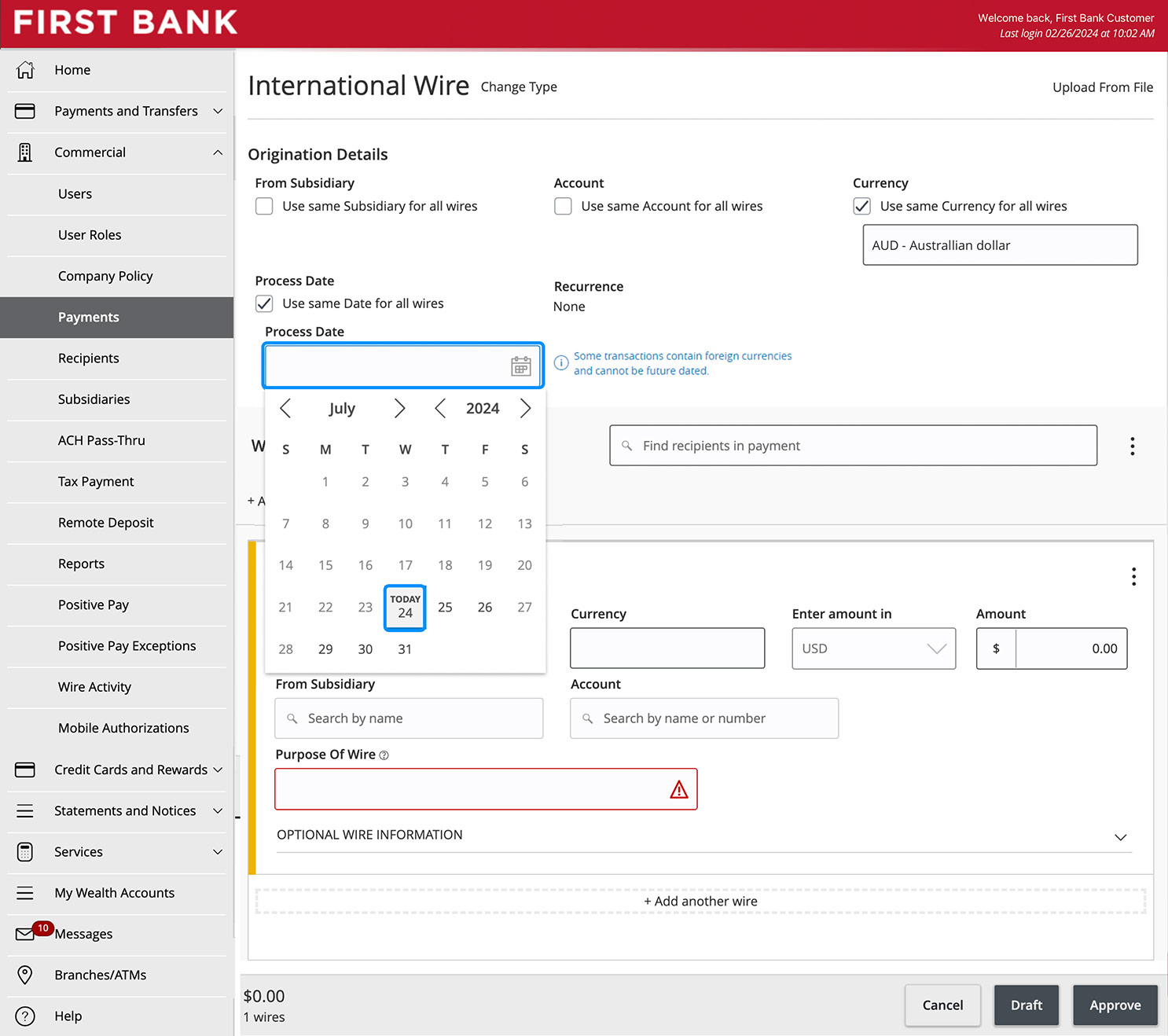
Select wire date (if USD).
If your wire is in US dollars you can select the date on which you would like the wire to process. Under Process Date, click the calendar icon, then select the date you want to send the wire.
If using foreign currency, the Process Date defaults to the current date and cannot be future dated.
Step 6:
Enter wire details.
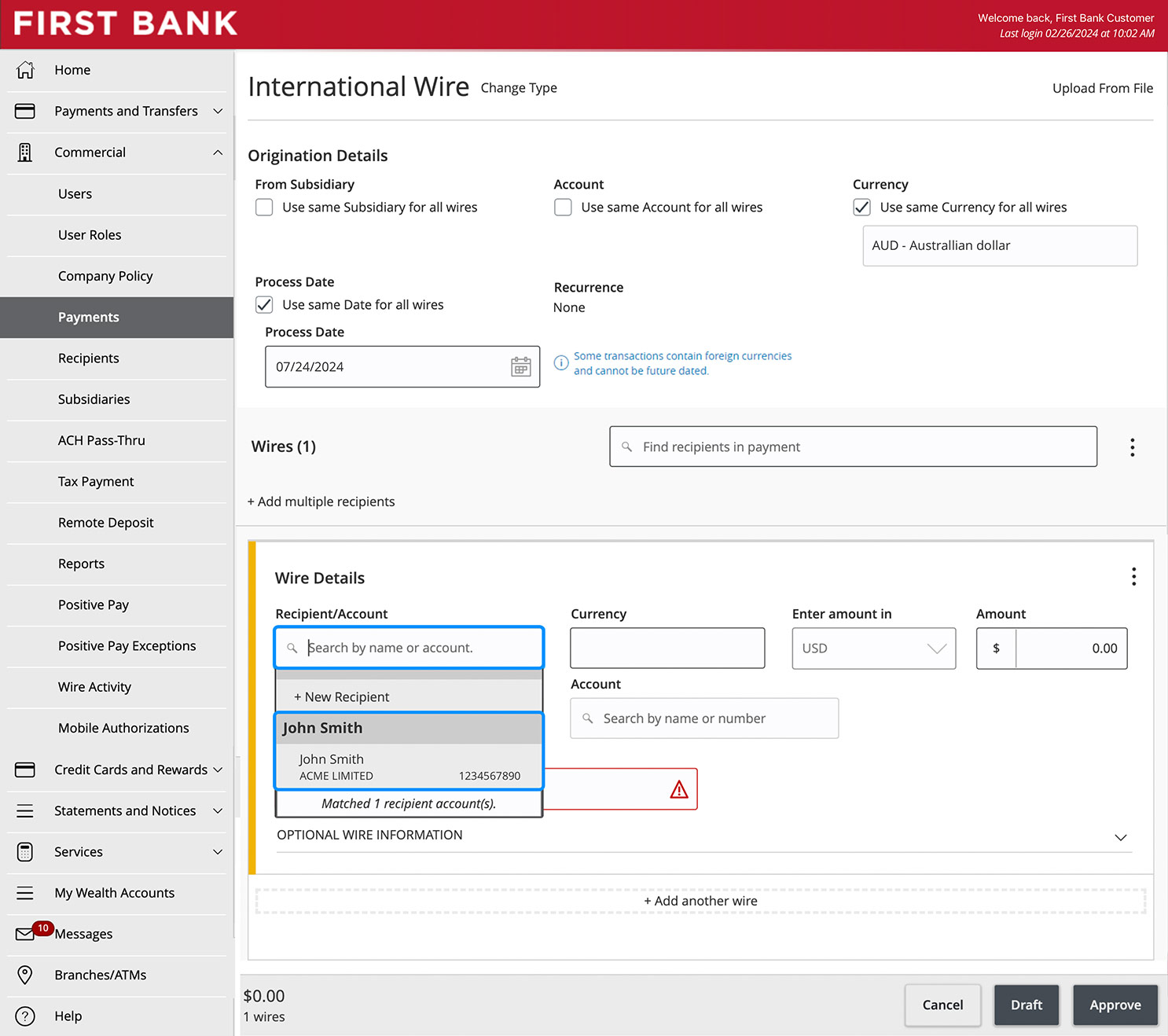
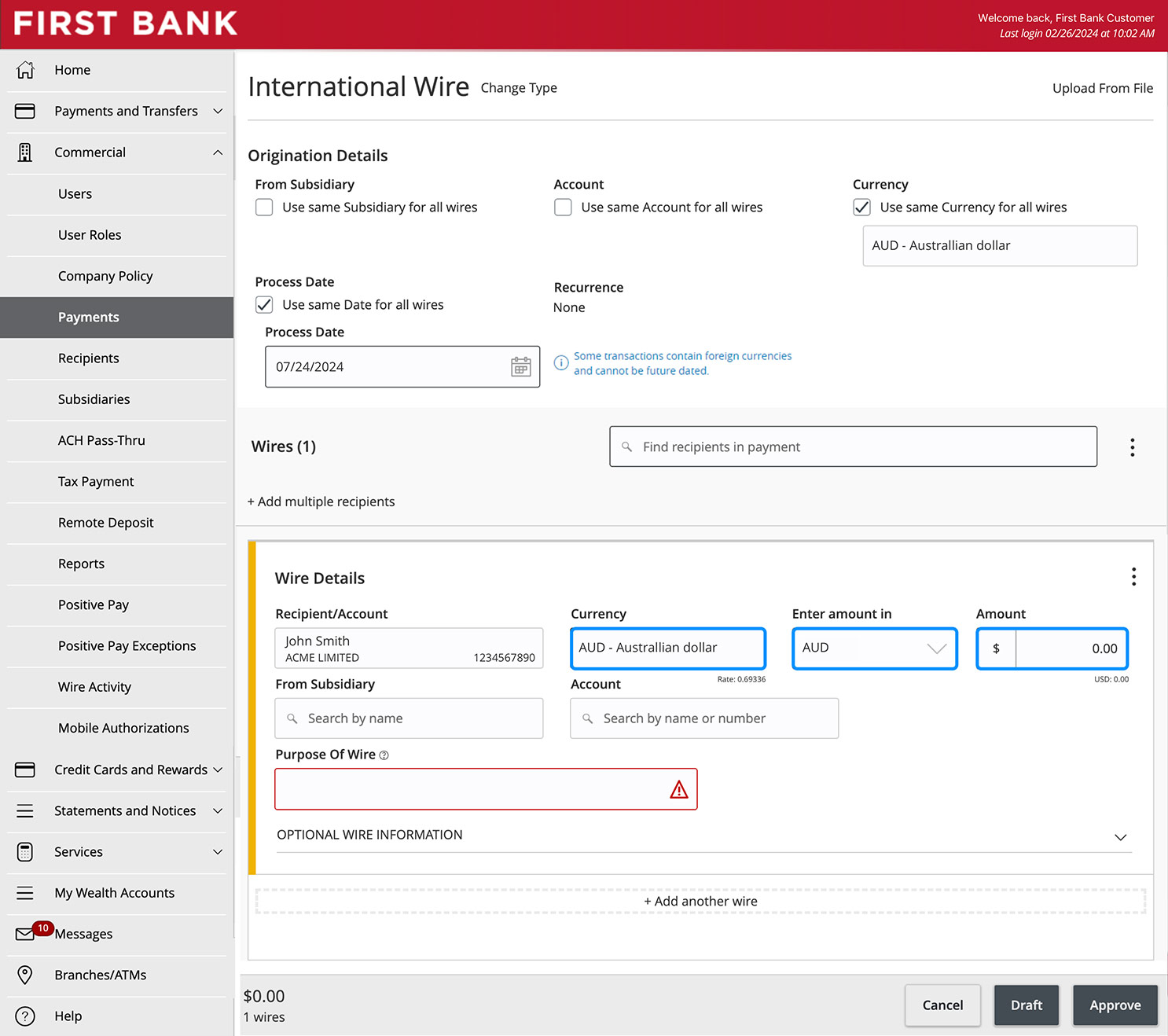
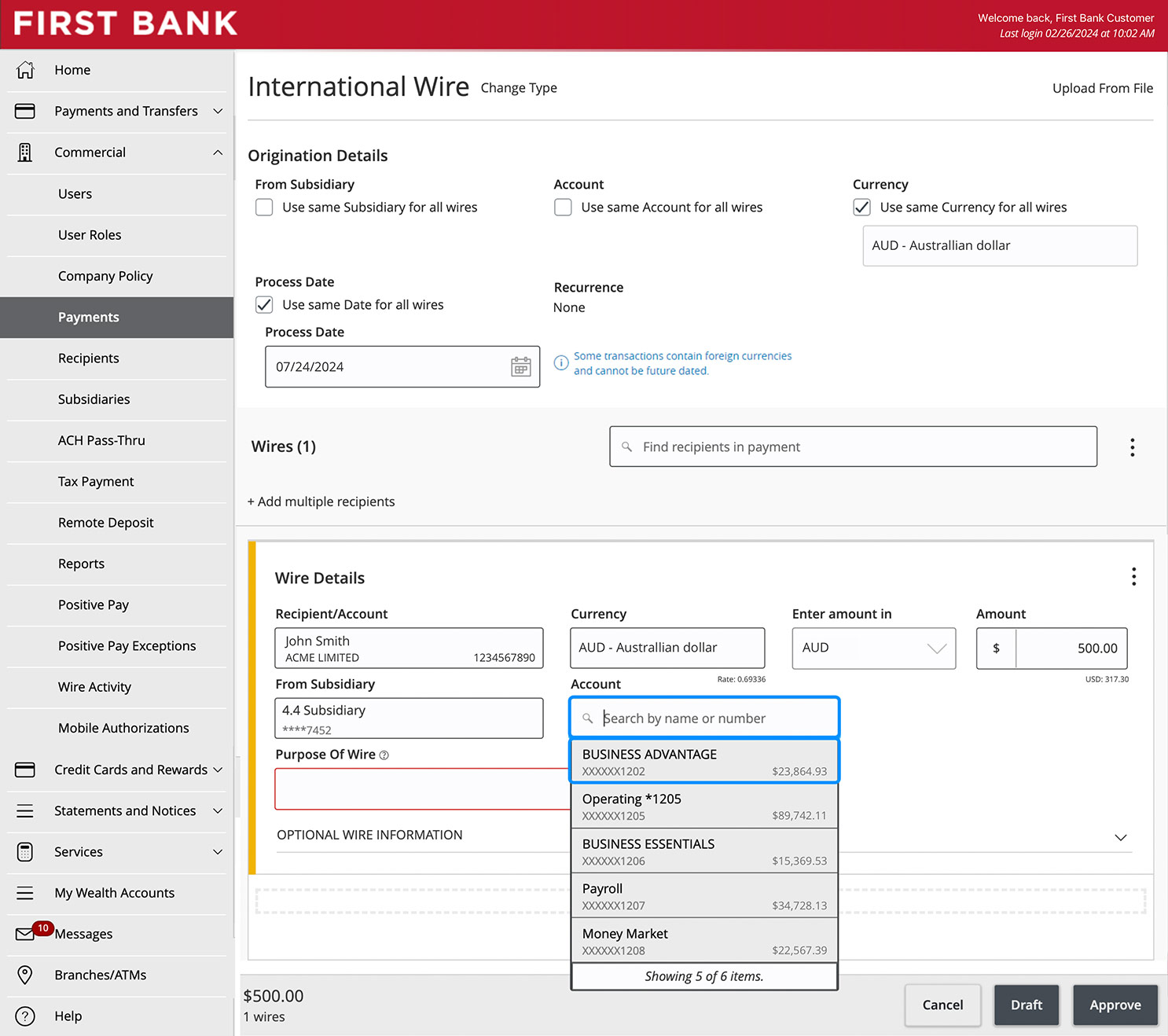
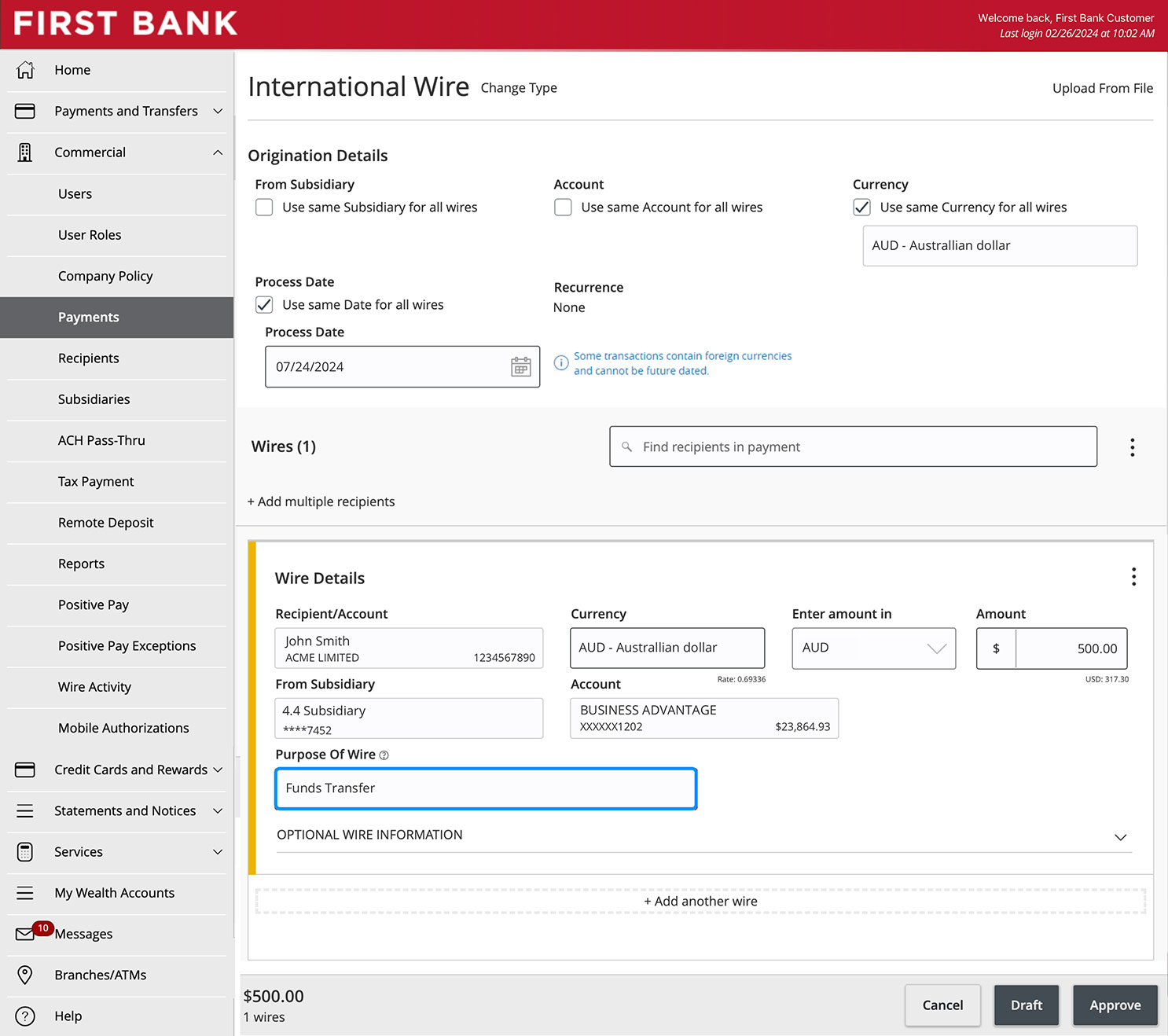
Enter the information about your wire, including the recipient or account, currency, and amount.
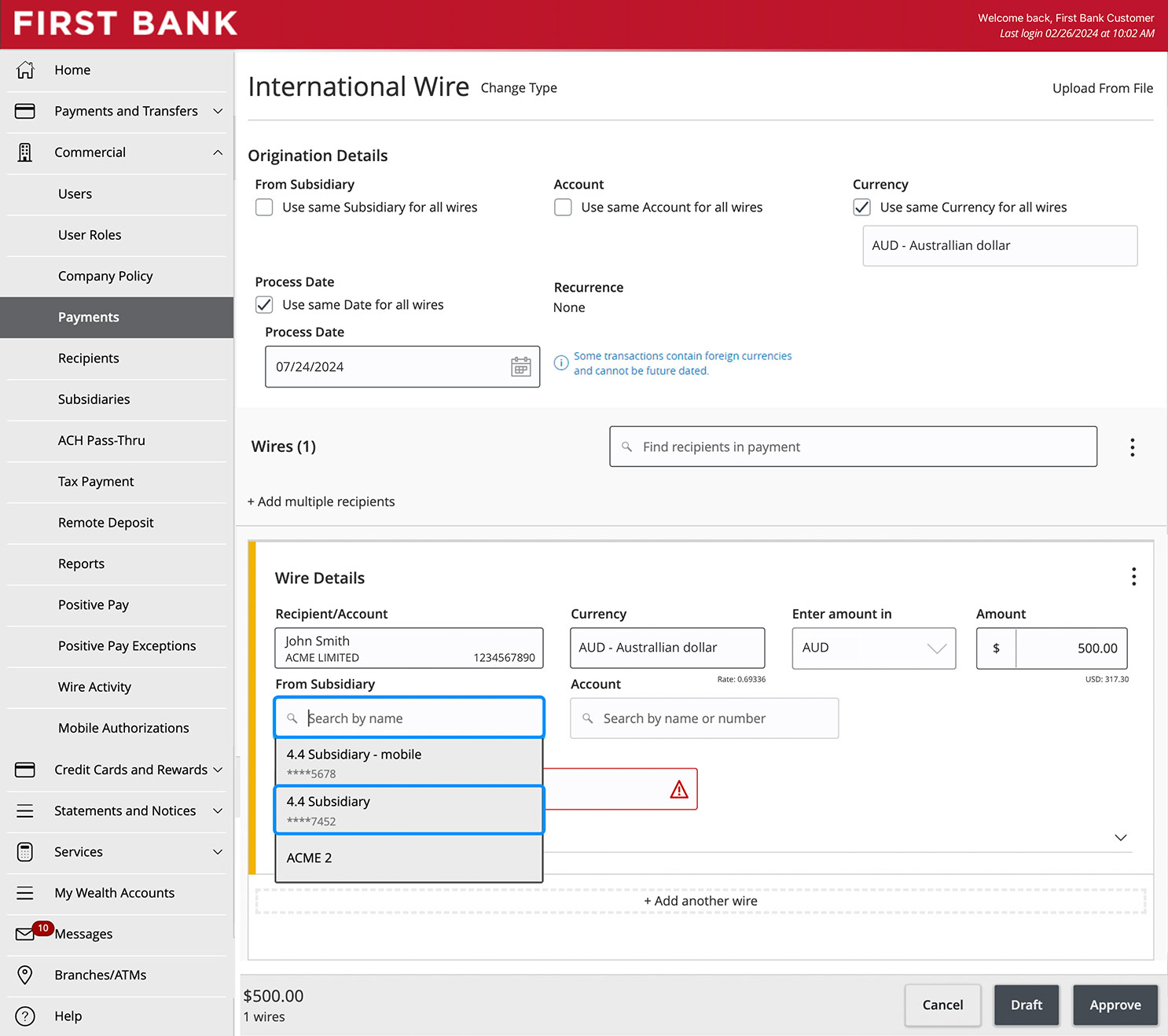
Then select the From Subsidiary by clicking in the box and choosing from the options below.
Choose the account the funds should come from by clicking in the box under Account and selecting from the list below.
Lastly, in the box under Purpose Of Wire, enter the reason you’re sending money.
Step 7:
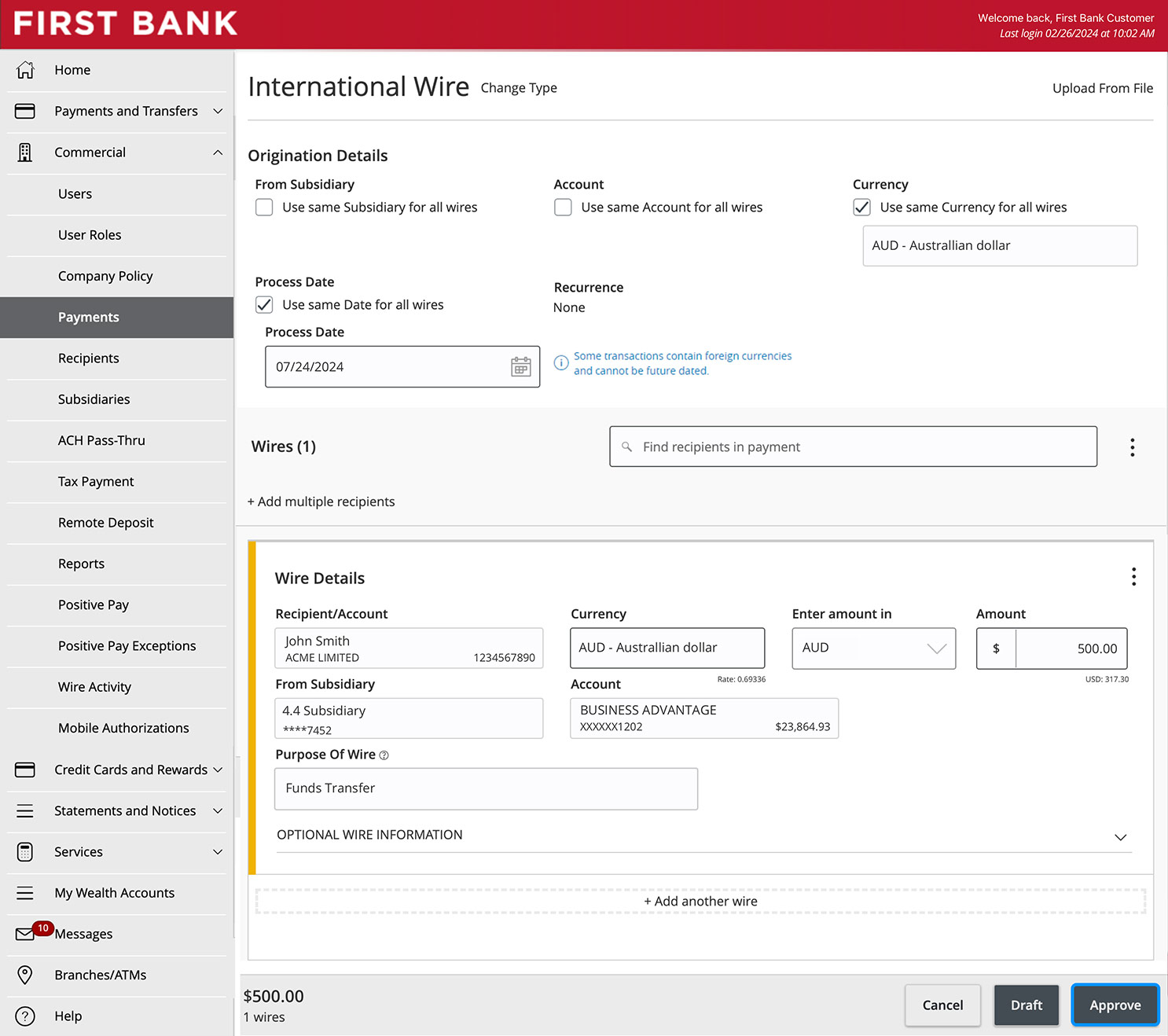
Approve wire.
Once all the wire information is entered correctly, click “Approve” to send it.
Have questions or unsure where to start?
Contact your Treasury Services rep, or one of our support teams below, for help or to schedule personalized demos.