ACH Payroll Demo
Save time and money with the convenience of ACH Payroll. Funds are electronically transferred from your account to employees’ bank accounts, eliminating the need for paper checks. Learn how to set up and process payroll from your First Bank account.
Step 1:
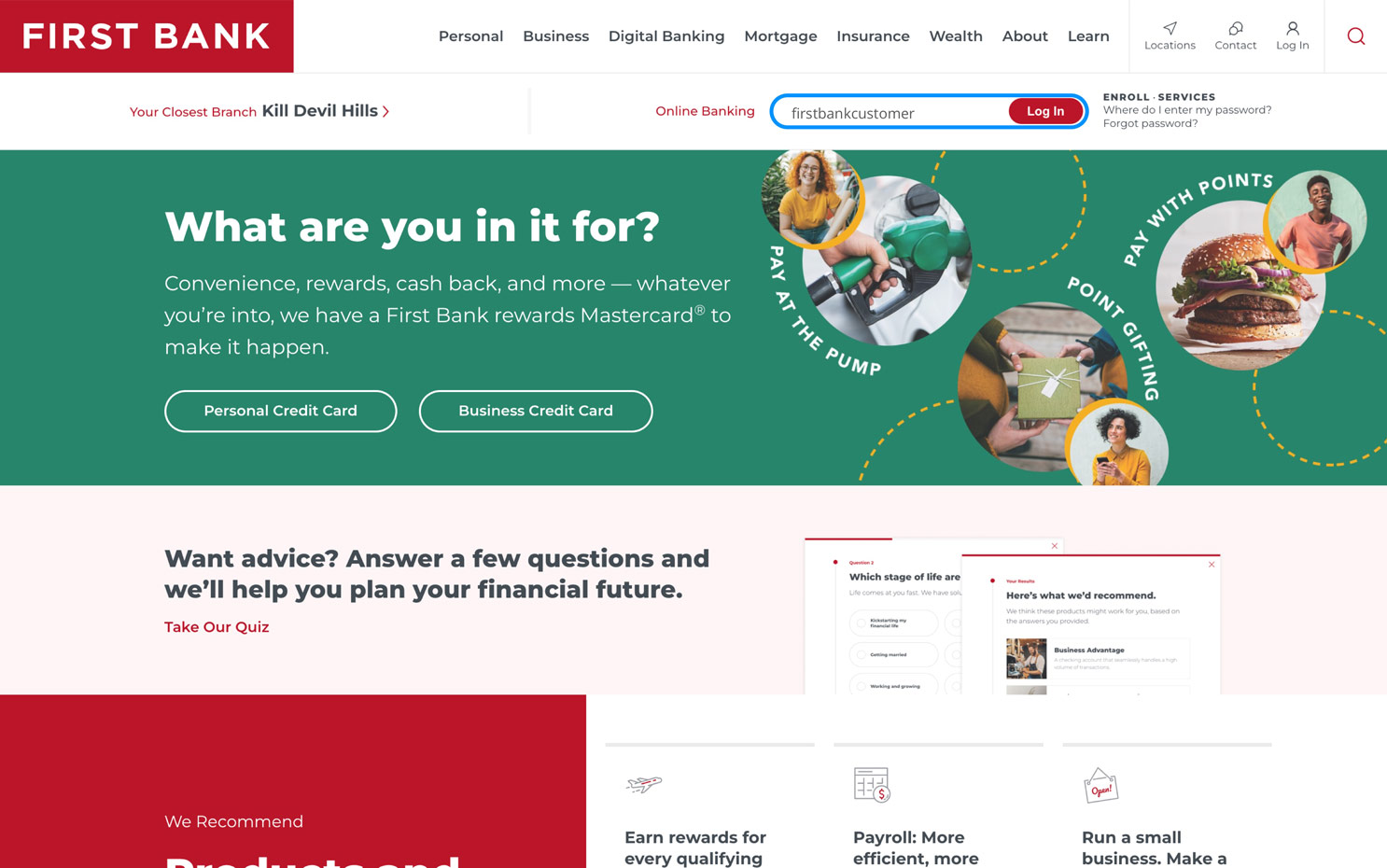
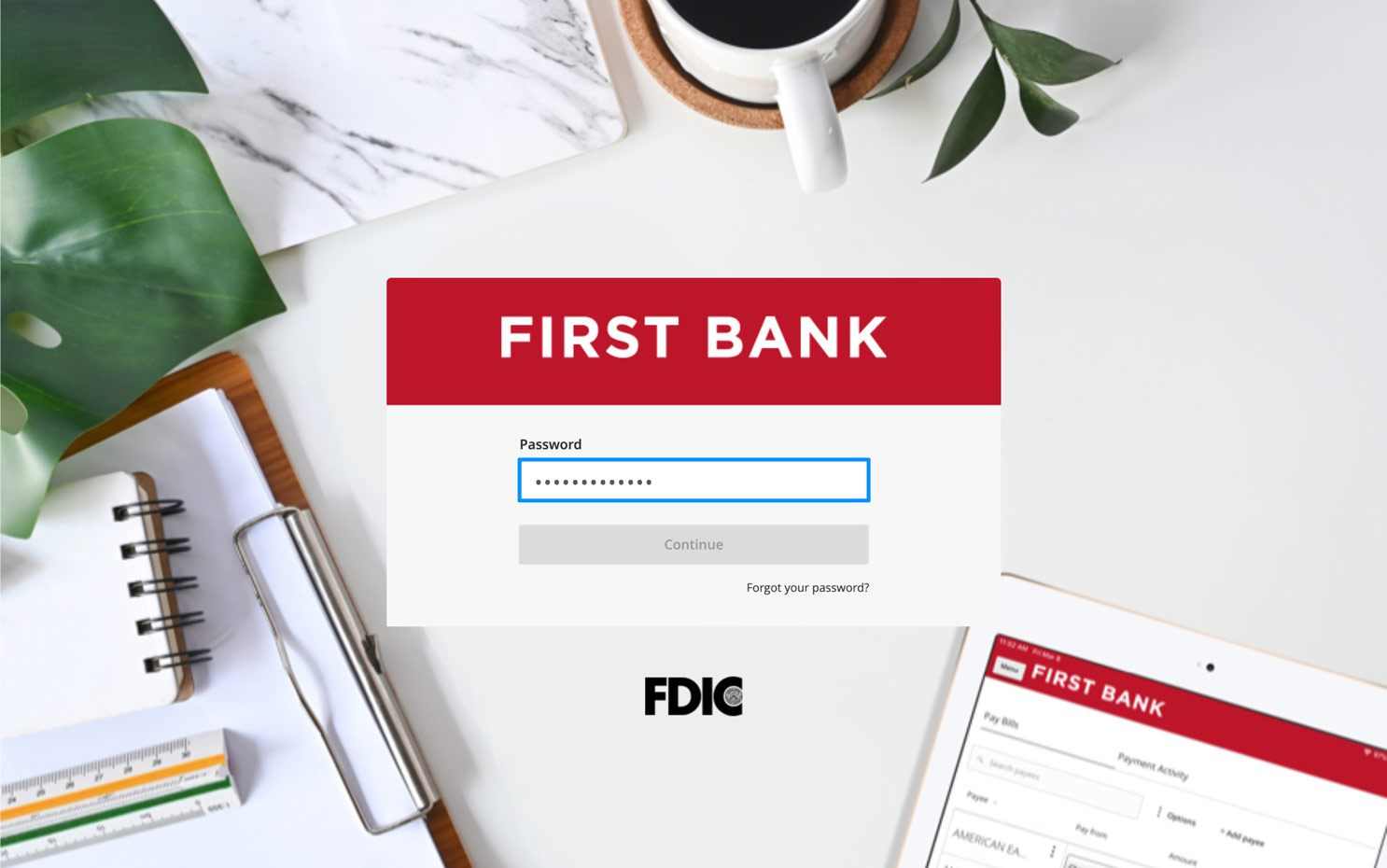
Log in to online banking.
When you enrolled in First Bank digital banking, you created a Login ID and Password. Enter that information in the corresponding screens and then click the “Log In” button. Next, you will be asked to enter your password, then click “Continue.”
Step 2:
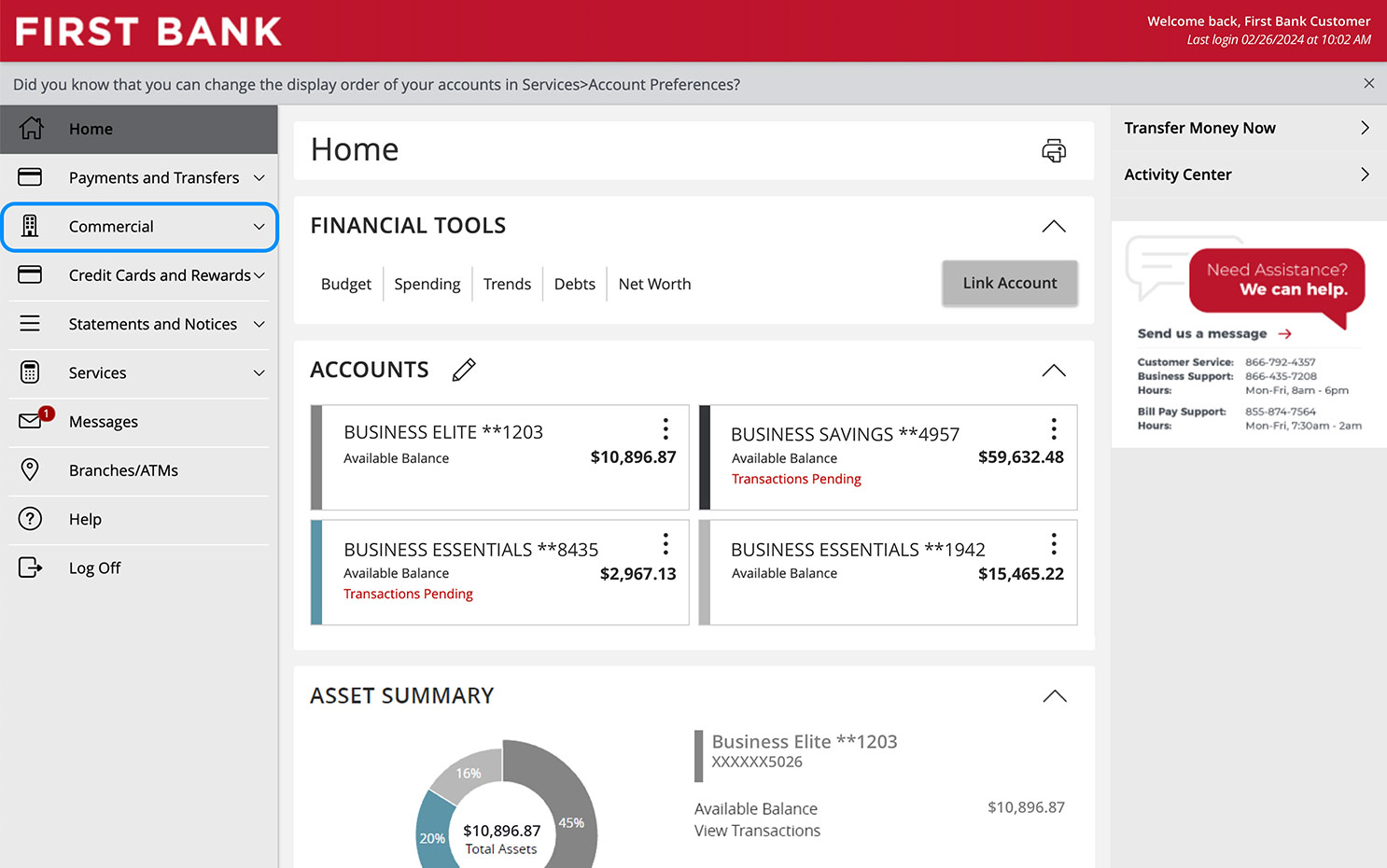
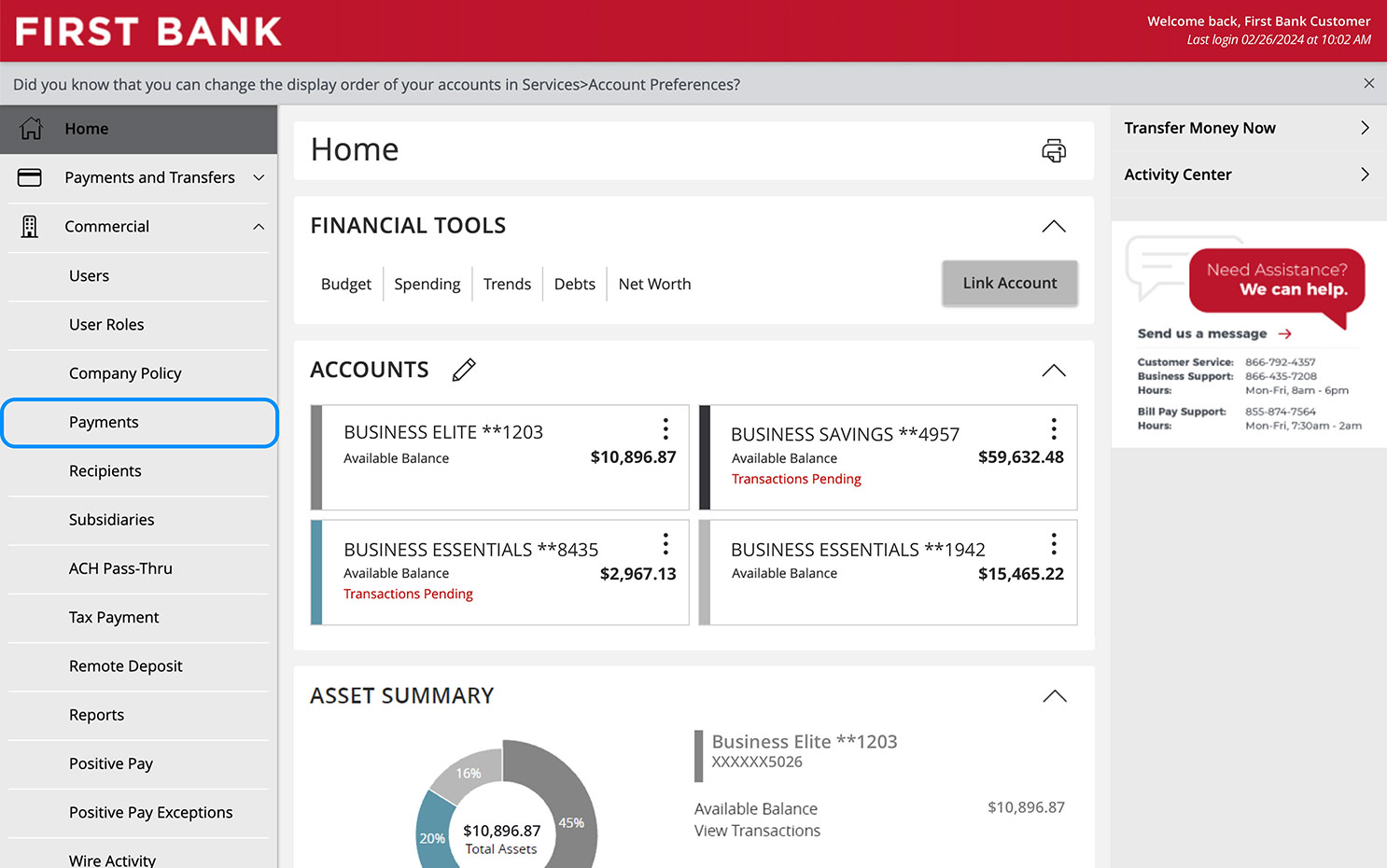
Navigate to Payment.
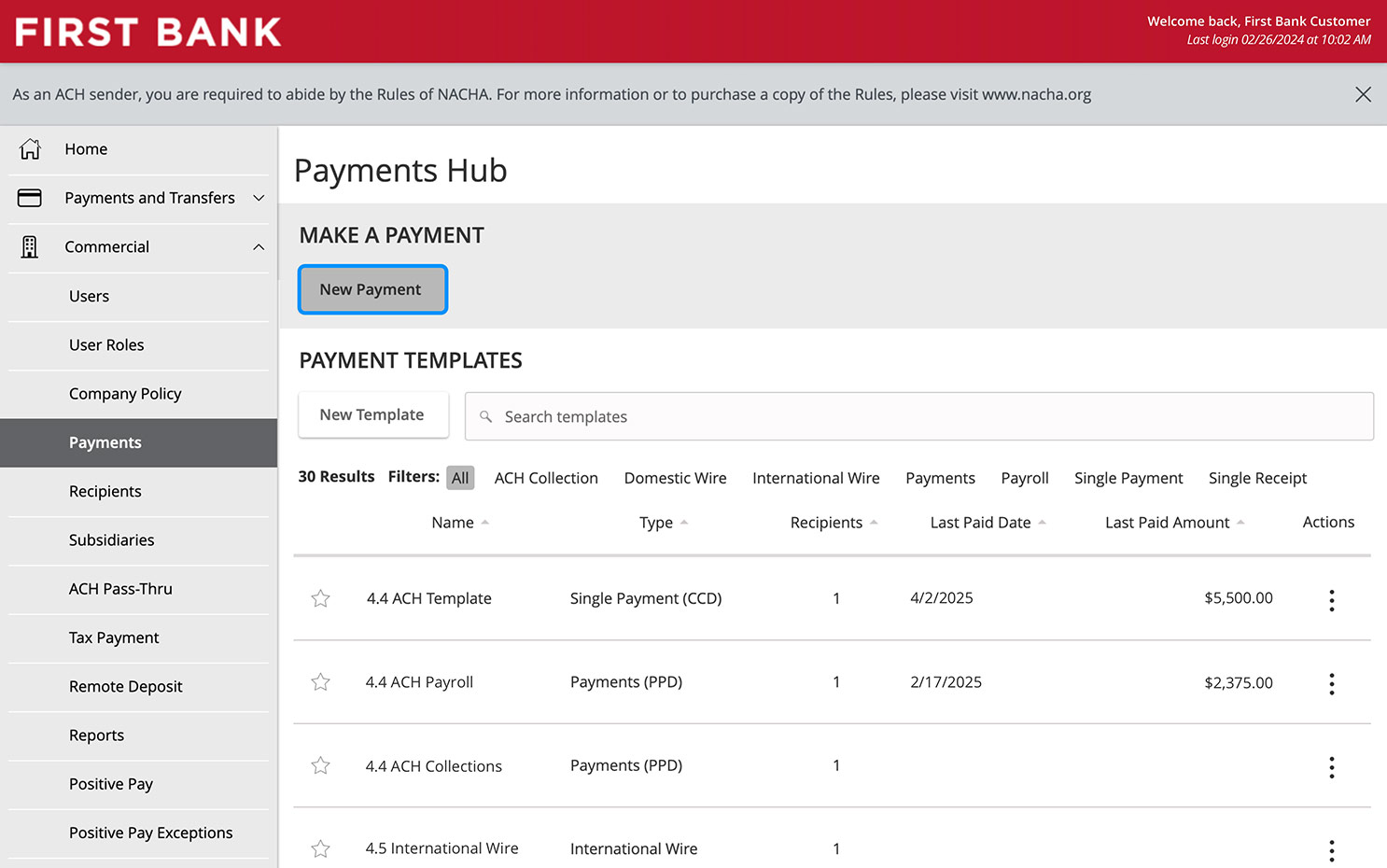
From the menu on the left, click “Commercial” to see the dropdown and choose “Payments.”
Step 3:
Choose a payment type.
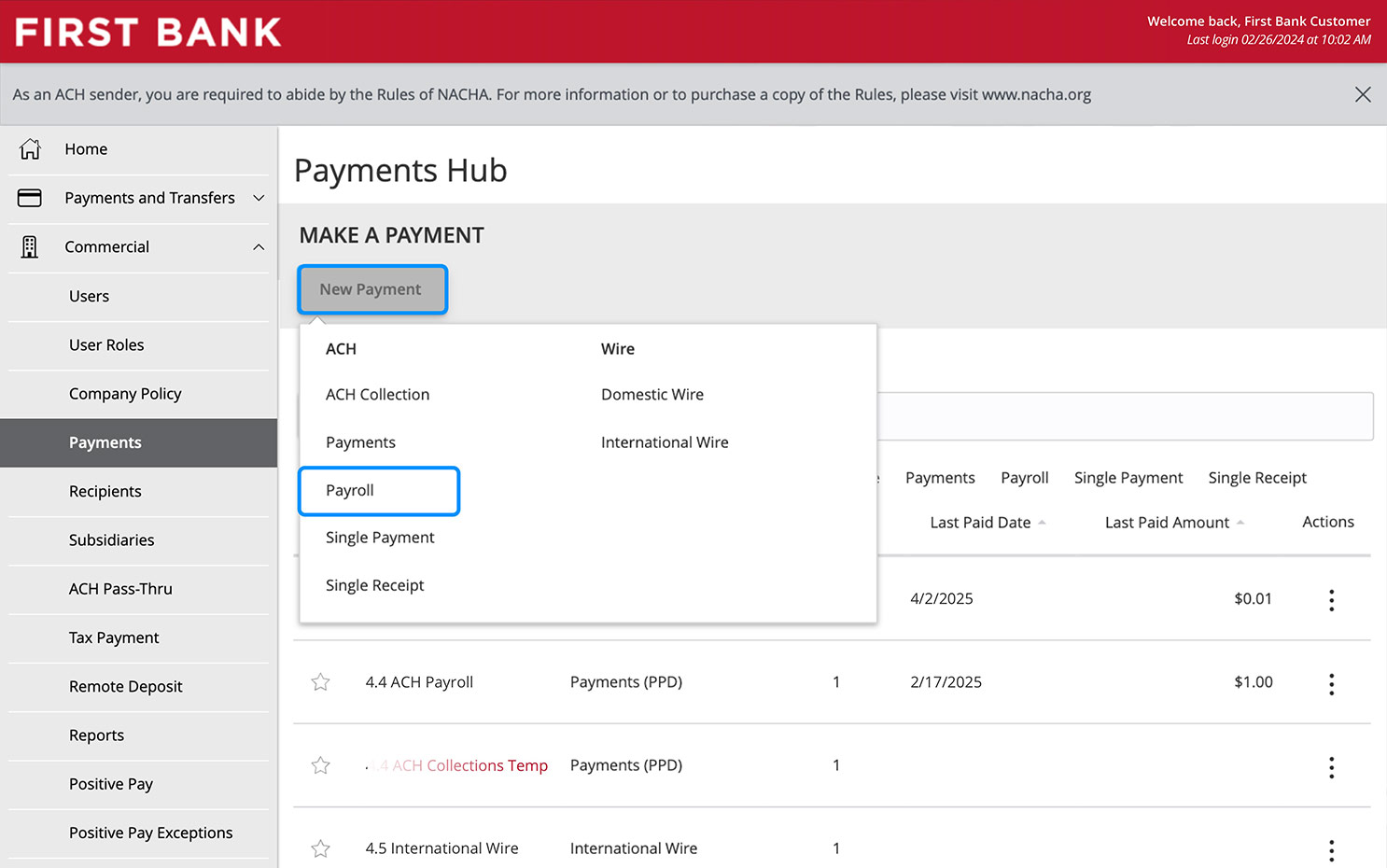
Click the “New Payment” button. From the menu under ACH, tap on “Payroll” as the payment type.
Step 4:
Choose account to originate payroll from.
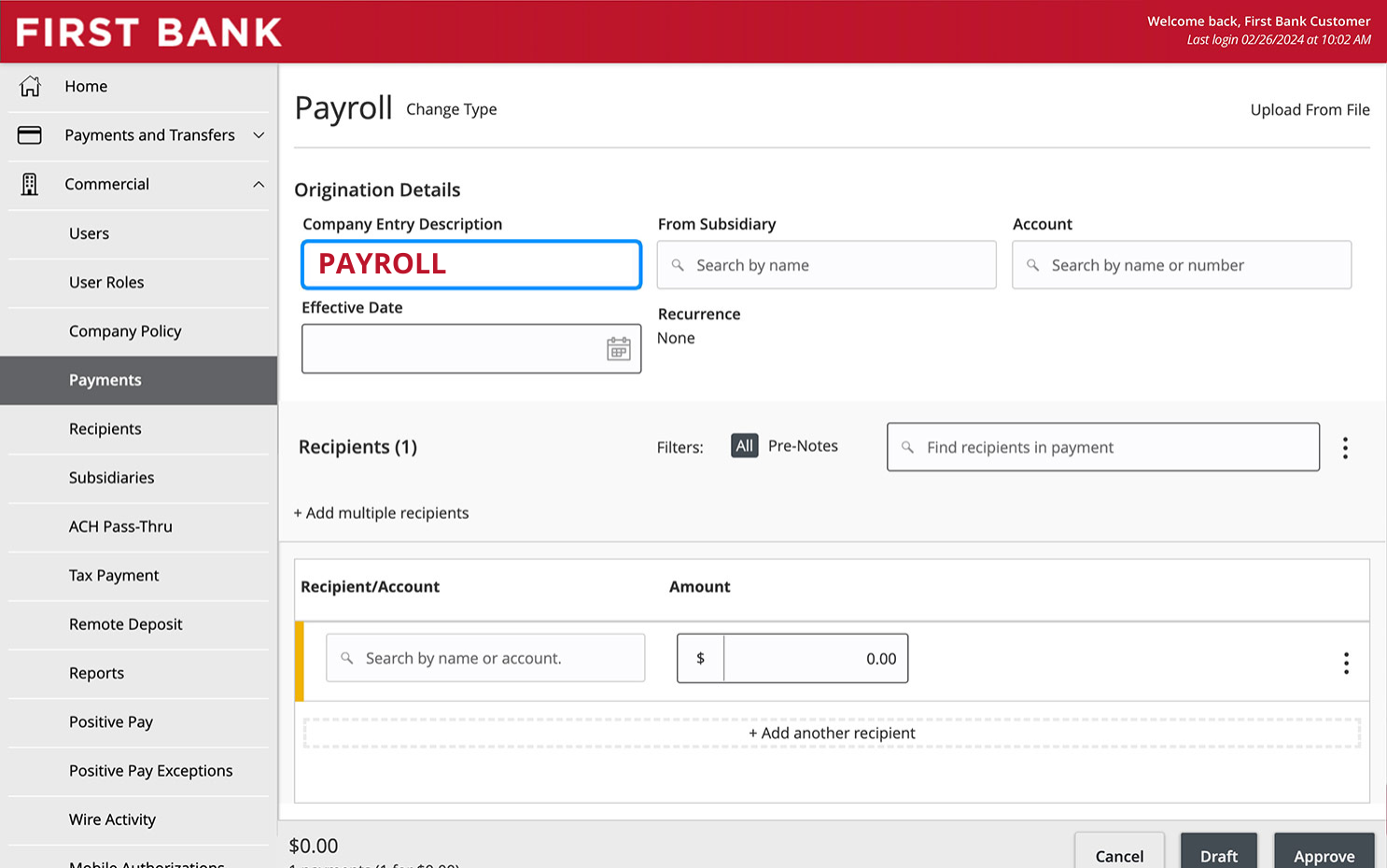
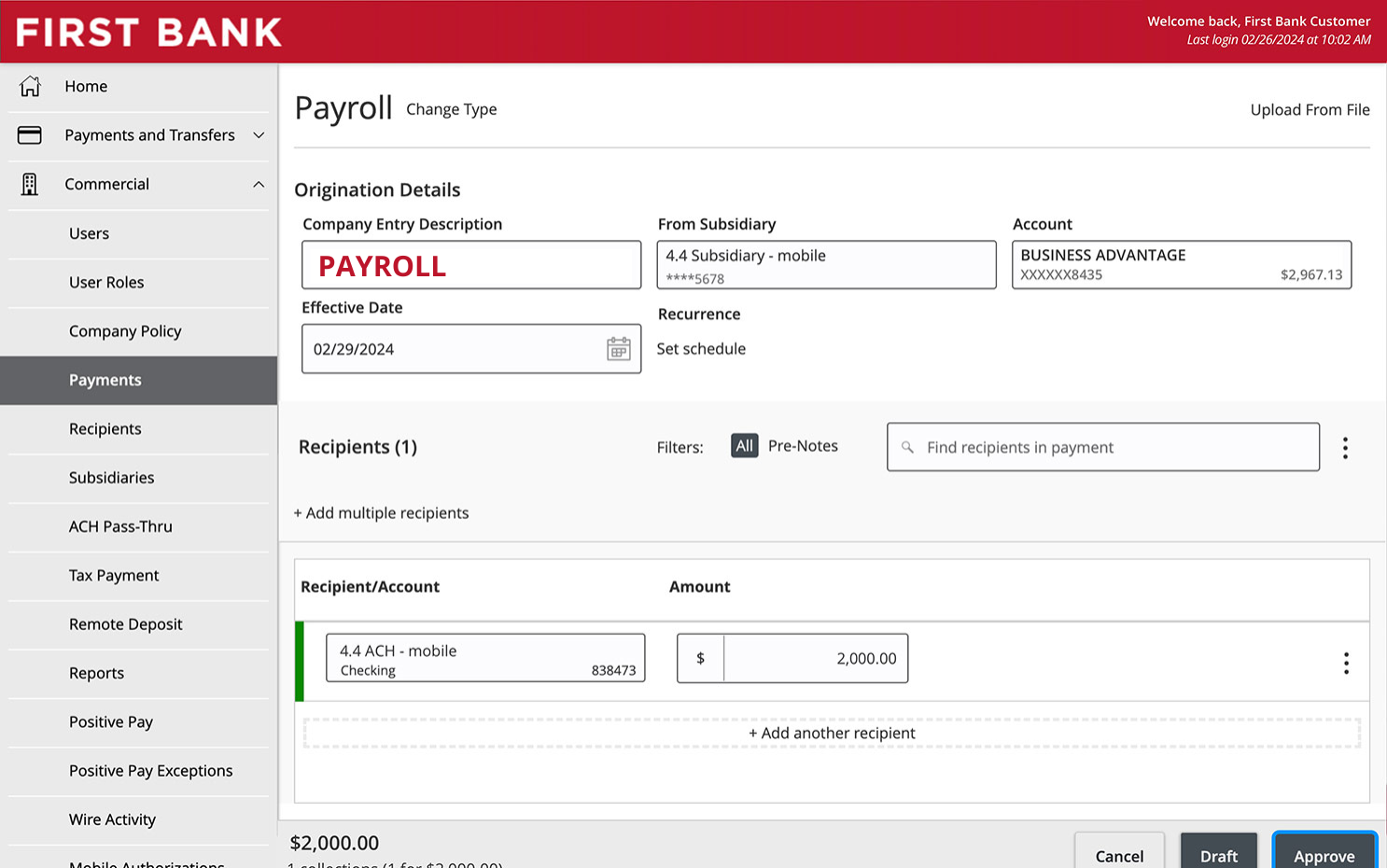
Click on the “Company Entry Description” box and enter ‘PAYROLL’.
As of March 20, 2026, payments to all employee types (W2 or 1099) related to wages, salaries, or other forms of similar compensation (including pre-tax deductions like HSA contributions) must include ‘PAYROLL’ in the ‘Company Entry Description’ field.
Step 5:
Choose the subsidiary.
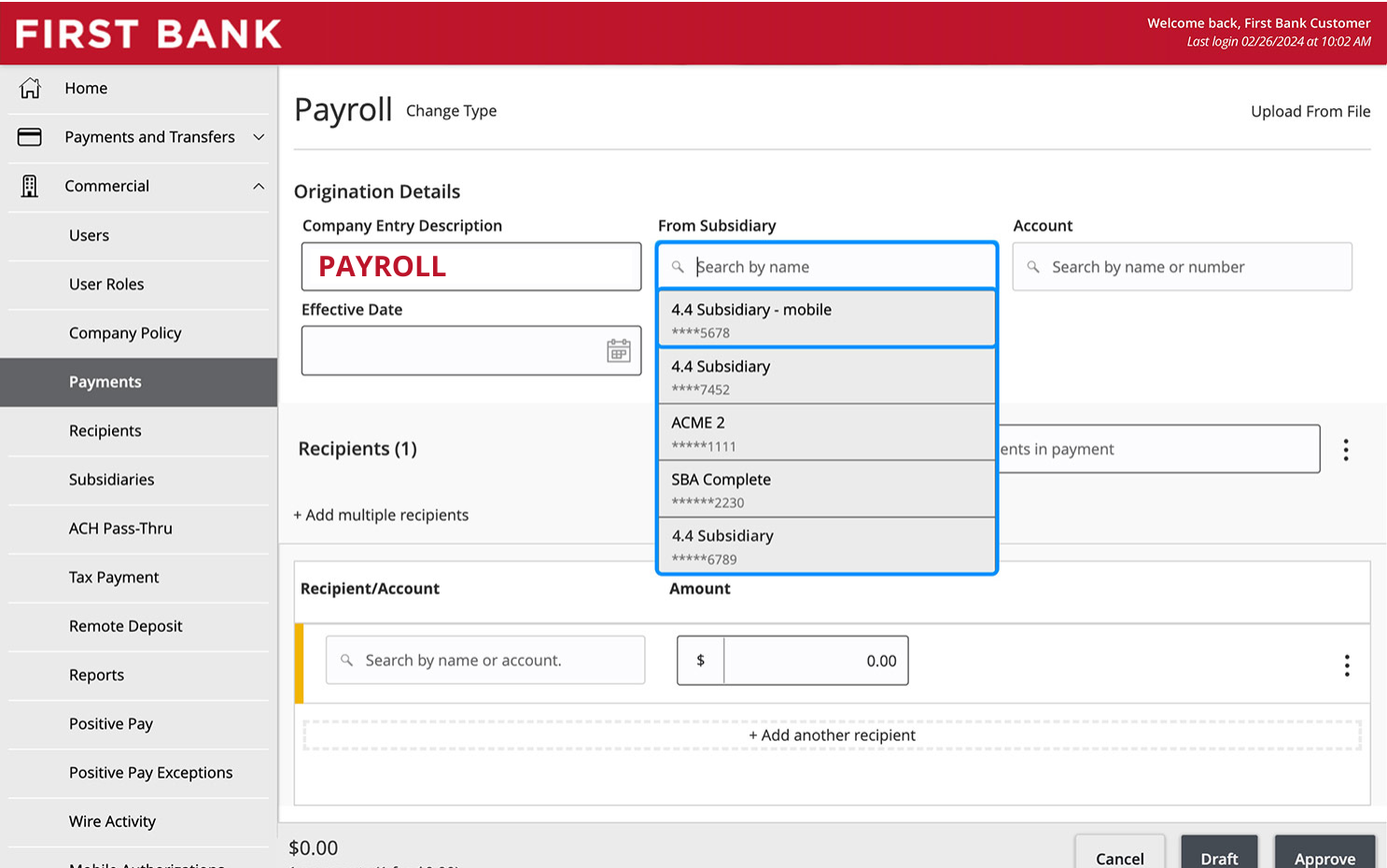
Click “From Subsidiary” and choose the subsidiary from the dropdown menu.
Step 6:
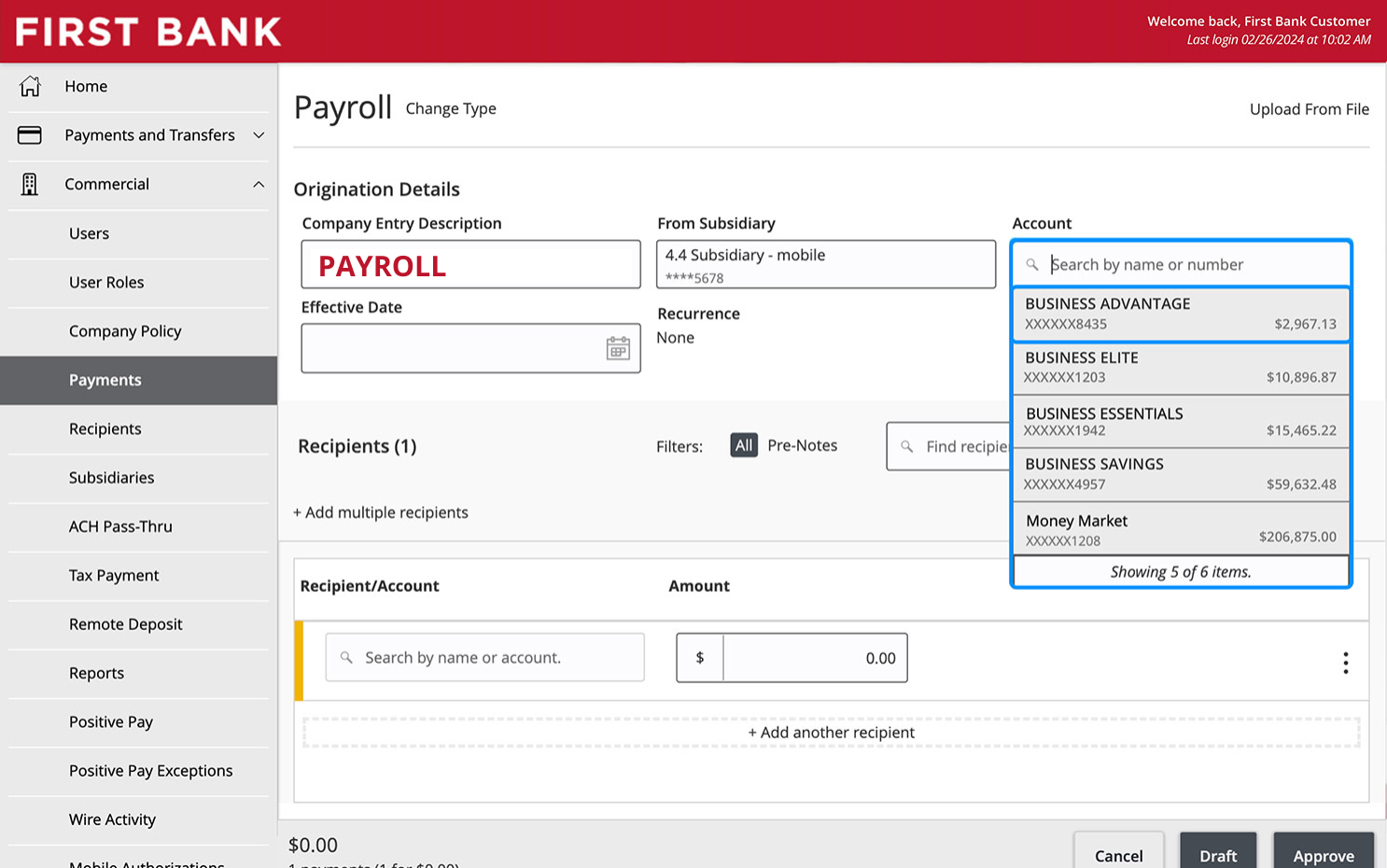
Choose the account.
Click the “Account” box and select the name or account number that you want the payroll to be drawn from.
Step 7:
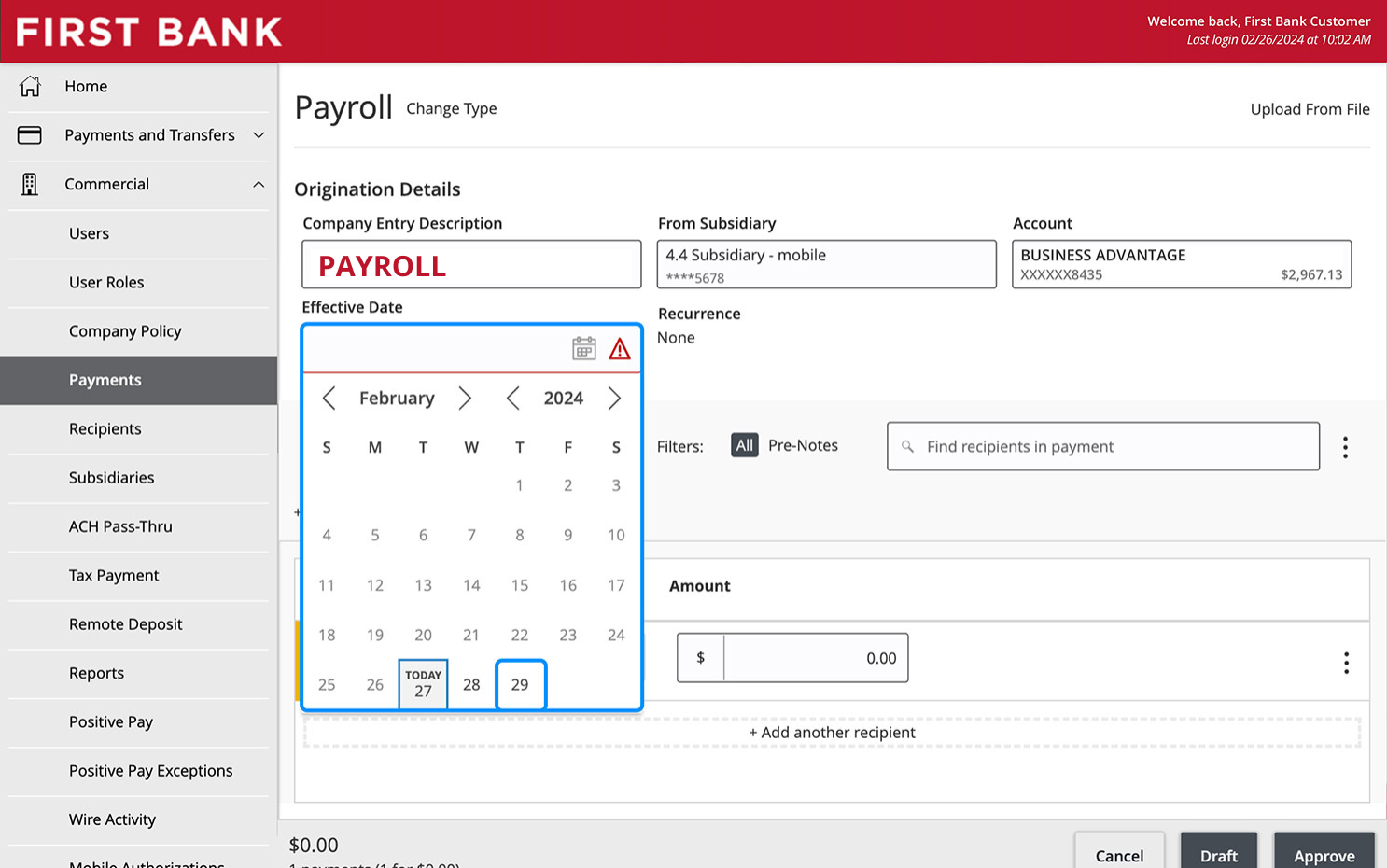
Choose the processing date.
Click the “Effective Date” box and choose the day from the calendar you want the payroll to be processed.
Step 8:
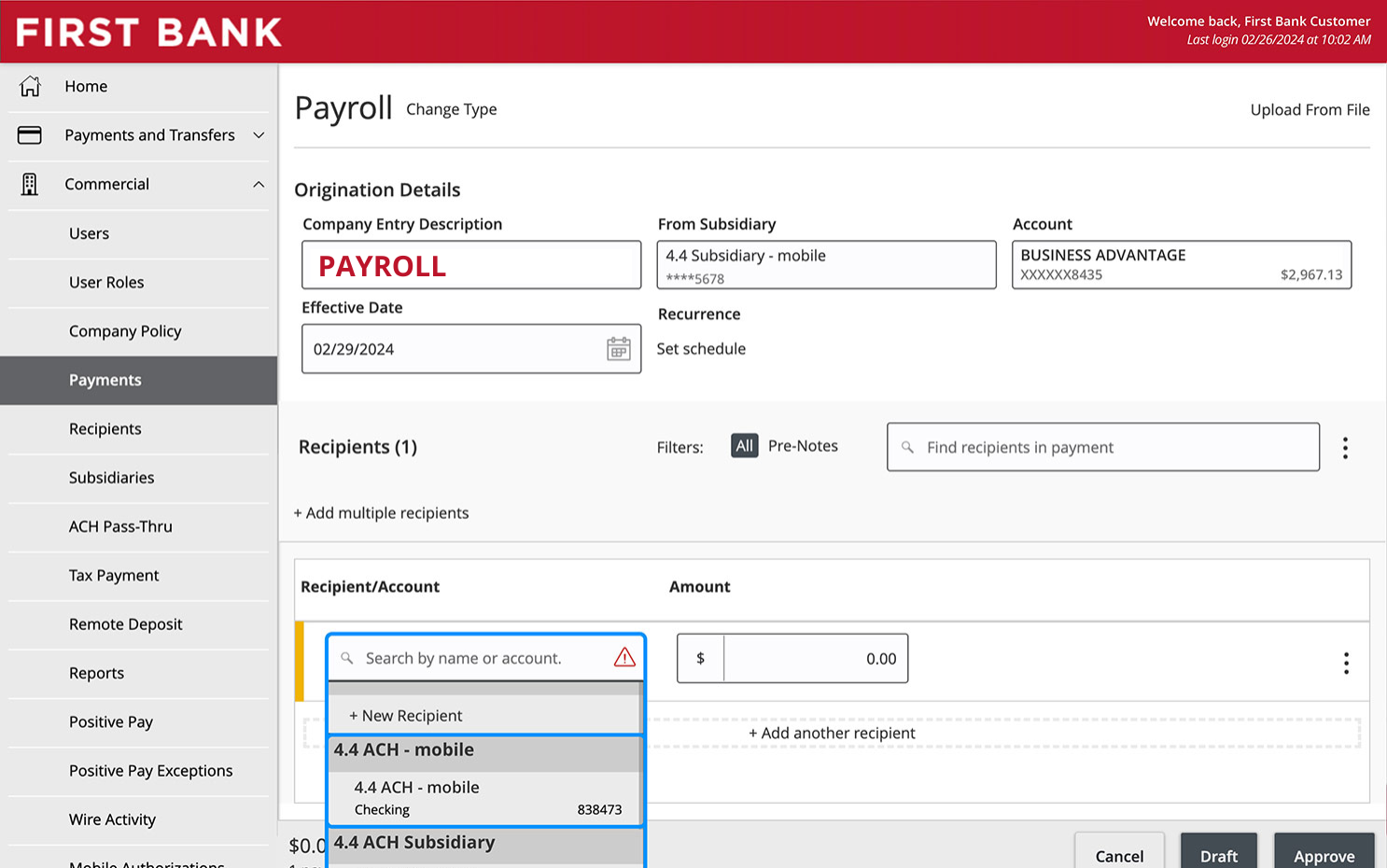
Select a recipient.
To send payroll, click the “Search by name or account” box and type in their information until the correct recipient pops up, then click on their name.
Step 9:
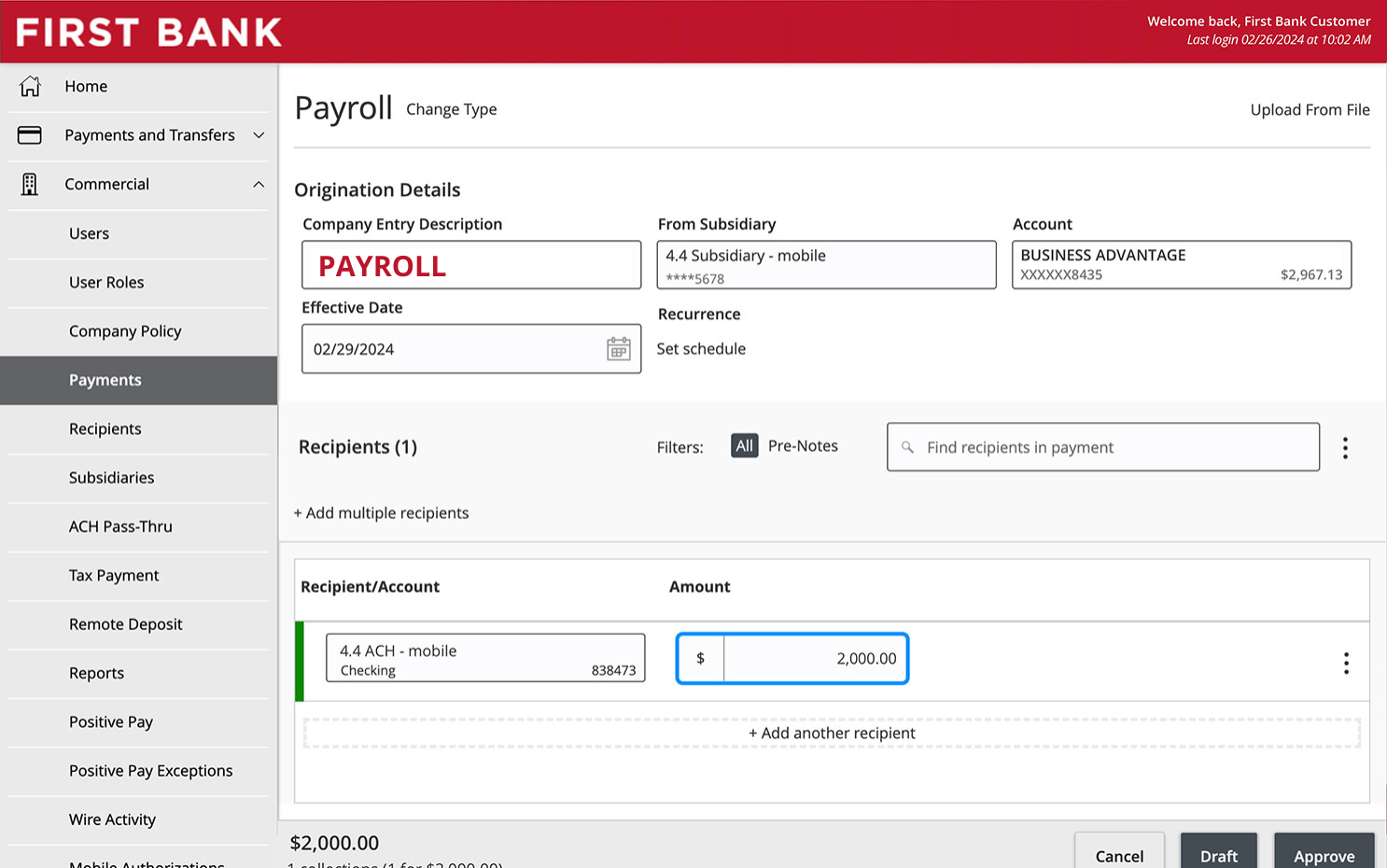
Enter payroll amount.
Enter the payroll amount in the “Amount” box.
Step 10:
Approve the payment.
Once all the information is entered, click “Approve.”
Have questions or unsure where to start?
Contact your Treasury Services rep, or one of our support teams below, for help or to schedule personalized demos.