Connect to Quicken or QuickBooks Software
Follow these steps to ensure the most secure connection with Quicken and QuickBooks software.
Enhanced Security
First Bank takes connections to outside software companies seriously and requires additional security measures to guarantee a high standard of protection. To enable Intuit’s Direct Connect (OFX) services to connect your First Bank accounts, please contact Customer Support or Business Support to have this capability added to your Online Banking profile and follow the instructions here to register your Direct Connect access.
When you initiate a connection from your Quicken or QuickBooks services to your First Bank online banking account, you may receive an error message with these instructions “Please register this file using the Direct Connect form in Online Banking”. For example:


Troubleshooting Steps
If you receive this error, follow these instructions to complete your Quicken or QuickBooks connection within your First Bank online banking account.
Step 1:
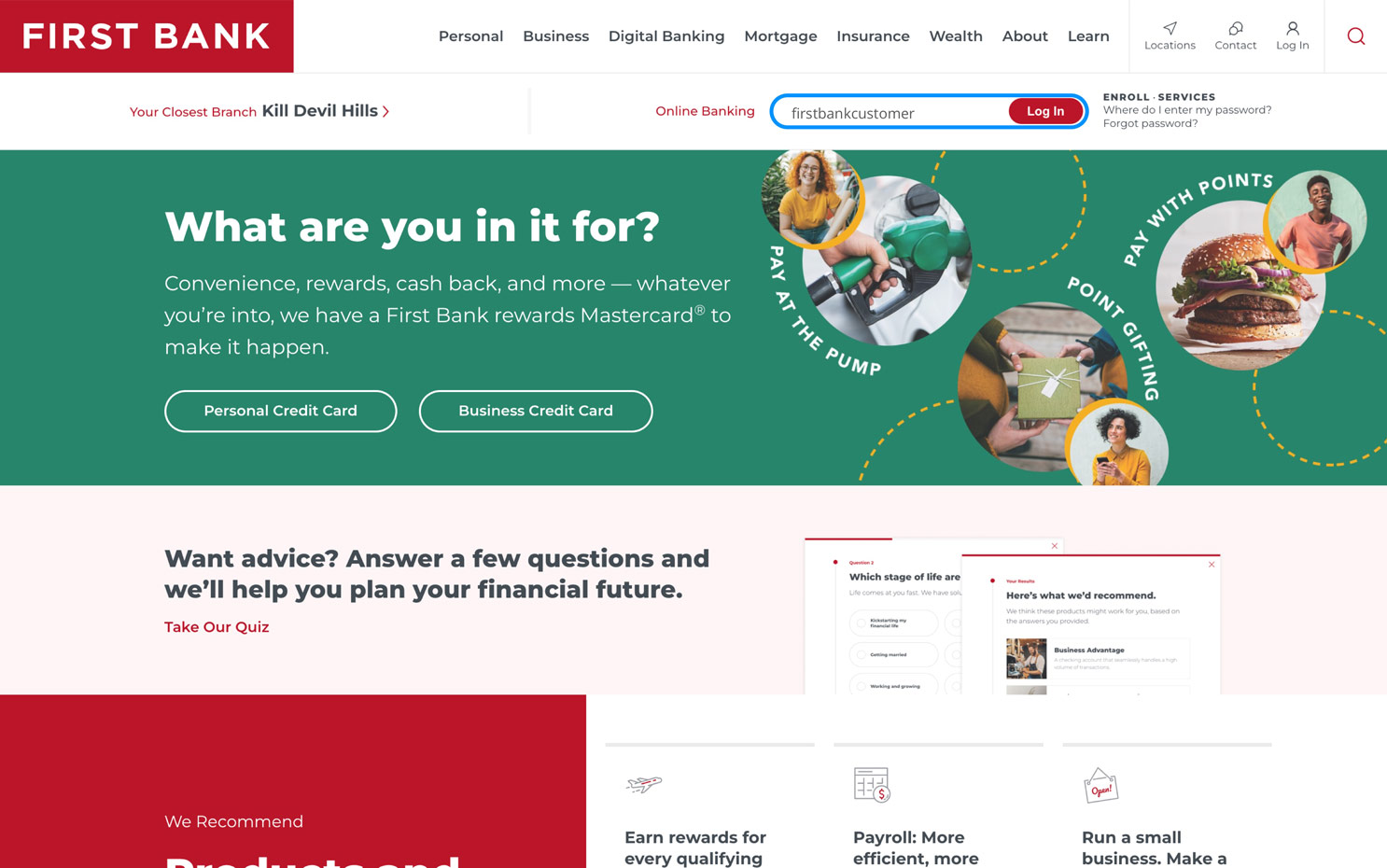
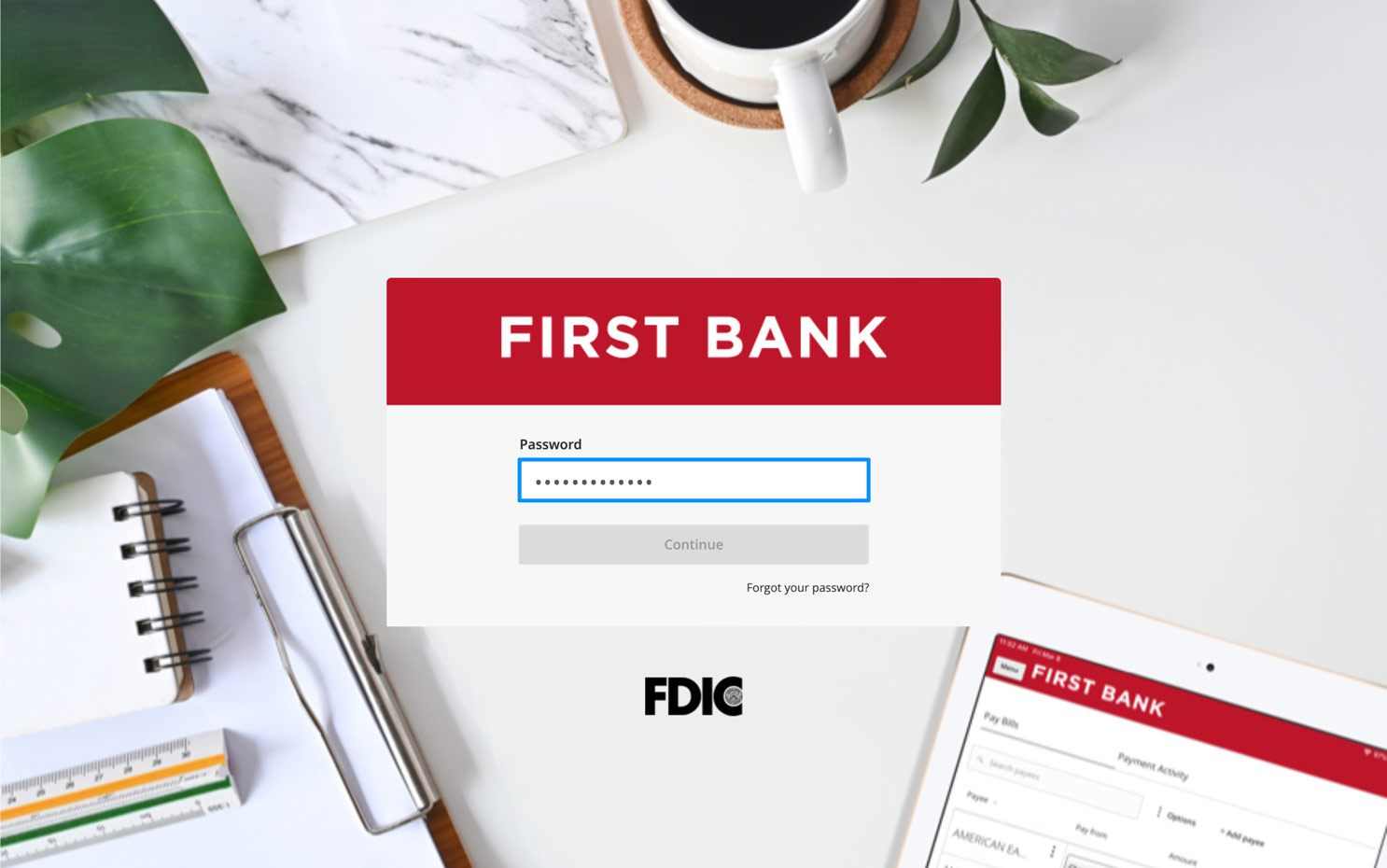
Log in to online banking.
When you enrolled in First Bank digital banking, you created a Username and Password. Enter your username and click the “Log In” button, then enter your password and click “Continue.”
Step 2:
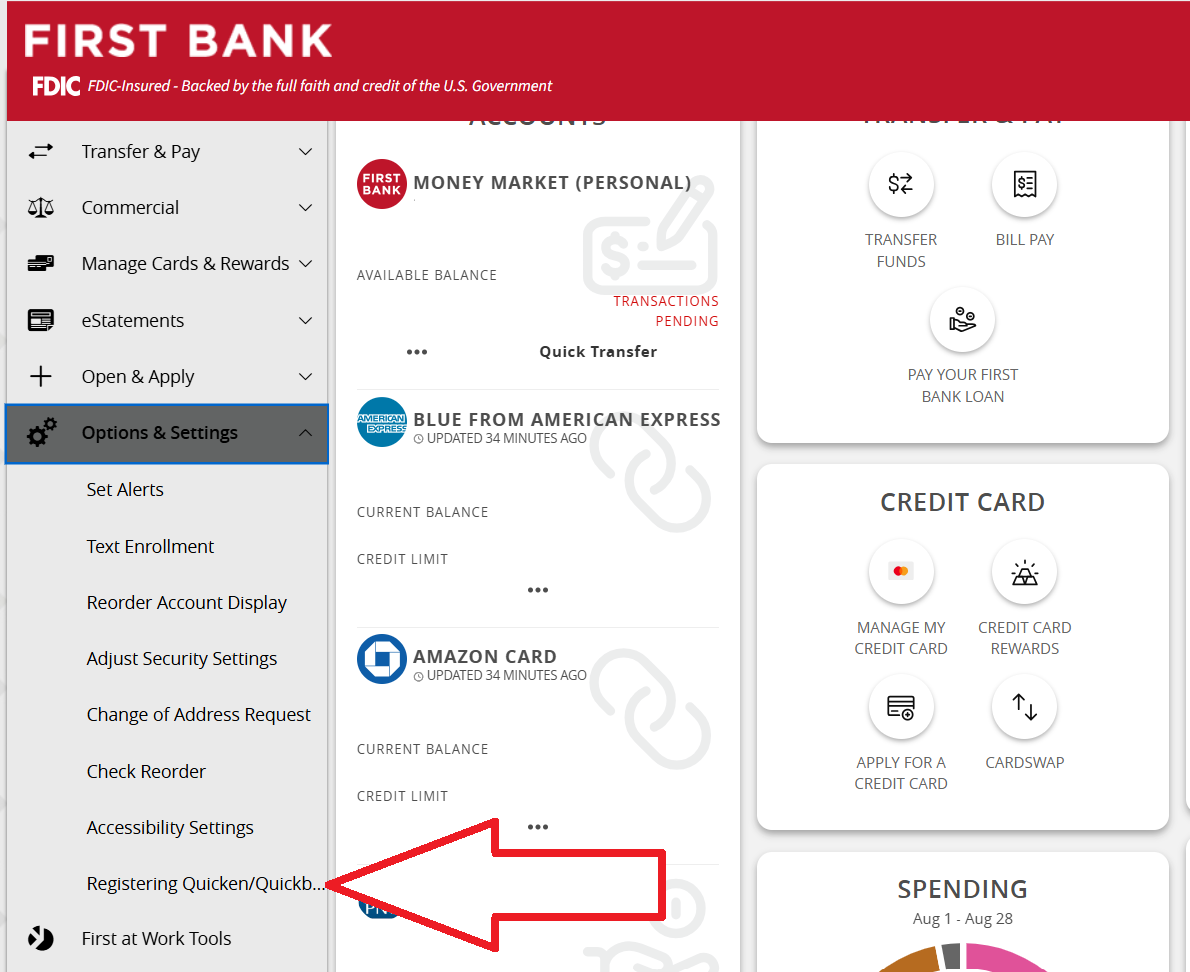
Navigate to Registering Quicken/Quickbooks
From the menu on the left, select “Options & Settings” > “Registering Quicken/Quickbooks”
Step 3:
Register Your Account
Select Generate on the form to register your account. Then, re-initiate the connection process using Quicken or QuickBooks within the next 60 minutes to securely link your account.
Once complete, you will not need to repeat the registration process. You can repeat this as many times as necessary.

Have questions or unsure where to start?
Contact our support team for help.