Back
Scroll to top

Mobile Check Deposit Demo

Deposit funds from checks into your account from anywhere.

Step 1:
Open the mobile app and log in.

When you enrolled in First Bank digital banking, you created a Username and Password. Enter that information in the corresponding boxes and then tap the “Log In” button.

First Bank online banking screen showing the initial login screen.

Step 2:
Enroll in Mobile Deposit.

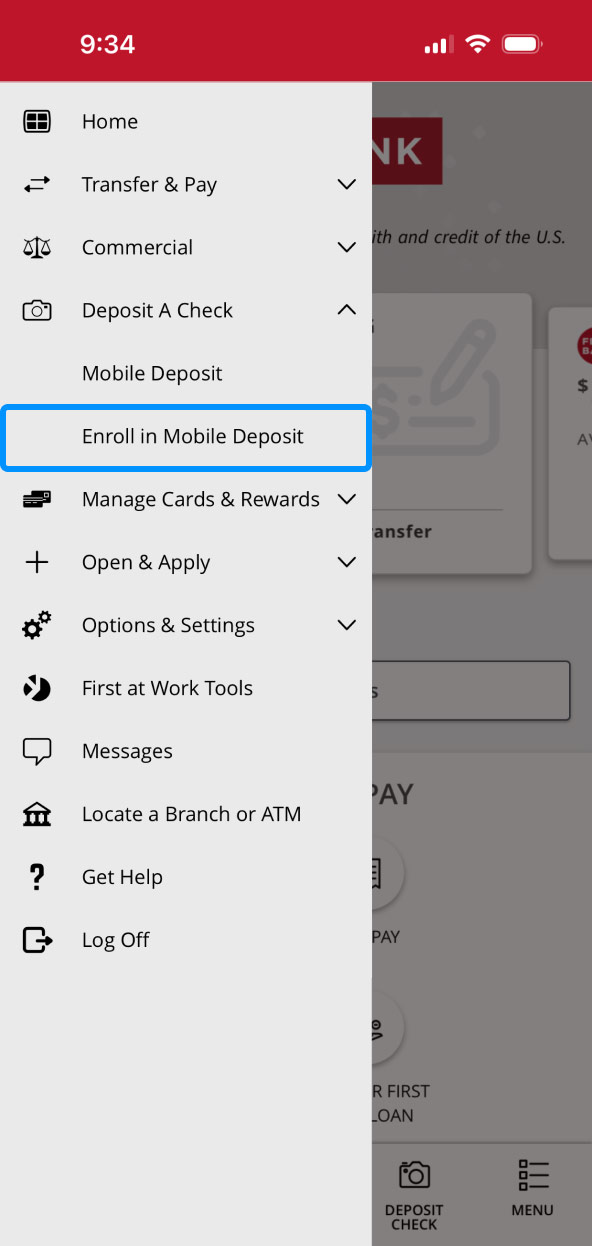
From the bar along the bottom, tap “Menu,” then select “Deposit A Check,” followed by “Enroll in Mobile Deposit.”

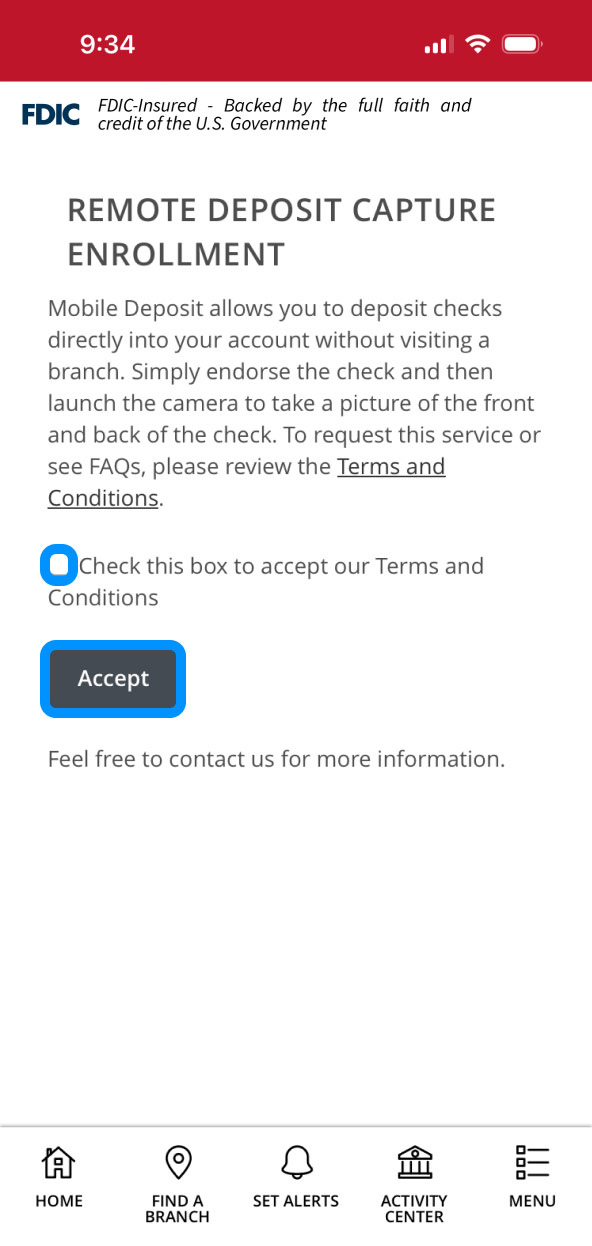
Tap the “Terms and Conditions” link to read and review the user agreement.

Then check the box to accept the terms and tap “Accept.”

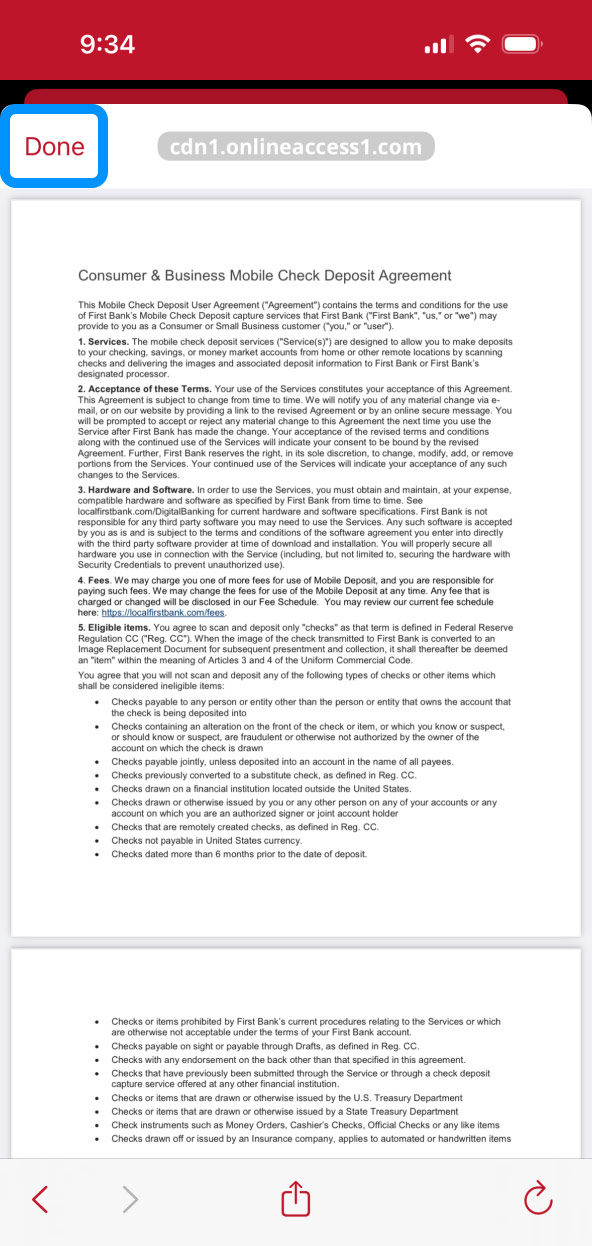
Read the user agreement, then tap “Done.”

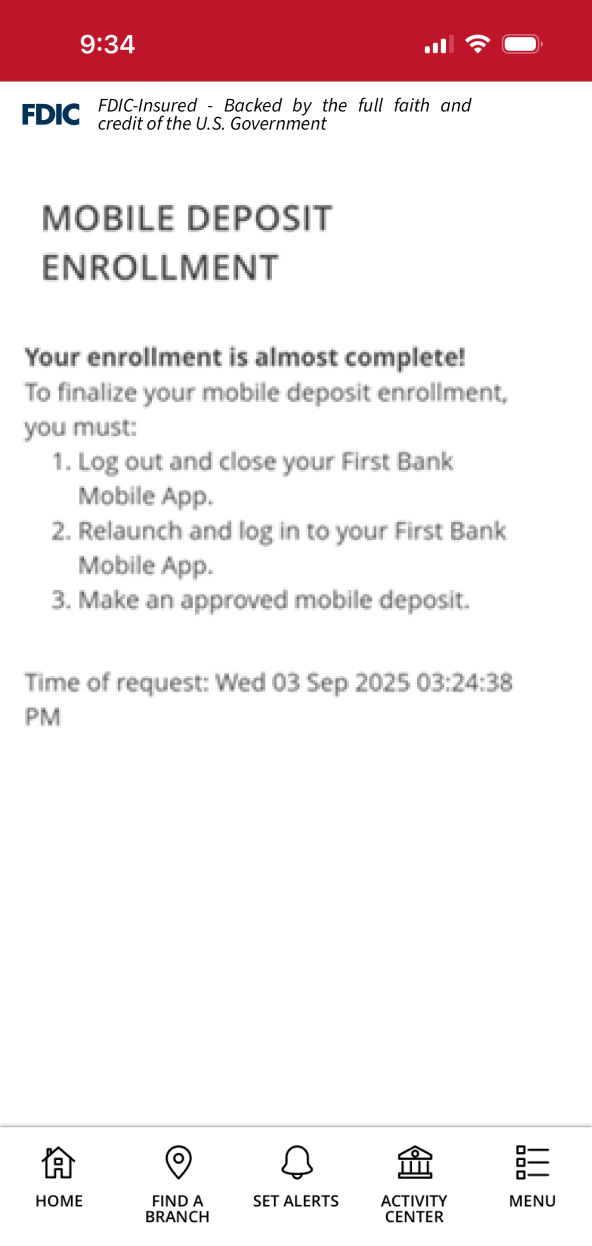
After enrolling, you must log out of the app and reopen it for the Mobile Deposit feature to be activated. To finalize the process, make an approved mobile deposit using the app.
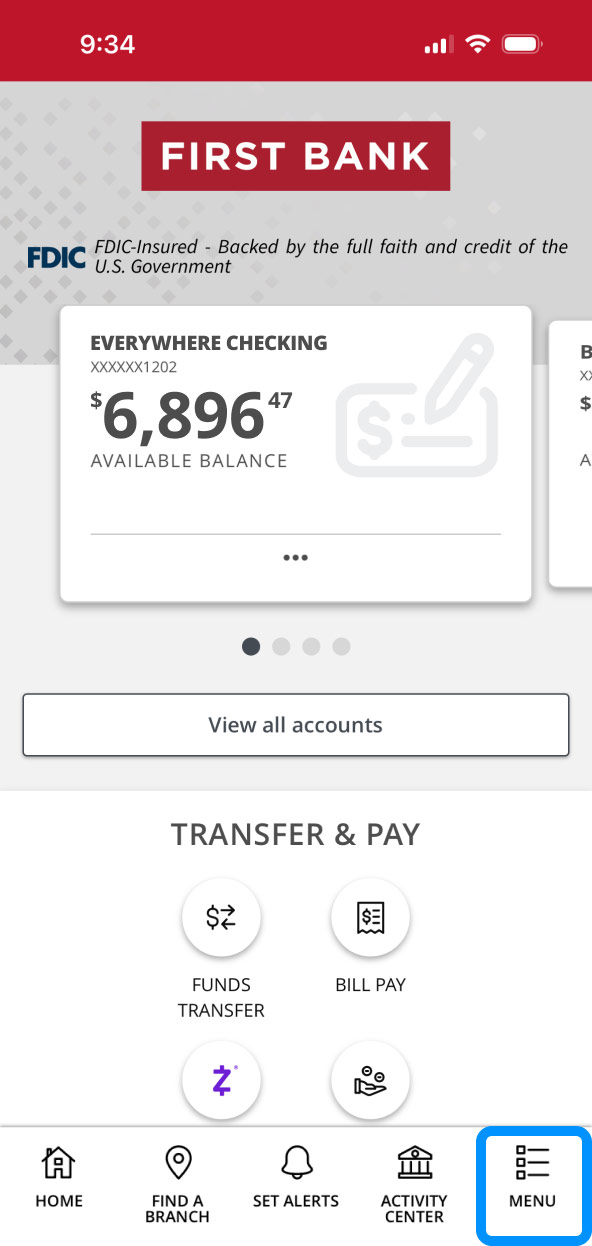
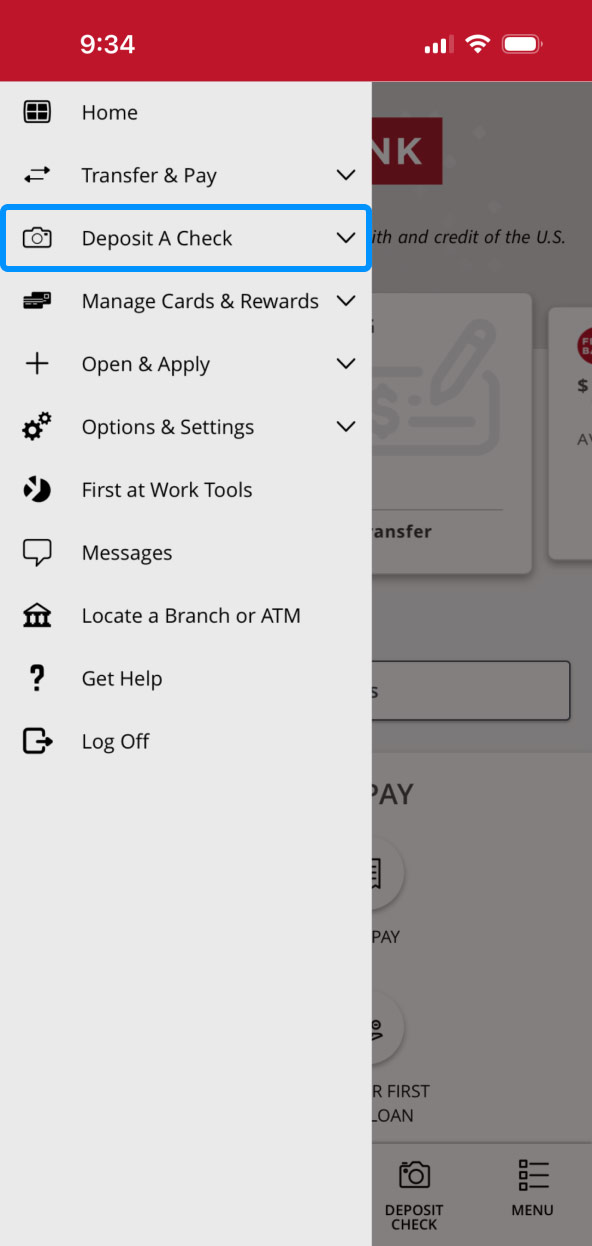
First Bank online banking screen highlighting the Menu button. First Bank online banking screen highlighting the Deposit a Check menu item. First Bank online banking screen highlighting the Enroll in Mobile Deposit menu item. First Bank online banking screen showing the Remote Deposit Capture agreement. First Bank online banking screen highlighting the Done button. First Bank online banking screen showing Remote Deposit Enrollment notice.

Step 3:
Navigate to Mobile Deposit.

Once you log into the app, tap “Deposit Check.”
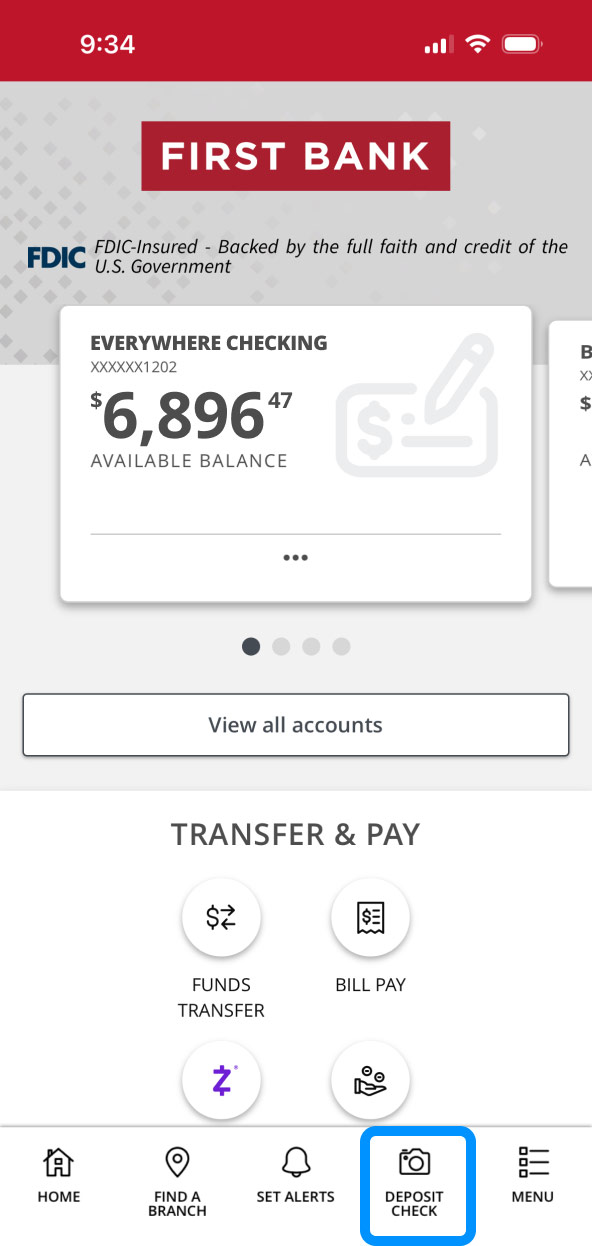
First Bank online banking screen highlighting the Deposit Check button.

Step 4:
Enter check details.

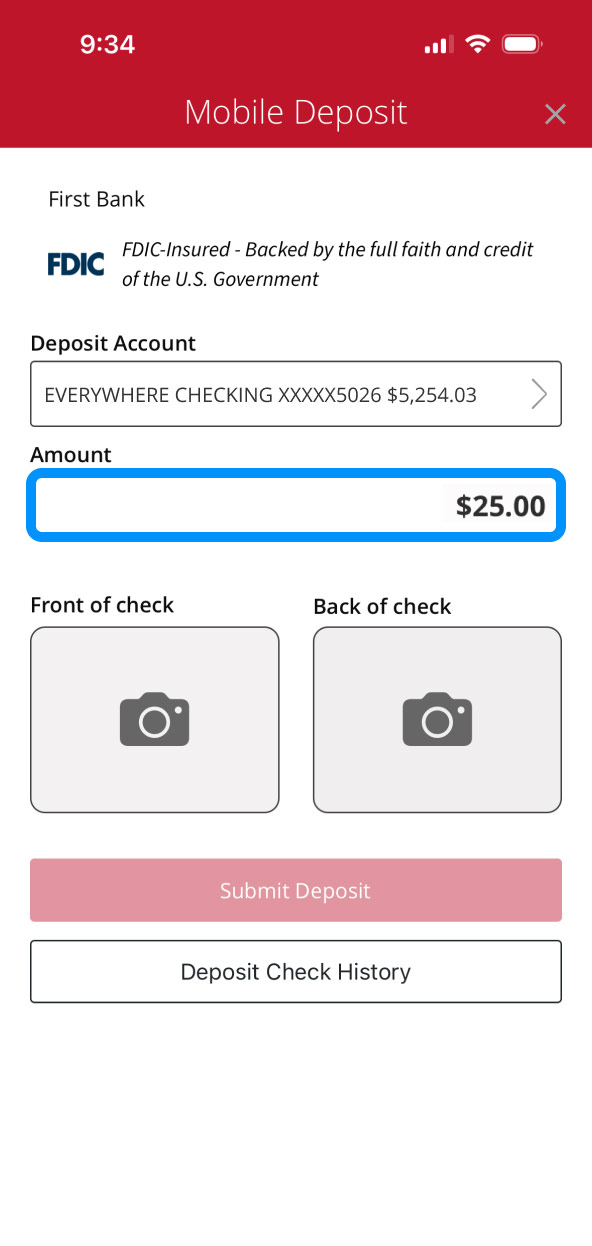
In the Deposit Account box, tap the arrow to see your accounts. Choose the account you want to deposit funds into.

In the Amount box, enter the figure from the check.

Note that depositing emailed checks via mobile deposit may put you at risk for fraud. Visit your local branch instead to deposit checks received electronically to safeguard your funds and personal information.
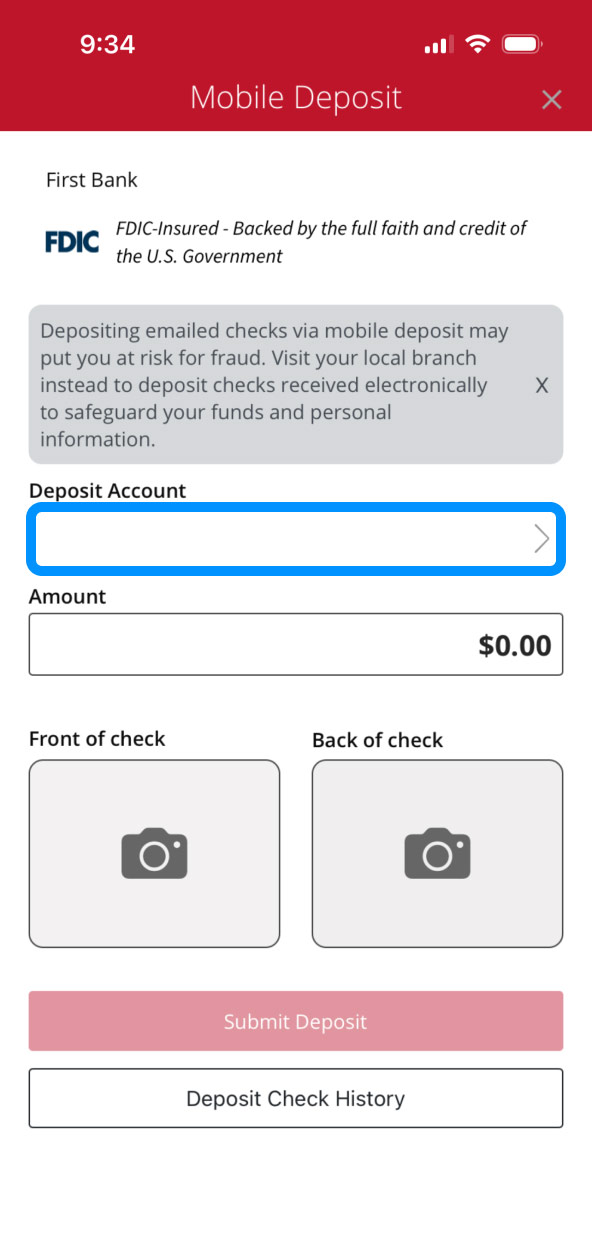
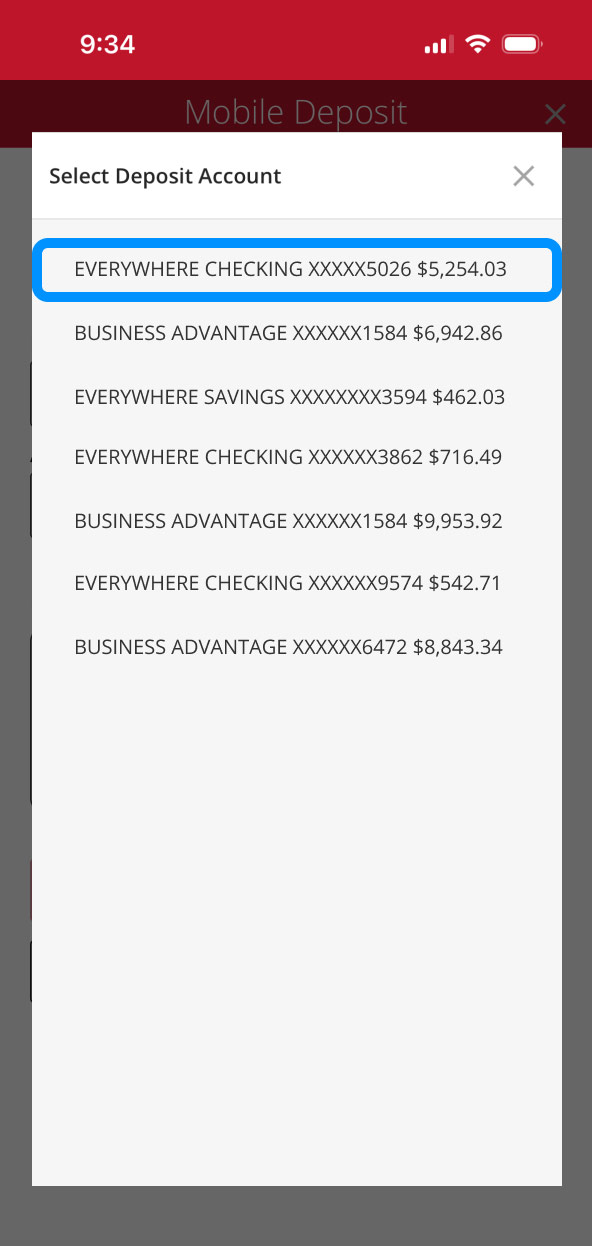
First Bank online banking screen highlighting the Deposit Account input field. First Bank online banking screen highlighting the deposit account to use. First Bank online banking screen highlighting the Amount input field.

Step 5:
Photograph the check.

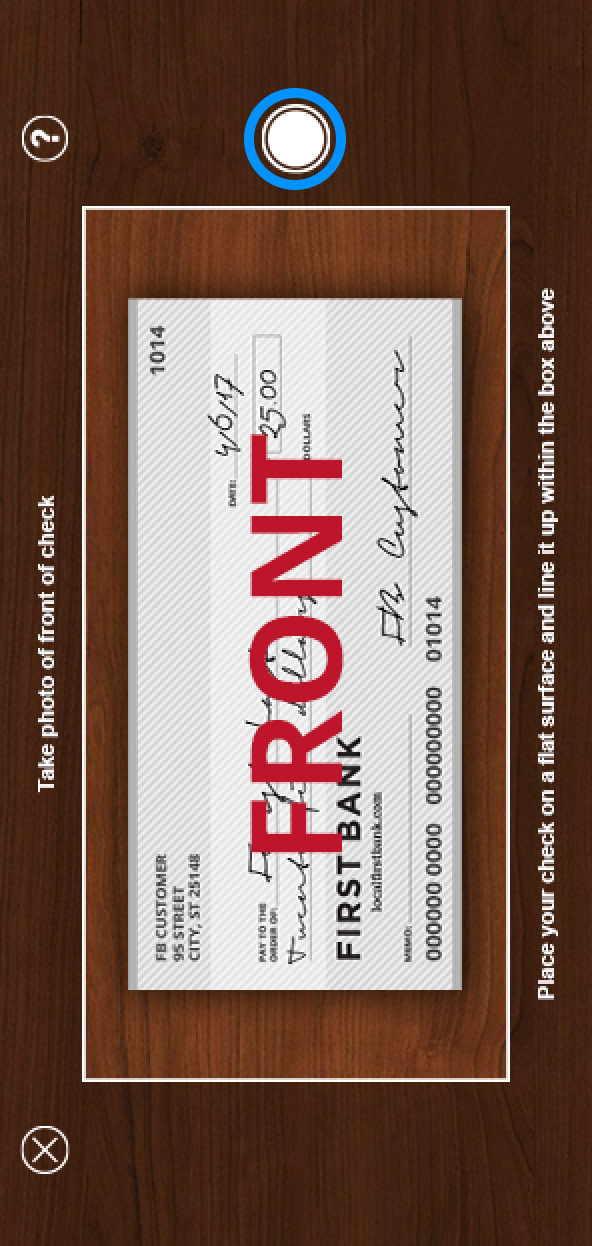
Tap the camera icon in the box under Front of check. Select “Allow” if your phone asks if First Bank can access your camera.

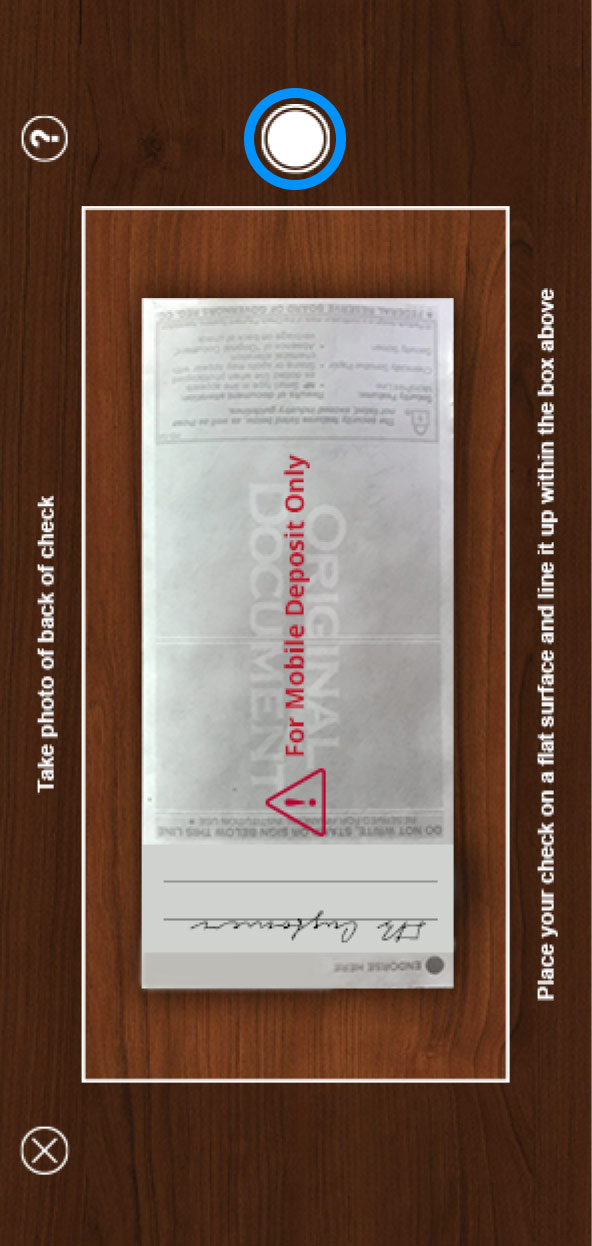
Place your check on a flat surface and center it within the white box, then tap the white circle button to take the picture.

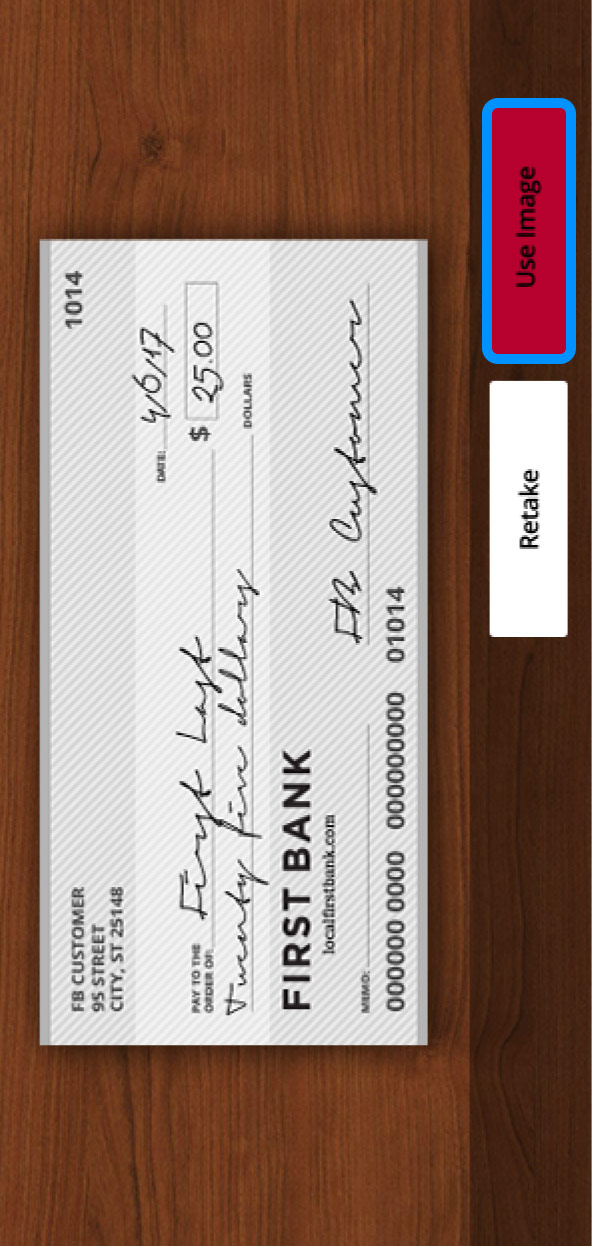
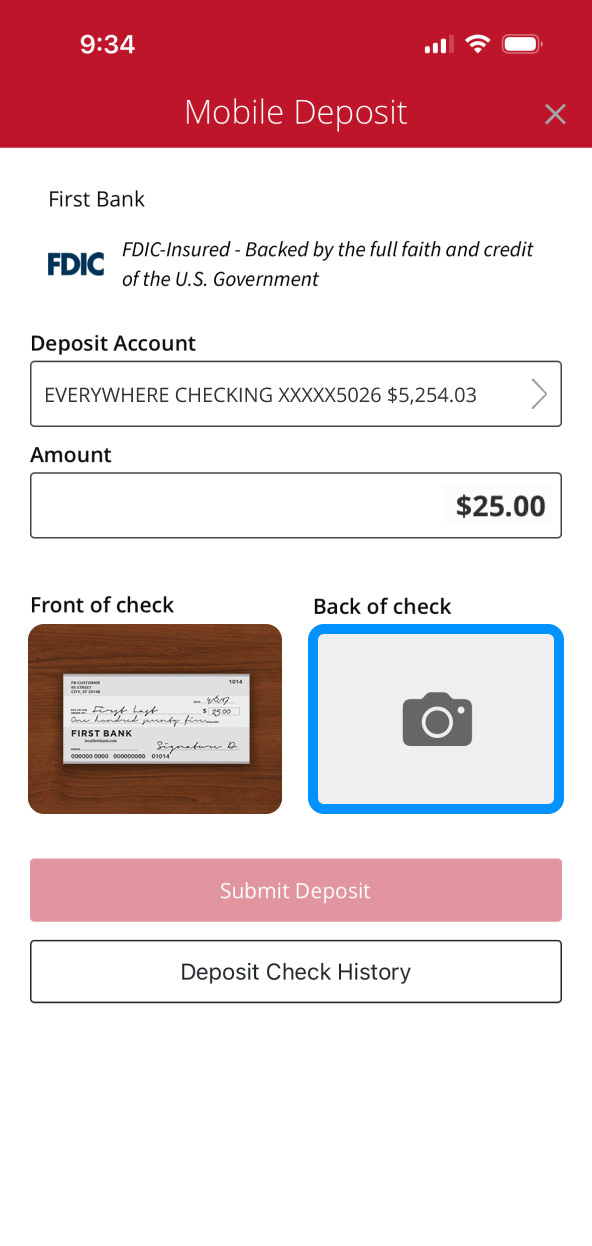
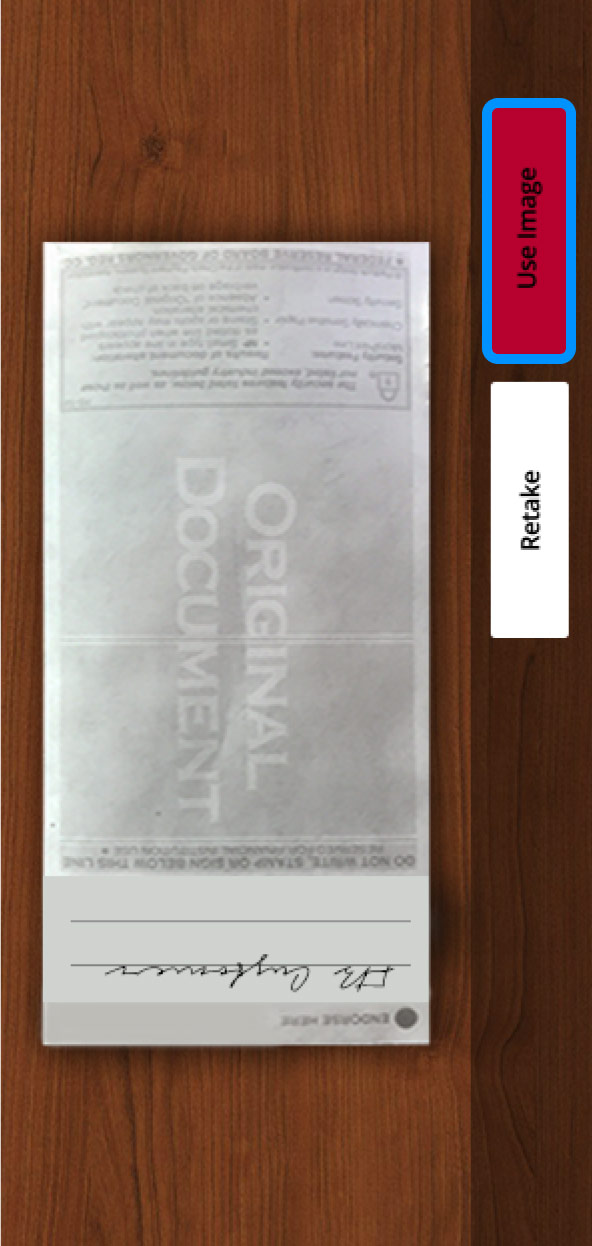
Tap “Use Image,” then repeat these steps for the back of the check.
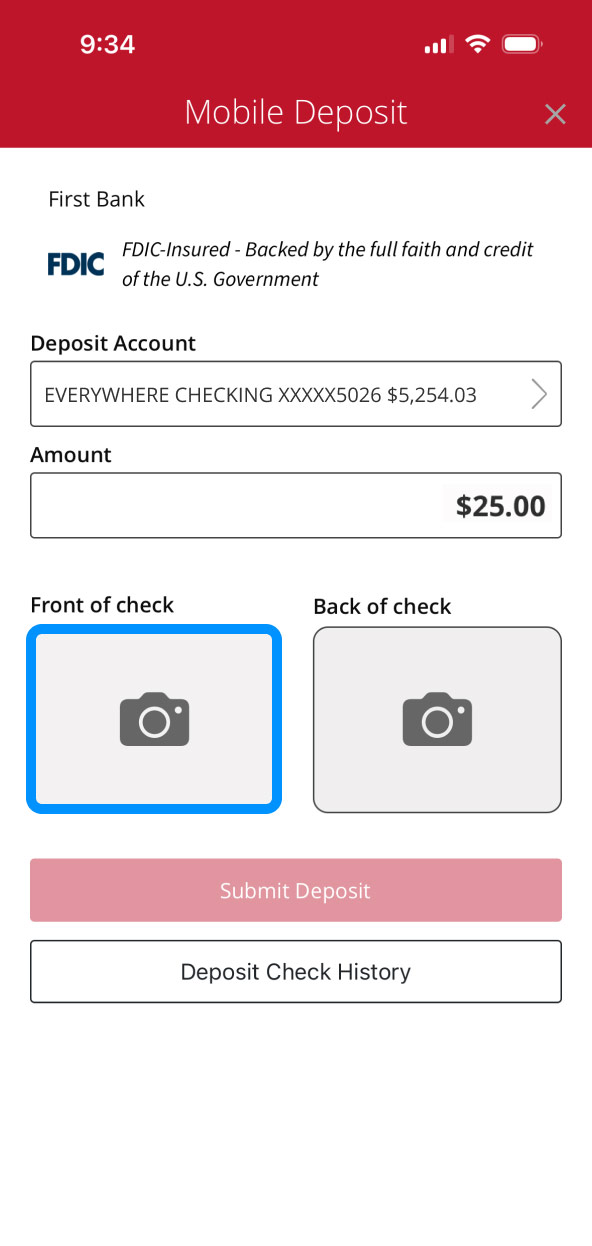
First Bank online banking screen highlighting the Front of Check button. First Bank online banking screen showing the camera capturing the front of a check. First Bank online banking screen highlighting the Use Image button when capturing a check. First Bank online banking screen highlighting the Back of Check button. First Bank online banking screen showing the camera capturing the back of a check. First Bank online banking screen highlighting the Use Image button for the back of a check.

Step 6:
Submit deposit.

Verify the account and amount are correct, then tap “Submit Deposit.”

You will receive verification your deposit is processing. From there, you can make another deposit or return to your accounts by tapping on either button.
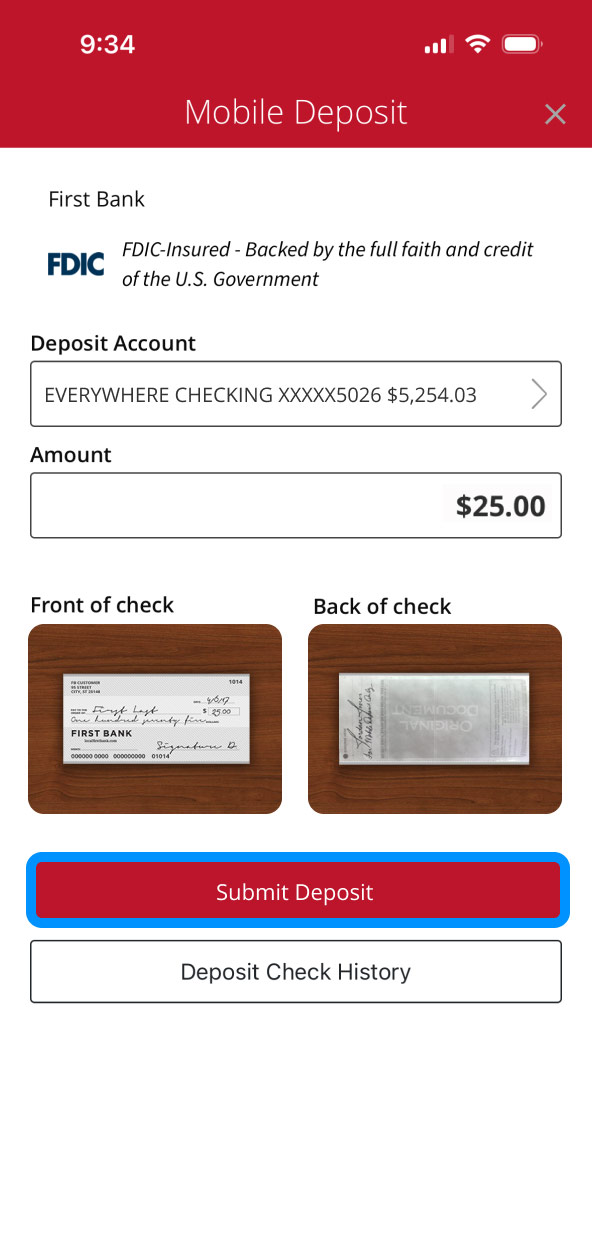
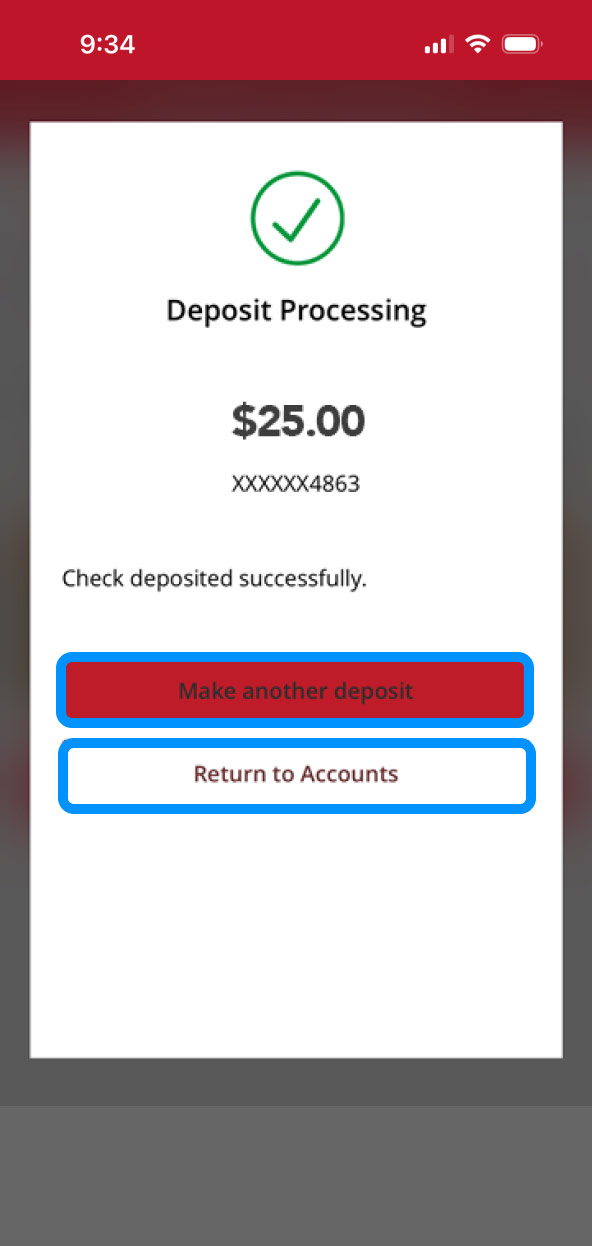
First Bank online banking screen highlighting the Submit Deposit button. First Bank online banking screen highlighting the Make Another Deposit and Return to Accounts buttons.


Explore our guided tutorials

Bill Pay Online bill pay makes it quick, easy, and convenient to pay your bills. Funds Transfer Transfer money between your First Bank accounts one time or on a recurring basis. MyMoney Link Account Learn how to link accounts from various sources into MyMoney to provide you with a complete picture of your finances. MyMoney Trends Learn how to view your spending trends in MyMoney. Fraud Protection Secure Access Code Add a new phone number to your account to receive your secure access code. MyMoney Debts Quickly get an overview of your debts from across linked accounts. Account Overview Business Learn how to see account and transaction details. External Accounts Learn how to add external accounts. Alerts Learn how to set up customized alerts for your accounts. Zelle® Split Easily split bills with friends, family and others you trust. eStatements Access your statements to review, save, or print. MyMoney Spending Quickly get an overview of what you spend your money on, organized by categories. Account Overview Learn how to see account and transaction details. Quicken & Quickbooks Connection Learn how to set up a secure connection to your Quicken or QuickBooks software. CardSwap Link your recurring payments and subscriptions to your new credit card. Zelle® Send Digitally send money to friends, family and others you trust. Account Dashboard Learn to navigate the online banking app. MyMoney Net Worth Learn how to view your Net Worth information from across various linked accounts. MyMoney Budget Create a budget to reach your financial goals. Zelle® Request Digitally request money from friends, family and others you trust. Mobile Bill Pay Pay your bills from anywhere so you’re always on time. Business Bill Pay Pay your bills quickly and easily from our secure website.
First Bank logo
Privacy Overview

This website uses cookies so that we can provide you with the best user experience possible. Cookie information is stored in your browser and performs functions such as recognizing you when you return to our website and helping our team to understand which sections of the website are the most popular and useful.