eStatements Demo
Access your statements to review, save, or print.
Step 1:
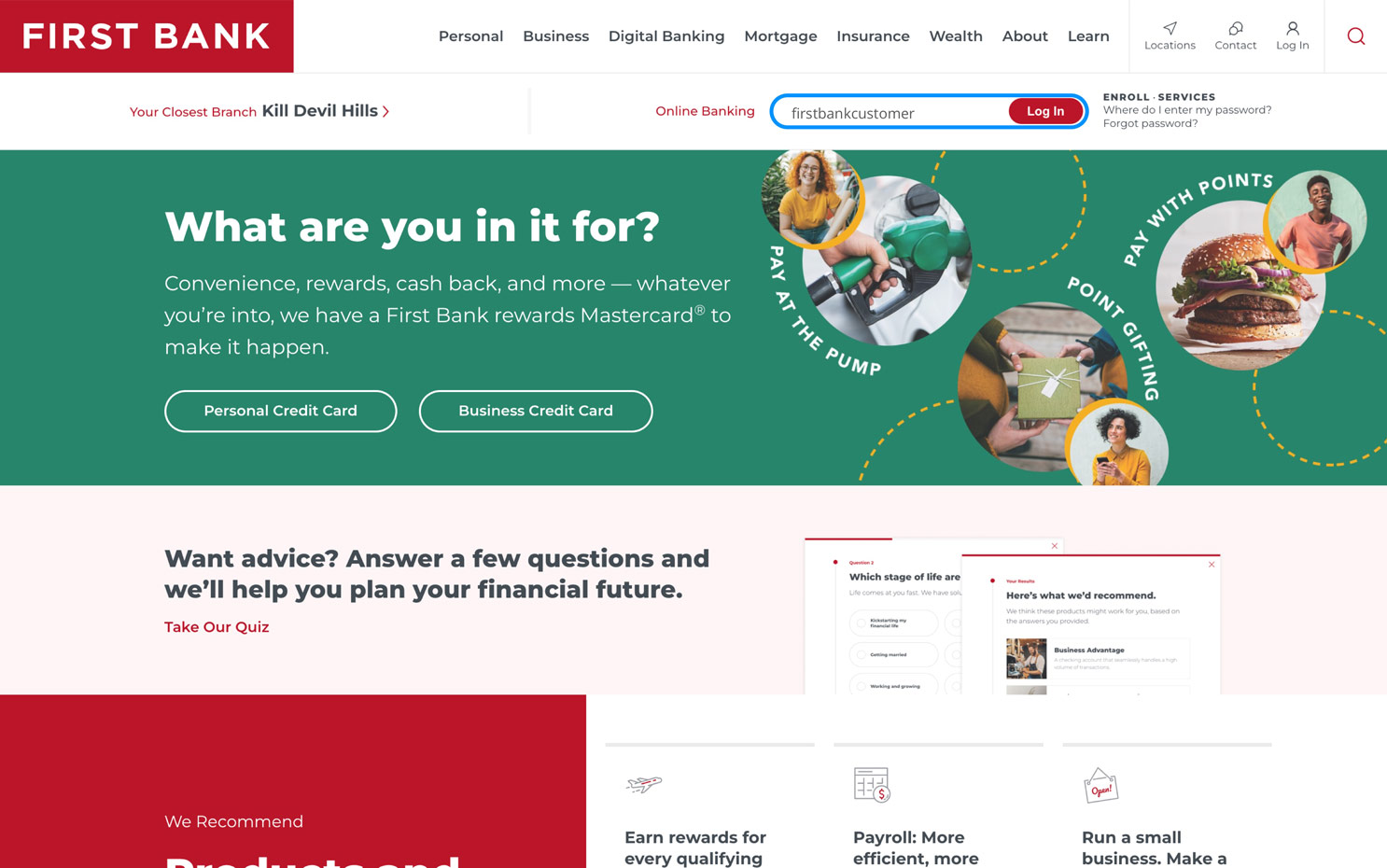
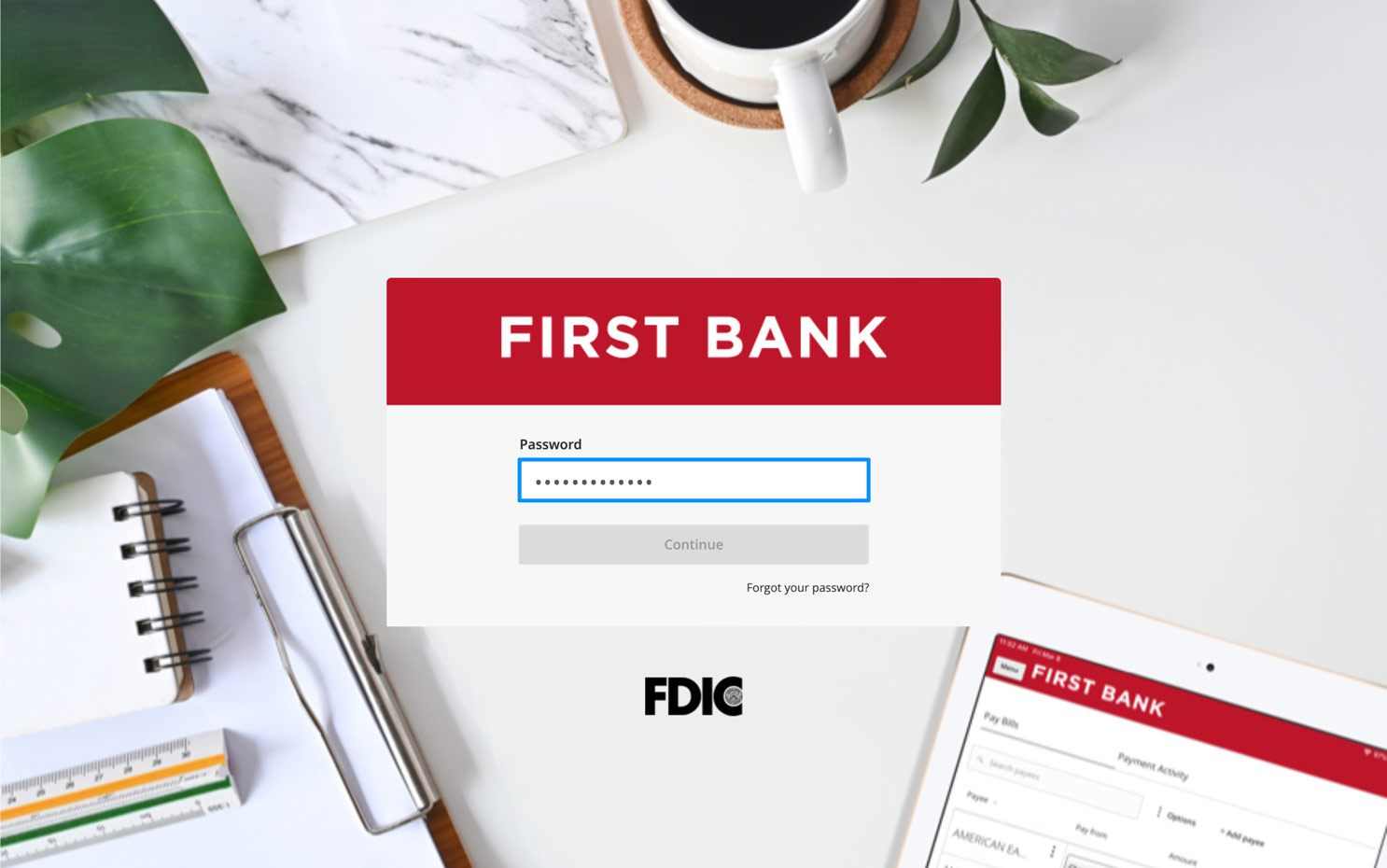
Log in to online banking.
When you enrolled in First Bank digital banking, you created a Username and Password. Enter that information in the corresponding boxes and then click the “Log In” button.
Step 2:
Navigate to eStatements
In the menu, click the arrow next to eStatements to reveal the dropdown menu, then select “Enroll in eStatements.”

Step 3:
Enroll in eStatements.
Agree to First Bank’s Agreement and Consent for Electronic Delivery of Periodic Statements & Notices by selecting “Accept” at the bottom of the agreement. If you select the “Decline” button, you will not have access to your documents electronically.
Immediately after accepting the terms and conditions, the electronic documents (statements, notices, tax documents) will populate the screen. On future visits, simply select “See Your Statements” from the navigation menu to view your statements.

Step 4:
View eStatements.
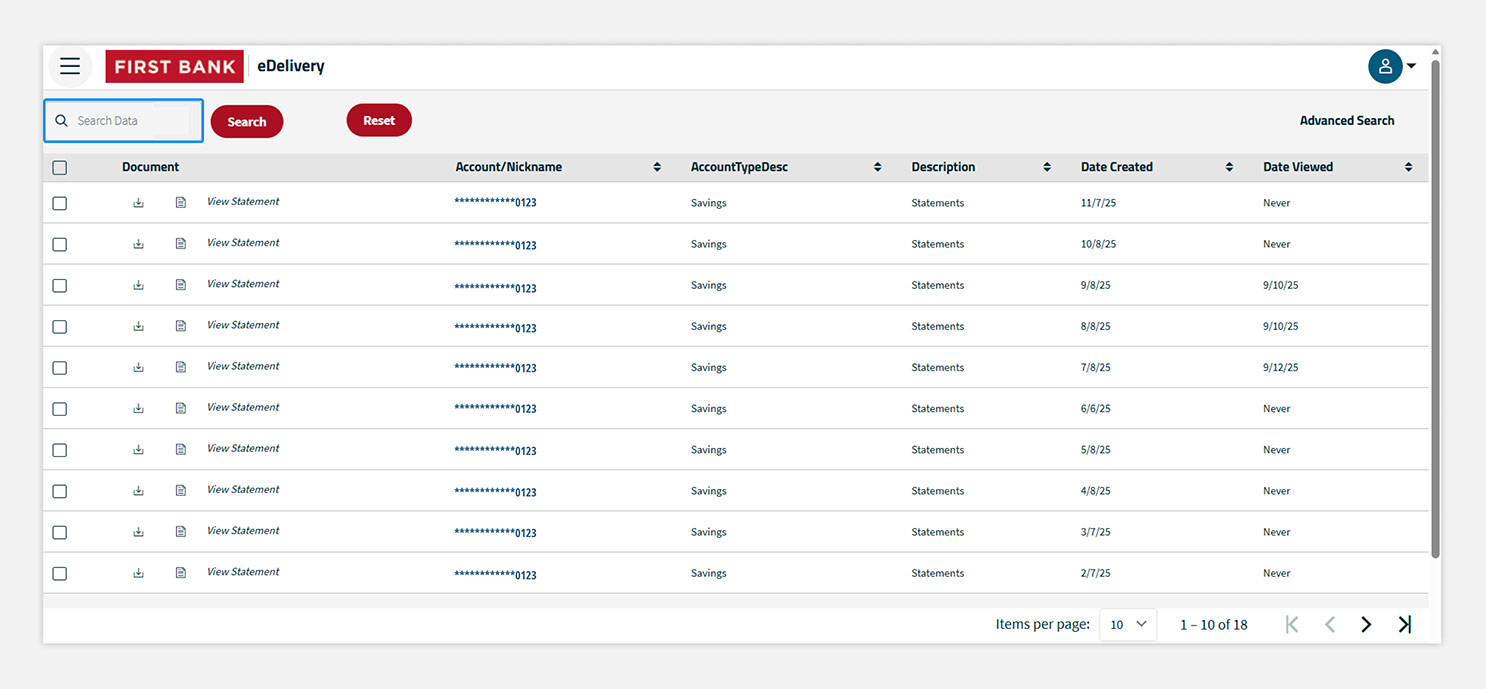
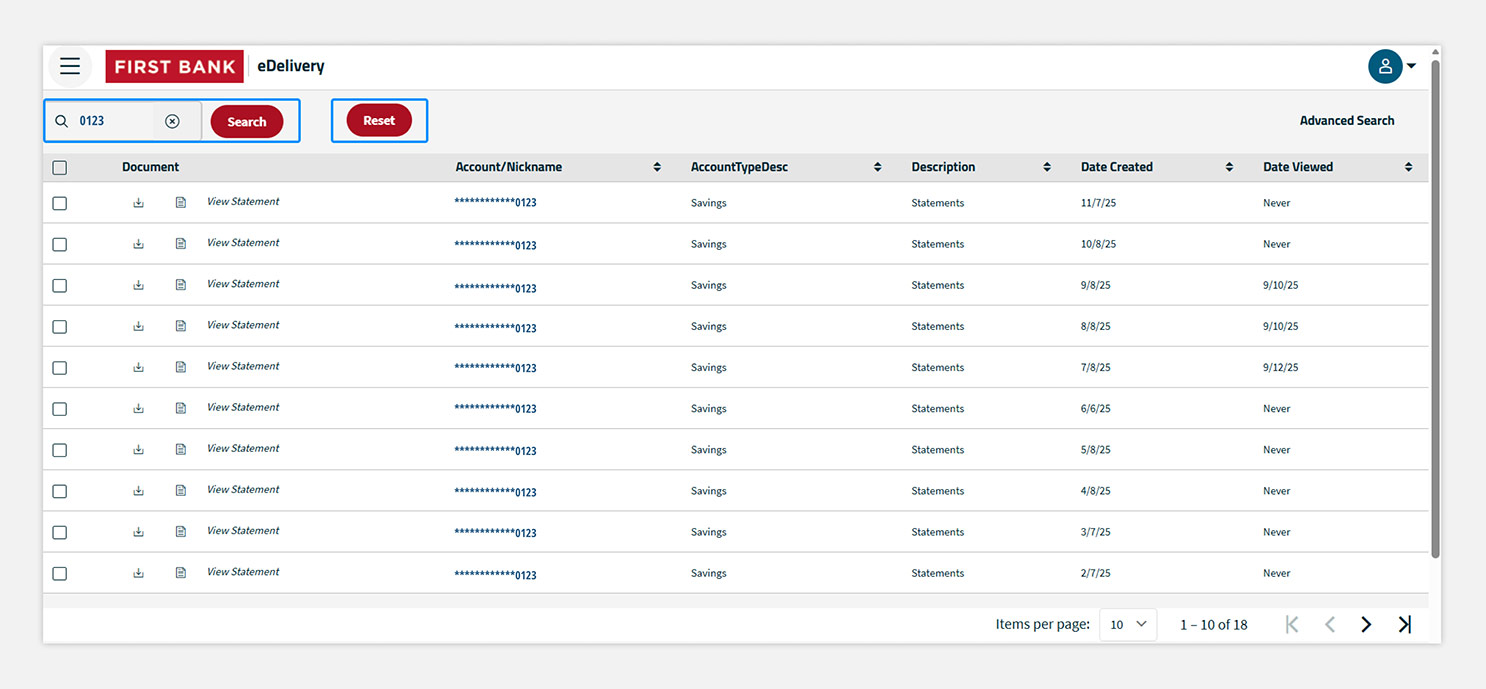
Once enrolled, the available electronic documents (statements, notices, tax documents) will populate the screen in chronological order with the most recent on top. You can also sort statements in ascending or descending order by clicking on the column heading.
To view a document in a browser, click the page icon in that document’s row. To download a copy of the document, click the download icon.


Step 5:
Search eStatements
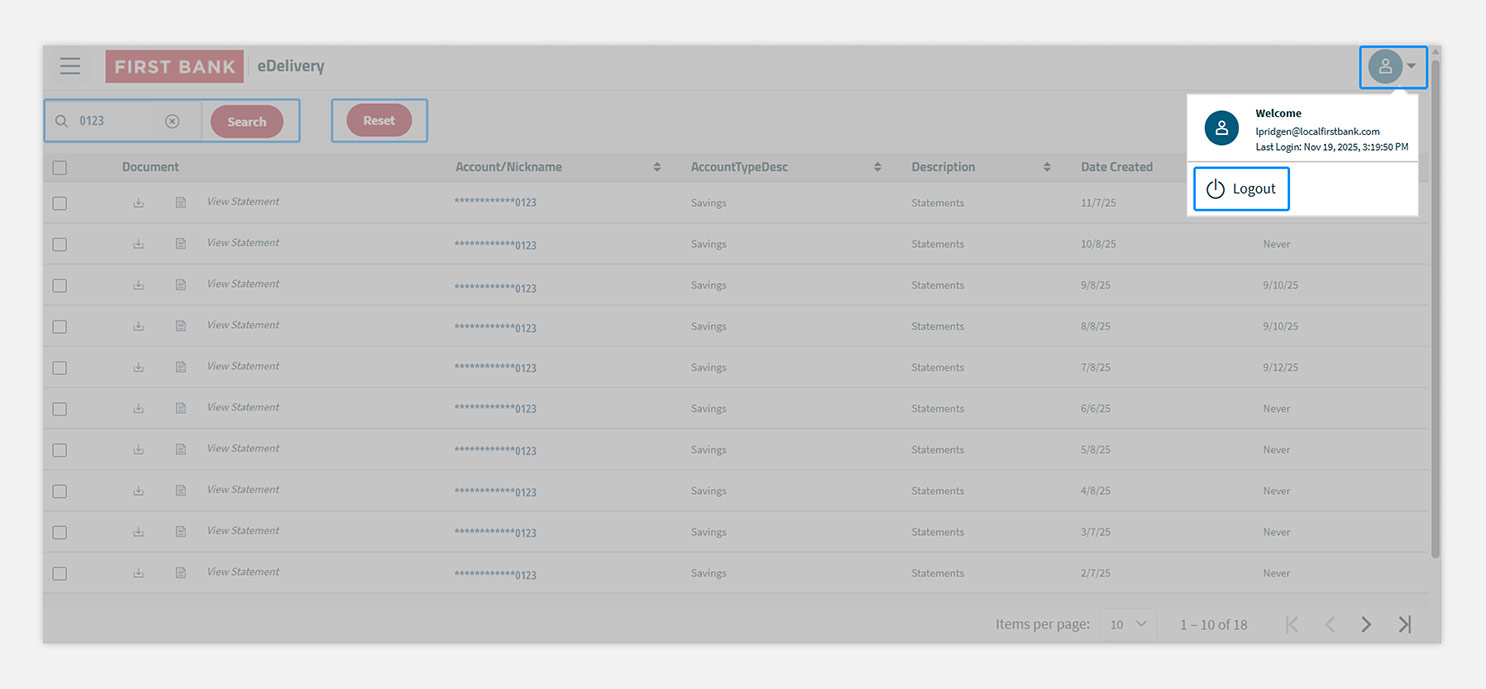
To do a quick search of the document library, click into the Search Data box, enter your search criteria, and click the “Search” button. For example, you can search by the last 4 digits of the account number.
To search with more filters, click “Advanced Search,” enter the account numbers or nicknames, and select the filters you’d like. For example, you can search by Account Type, Date Created, and Document Description. Then click the “Search” button.
To clear your search and return to the full set of results, click the “Reset” button.

Step 6:
Log out.
To log out and return to the Online Banking homepage, click on the blue profile icon in the top right. Then select the “Logout” button.