Account Overview Demo
Learn how to see account and transaction details.
Step 1:
Open the mobile app and log in.
When you enrolled in First Bank digital banking, you created a Username and Password. Enter that information in the corresponding boxes and then tap the “Log In” button.

Step 2:
Choose an account.
Swipe horizontally to see all your accounts or tap “View all accounts.” Tap on the account name you want to see a more detailed view of.

Step 3:
See your transactions.
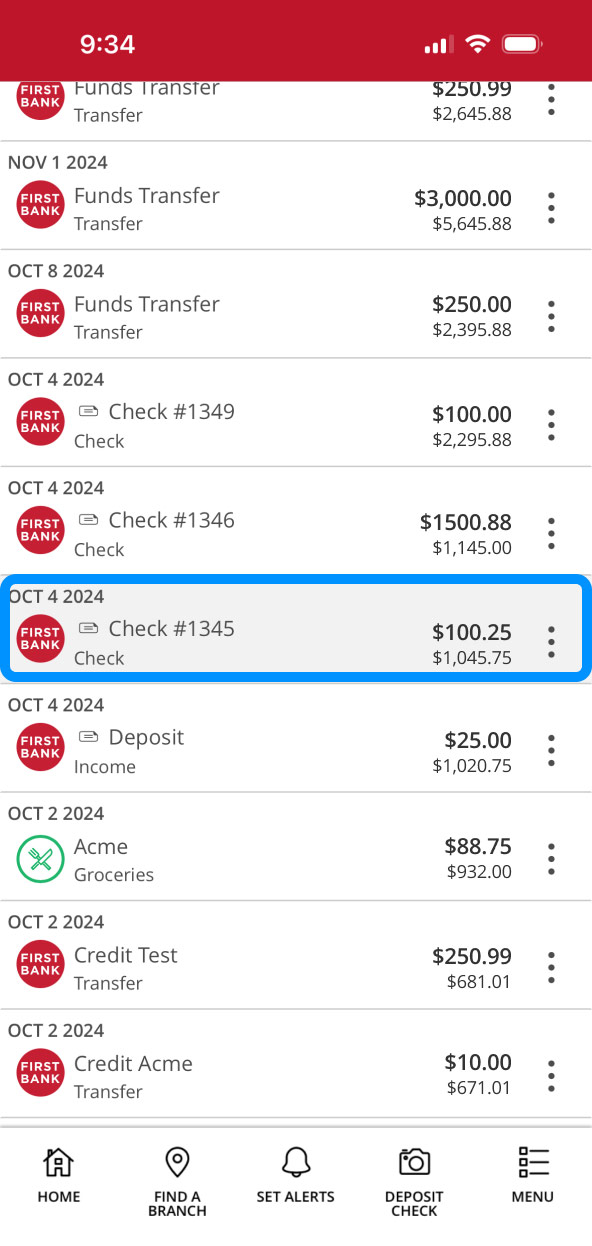
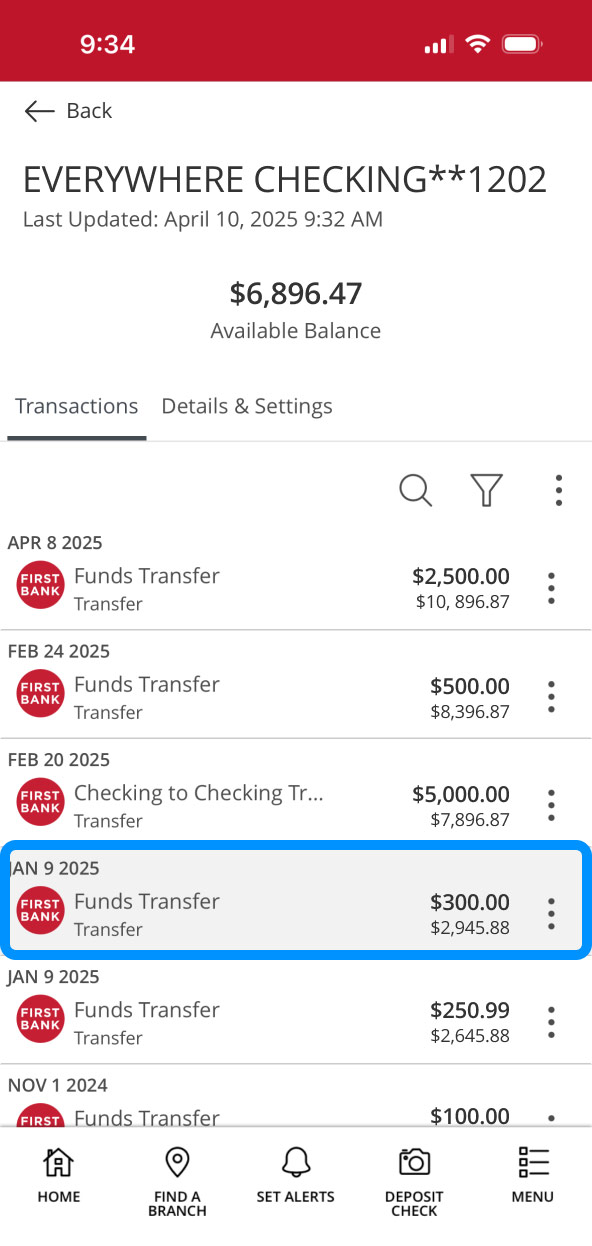
All of the account’s recent transactions are listed in this view. Scroll up and down to review transactions and their amounts.
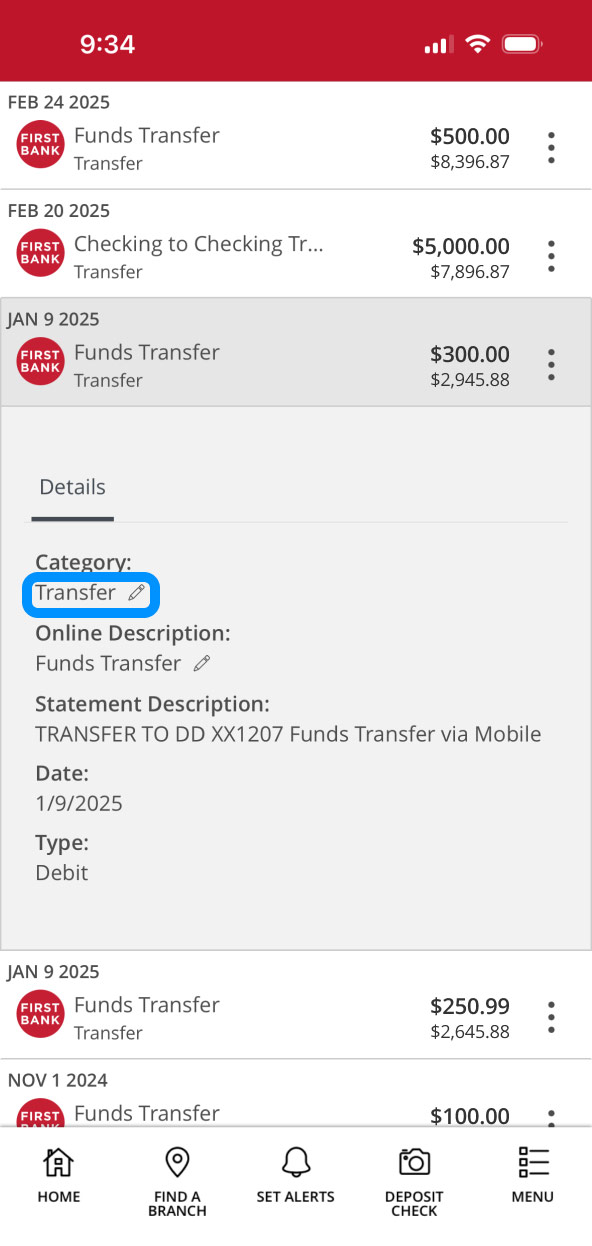
Tap on an individual transaction to see more details about it, such as the category, description, transaction date, and type.
Step 4:
Change a category.
Tap on the pencil icons to change the category or description.
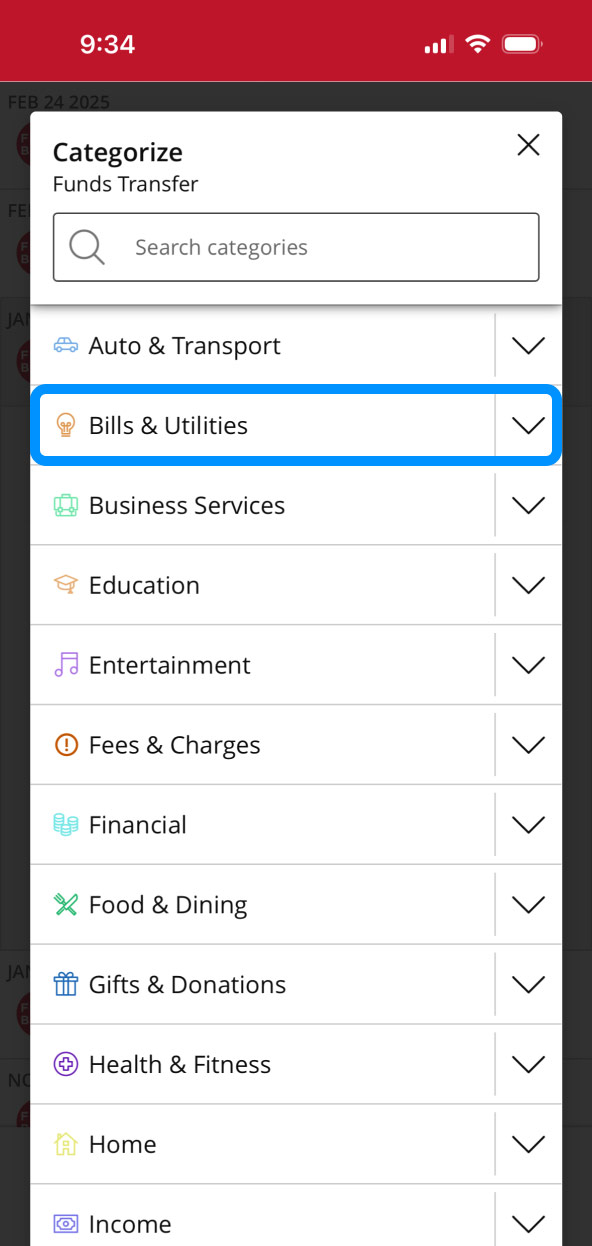
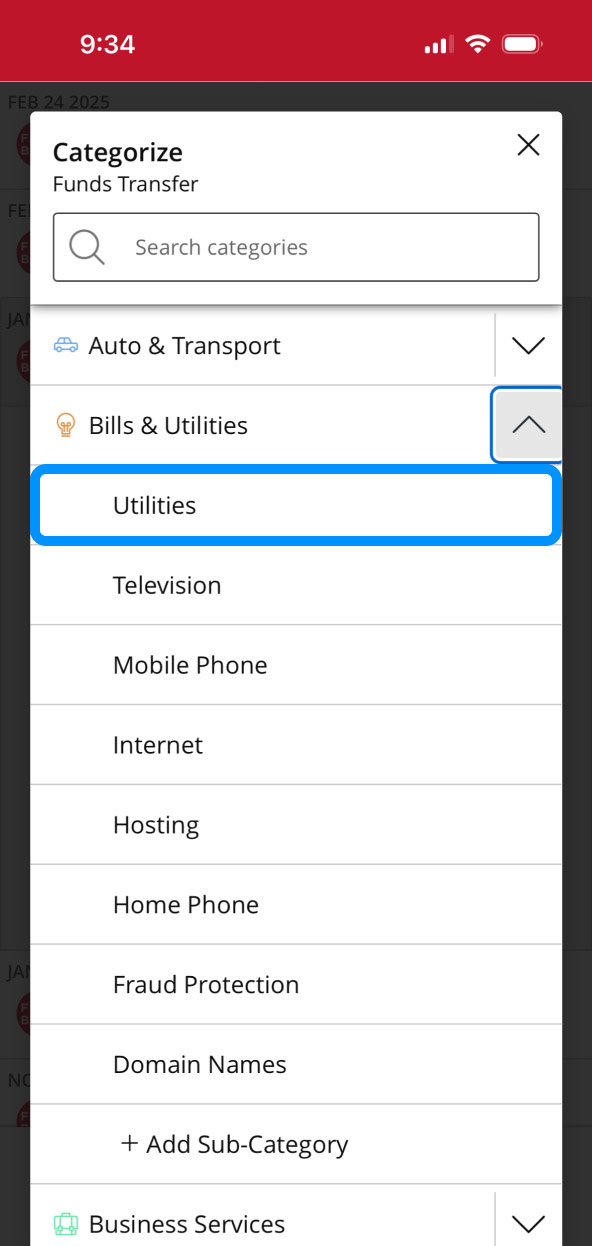
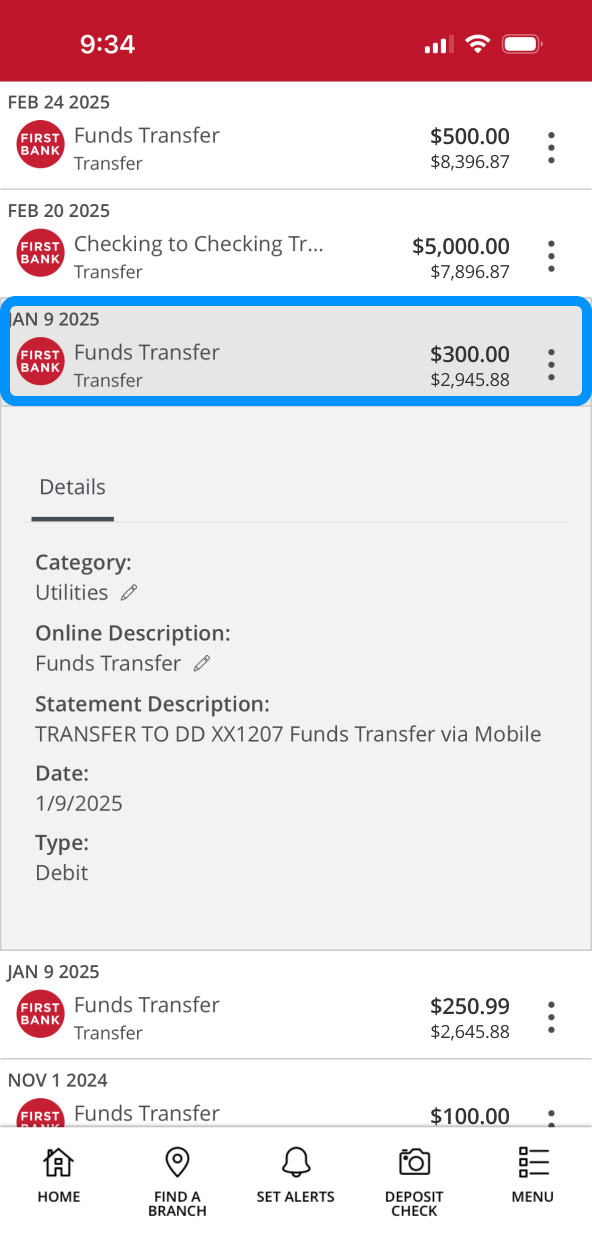
Select a category from the list, and then tap on the corresponding subcategory. The correct category will now be listed for that transaction.
Step 5:
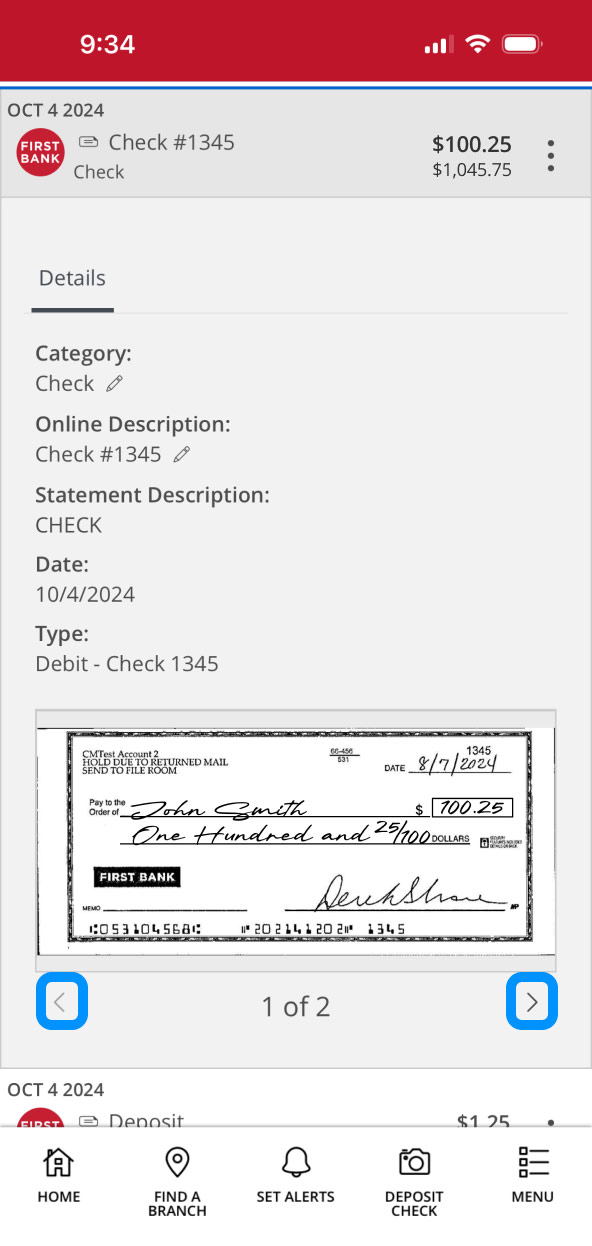
View a check image.
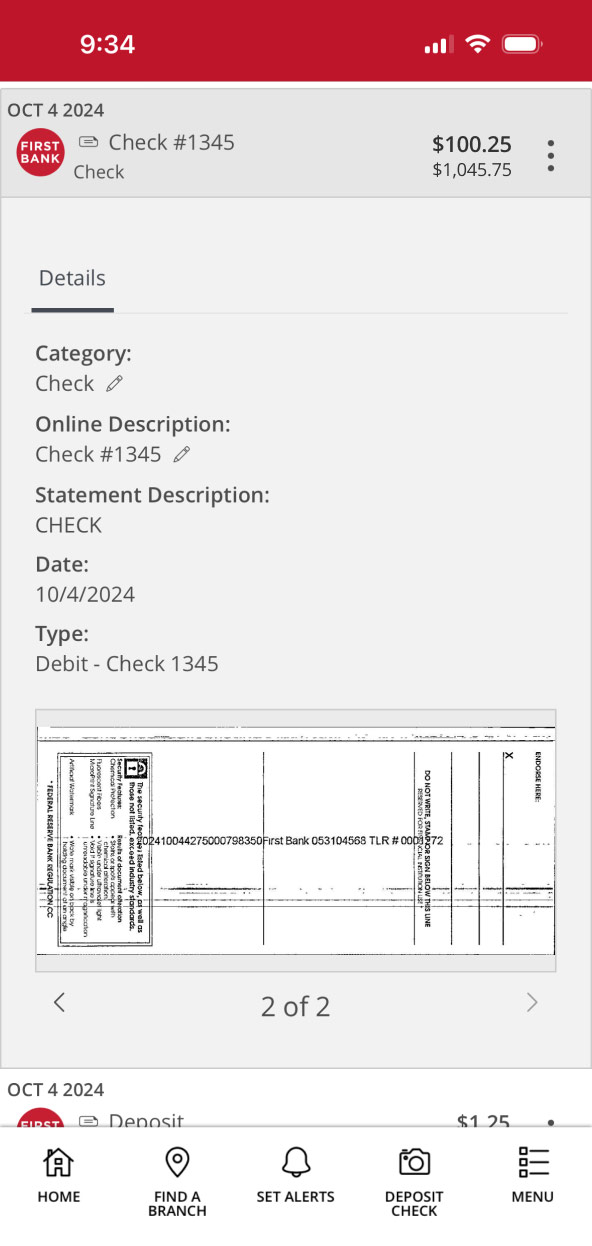
To view check images, tap a check transaction in the list. Use the arrows under the check image to view both the front and the back.