External Accounts Demo
Learn how to add external accounts.
Step 1:
Open the mobile app and log in.
When you enrolled in First Bank digital banking, you created a Username and Password. Enter that information in the corresponding boxes and then tap the “Log In” button.

Step 2:
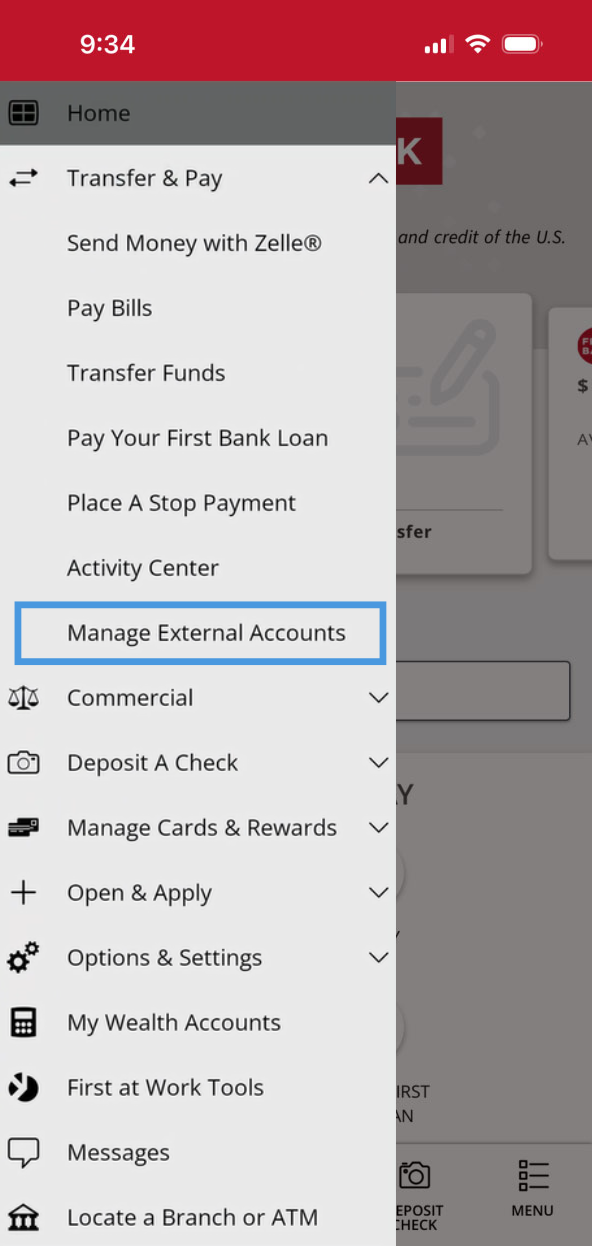
Navigate to Manage External Accounts.
Tap “Menu” in the bottom right, then “Transfer & Pay” and choose “Manage External Accounts.”

Step 3:
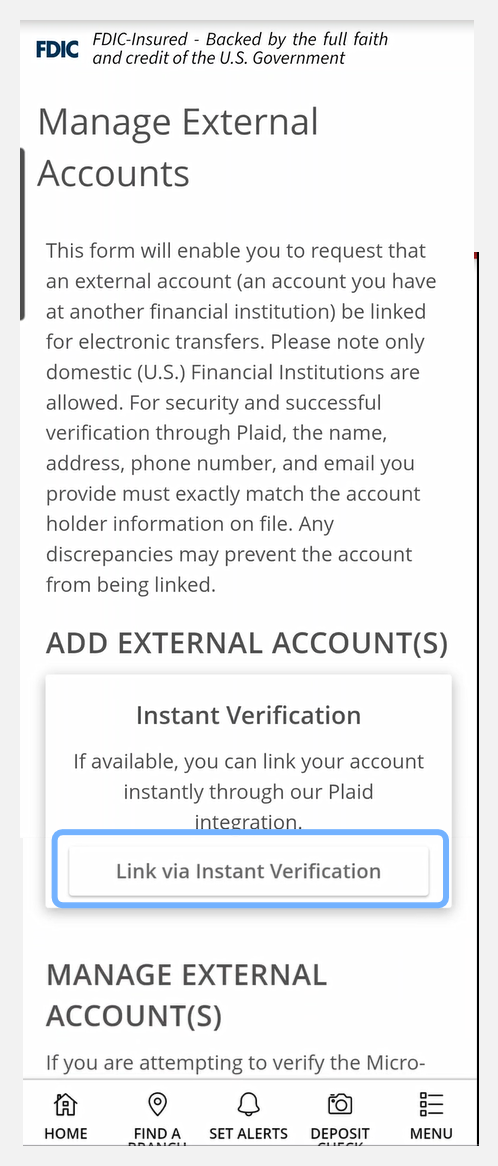
Link via Instant Verification.
Scroll to find and select the “Link via Instant Verification” button.
Step 4:
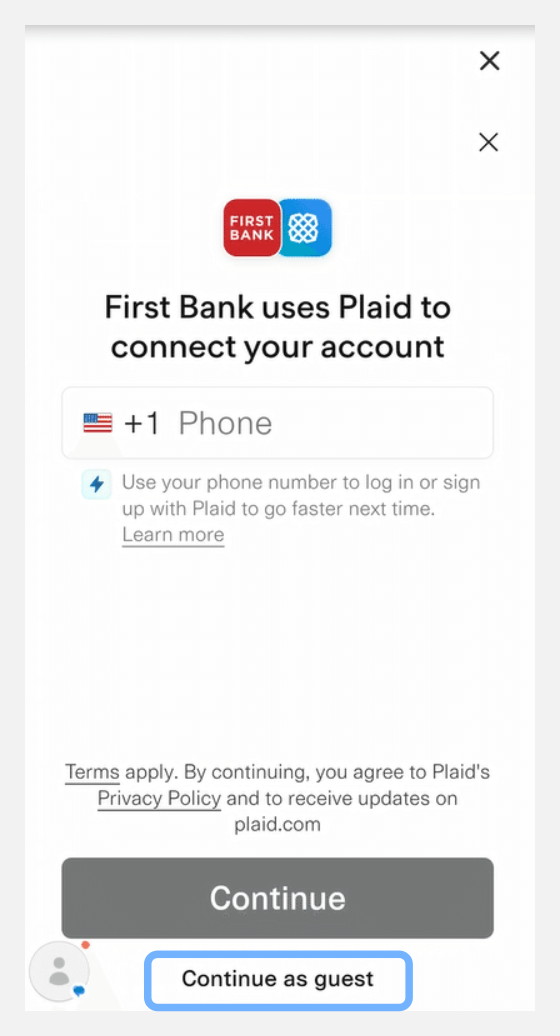
Log in to Plaid or continue as guest.
Select the “Continue as guest” option.
If you have a Plaid account or want to create one, enter your phone number.
Step 5:
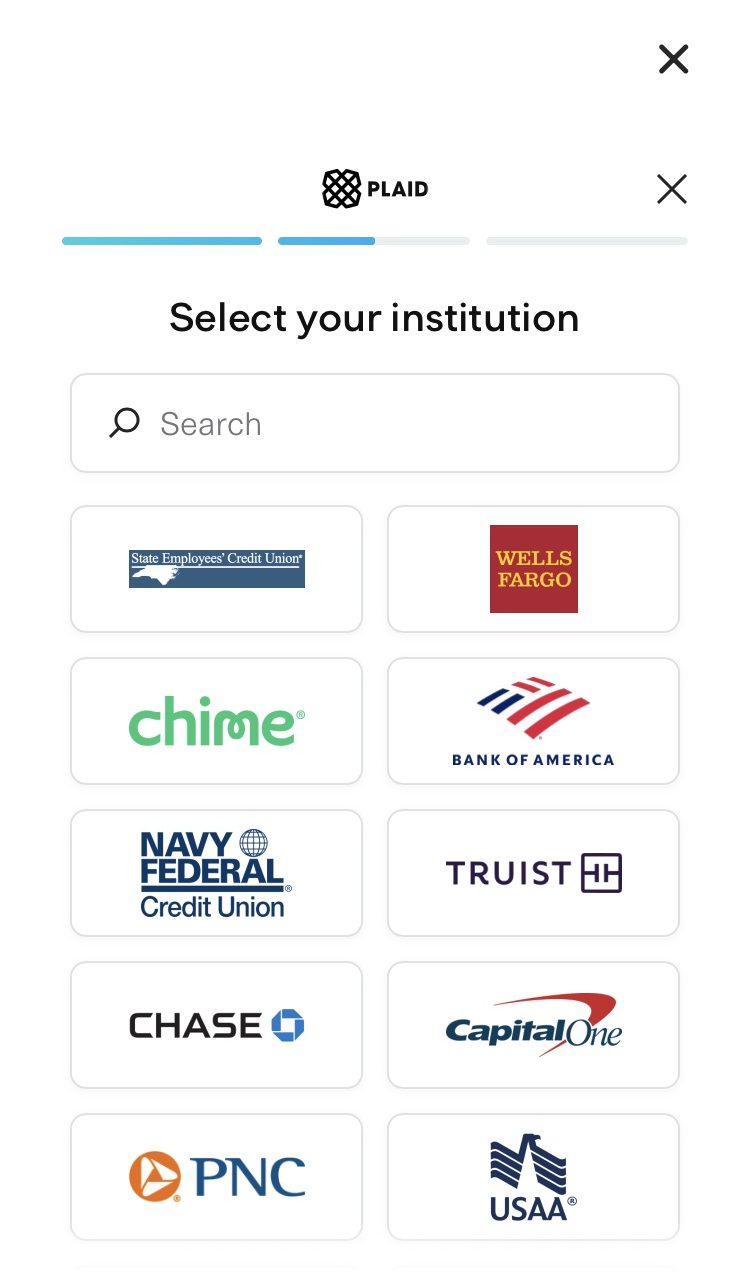
Connect to the external financial institution.
Search for the financial institution that you’d like to link your First Bank account.
Continue to follow the prompts. You will be sent to the financial institution’s online banking app to log in to their platform.
Step 6:
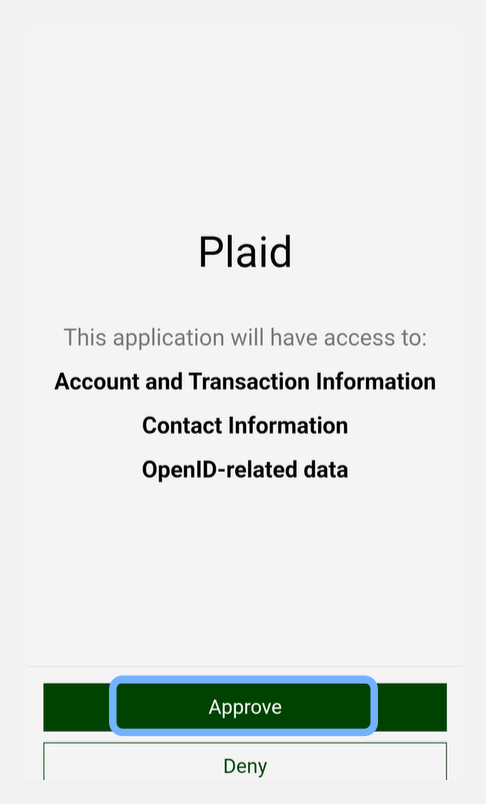
Approve Plaid.
Once you have successfully logged in to your financial institution’s online banking platform, you will be asked to approve the Plaid connection. Select “Approve”
Step 7:
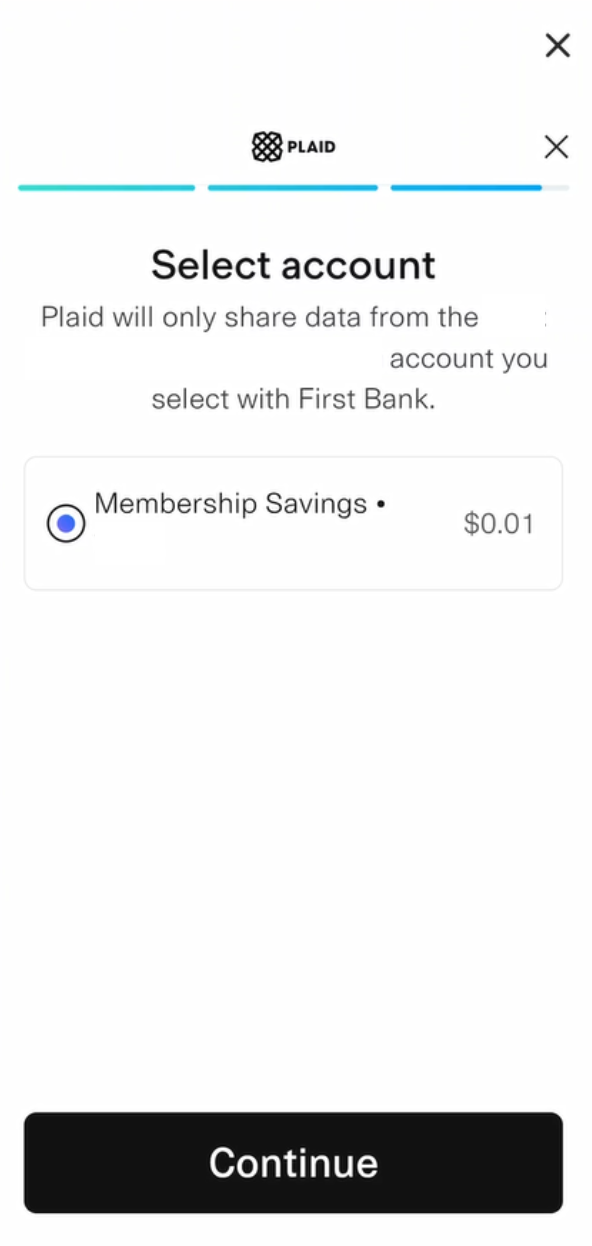
Select the accounts you’d like to connect..
A list of accounts available to link with First Bank will populate.
Select the accounts you’d like to connect.
Select “Continue”.
Step 8:
Success.
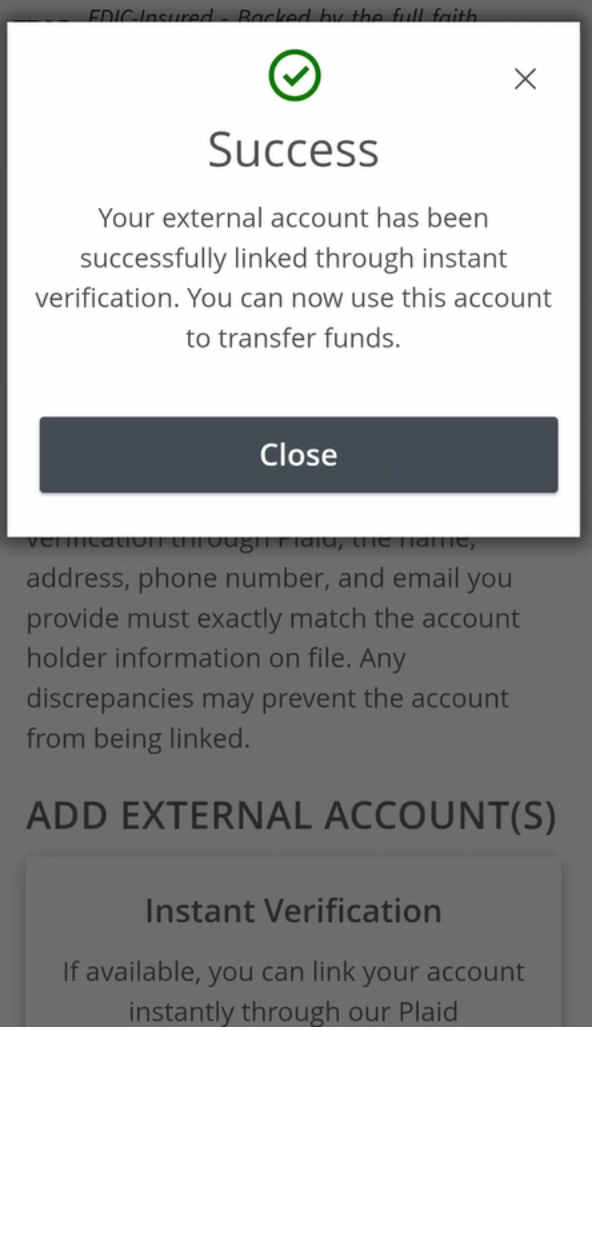
You will receive a “Success” screen to confirm the account is connected via Plaid.
Select “Finish without saving”, or you may choose to enter your phone number to create a login with Plaid.
Step 9:
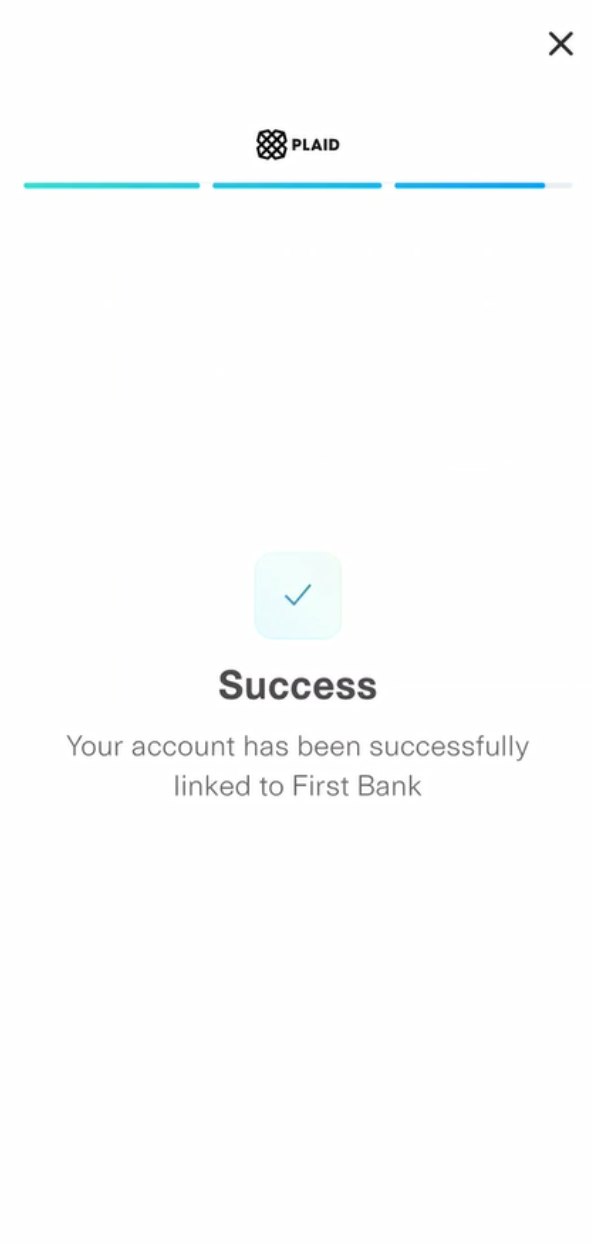
Connection complete.
You will receive one final “Success” screen and may immediately use the connected account to transfer funds.