MyMoney Link Accounts Demo
Learn how to link accounts from various sources into MyMoney to provide you with a complete picture of your finances.
Step 1:
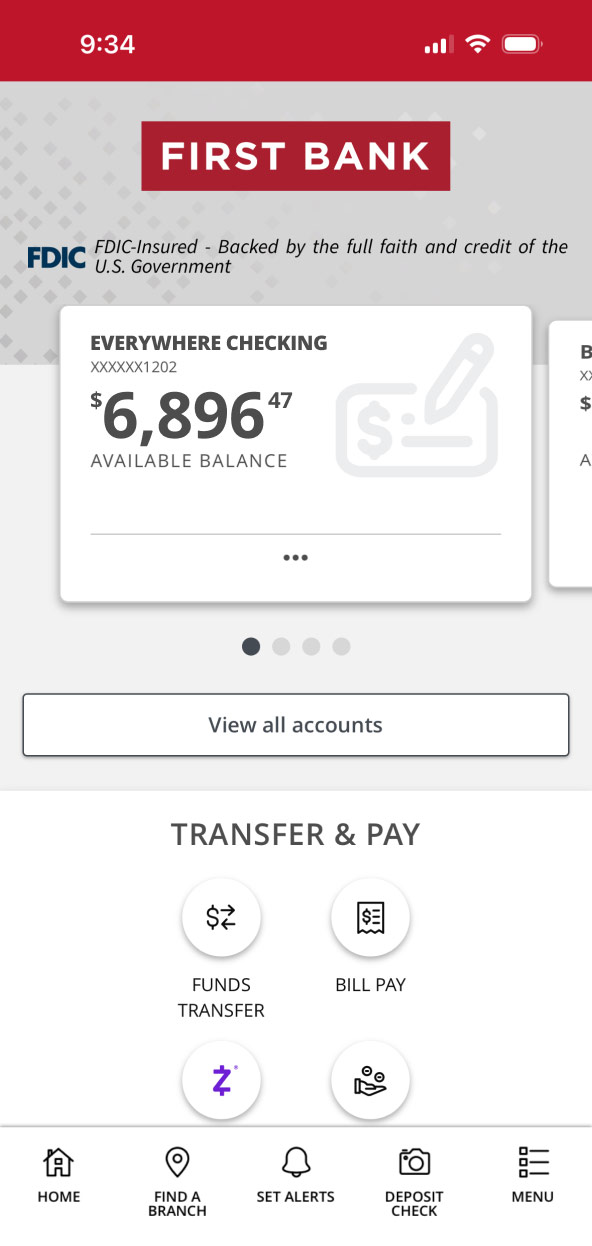
Open the mobile app and log in.
When you enrolled in First Bank digital banking, you created a Username and Password. Enter that information in the corresponding boxes and then tap the “Log In” button.

Step 2:
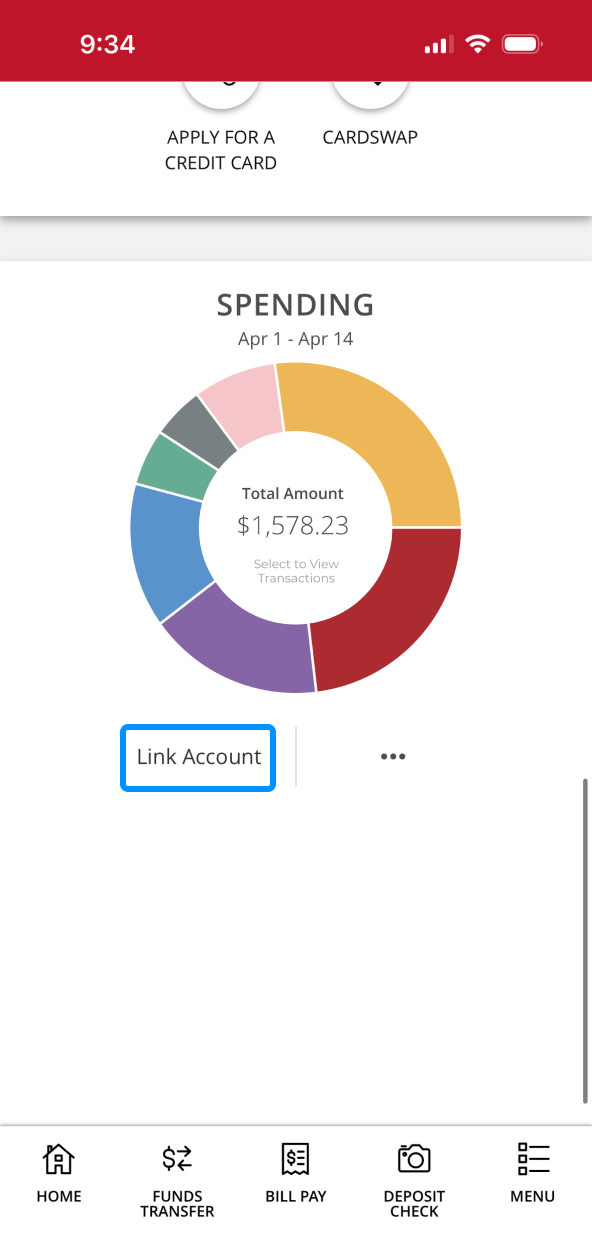
Navigate to Spending.
Scroll down to the Spending section and tap “Link Account.”
Step 3:
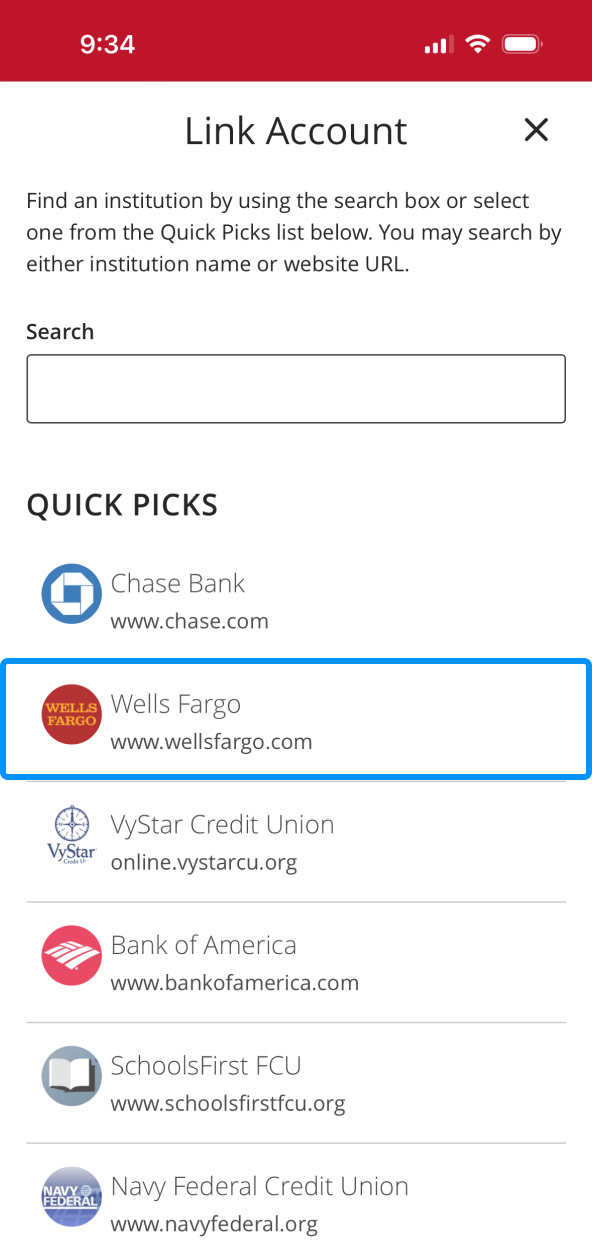
Choose account.
Tap the account you want to link to your First Bank financial planning tools.
Step 4:
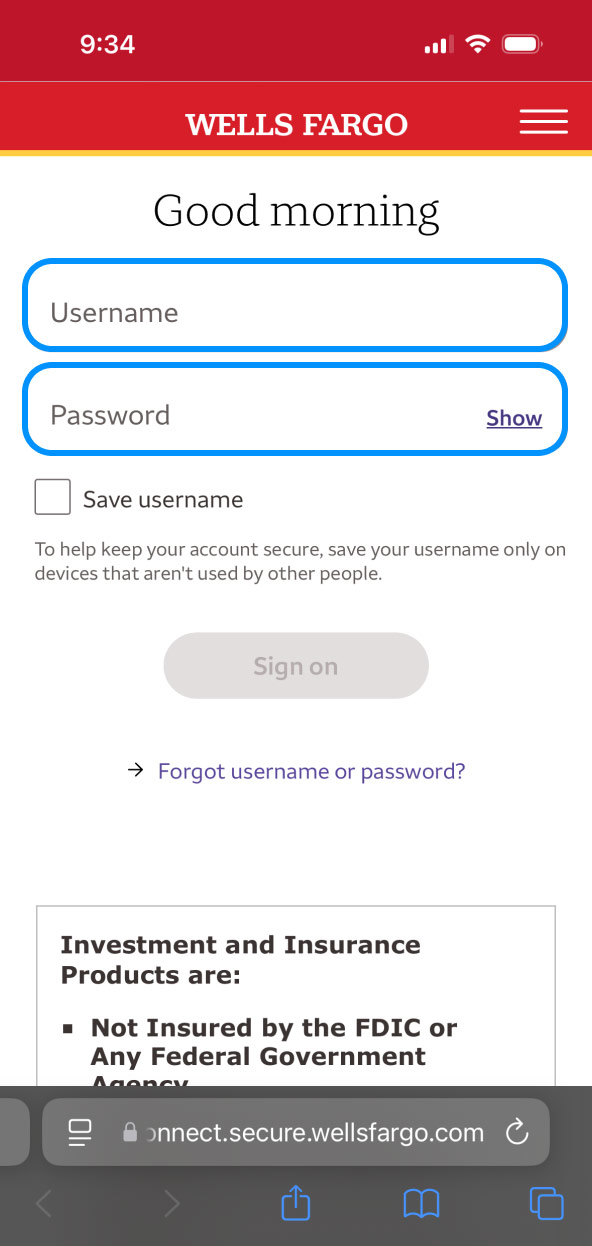
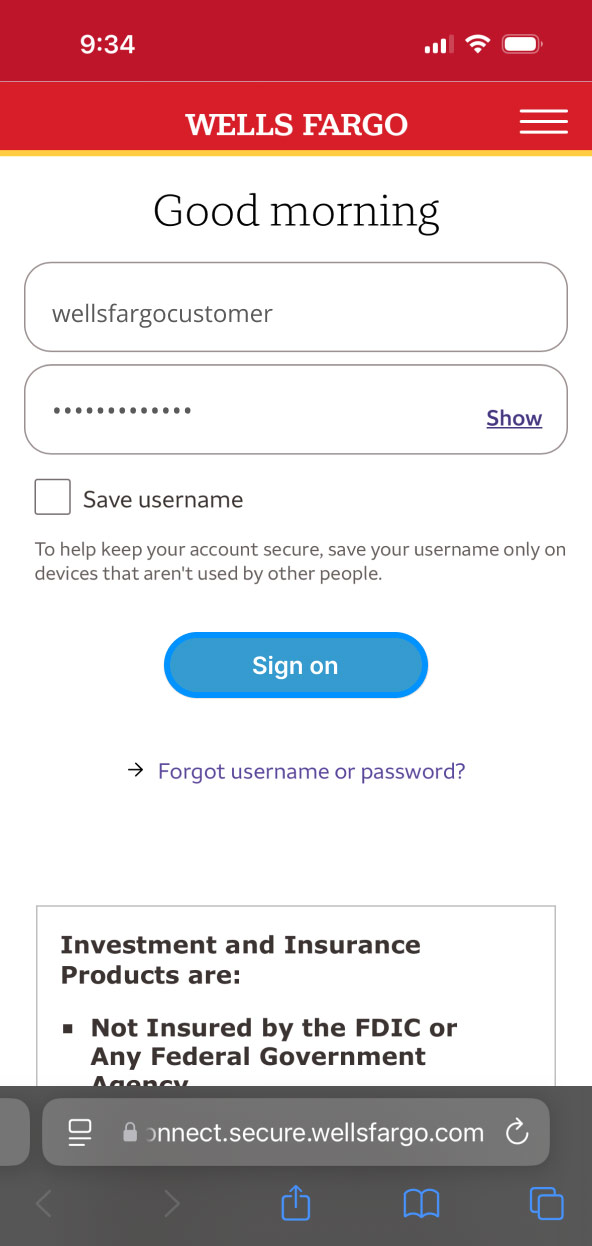
Log into the account.
Enter the username and password for that account and sign in.
Step 5:
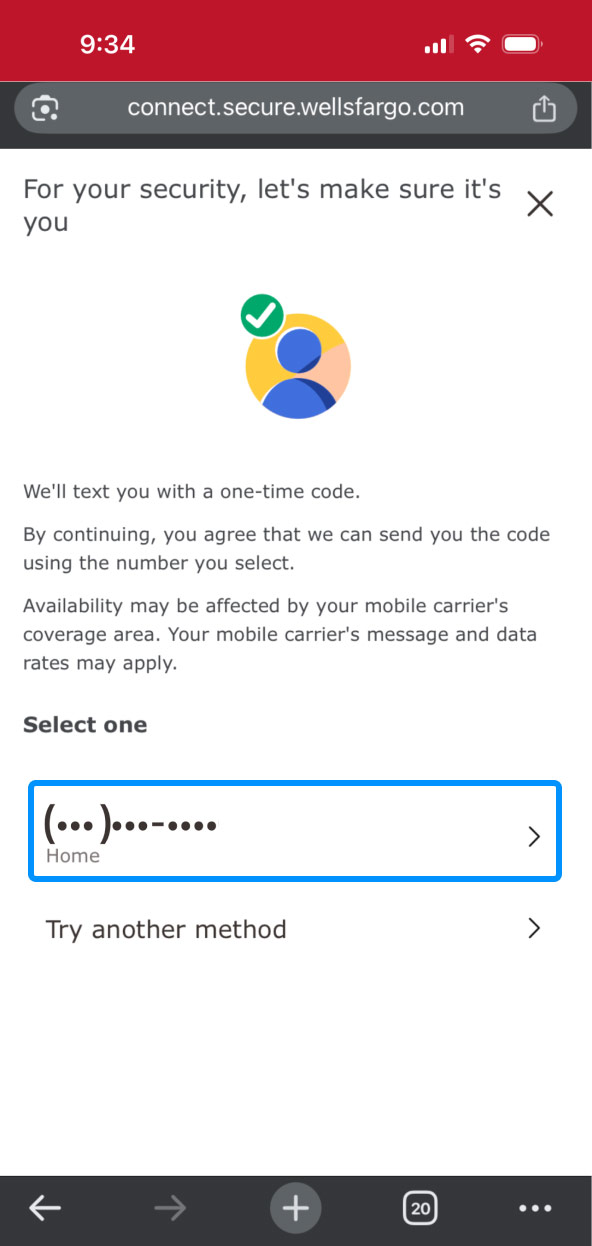
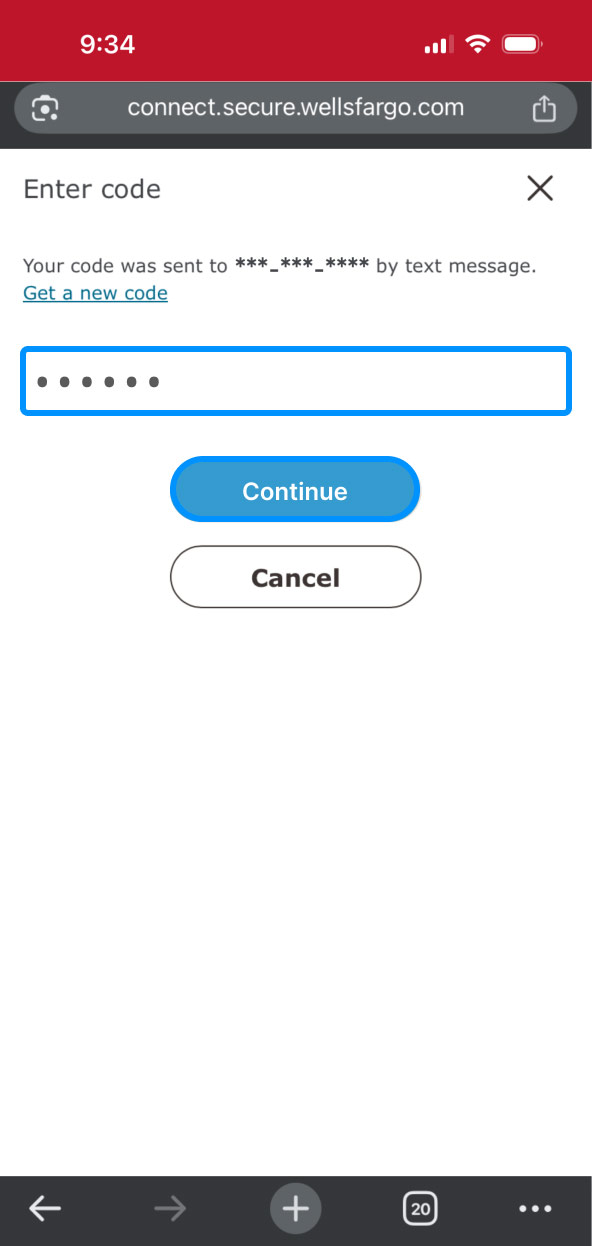
Complete security verification.
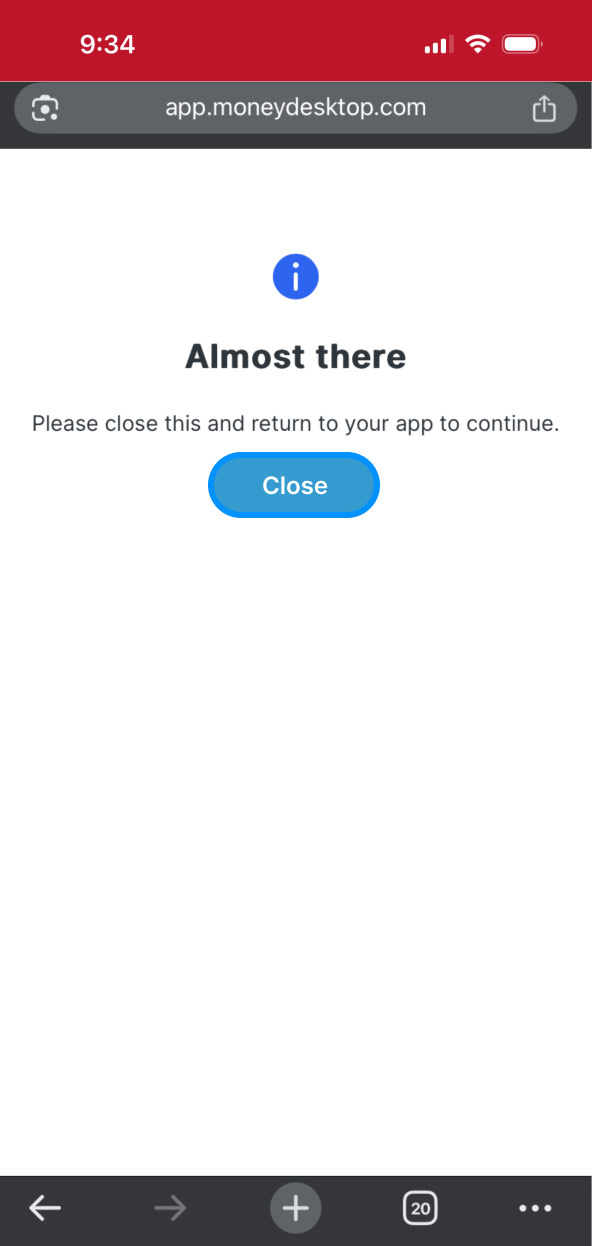
To confirm you are making this request, select where you want to receive your one-time code. Enter that code in the box and click “Continue.”
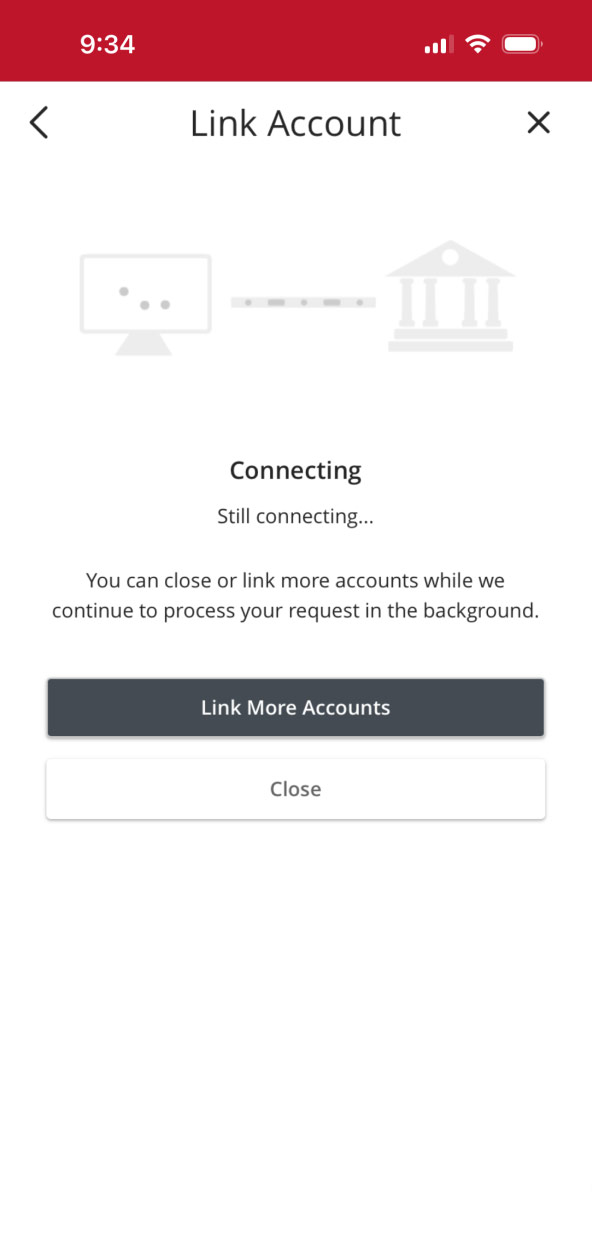
Then click “Close” to go back to the First Bank app.
Step 6:
Finalize linking accounts.
While your accounts are linking, you can choose to link more accounts.
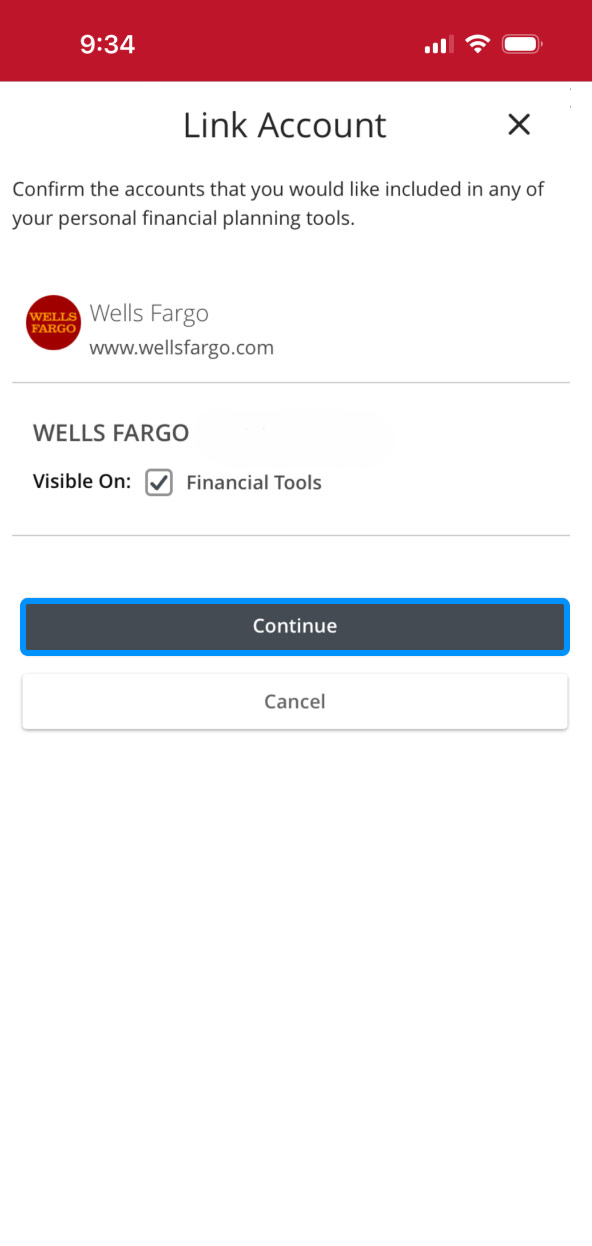
Once linked, you must click “Continue” to confirm you want that account included in your personal financial planning tools.
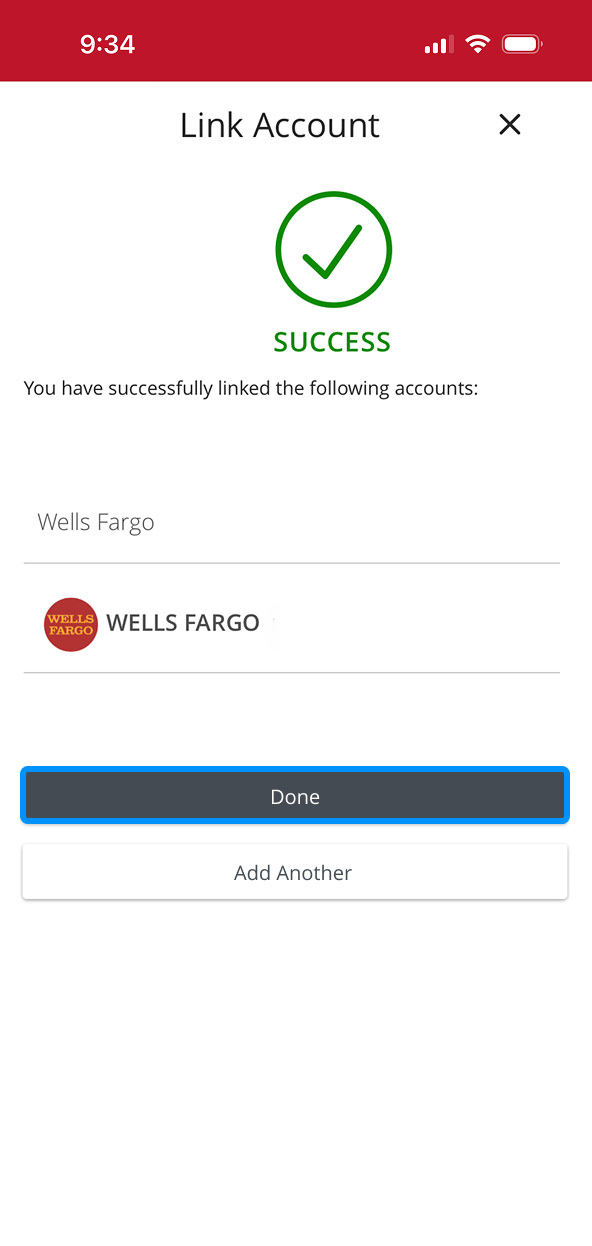
Click “Done” once you get confirmation the accounts were successfully linked.