Viewing Archived Checks
Learn how to see checks in your Lockbox archive.
Step 1:
Log in to online banking.
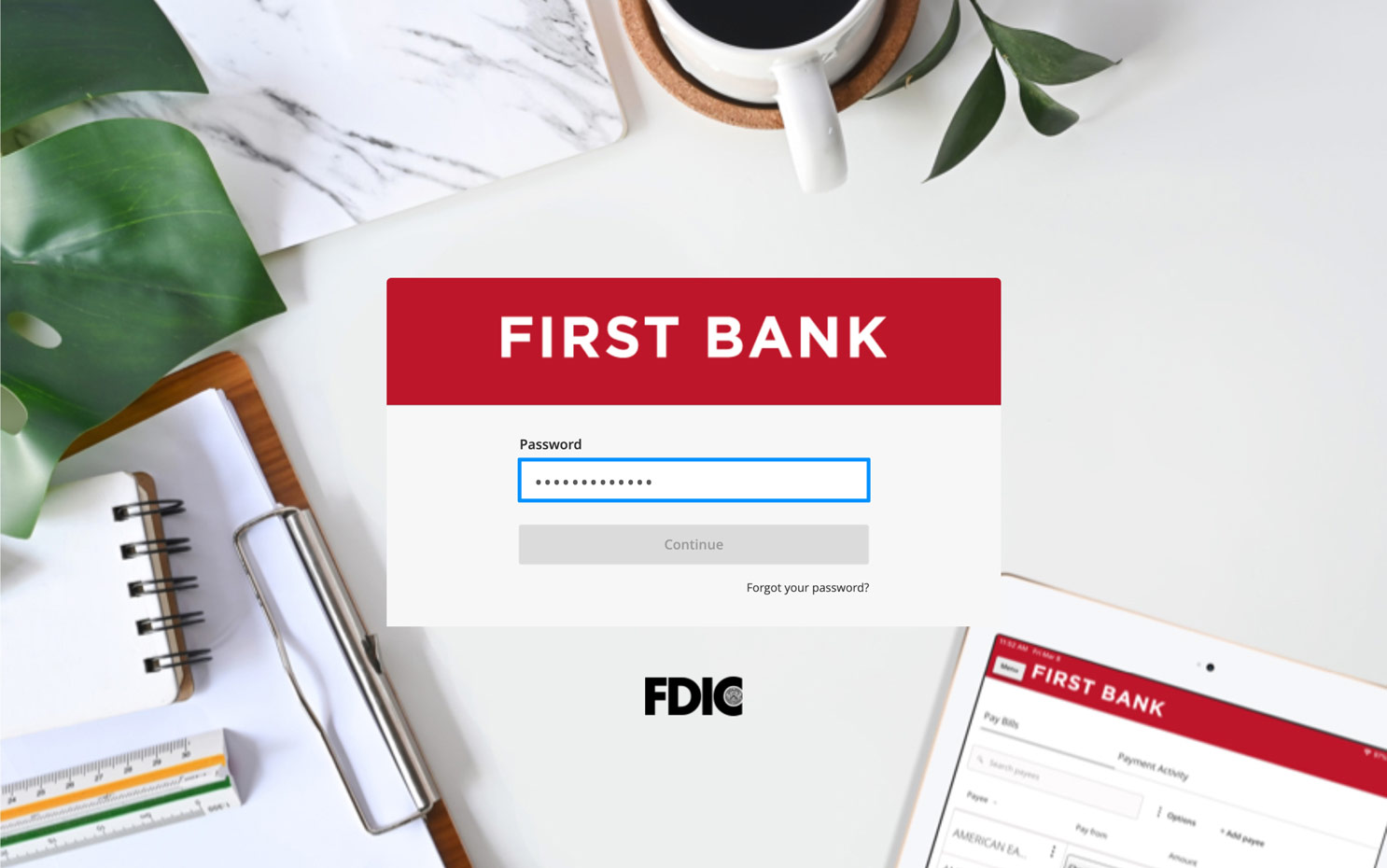
When you enrolled in First Bank digital banking, you created a Login ID and Password. Enter your ID in the corresponding screen and then click the “Log In” button. Enter your password and click “Continue.”

Step 2:
Access dashboard.
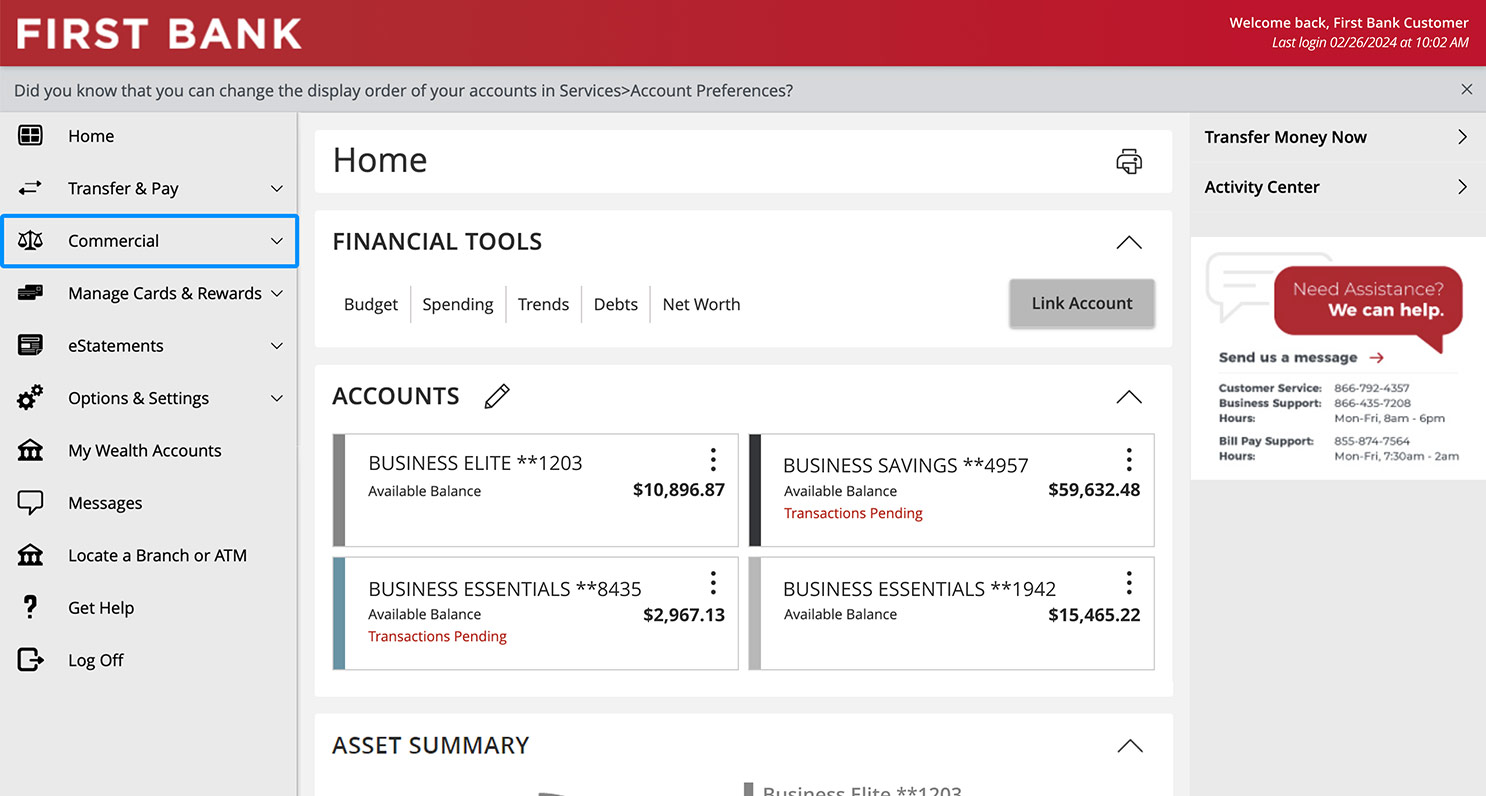
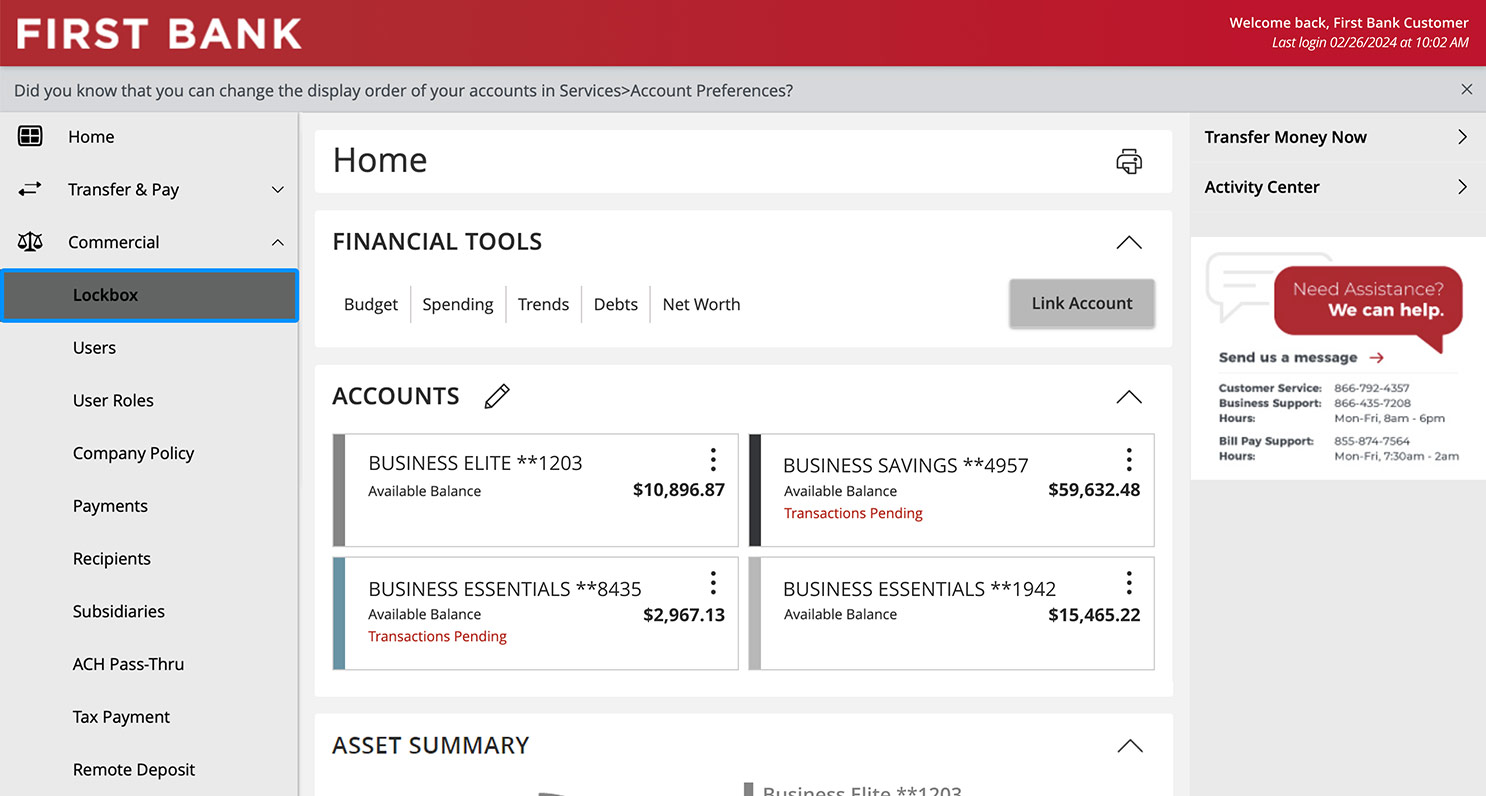
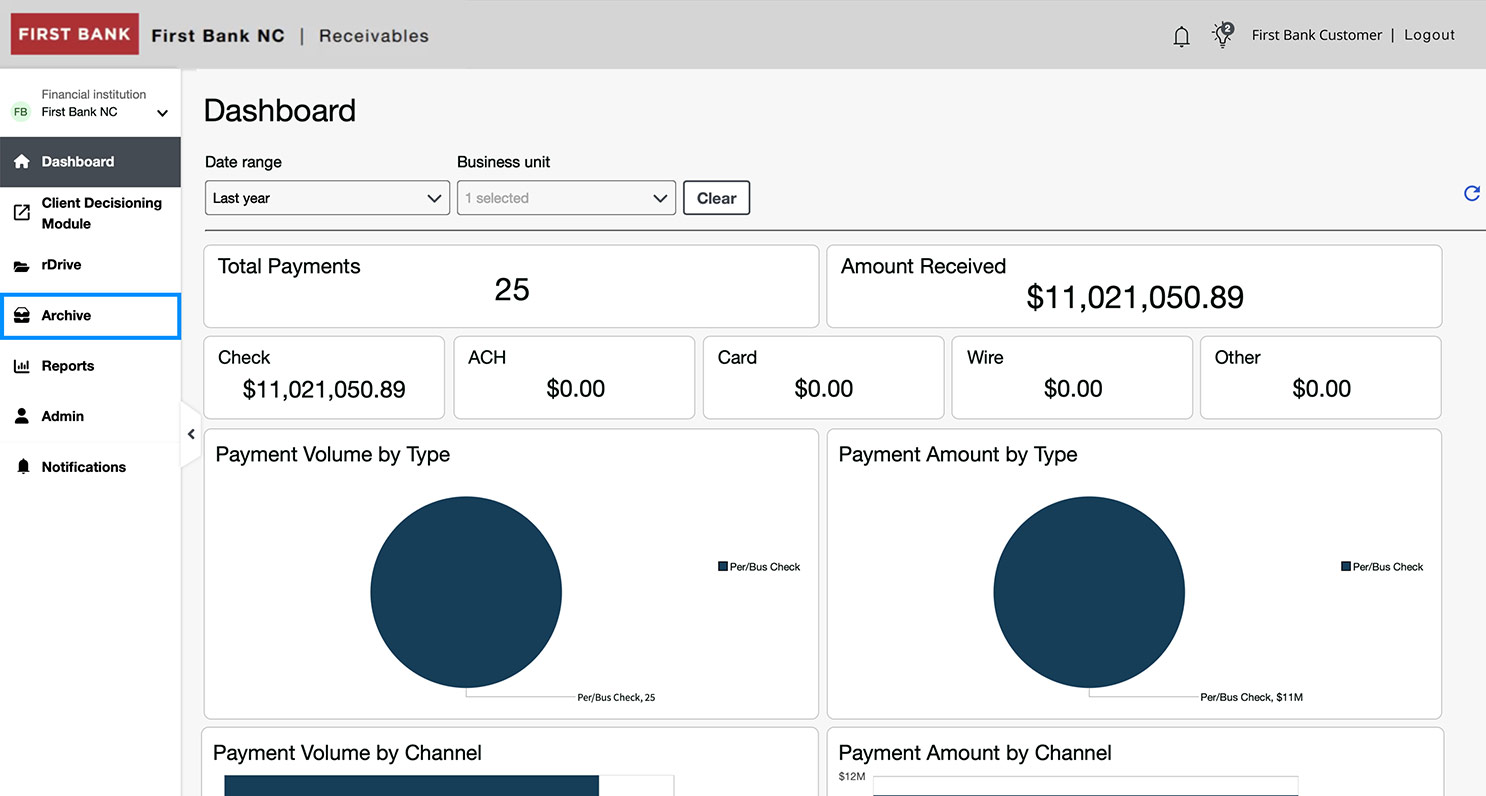
From the menu on the left, click “Commercial” and choose “Lockbox” from the dropdown. Then select “Archive” from the menu on the left.
Step 3:
Specify search.
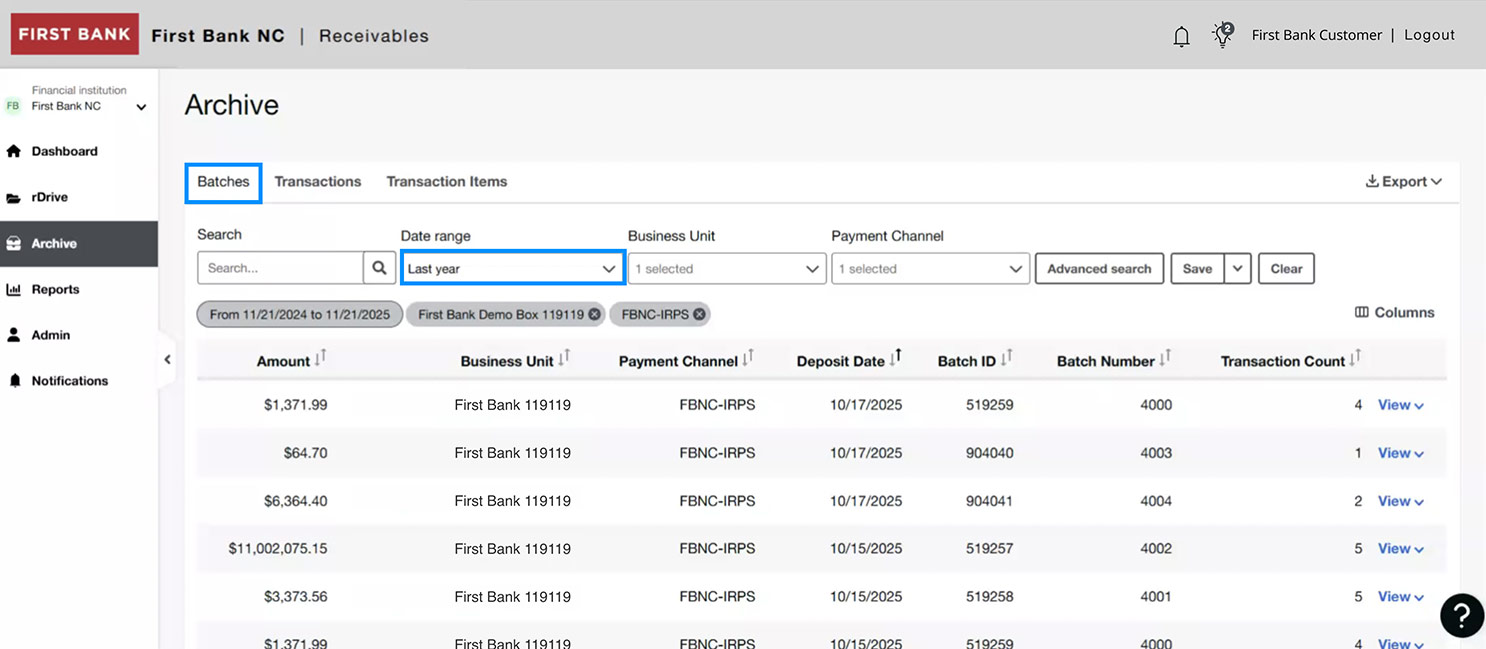
Within the Archive, you can search by Batches, Transactions, or Transaction Items by clicking on their respective tabs.
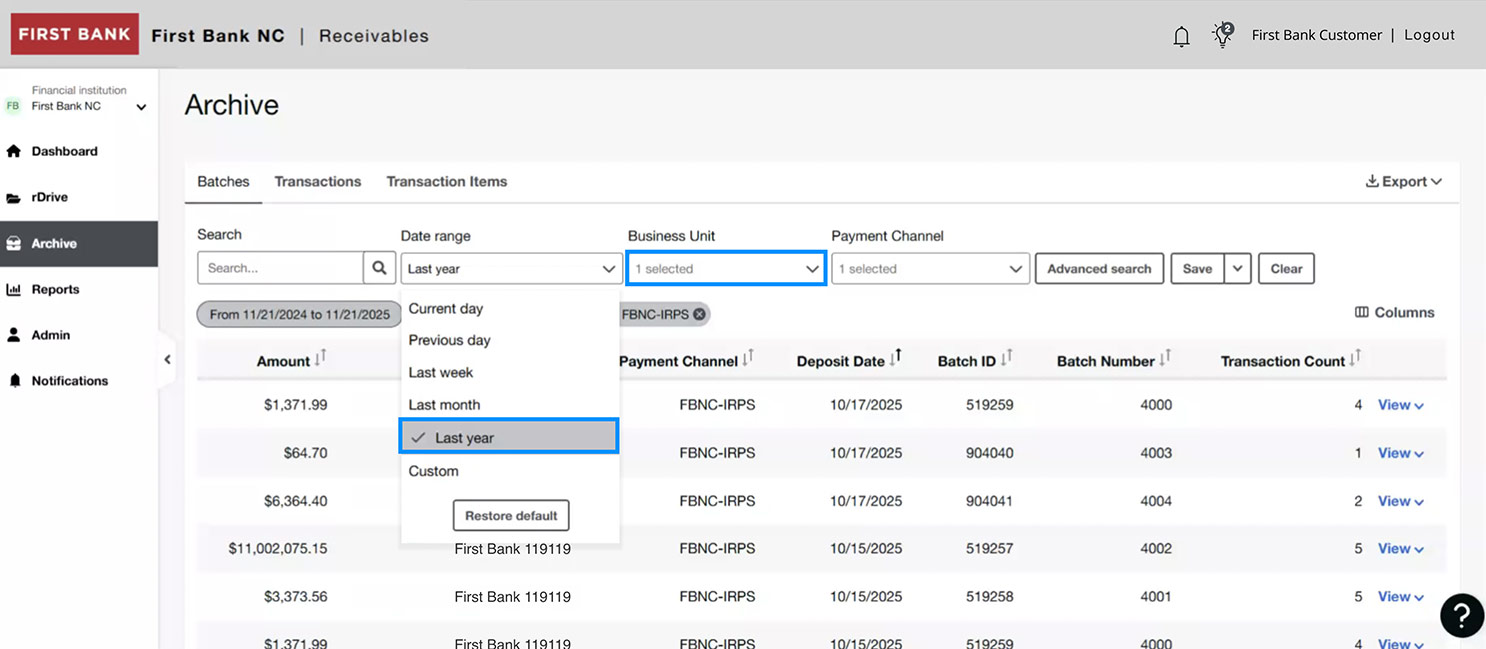
To change your search parameters, click into the box under Date range and choose from the dropdown menu.
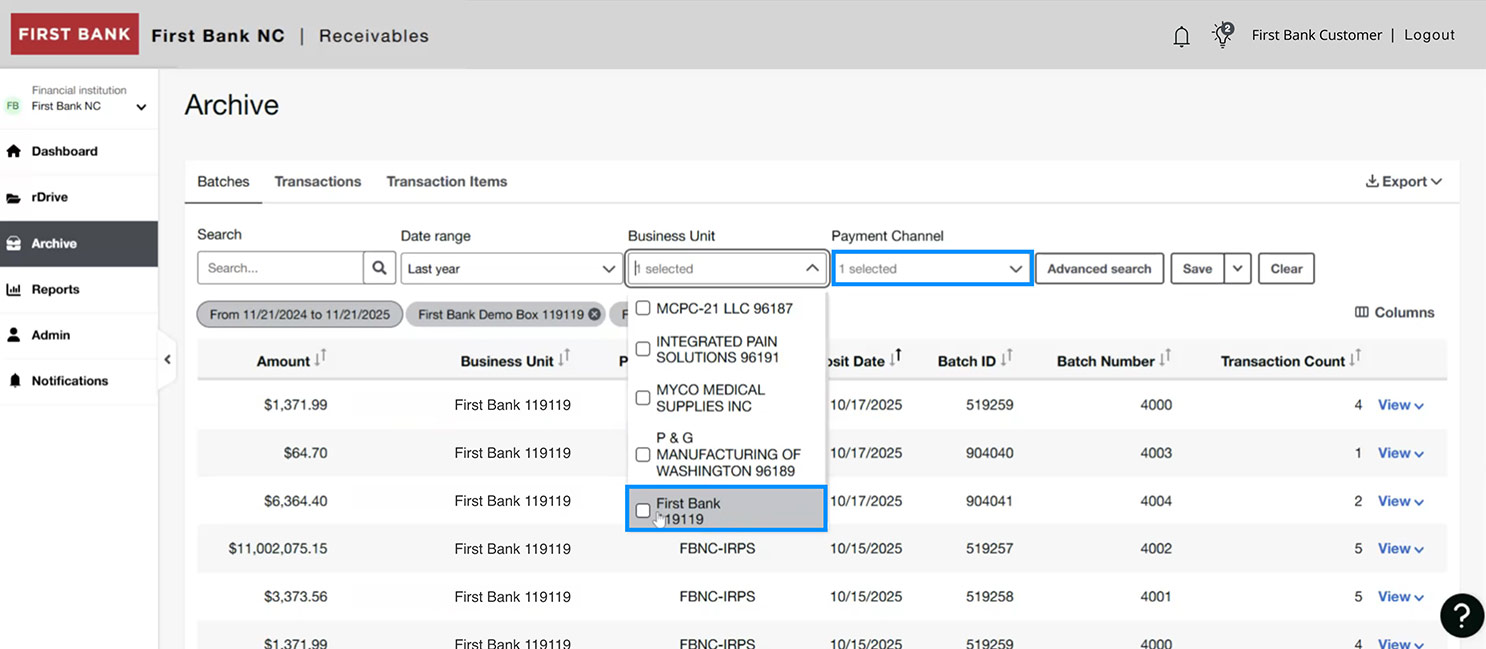
Next, in the dropdown under Business unit, make your selection.
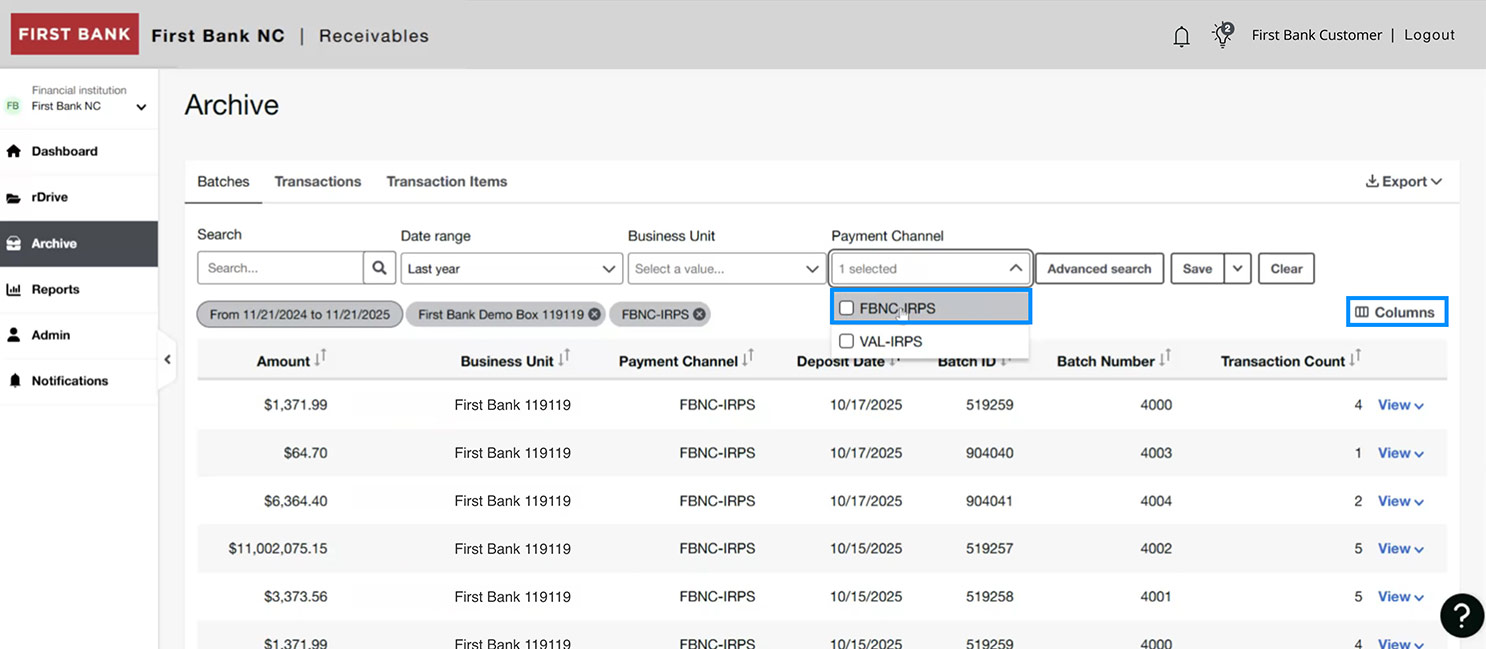
Then, click the box under “Payment Channel” to make your selection.
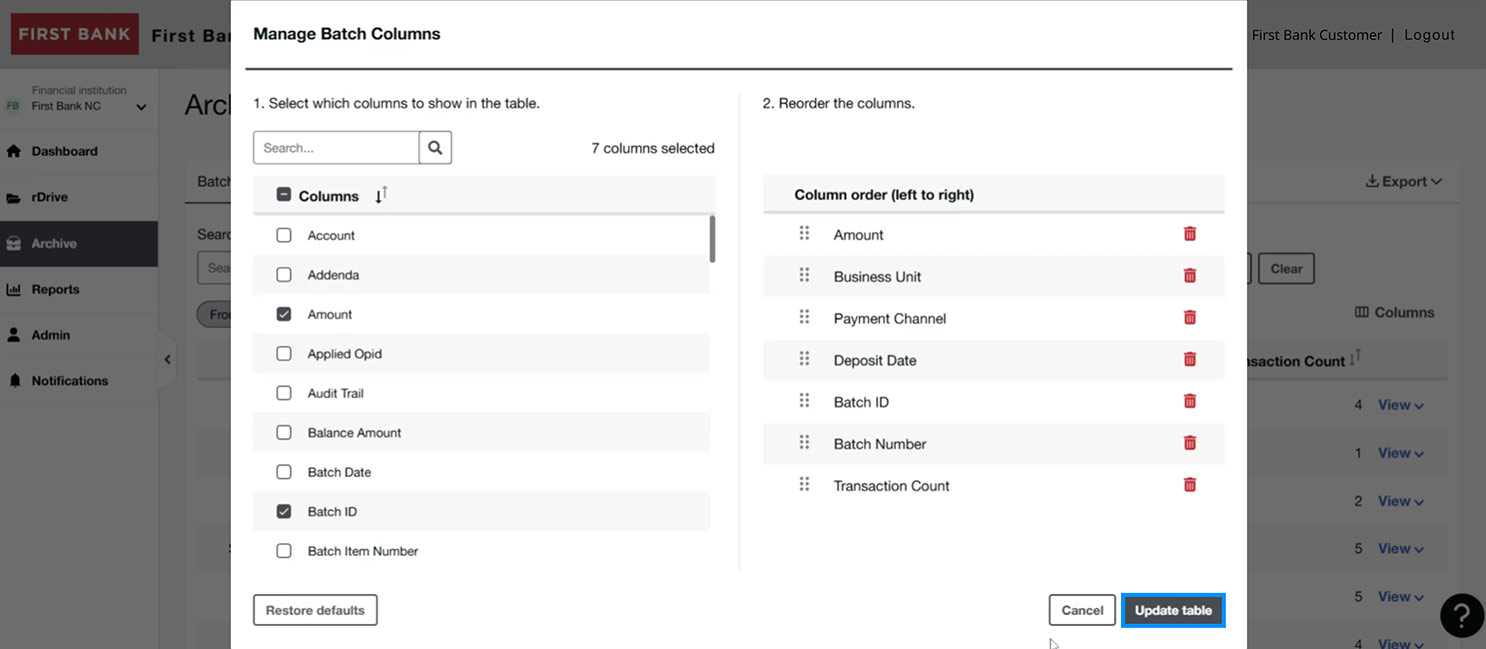
Lastly, click on “Columns” to format your view and select which data to make visible in the archive. Once you’ve made your selections, click “Update table.”
Step 4:
View archive images.
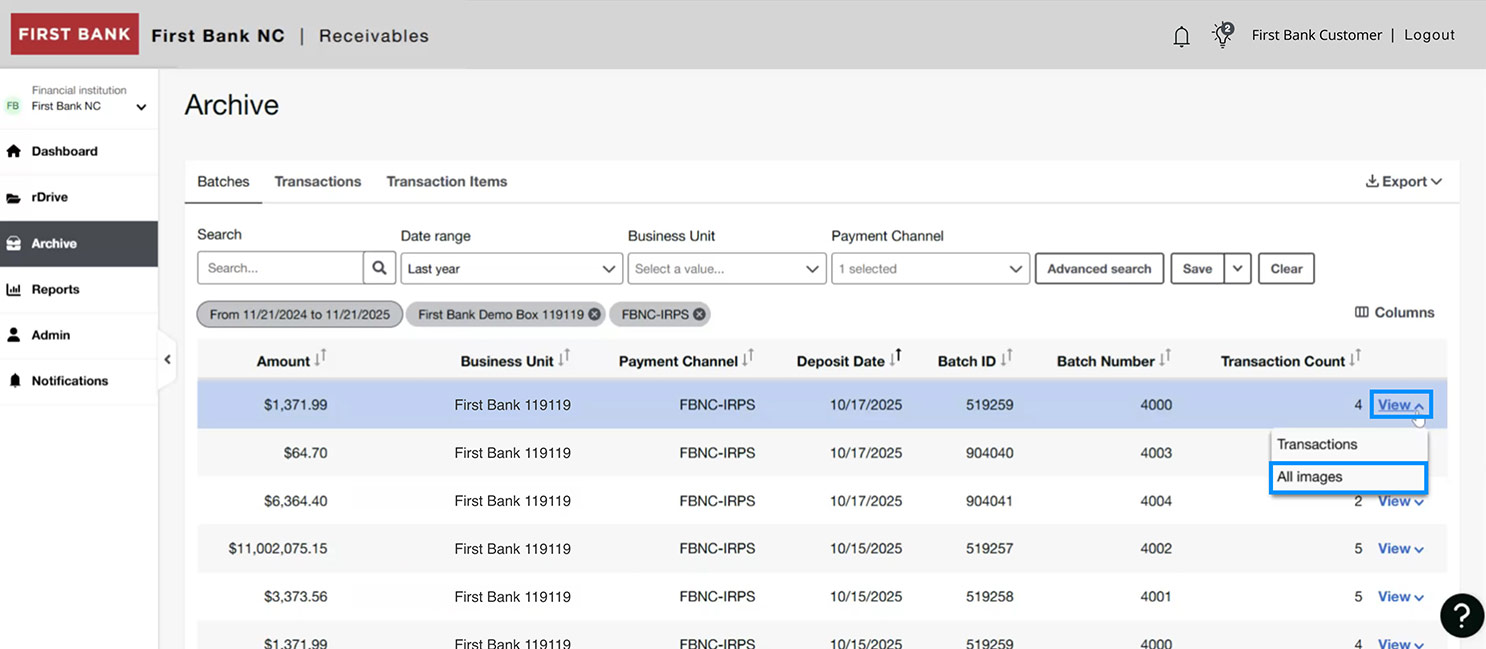
On the right, click “View” and choose “All images” from the dropdown.
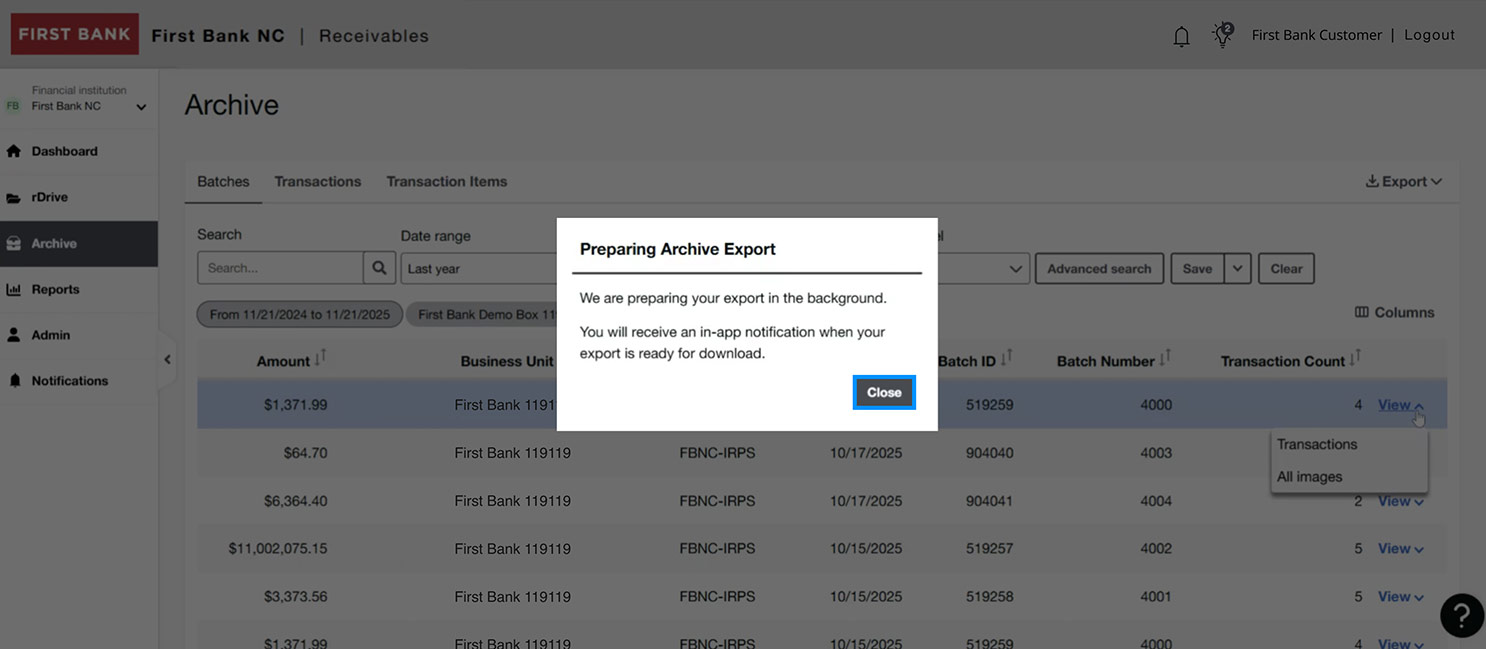
A notification will pop up letting you know your export is being prepared. Click “Close” to continue.
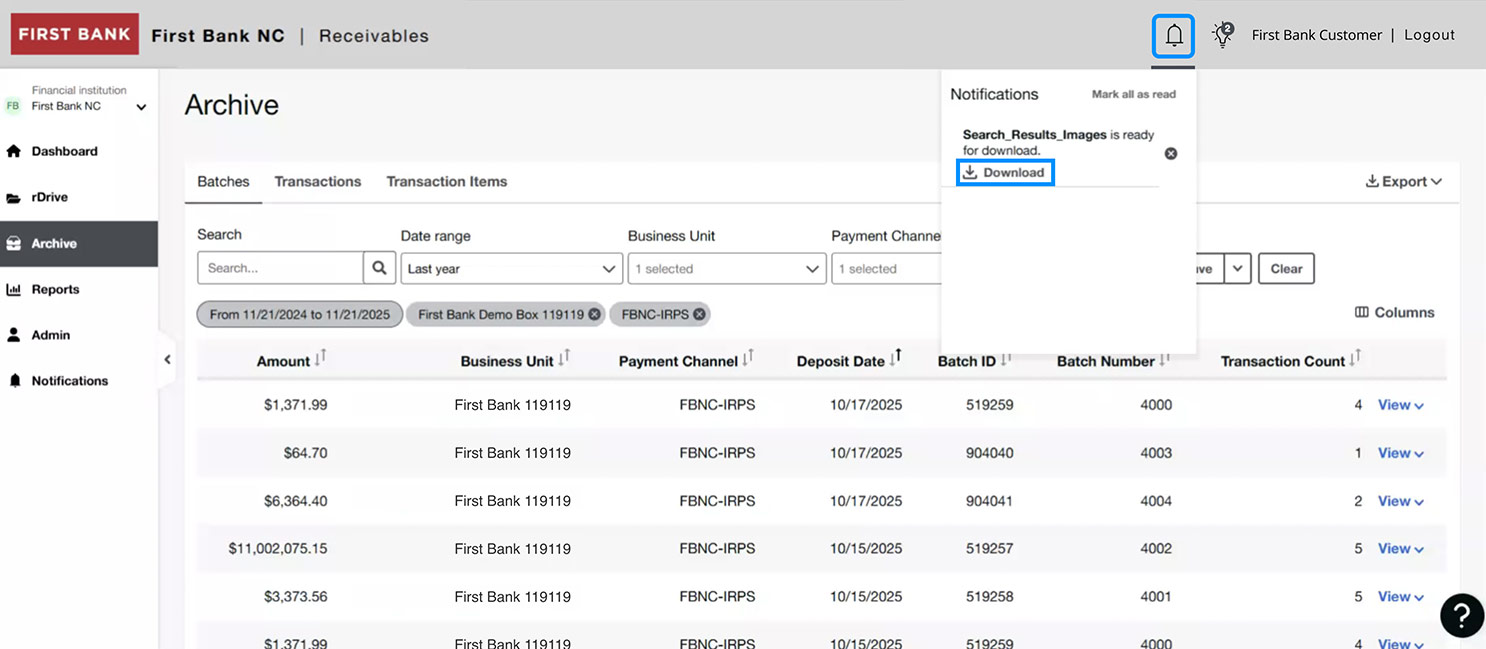
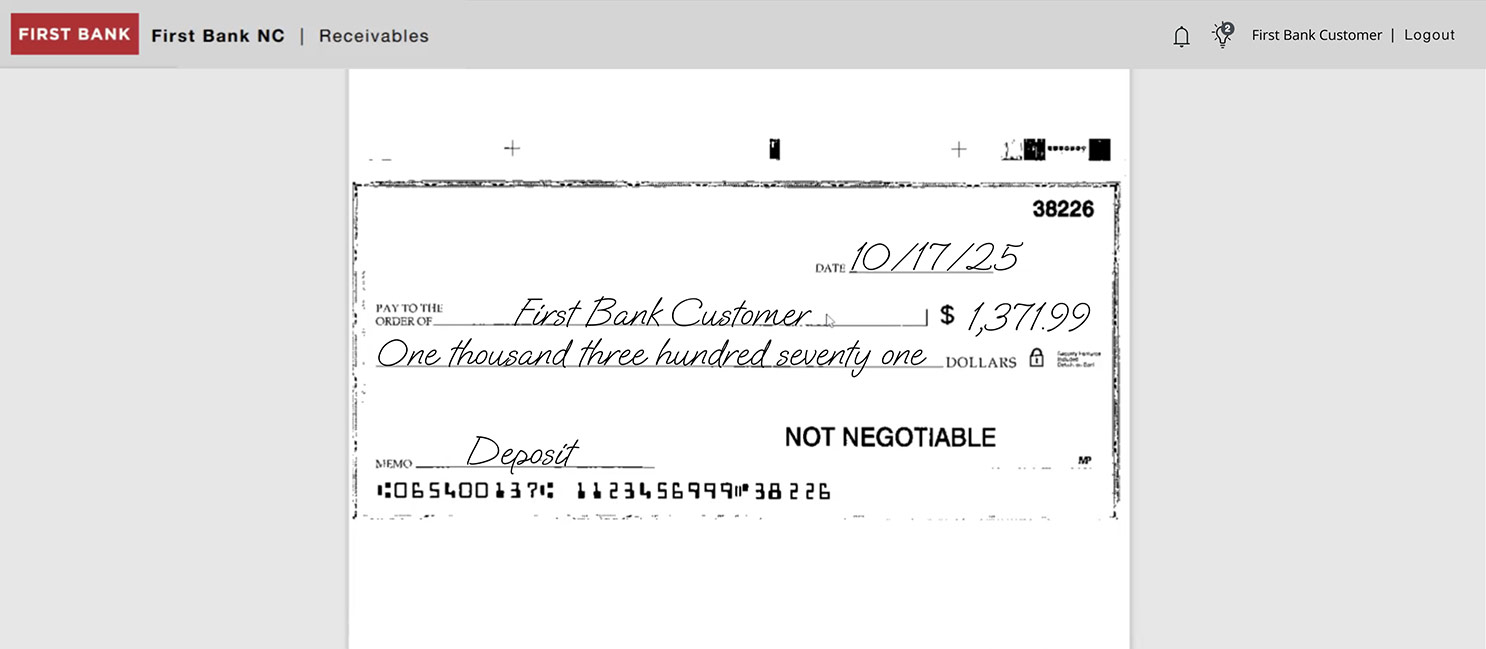
A number will appear over the bell icon in the top bar of your screen. Click on the bell and select “Download.” This will enable you to see the check.
Step 5:
View archive transactions.
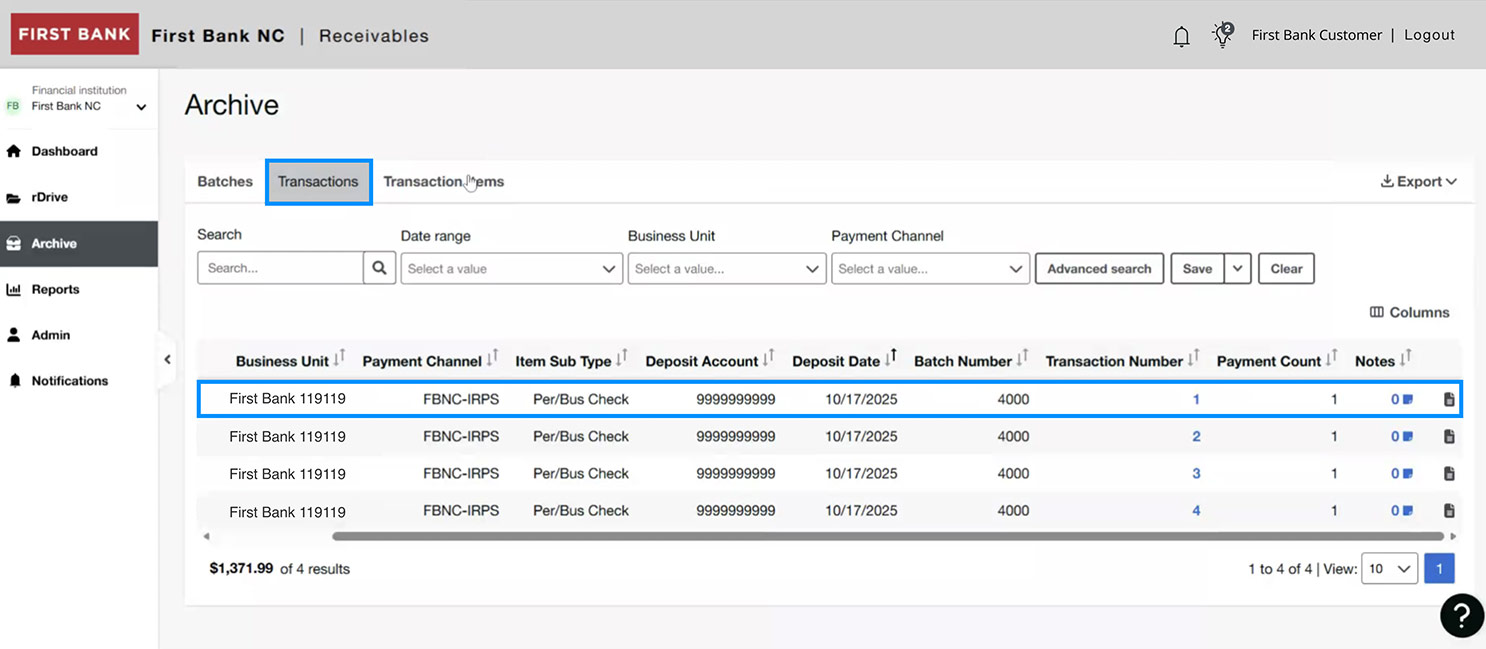
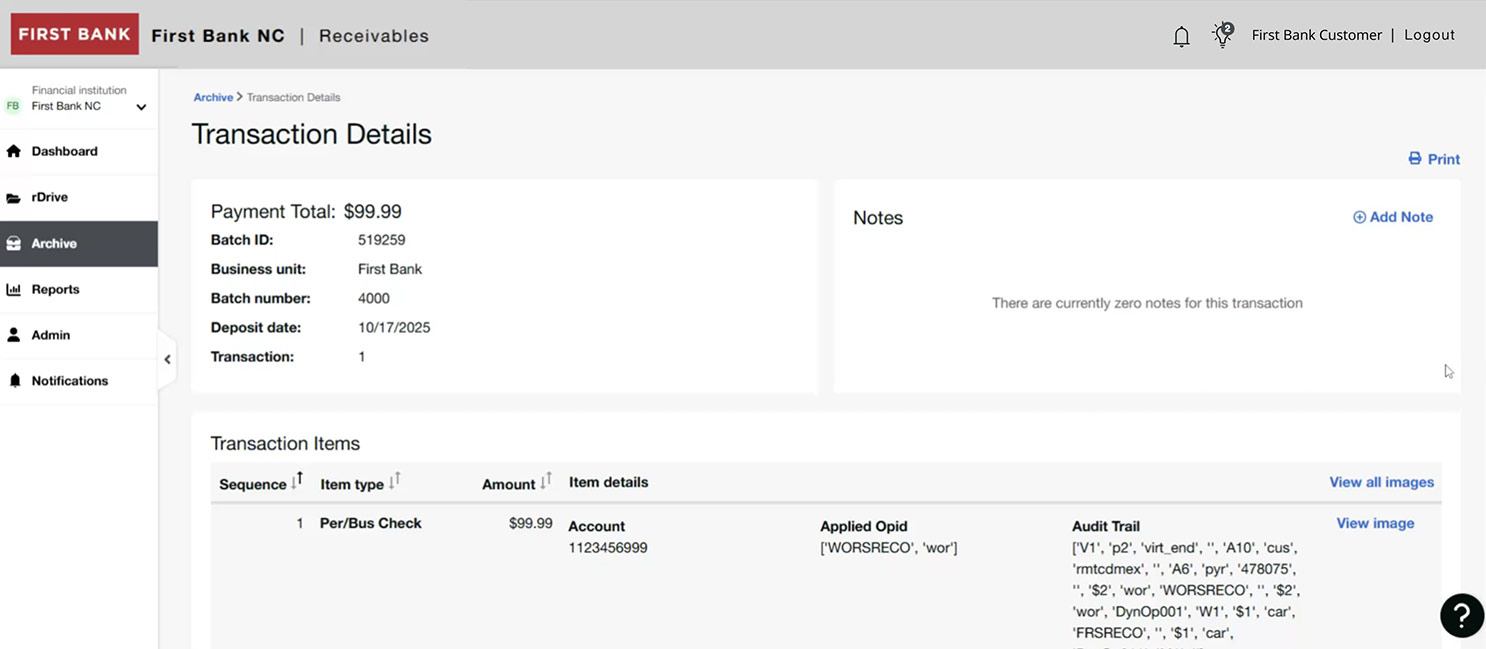
Click the “Transactions” tab at the top of the page. Select an item from the list below to see transaction details.
Have questions or unsure where to start?
Contact your Treasury Services rep, or one of our support teams below, for help or to schedule personalized demos.