Back
Scroll to top

Zelle® Request Demo

Digitally request money from friends, family and others you trust.

Step 1:
Open the mobile app and log in.

When you enrolled in First Bank digital banking, you created a Username and Password. Enter that information in the corresponding boxes and then tap the “Log In” button.

First Bank online banking screen showing the initial login screen.

Step 2:
Navigate to Zelle®.

Scroll to the “Transfer & Pay” section, then tap the button with the Zelle® logo.
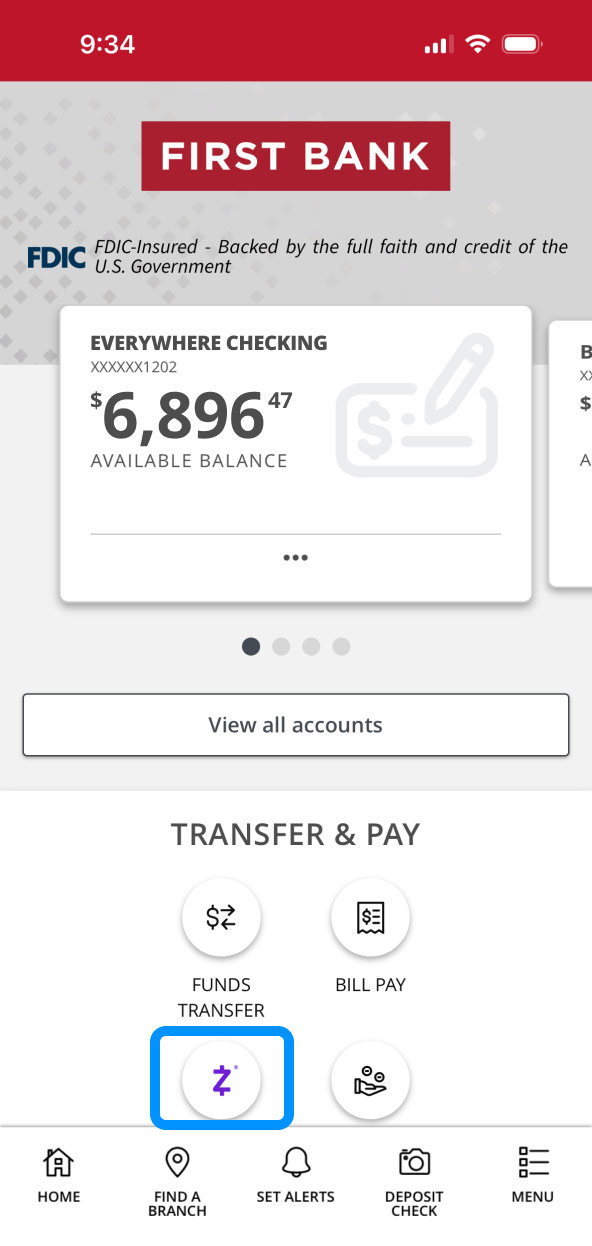
First Bank online banking screen highlighting the Zelle button.

Step 3:
Choose Request.

Select “Request” to request money from friends, family and people you trust.

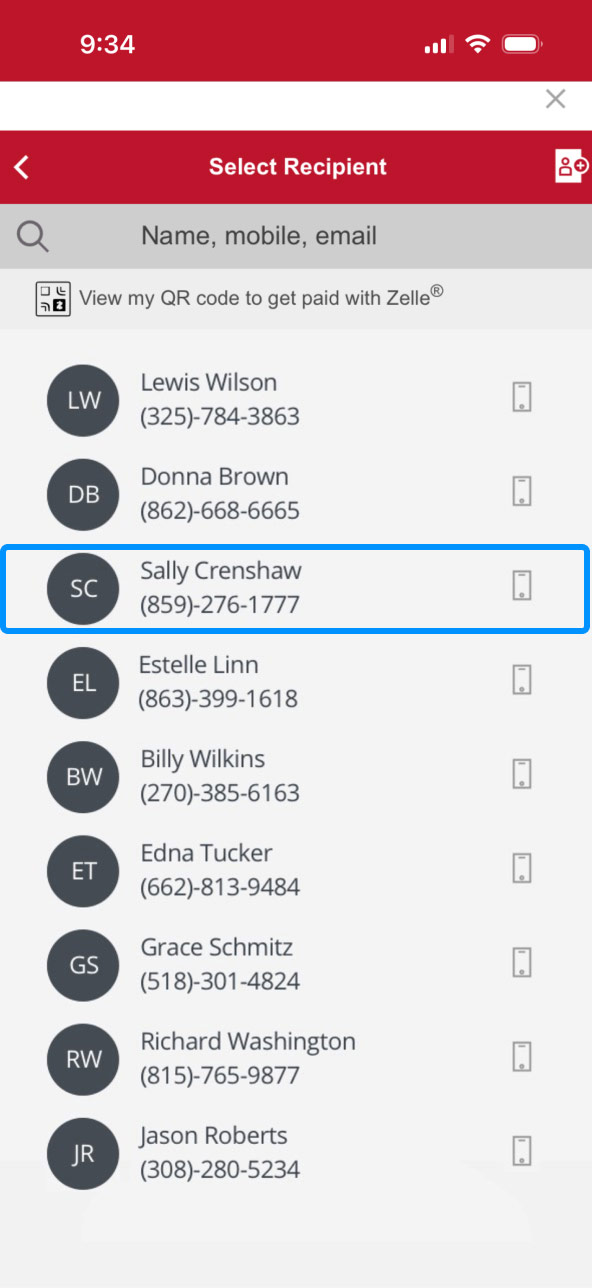
Tap on the name of the person you want to request funds from.
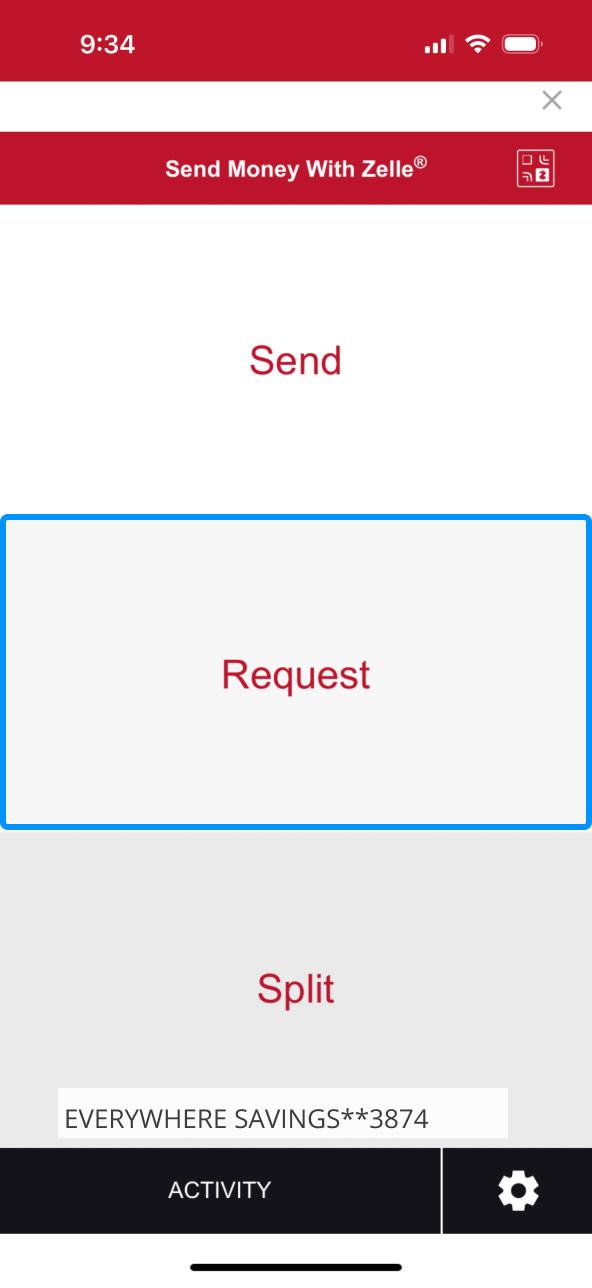
First Bank online banking screen highlighting the Request button inside Zelle. First Bank online banking screen showing the list of Zelle contacts.

Step 4:
Request funds.

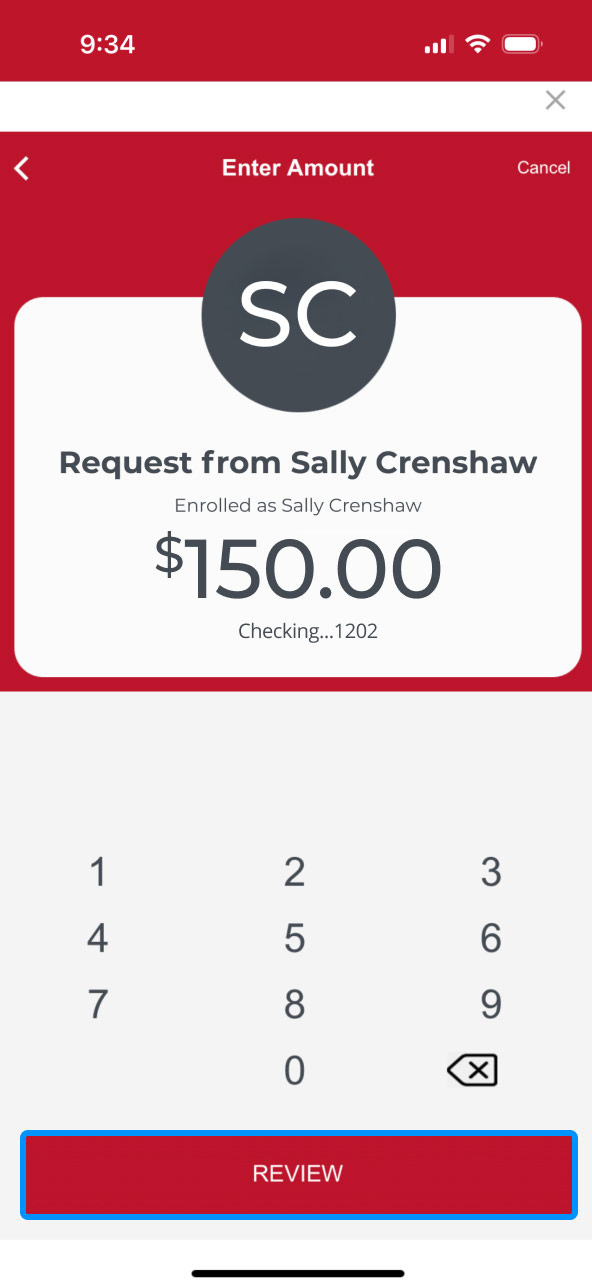
Enter the dollar amount your wish to request, then select the account you’d like the money deposited into.

Tap “Review” to confirm your request is accurate.

First Bank online banking screen highlighting where to enter the money amount to be requested. First Bank online banking screen highlighting the Review button.

Step 5:
Finalize request.

Once your request looks right, tap the button at the bottom that says “Request” with the amount your entered.

Your request will be sent to your contact. Tap “ALL DONE” to close out of Zelle®.
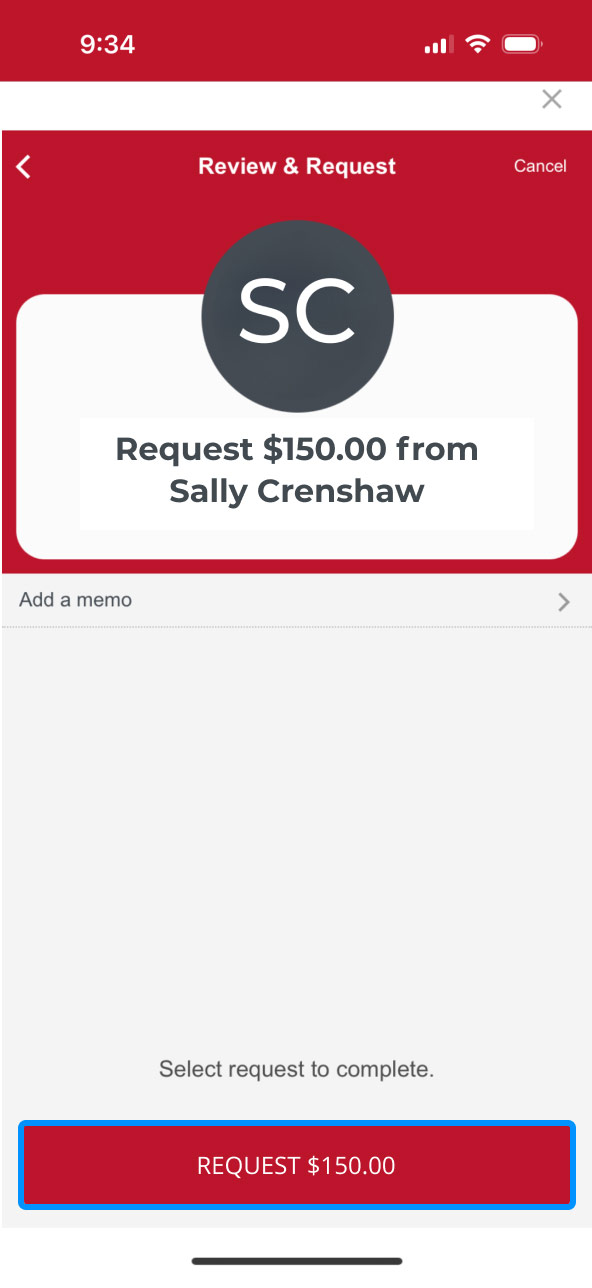
First Bank online banking screen showing the final Zelle request button with the dollar amount. First Bank online banking screen showing the final Zelle screen indicating that a funds request has been sent to a contact.

First Bank logo
Privacy Overview

This website uses cookies so that we can provide you with the best user experience possible. Cookie information is stored in your browser and performs functions such as recognizing you when you return to our website and helping our team to understand which sections of the website are the most popular and useful.