MyMoney Budget Demo
Create a budget to reach your financial goals.
Step 1:
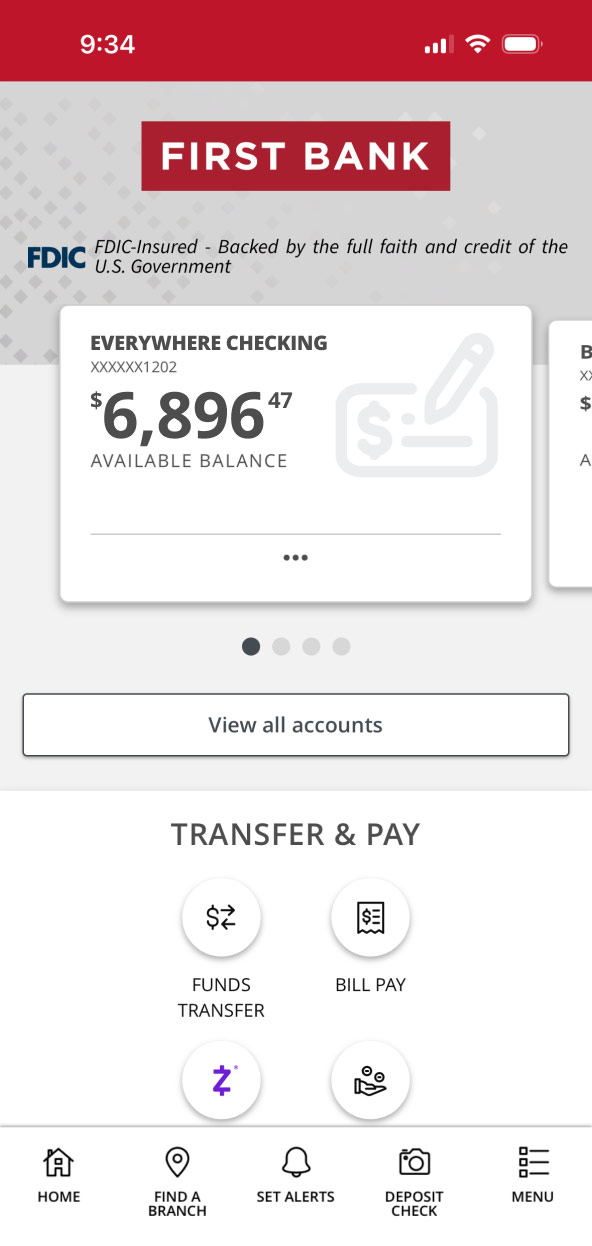
Open the mobile app and log in.
When you enrolled in First Bank digital banking, you created a Username and Password. Enter that information in the corresponding boxes and then tap the “Log In” button.

Step 2:
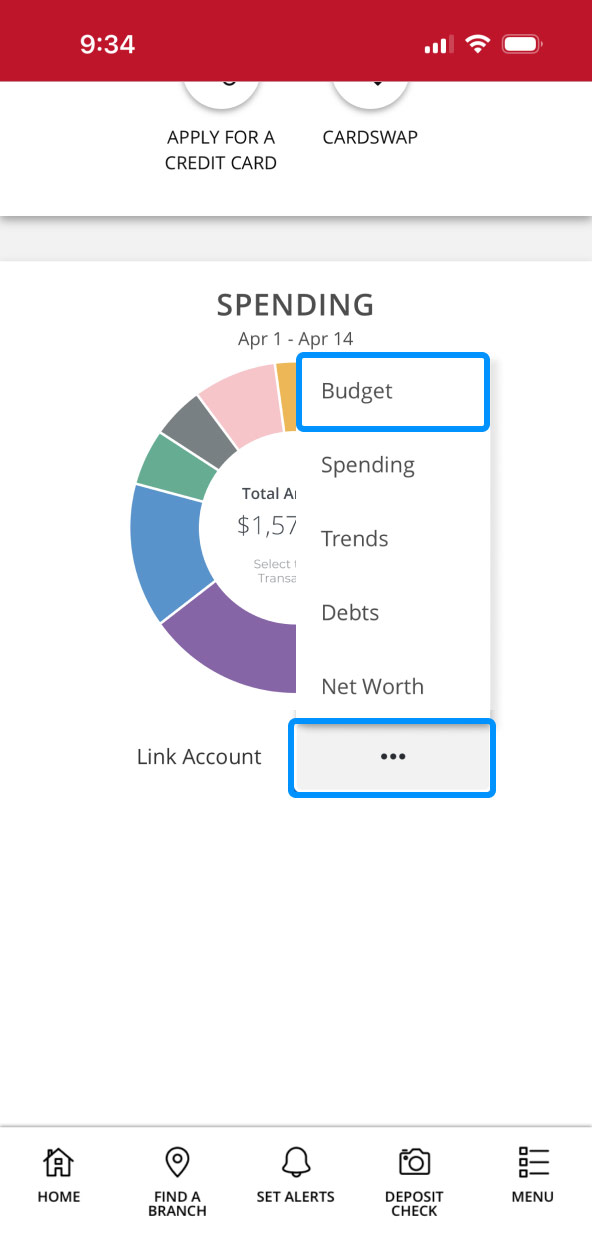
Navigate to Budget.
Scroll down to the Spending section, tap on the three dots, then tap “Budget.”
Step 3:
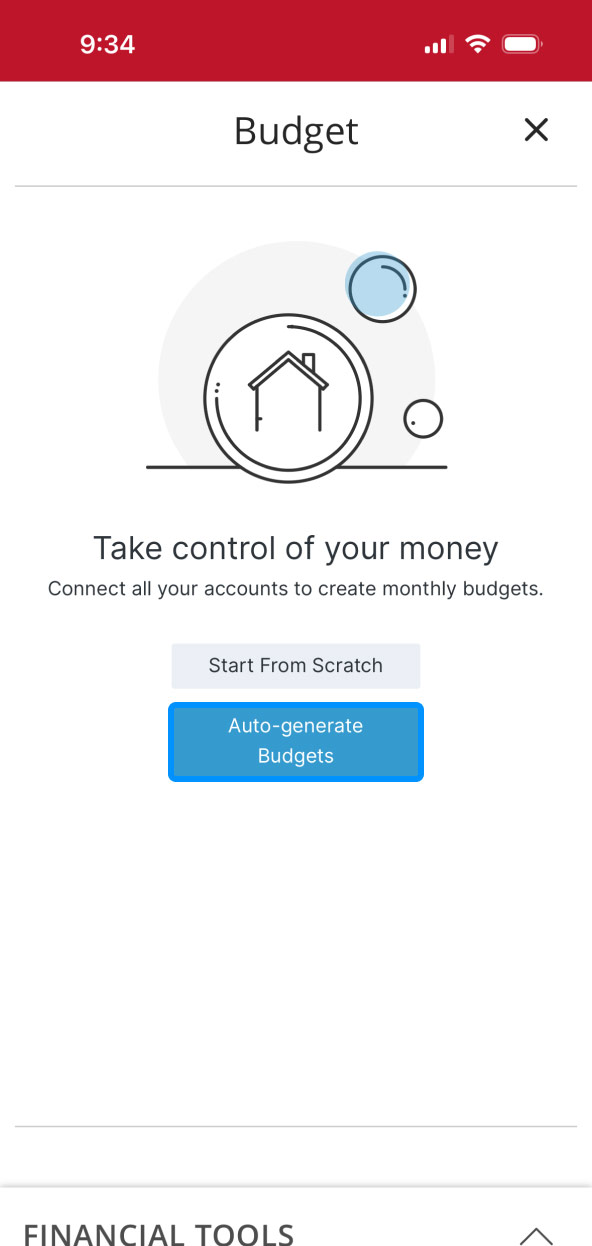
Create budget.
To build your monthly budget tap “Start From Scratch” to create your own, or select “Auto-generate Budgets” if you’d like some help.
Step 4:
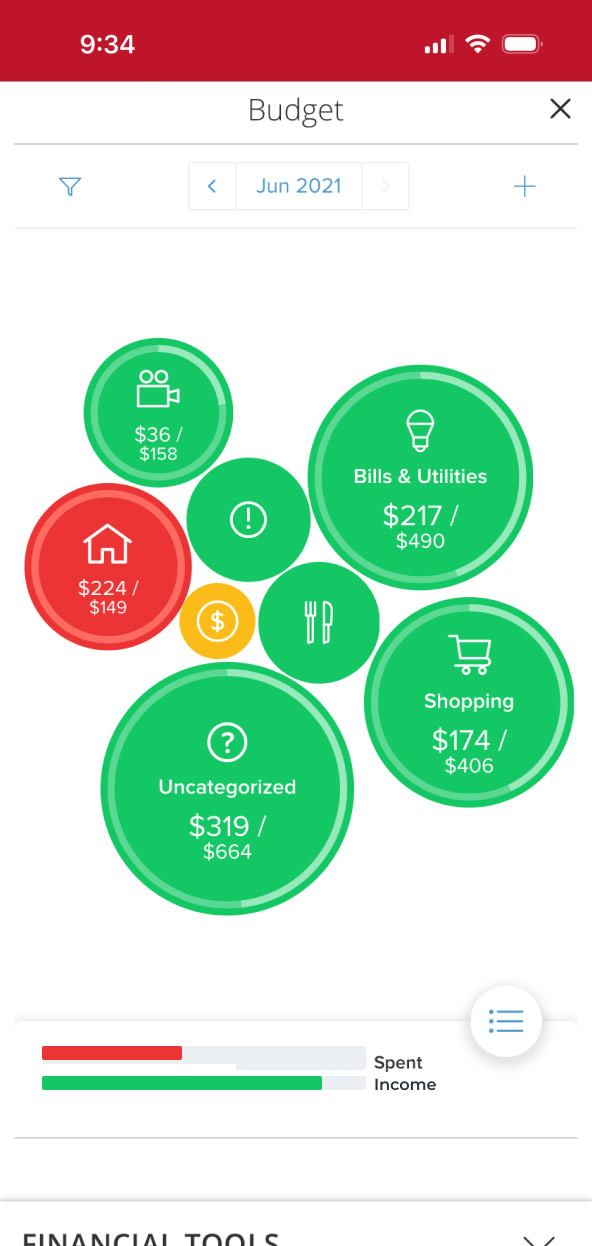
Review budget.
Tap on the spending categories for more information about each. You can use the default MyMoney categories or customize your own for expenses like dining out, gas, groceries, and more, to keep things organized in a way that works for you. These categories will help you track your spending as well as your progress on your budget each month.